
Being able to customise your colour for your fitness app adds an aesthetic to your customers that use your app everyday. With the Hype Burst Dashboard, you are able to have complete freedom in customising colour that will change the end look of your fitness app.
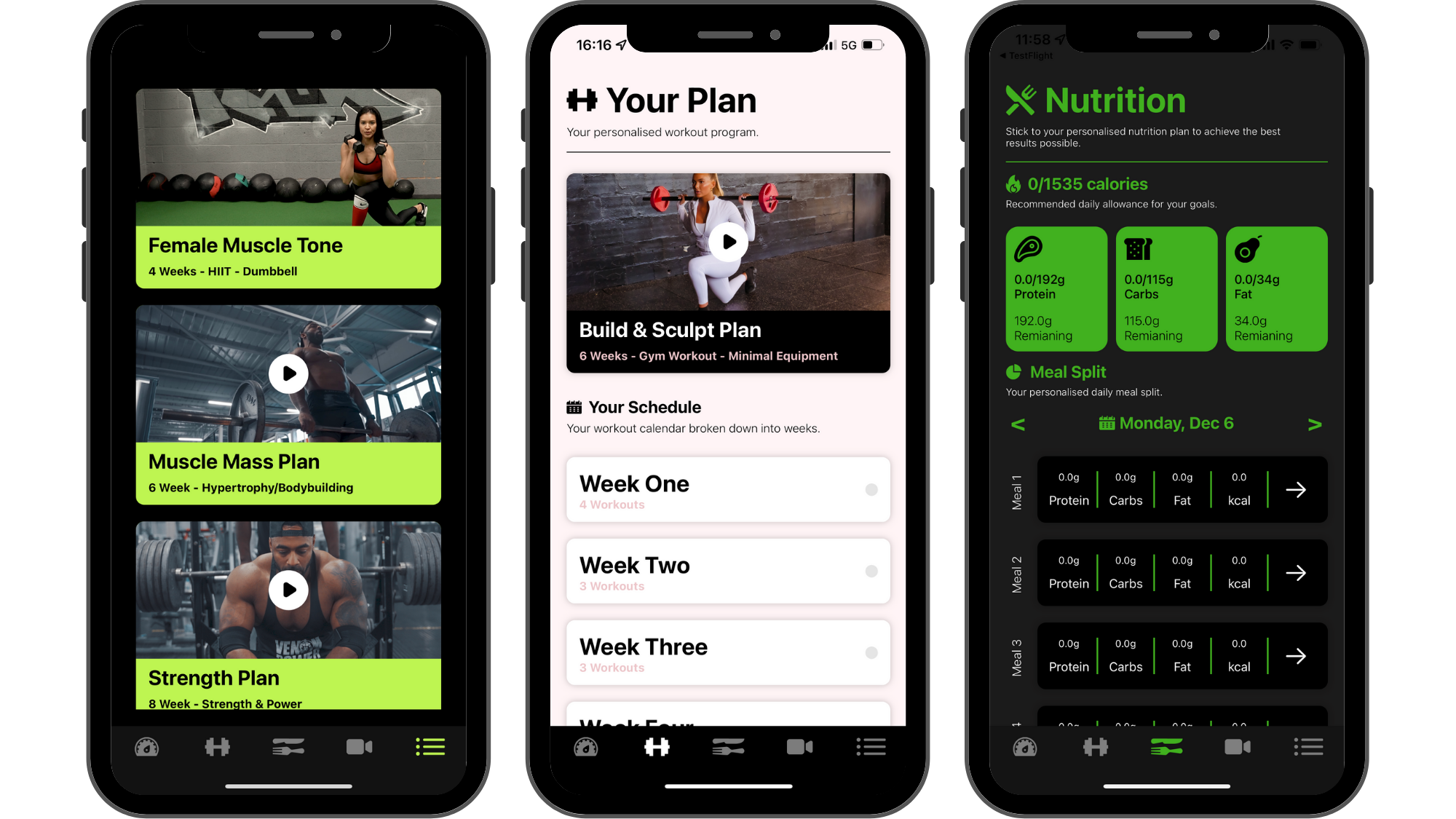
In the image below, you are able to see 3 different fitness apps, with 3 different looks.
What does each selection refer to?
In the diagram below, you can see an in-app view of a screen and labels coming off for each part. These labels refer to each part of the colour customisation section in the Hype Burst Dashboard so you have a clear picture of what each colour selection will do to the in-app view of your fitness app.
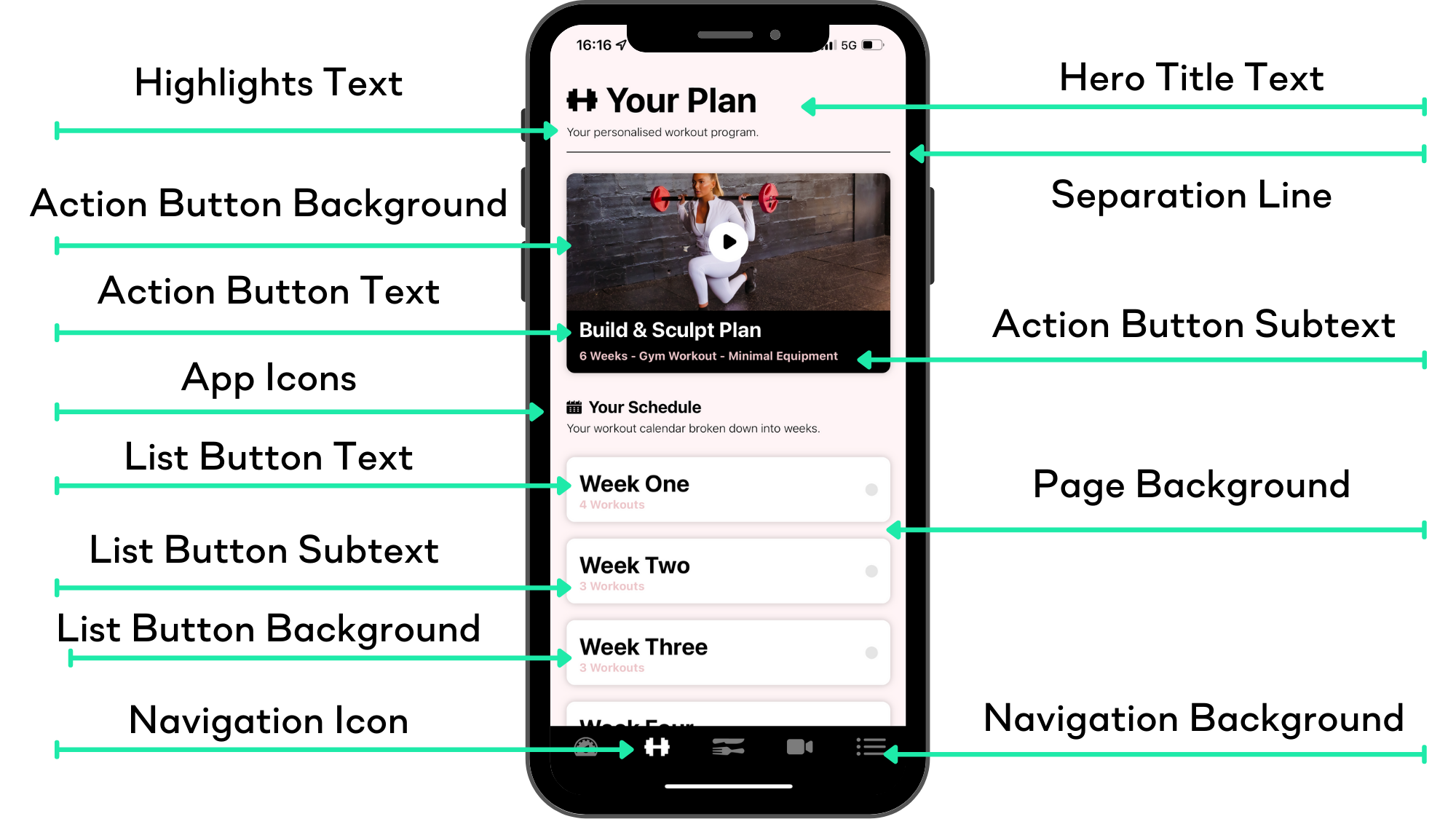
For more information of the individual elements in the diagram above, please refer to the appropriate guides below:
Page Background & App Icon Colours
Steps in customising your app with colours
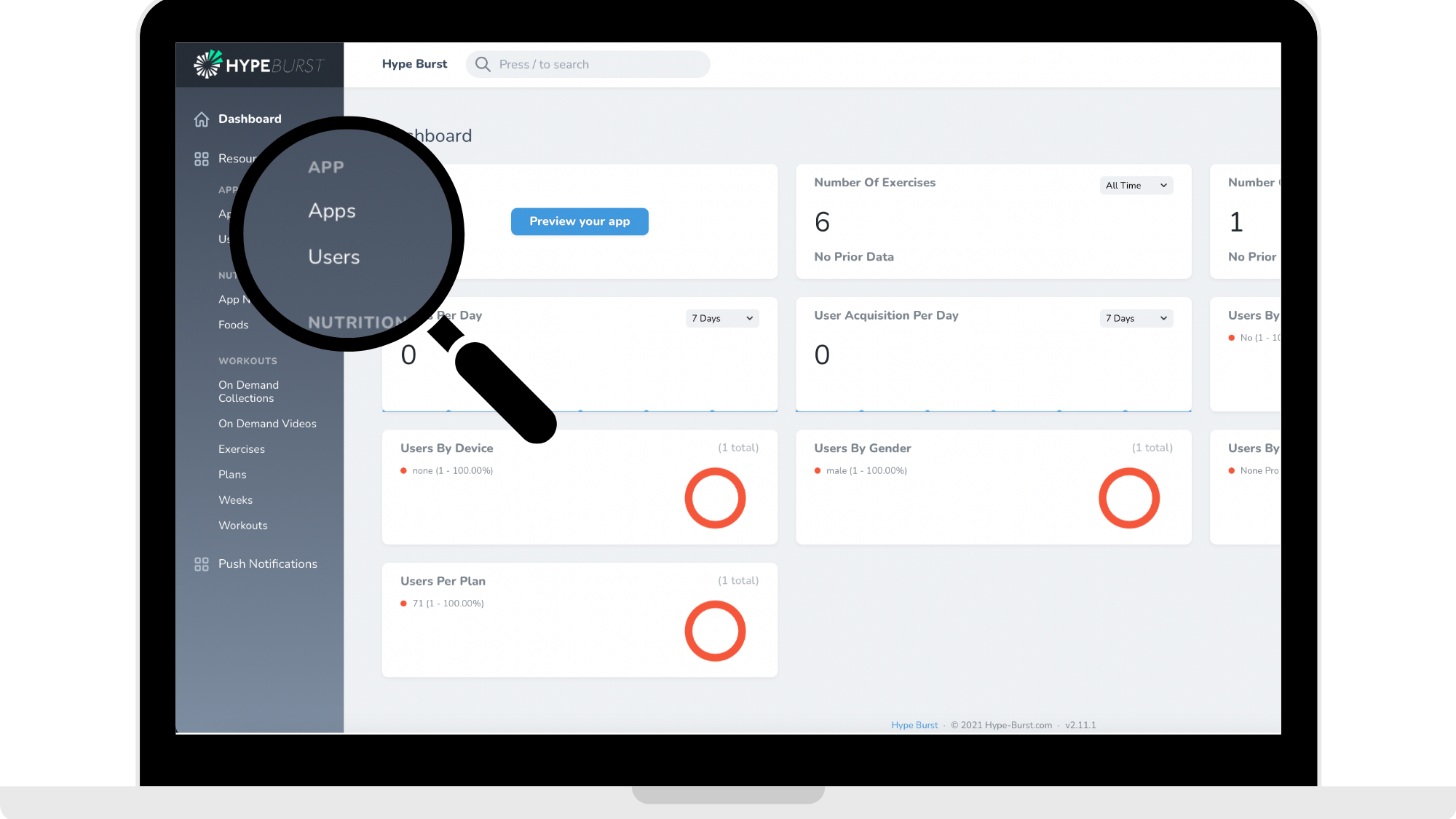
Step 1: Click the "App" section in the menu on your Dashboard
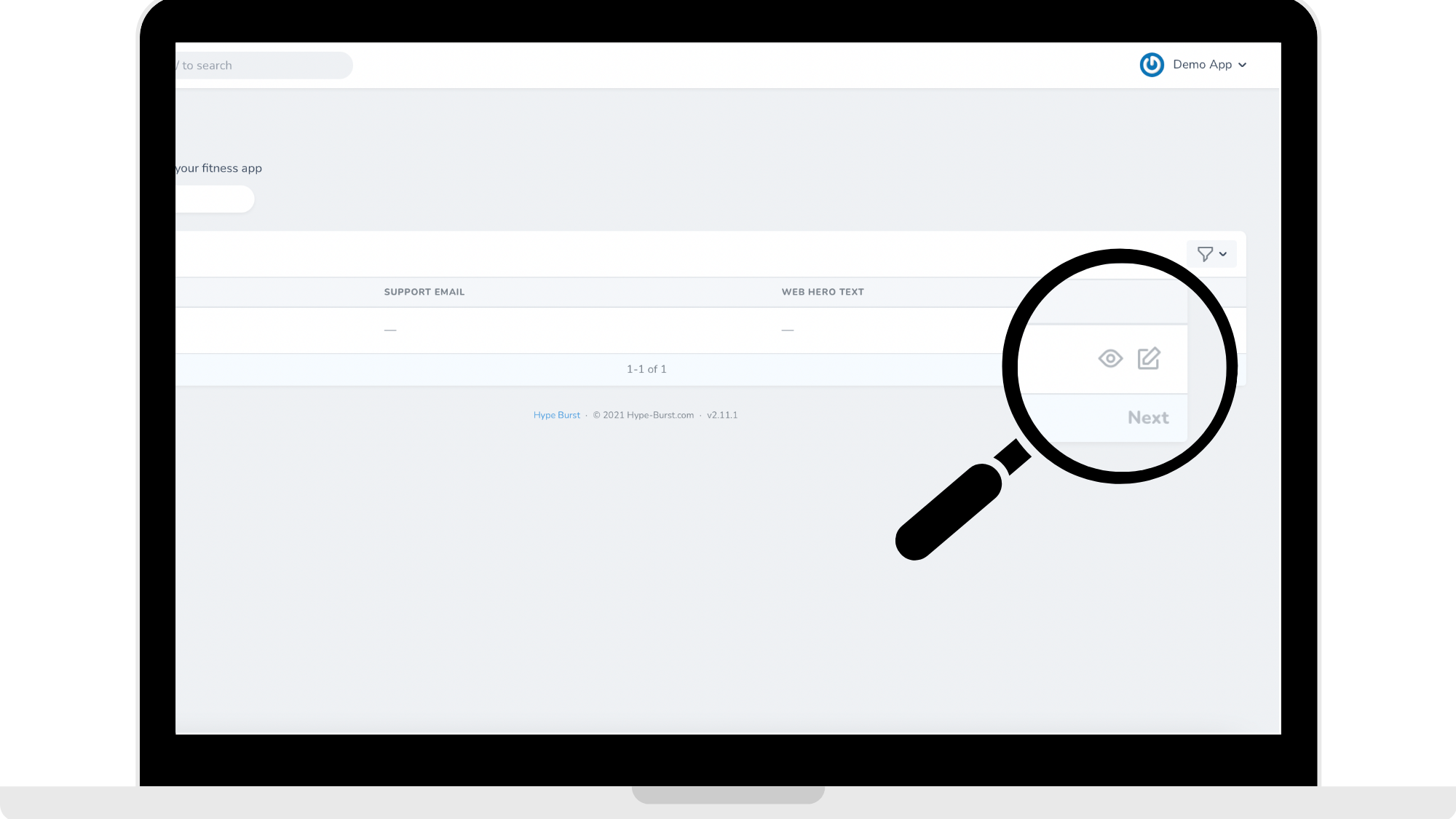
Step 2: Click to edit your app
Step 3: Click the "Colour Customisation" section in the menu
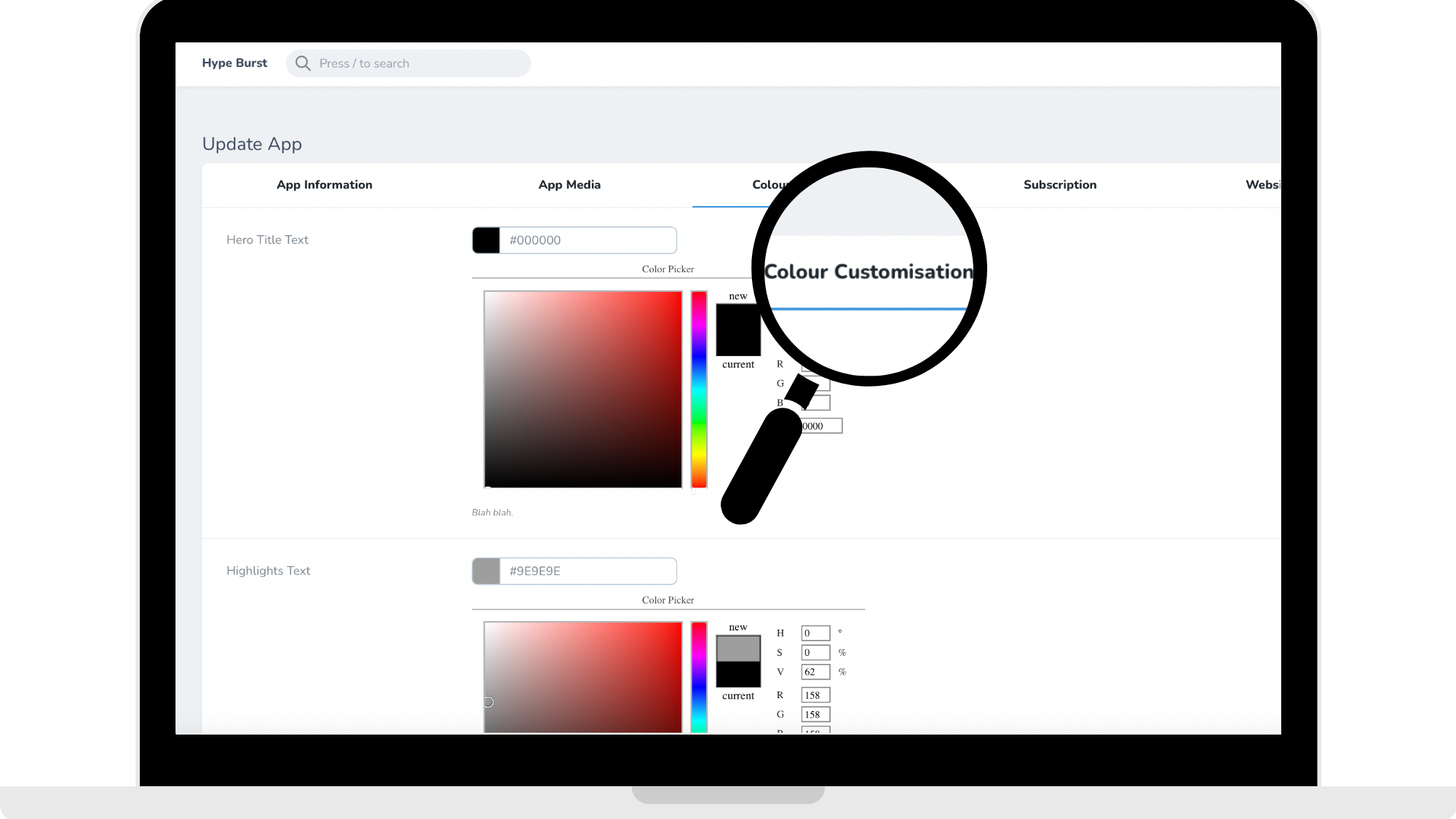
Step 4: Go through the page and select the colours for each part of the app
The picture below refers to the final updated version of what a colour customisation page should look like. You will fill yours out to get to this stage.
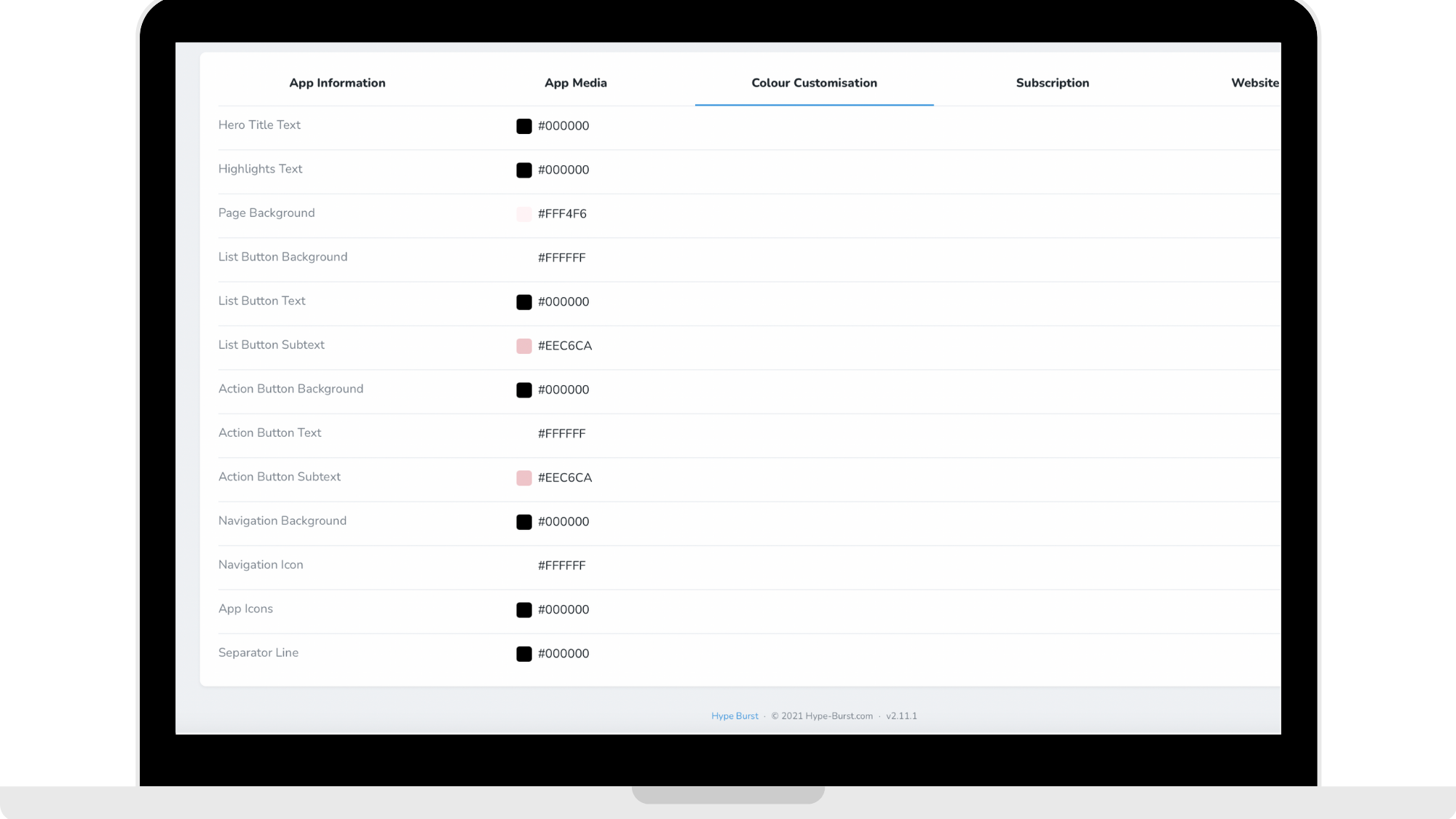
BONUS TIP: HAVE YOUR COLOUR PALETTE IN MIND BEFOREHAND TO MAKE THE PROCESS FASTER.
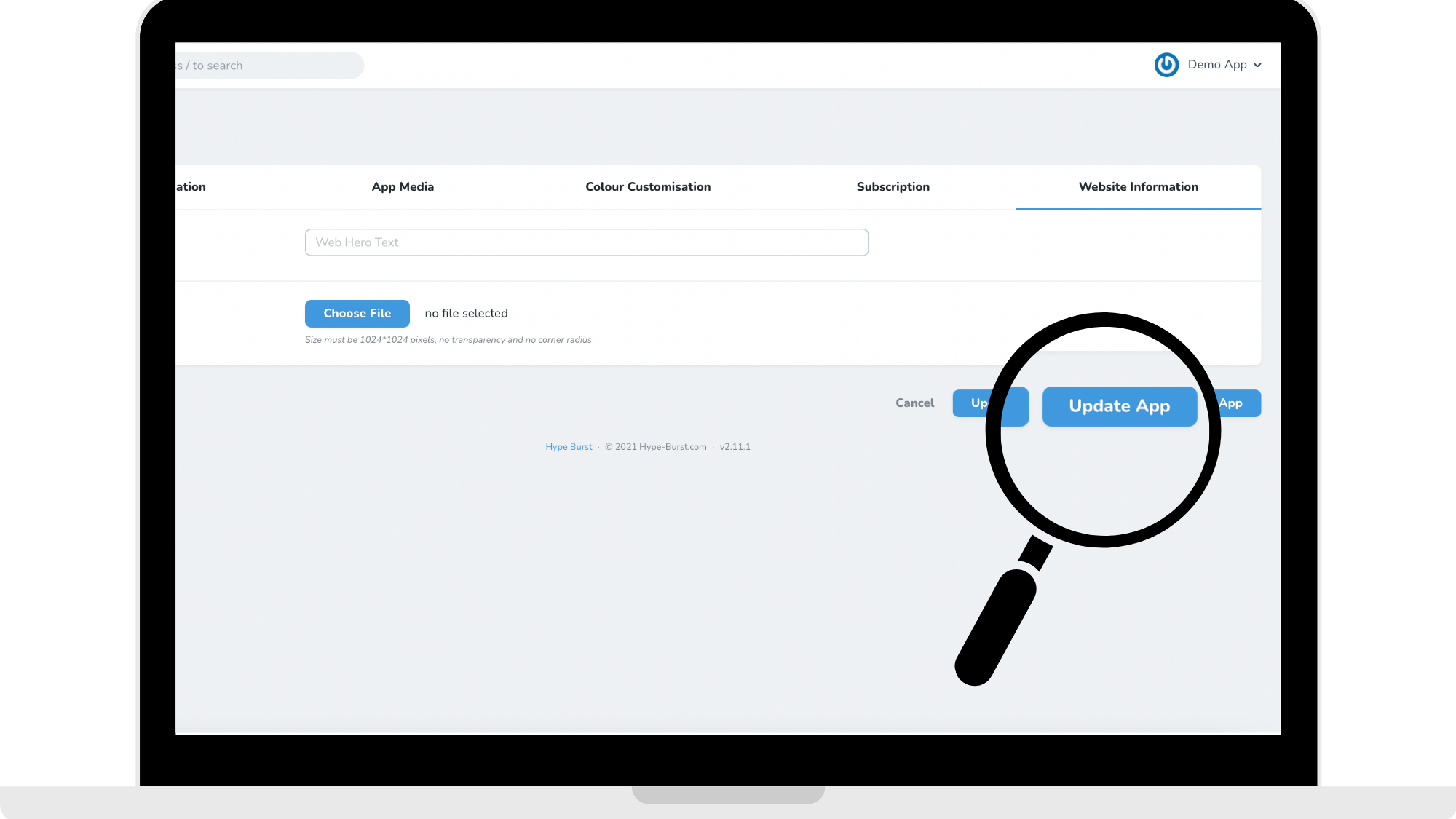
Step 5: Click "Update App" in the bottom right corner of the page
How to get started?
Log into your dashboard at https://account.hype-burst.com/admin/login and go through the 5 simple steps in customising your app with colour!
Comments
0 comments
Please sign in to leave a comment.