
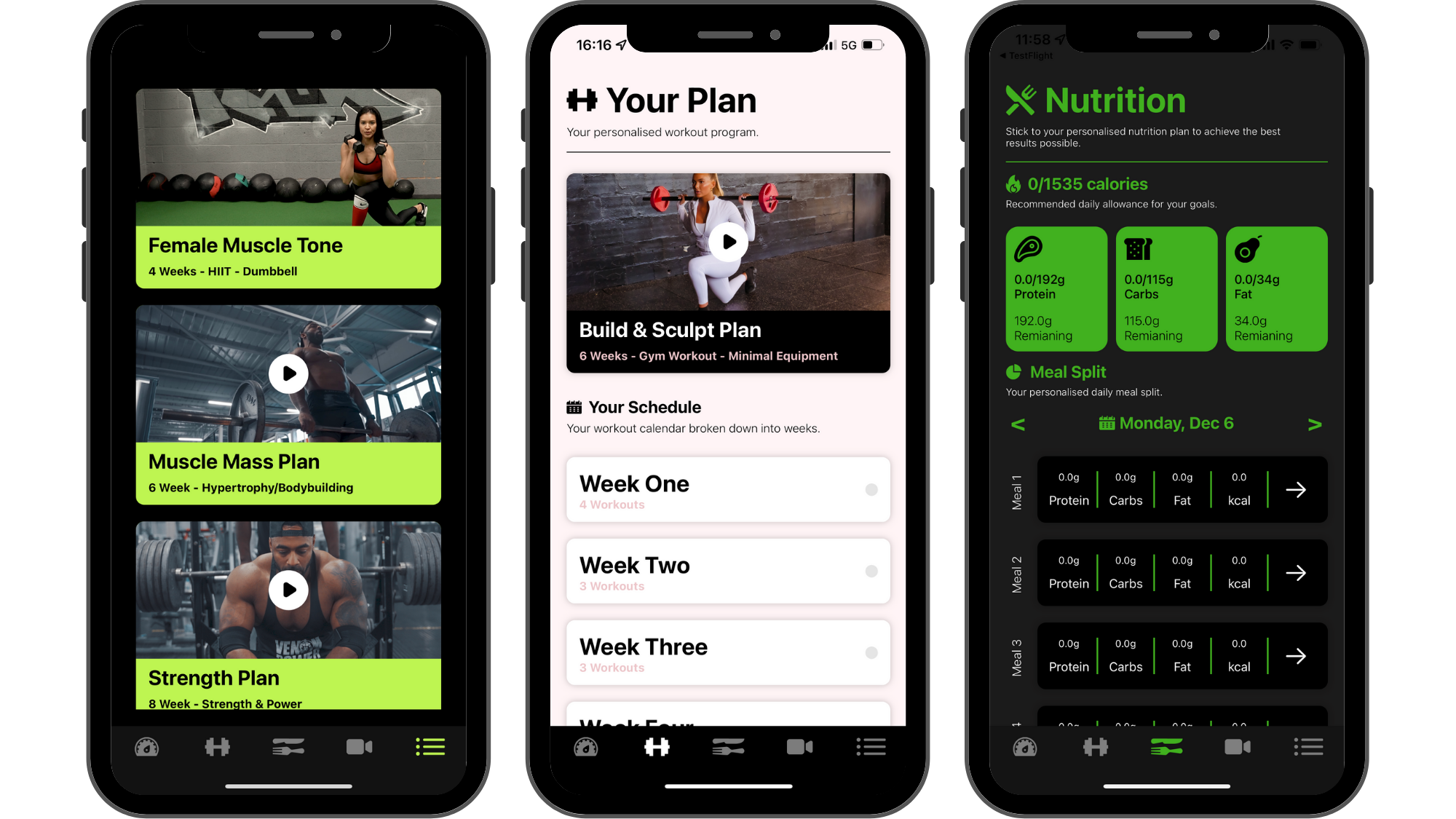
You can customise all of the colours within your app to match your brand. With the Hype Burst Dashboard, you have complete freedom in customising colour that will change the end look of your fitness app.
In the image below, you are able to see 3 different fitness apps, with 3 different looks.
To read the article on the full overview of the Colour Customisation, click here.
What are Hero Text and Highlight Text?
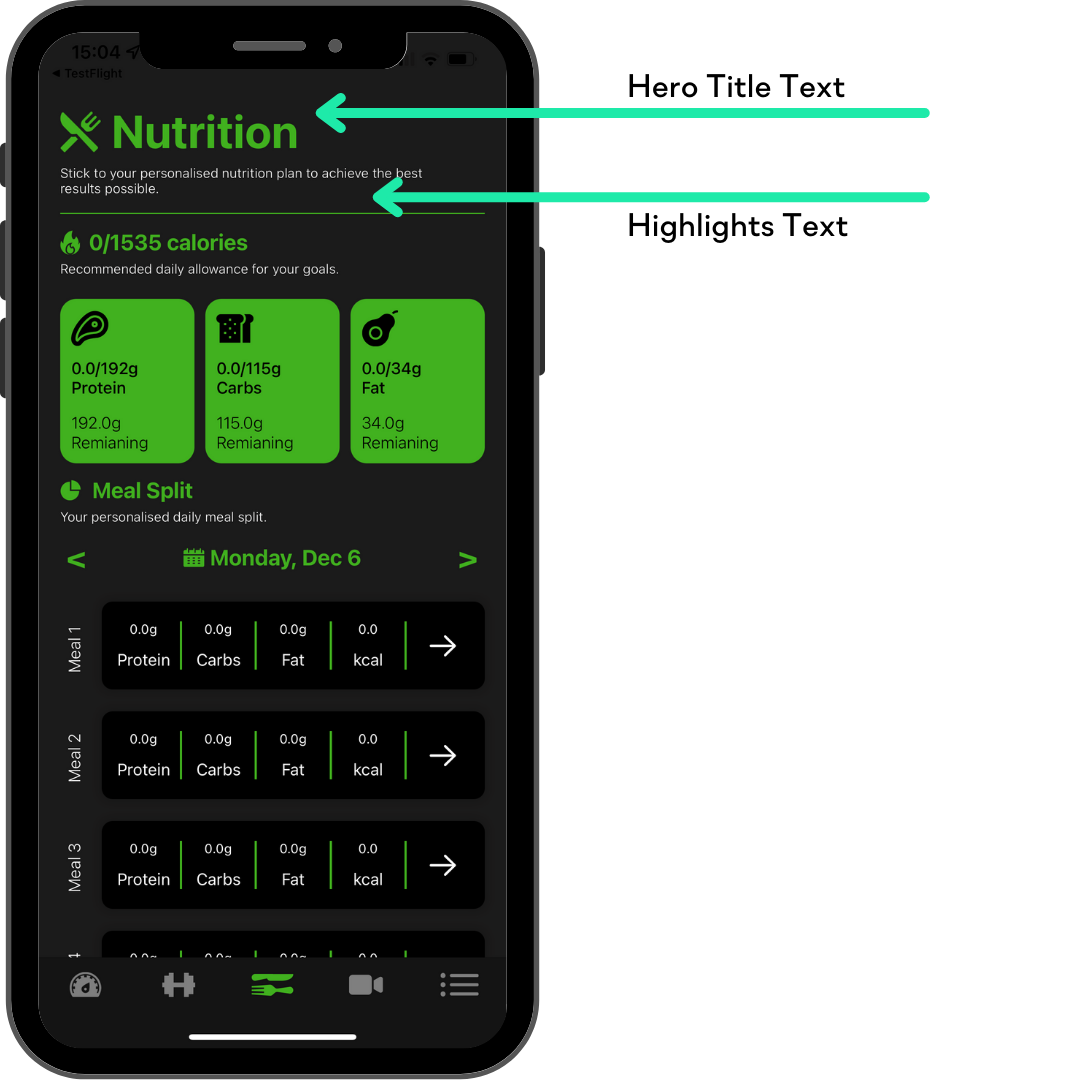
Hero Title Text
It is labelling the specific page. In the reference picture above, the Hero Title Text is 'Nutrition'. The purpose of Hero Title Text is defining what section the user is in within the app.
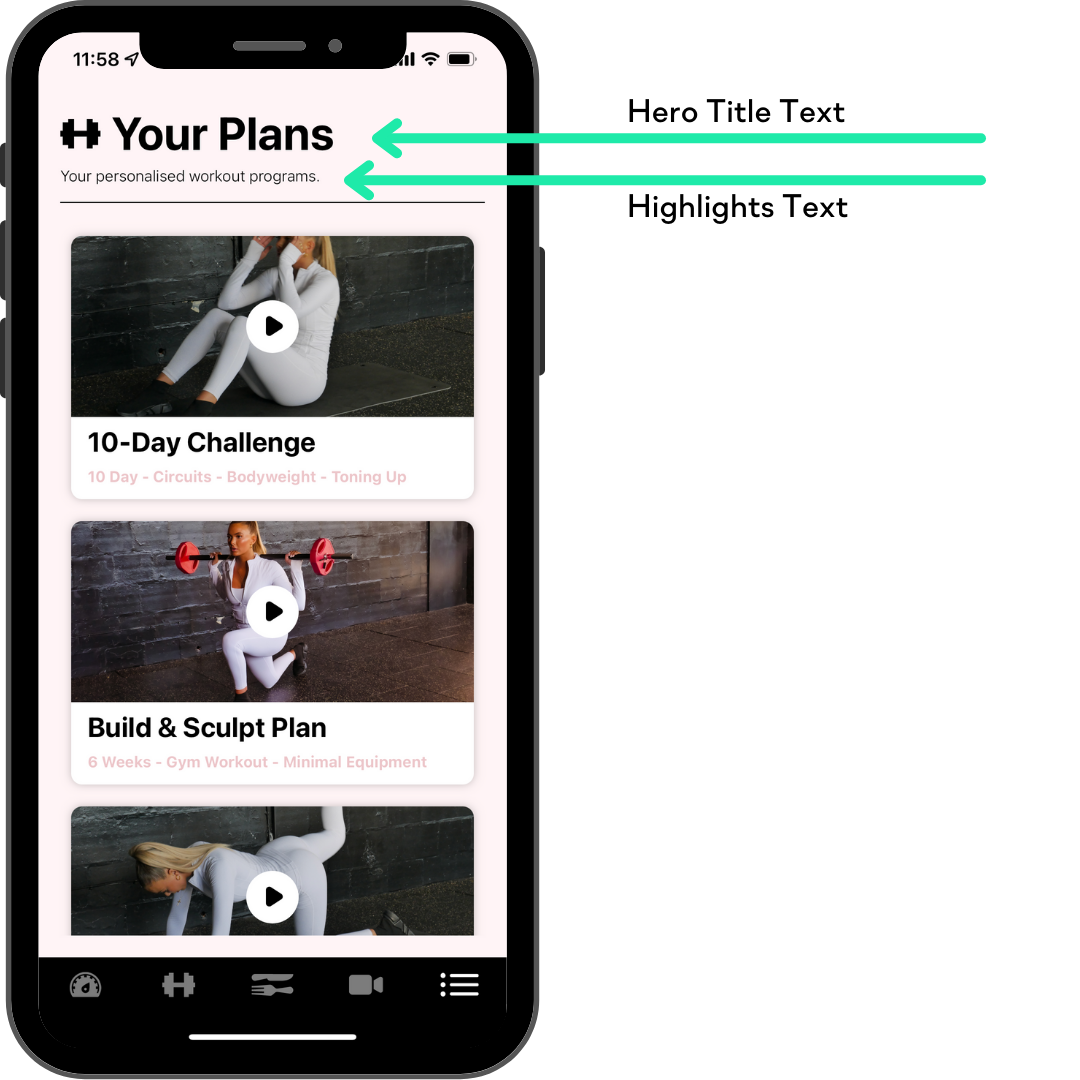
Hero Title Subtext
The purpose of Hero Title Subtext is giving a little more information than the main text gives. In the reference image below, the subtext is 'Your personalised workout programs'. This is giving more information into the Plans section explaining that there are multiple programs to choose from.
Steps in editing your 'Hero' and 'Highlights' text
Step 1: Click the "App" section in the menu on your Dashboard
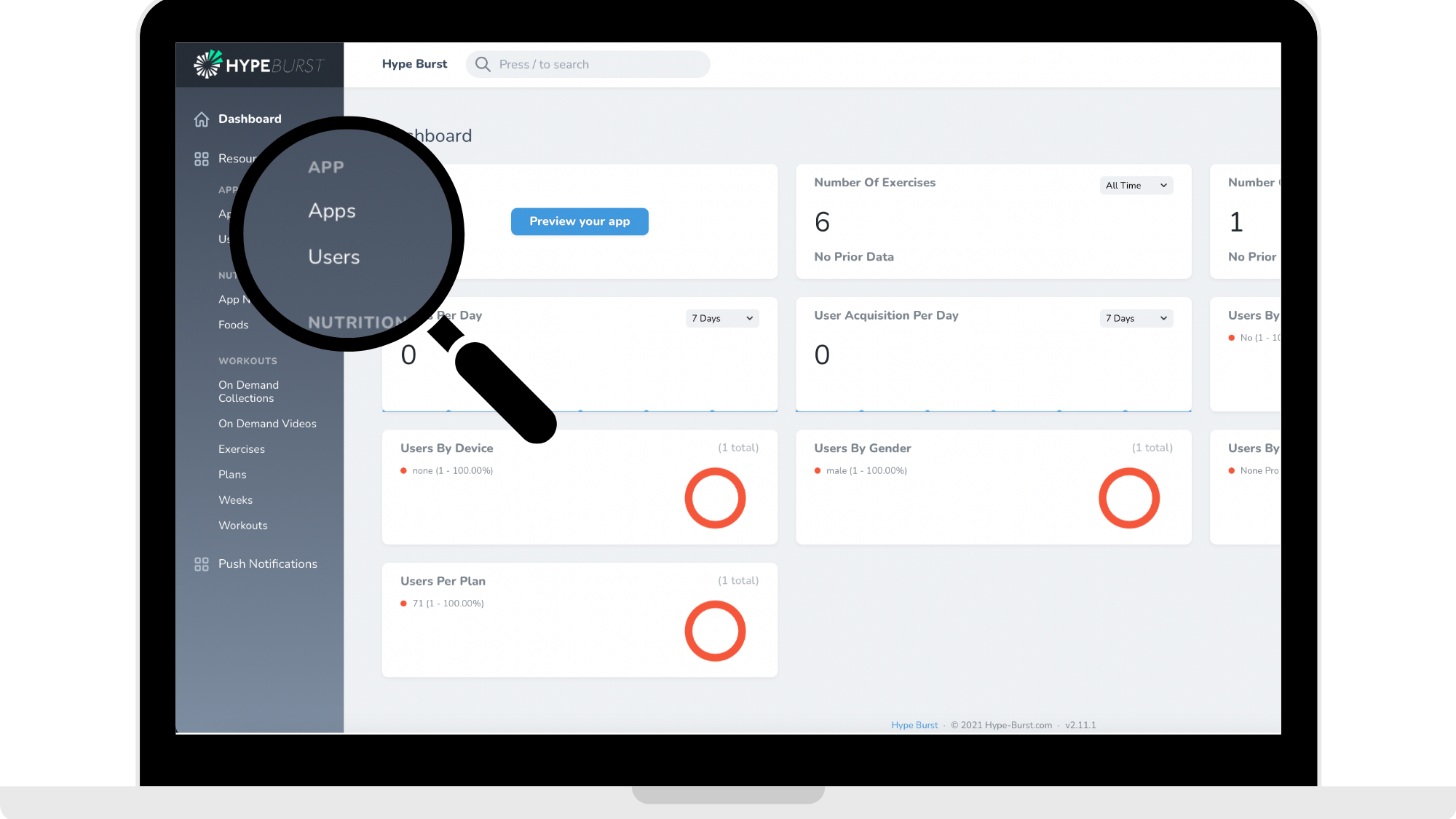
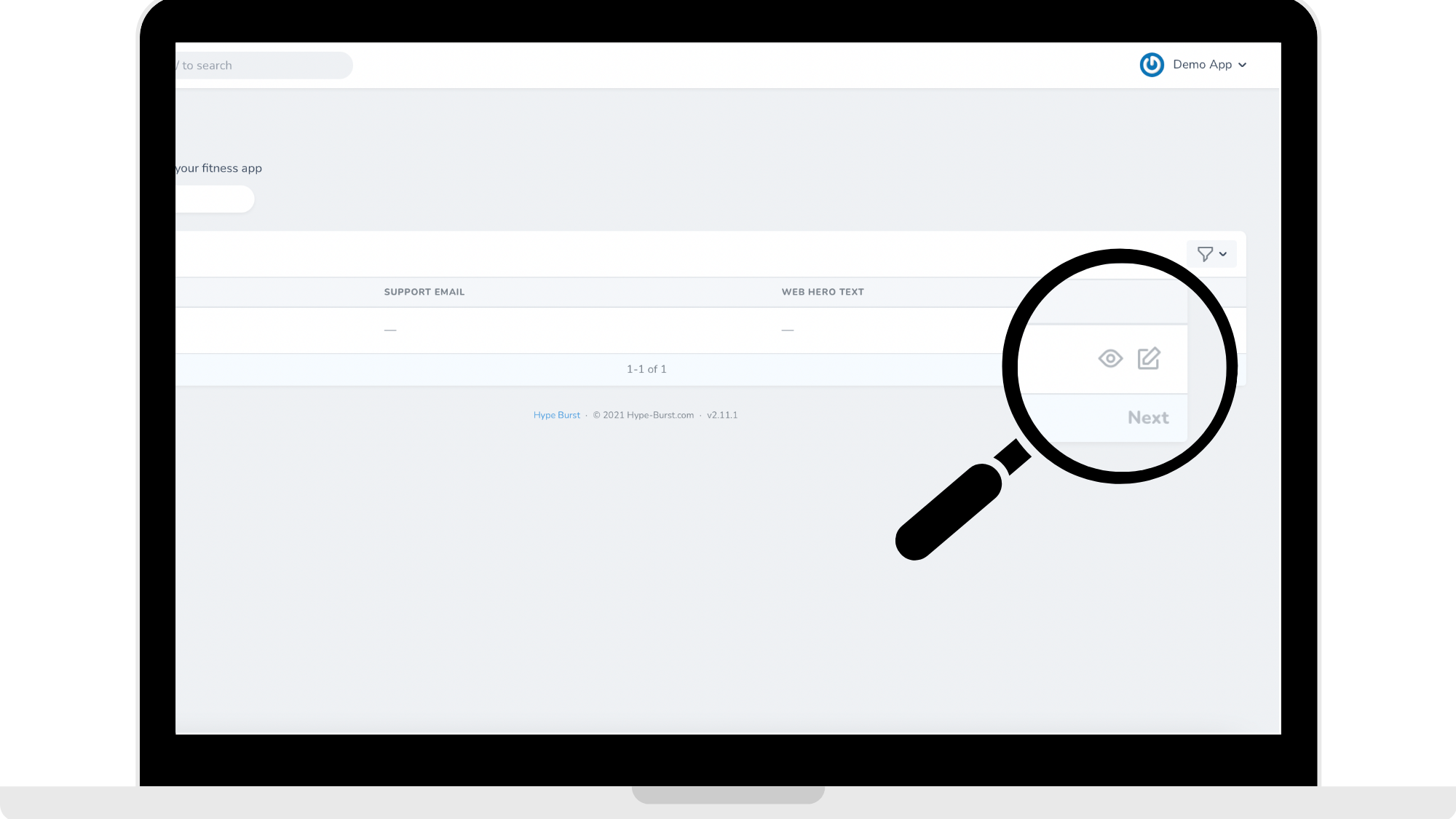
Step 2: Click to edit your app
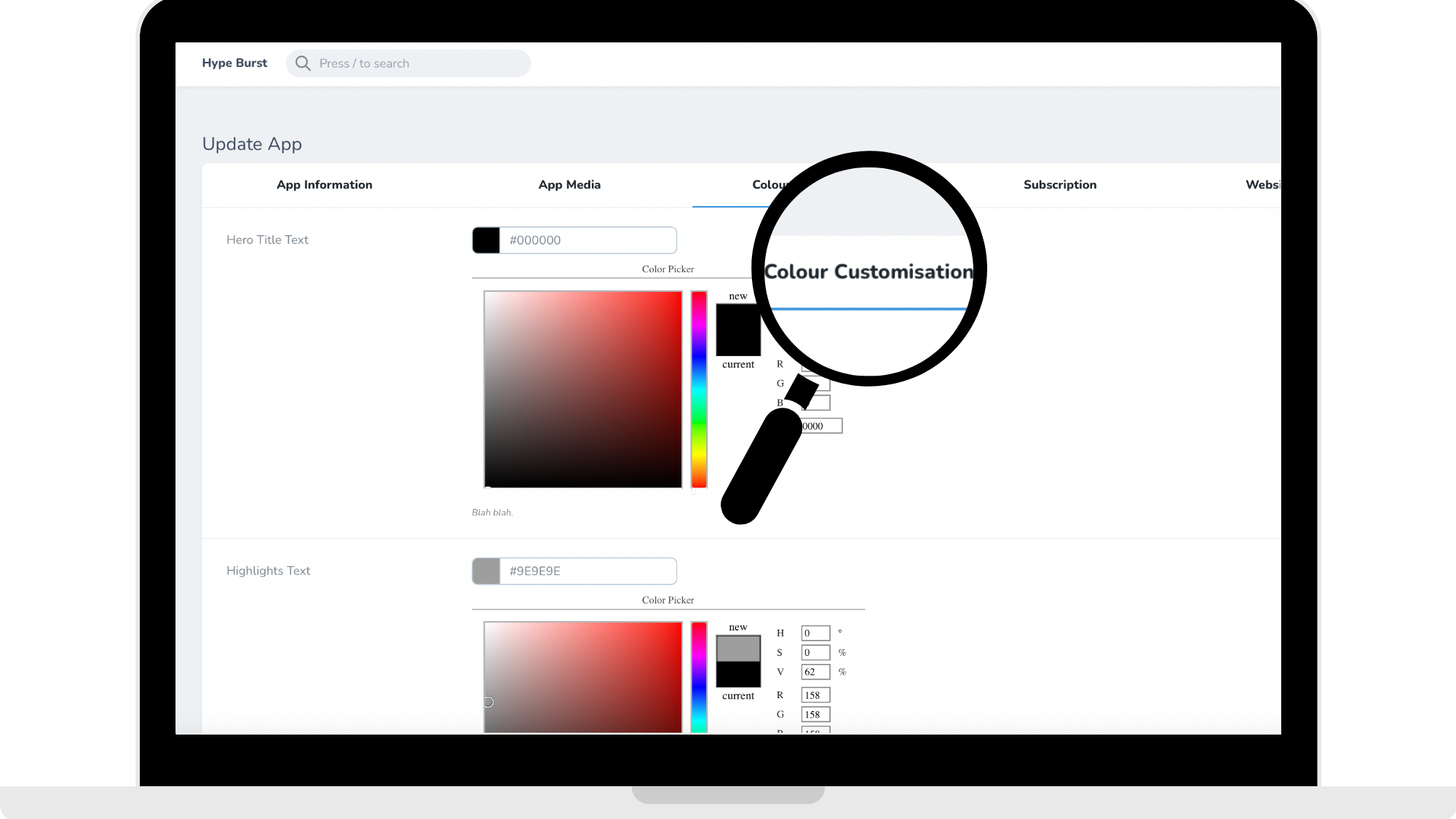
Step 3: Click the "Colour Customisation" section in the menu
Step 4: Select the colours for your 'Hero Title Text' and 'Highlights Text'
Scroll down to where you find 'Hero Title Text' and 'Highlights Text'. Enter the HEX Code for your 'Hero Title Text' and 'Highlights Text'. You can also choose from the colour palette.
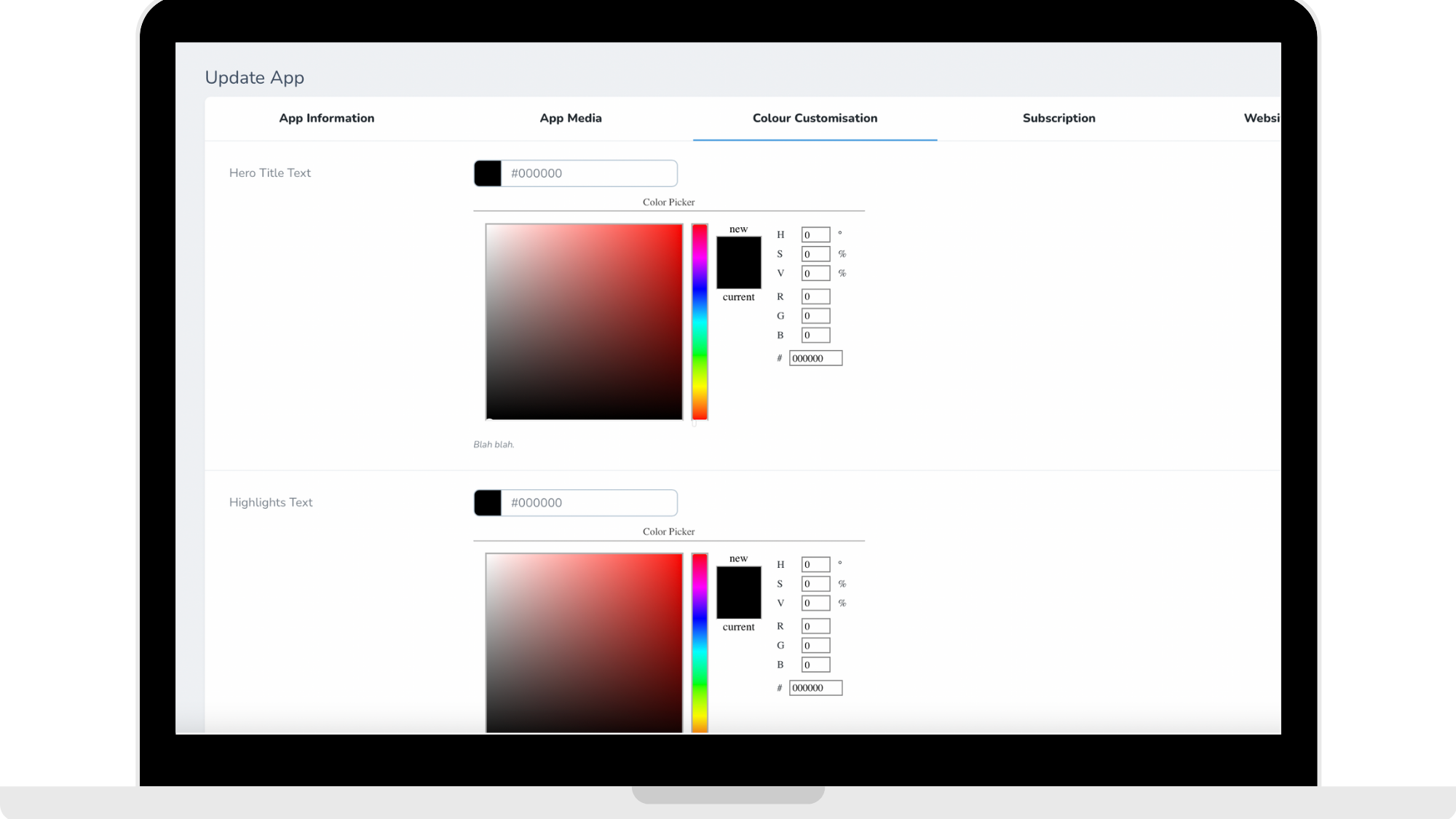
BONUS TIP: HAVE YOUR COLOUR PALETTE IN MIND BEFOREHAND TO MAKE THE PROCESS FASTER.
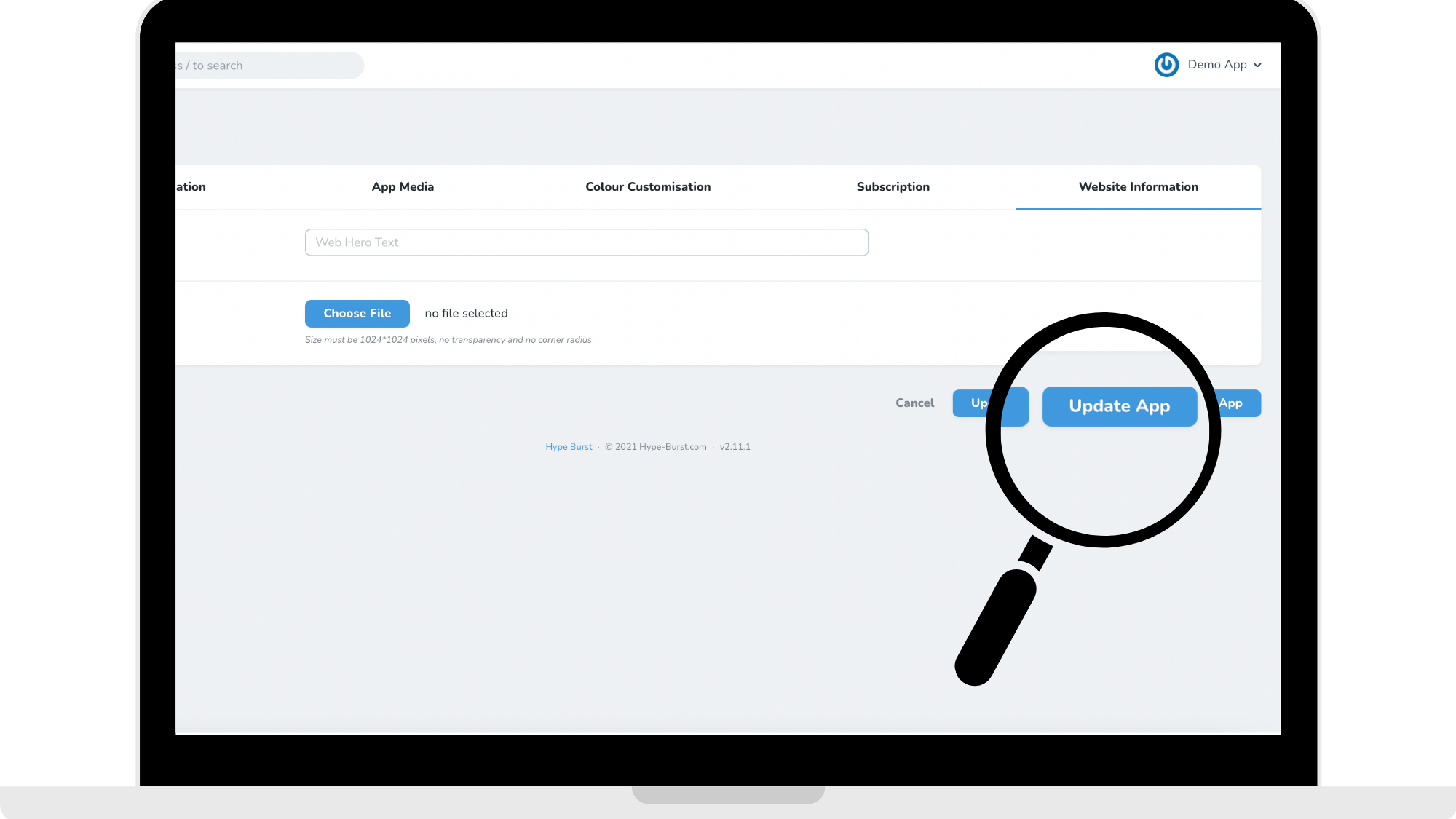
Step 5: Click "Update App" in the bottom right corner of the page
Once you have entered in the colours you want to use, you can click 'Update App'. Please note you can go back and edit the colours at any time.
You are able to preview how the colours will look in your app. Read the guide about testing your app here: XYZ.
How to get started?
Log into your dashboard at https://account.hype-burst.com/admin/login and go through the steps in customising your Hero Text & Highlights Text.
To read the article on the full overview of the Colour Customisation and all the fields, click here.
Comments
0 comments
Please sign in to leave a comment.