
To publish an app on the Apple App Store, you must create an Apple Developer account. Membership to the Developer Program is £79 or $99/year and we recommend setting this to auto-renew.
You have the option to enrol to the Developer Program as an Individual or Company. Hype Burst are able to support both Developer account types, but the process for setting up is different.
If you have not yet set up your Apple Developer account, click here: https://hypeburst.zendesk.com/hc/en-gb/articles/4416133086353-Apple-Developer-Account-Individual-Vs-Organisation
How to change your address
Once you have made your Apple Developer account, you are still able to change your address. Please follow the steps below in changing your address through your Apple Developer account.
Step 1: Head to your Apple Developer Account
Head to https://developer.apple.com and log in using your Apple Developer email and password.
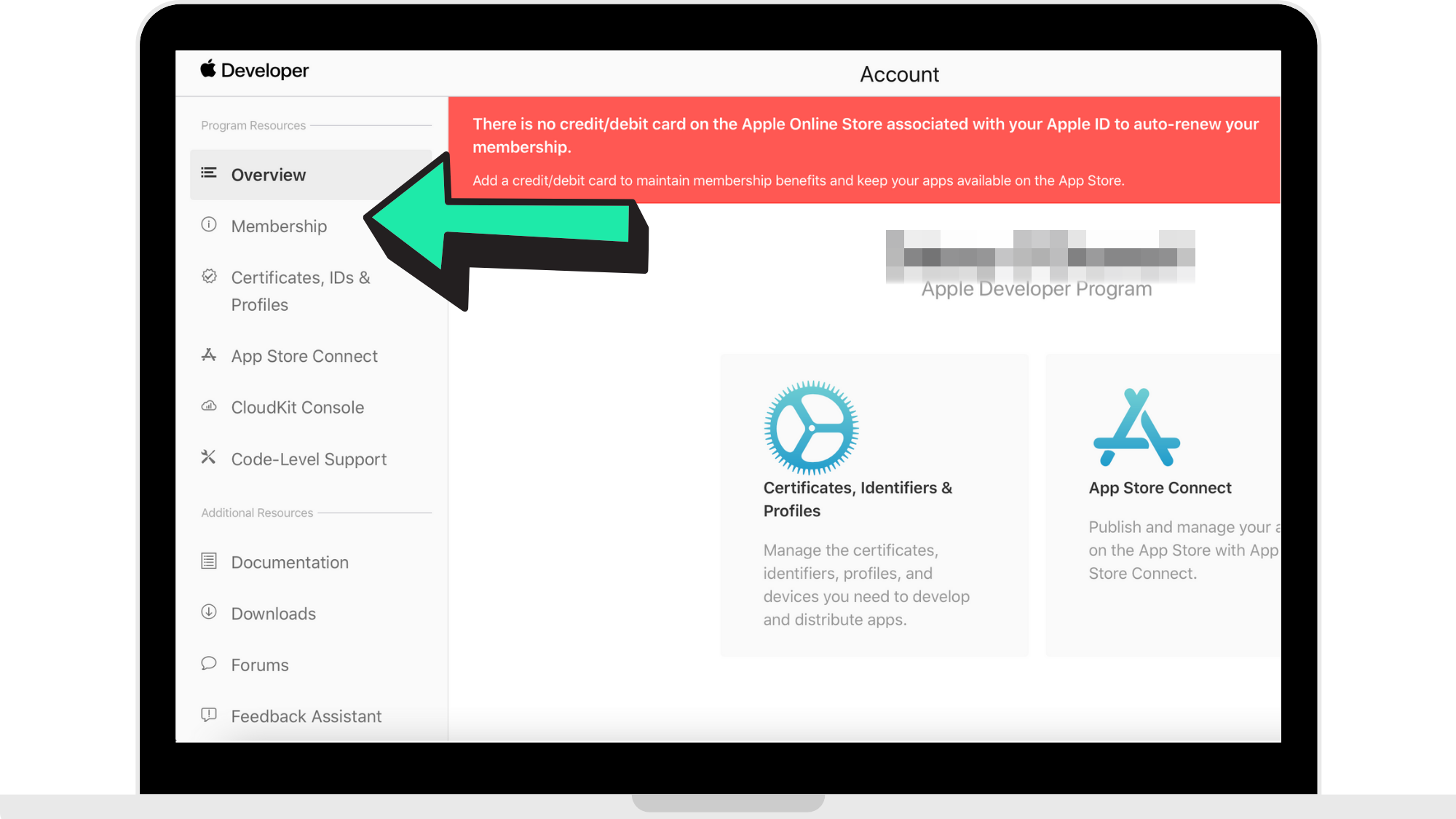
Step 2: Click 'Membership'
Once you are logged in, click on 'Membership' in the panel on the left-hand side.
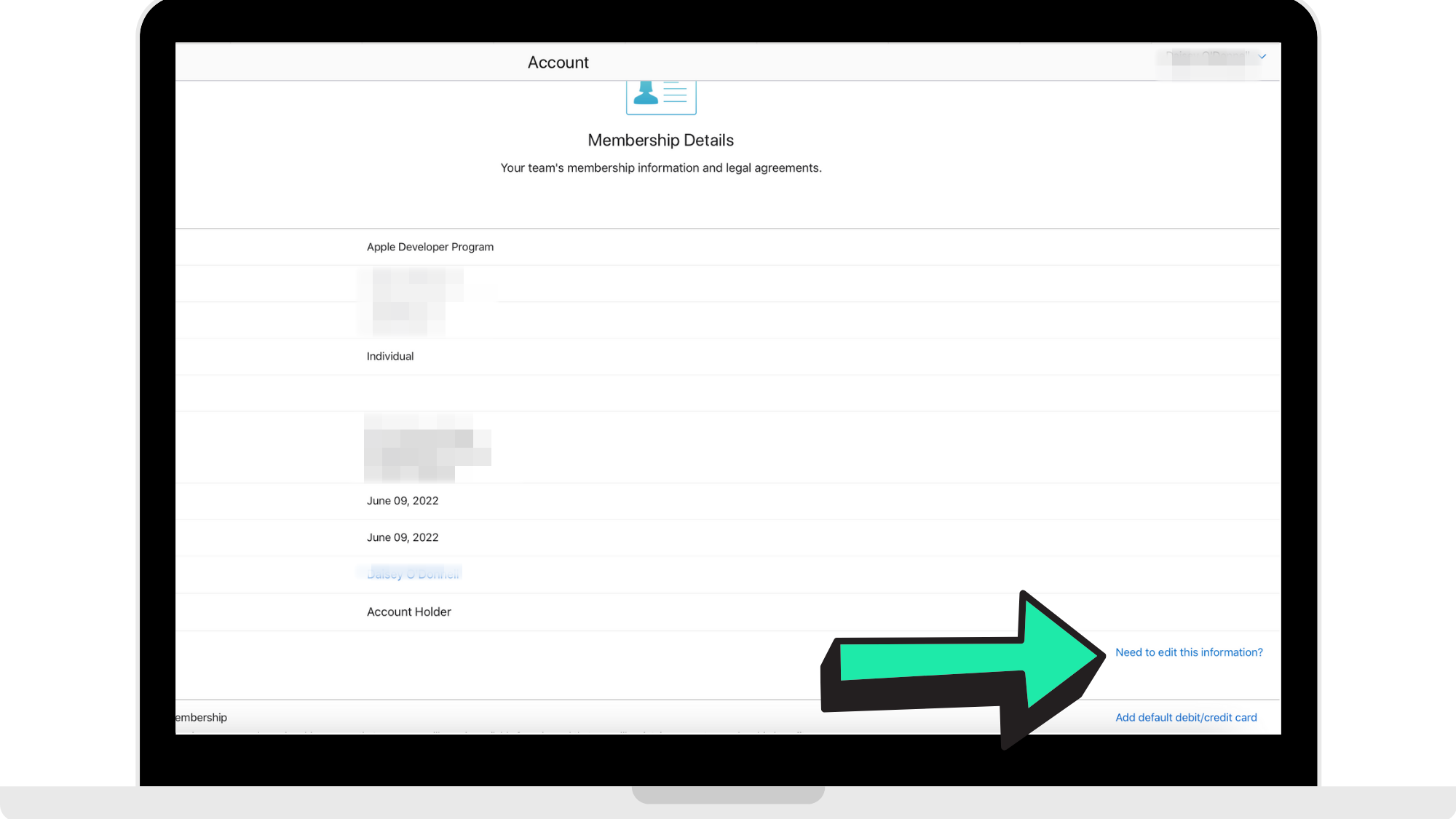
Step 3: Click 'Need to edit this information?'
In the bottom right corner, click on 'Need to edit this information?' to change your address.
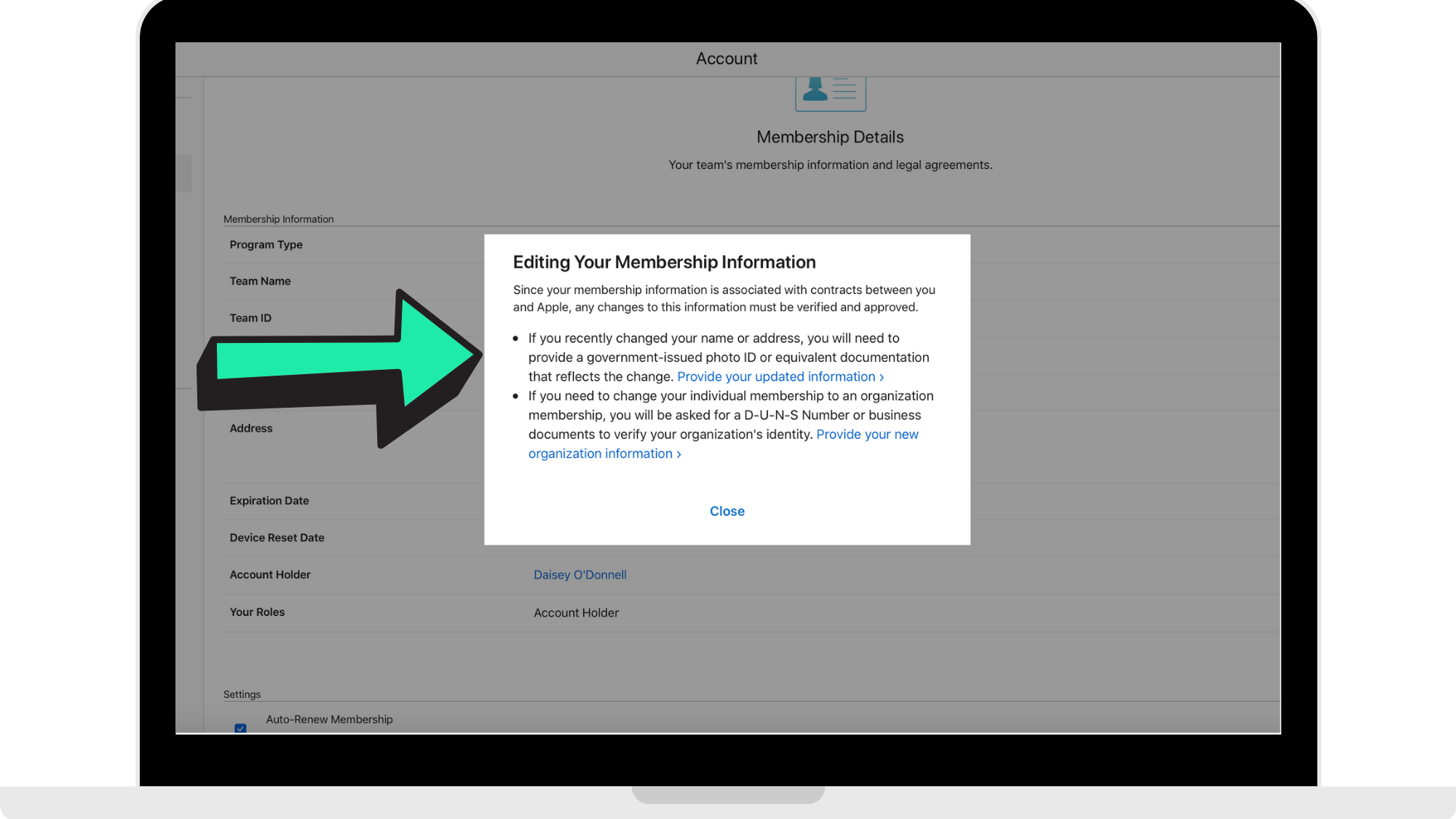
Step 4: Click on the link in the first option
To change your address, click on the first bullet points link. This will lead you to the page to update your information.
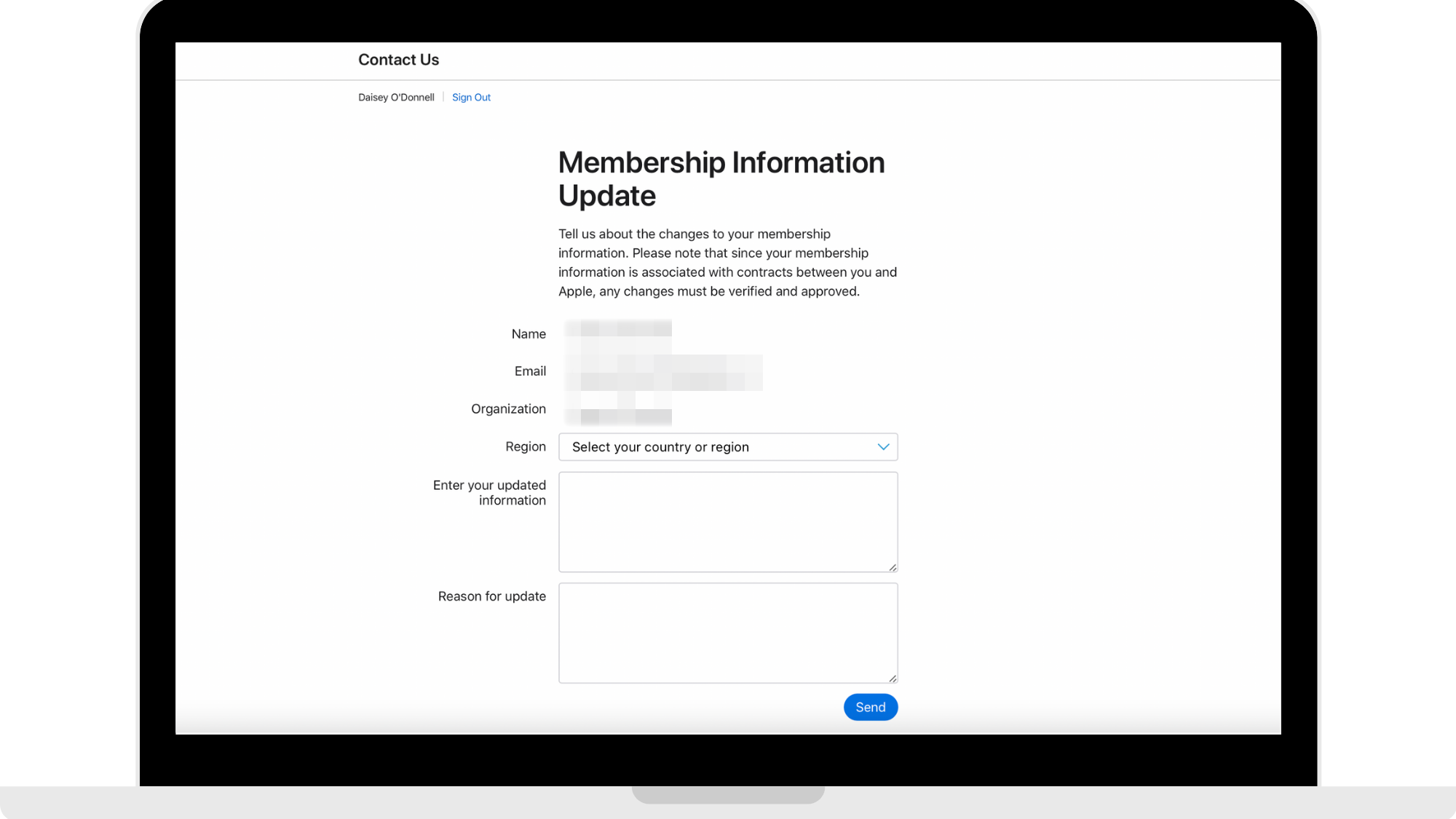
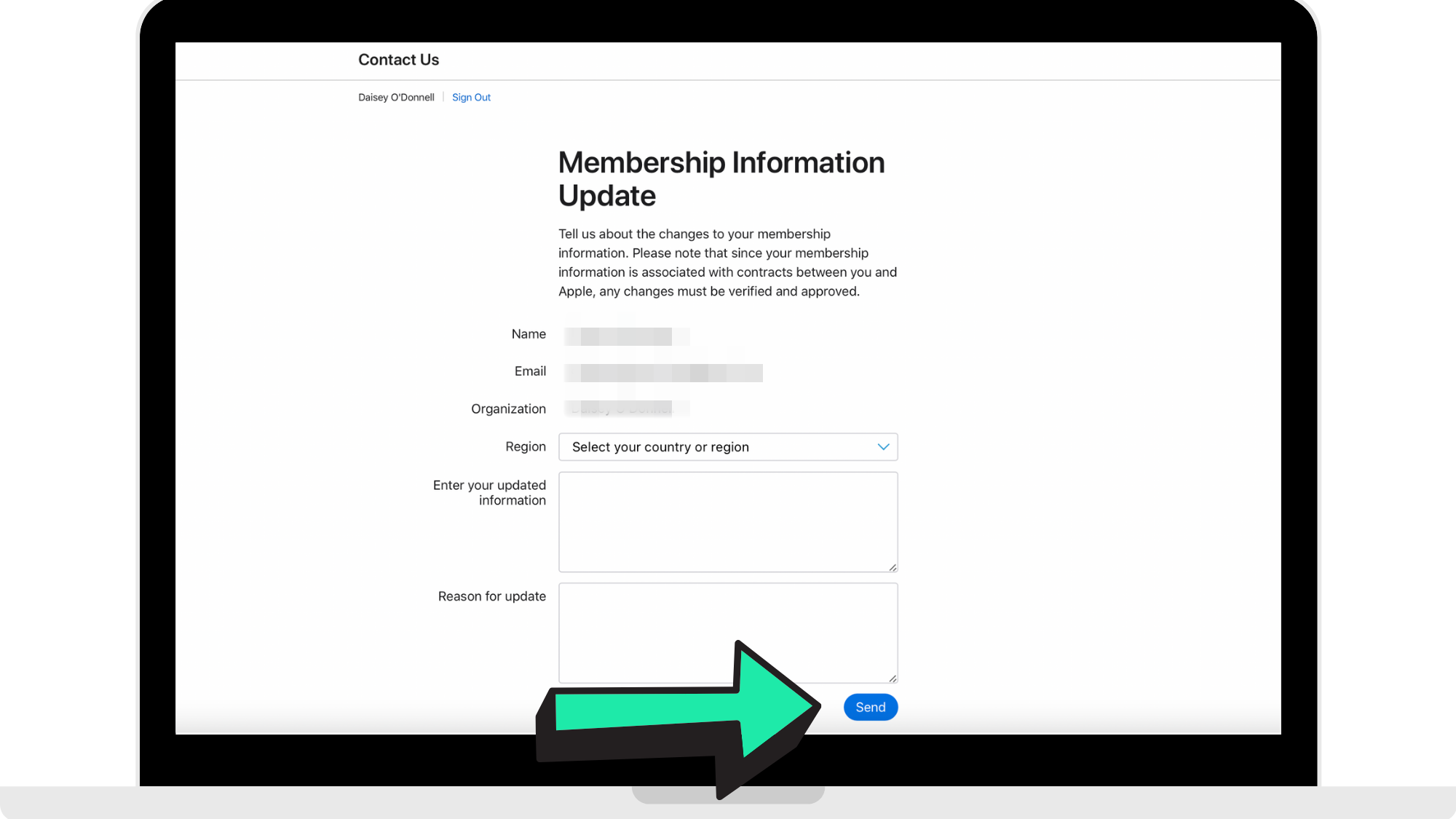
Step 5: Enter in your updated information
You will be taken to a page like the reference picture below. In the empty fields, enter in your updated address or any other information you need updating. After that, enter in the reason for the update.
Step 6: Click 'Send'
Once you have entered in your updated information and the reason for the update, click 'Send' at the bottom of the form to submit it to get reviewed for change.
How to change your Individual Developer account to an Organisation Developer account
If you are registered as an Individual Developer account and wish you change your account to a Company Developer account, please follow the steps carefully.
Step 1: Head to your Apple Developer Account
Head to https://developer.apple.com and log in using your Apple Developer email and password.
Step 2: Click 'Membership'
Once you are logged in, click on 'Membership' in the panel on the left-hand side.
Step 3: Click 'Need to edit this information?'
In the bottom right corner, click on 'Need to edit this information?' to change the type of Developer account you have.
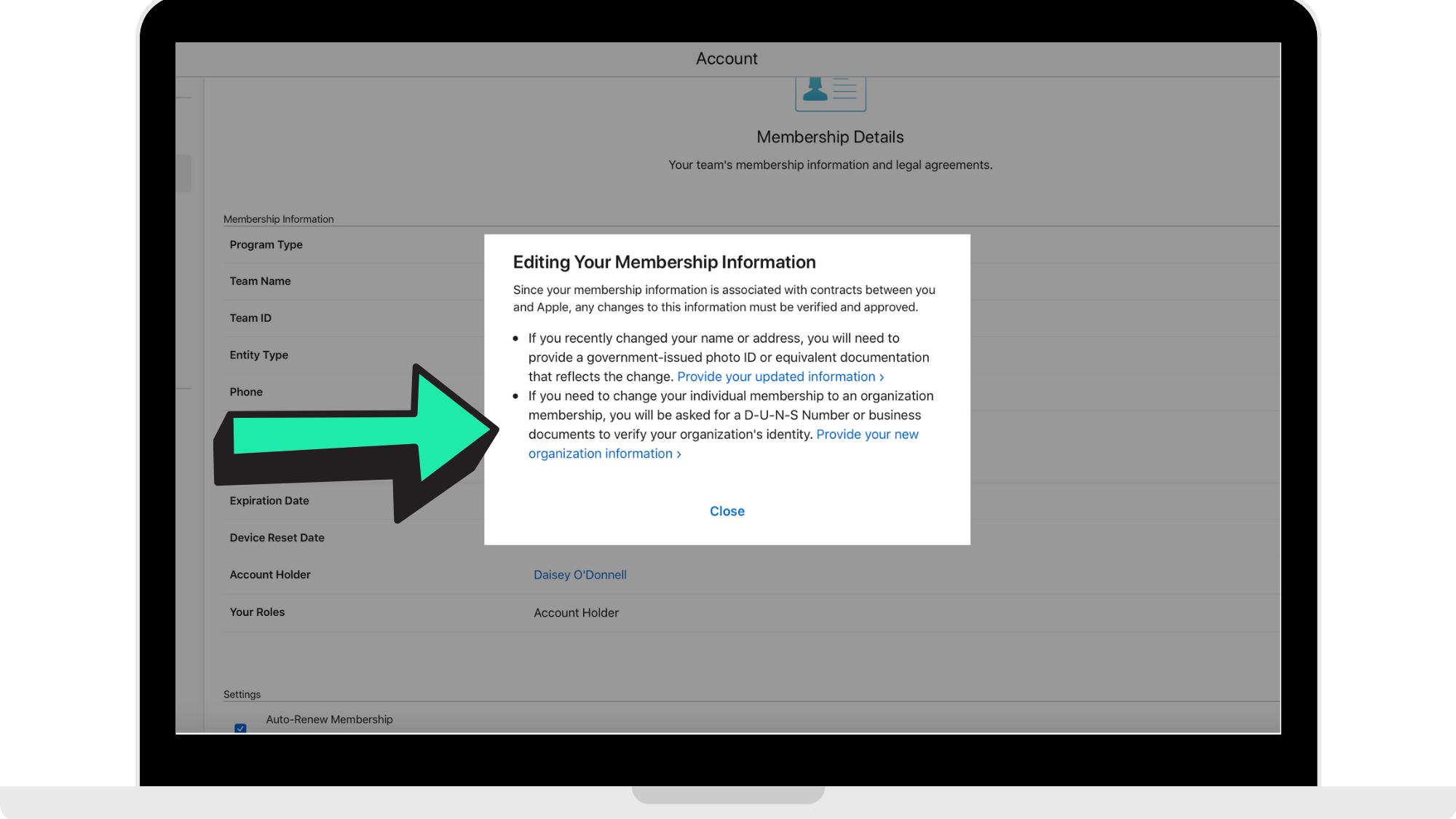
Step 4: Click on the link in the second option
To change the type of Developer account you have, click on the link in the second bullet point.
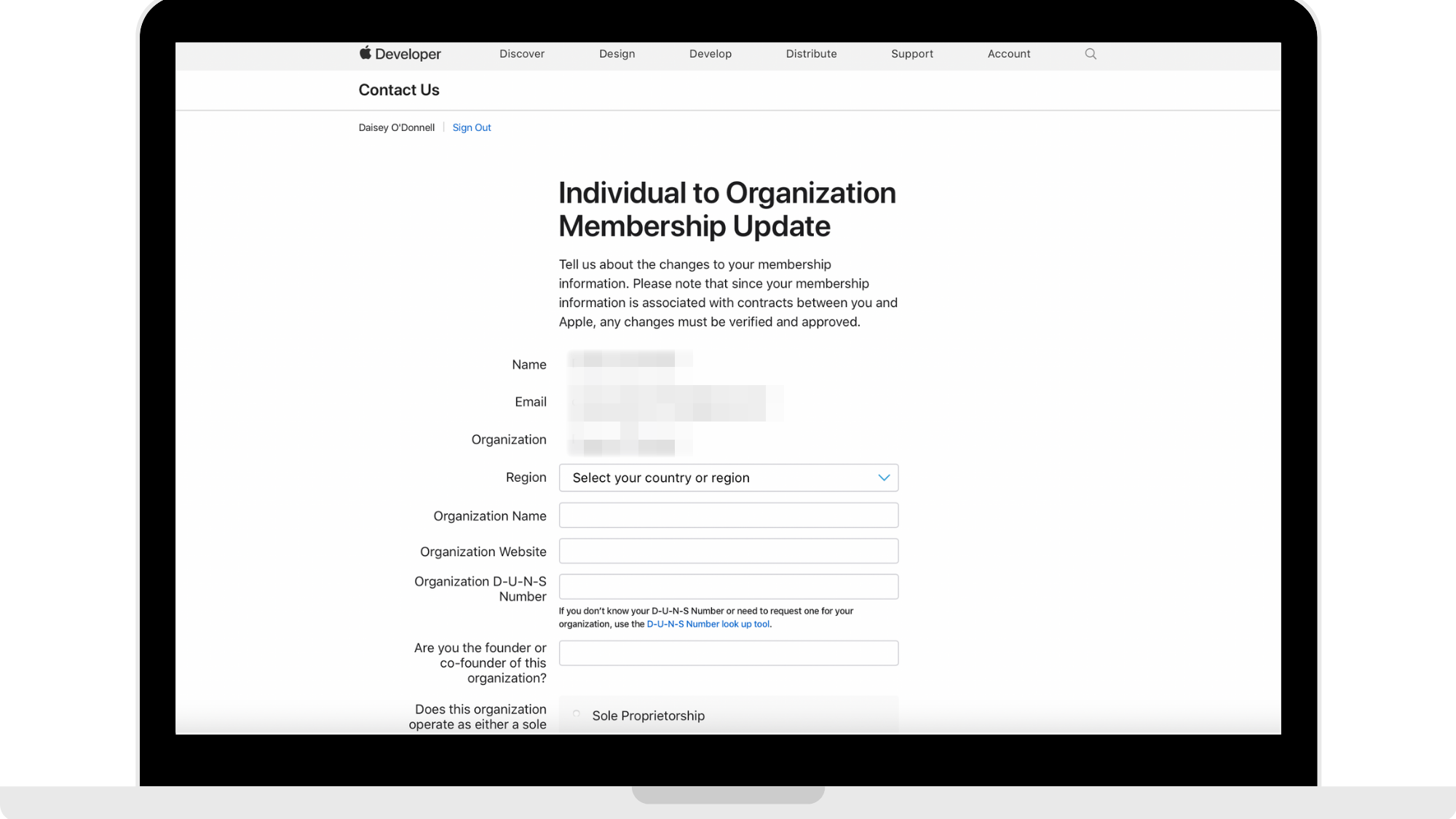
Step 5: Fill out your companies details
In the empty fields, fill out the details of your company. For more help on what you need to set up a Developer account as a company, please refer to the article here: https://hypeburst.zendesk.com/hc/en-gb/articles/4416122123409-Creating-Your-Apple-Developer-Account-As-A-Company-
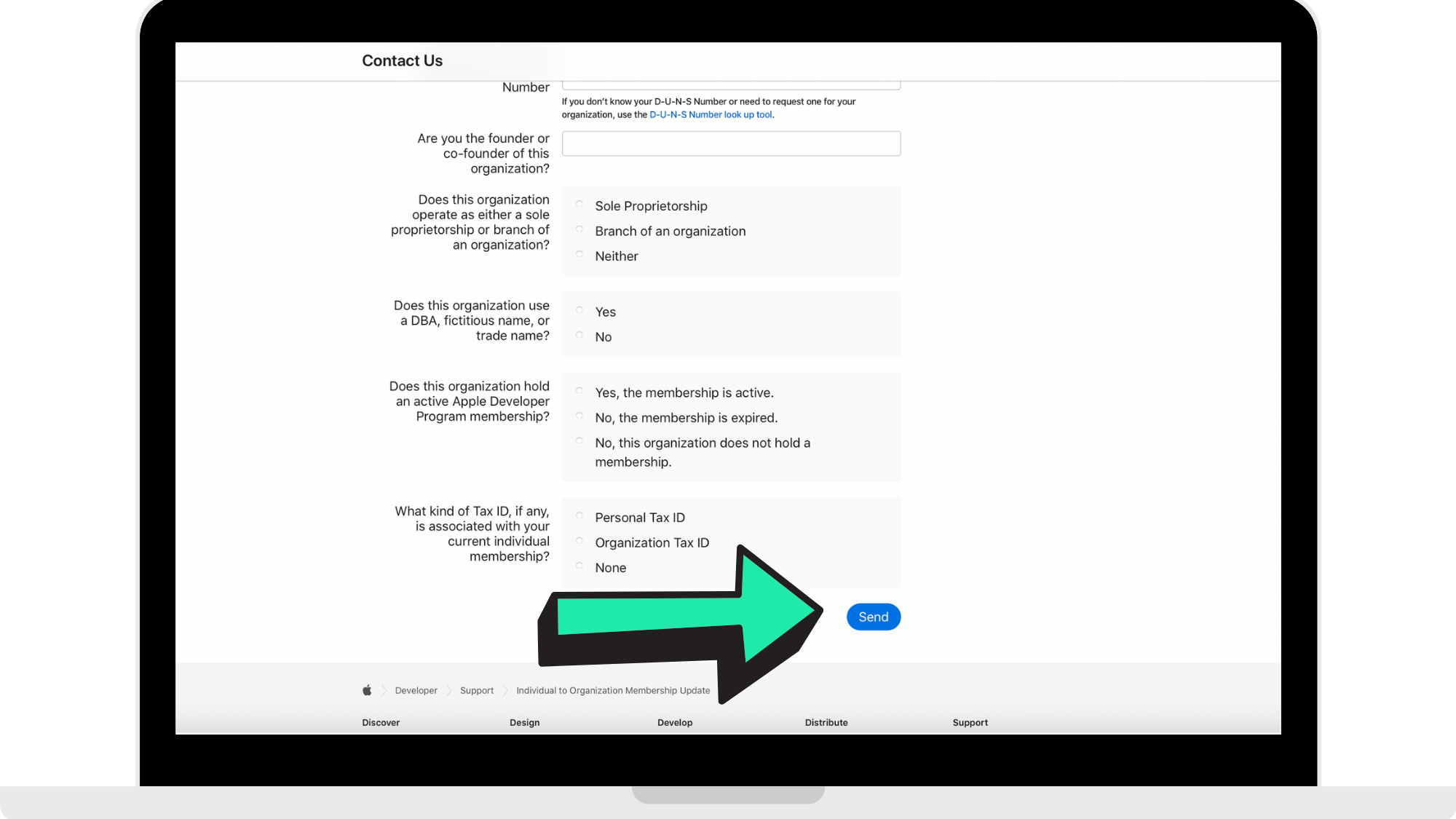
Step 6: Click 'Send'
Once you are done filling out the details of your company to change your Individual account to a Company account, click 'Send' at the bottom of the form to send off to Apple to review.
Comments
0 comments
Please sign in to leave a comment.