
The process for cancelling a subscription will depend on where you created it (the app's website or through an in-app purchase via Apple App Store/Google Play Store).
Please note that if you think you are entitled to a refund, please contact the owner of the app directly. Hype Burst is a fitness app software company that powers fitness apps around the world, we are unable to process refunds on an app owner's behalf. We have created this guide to help you unsubscribe from a subscription.
In-App Subscriptions Managed By Apple App Store
If you subscribed to a fitness app by downloading it from the App Store and subscribing within the app using your Apple ID, please visit: https://support.apple.com/en-gb/HT202039.
Hype Burst and app owners do not have access to subscriptions or billing details to cancel or refund purchases made through Apple App Store. They have a separate system for billing and payment information and any support or billing queries should be raised directly with Apple App Store.
In-App Subscriptions Managed By Google Play Store
If you subscribed to a fitness app by downloading it from the Google Play Store and subscribing within the app using your Google Play ID please visit: https://support.google.com/googleplay/answer/7018481?hl=en-GB&co=GENIE.Platform%3DDesktop.
Hype Burst and app owners do not have access to subscriptions or billing details to cancel or refund purchases made through Google Play Store. They have a separate system for billing and payment information and any support or billing queries should be raised directly with Google Play Store.
Website Subscriptions
If you subscribed through the app's website, please follow these instructions.
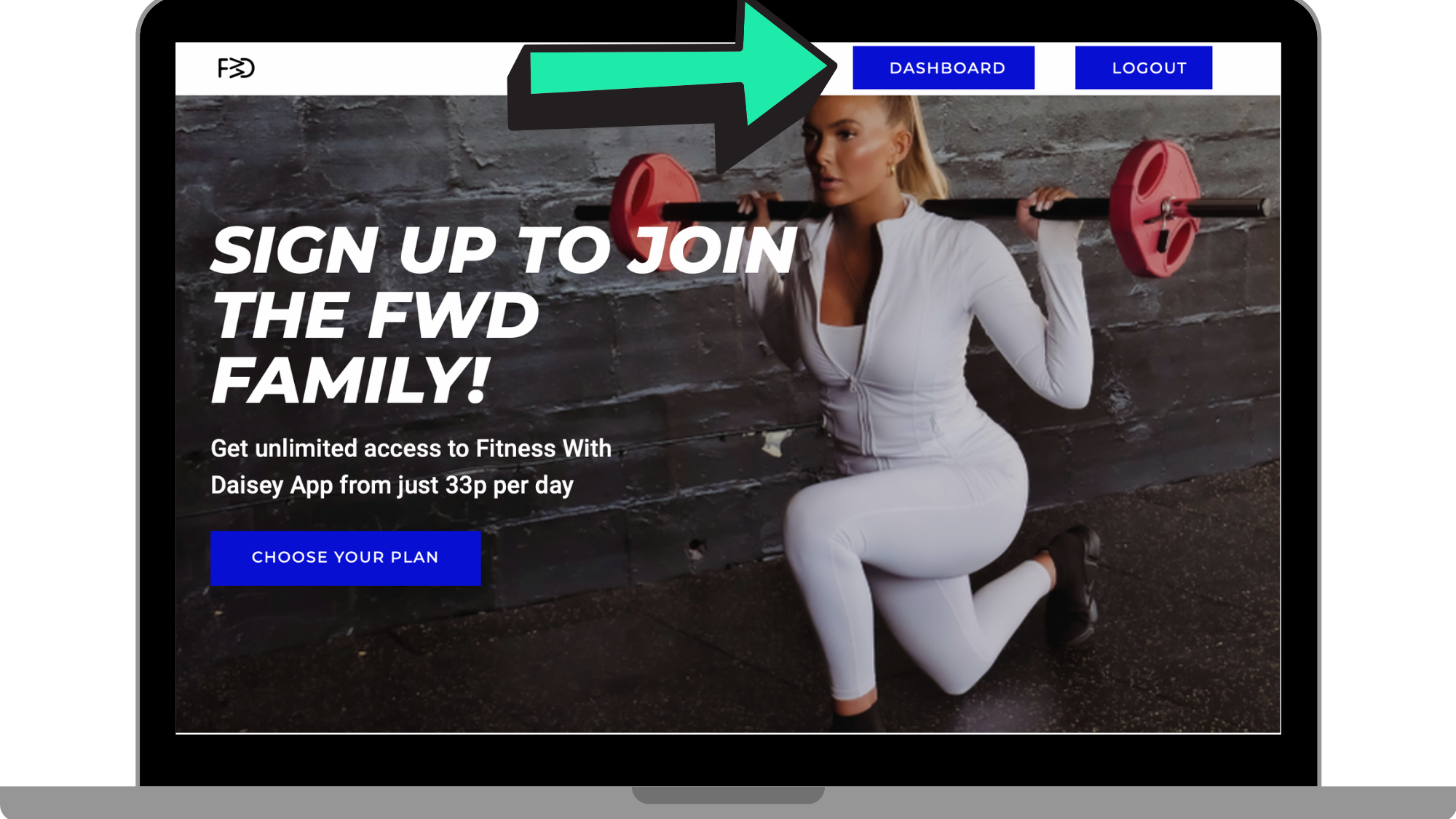
Step 1: Head to your Dashboard
Head to the app's website where you created your subscription. Once you have logged in, click 'Dashboard'.
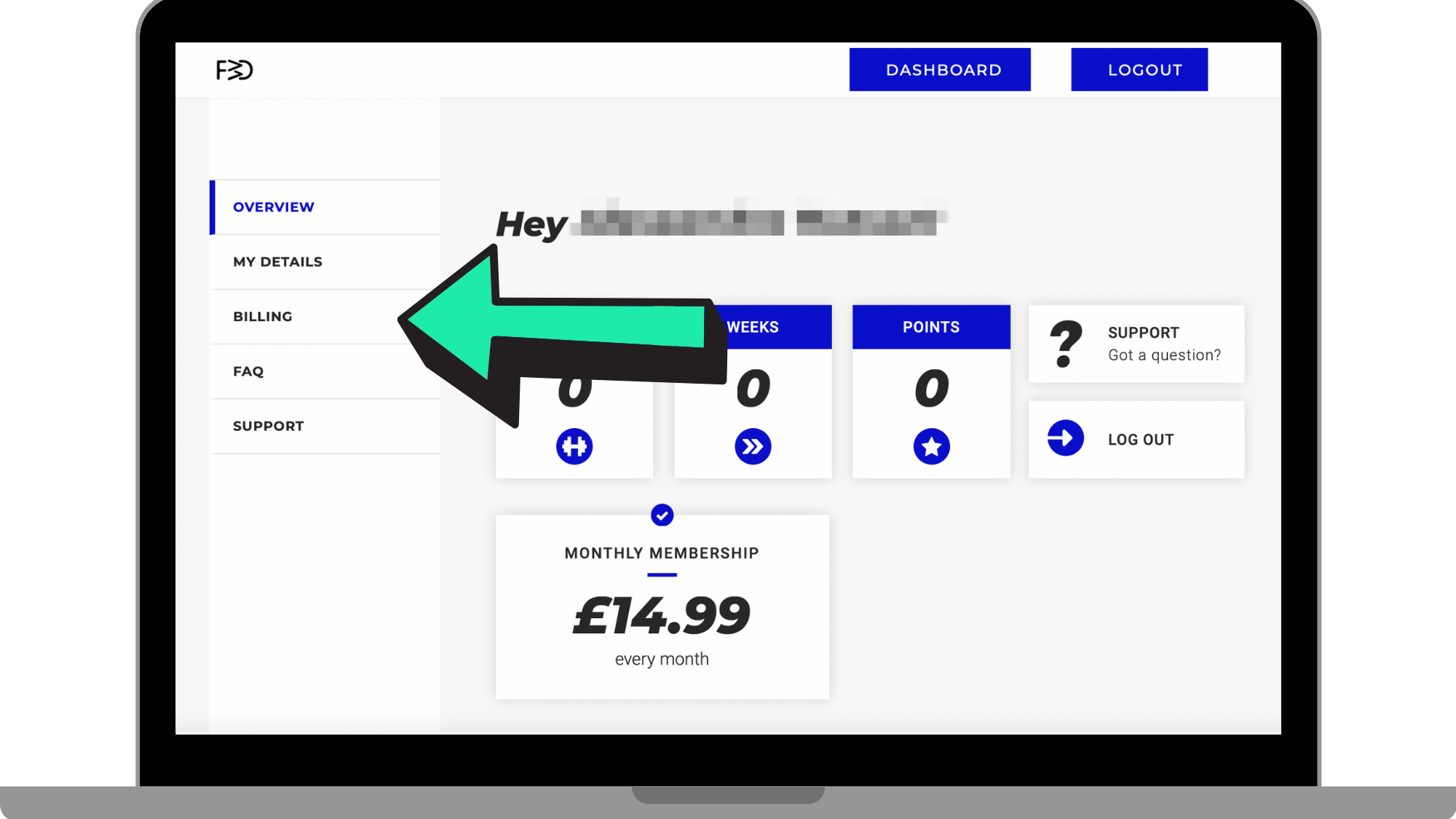
Step 2: Click 'Billing'
Once you are in your Dashboard, click on 'Billing'.
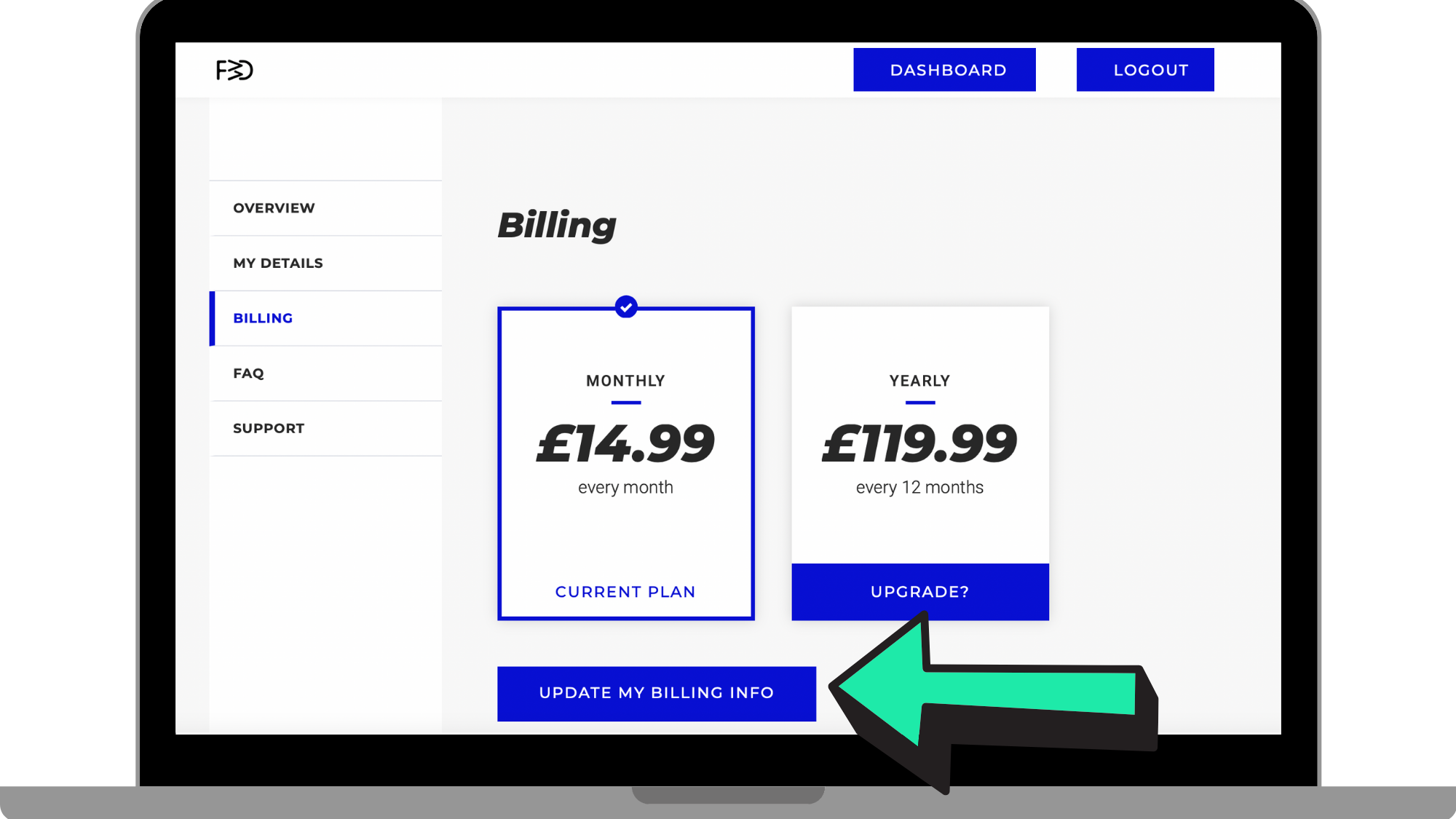
Step 3: Click 'Update My Billing Info'
Underneath the subscription you are subscribed to, you will find an option to update your billing information. Click 'Update My Billing Info' to be able to cancel.
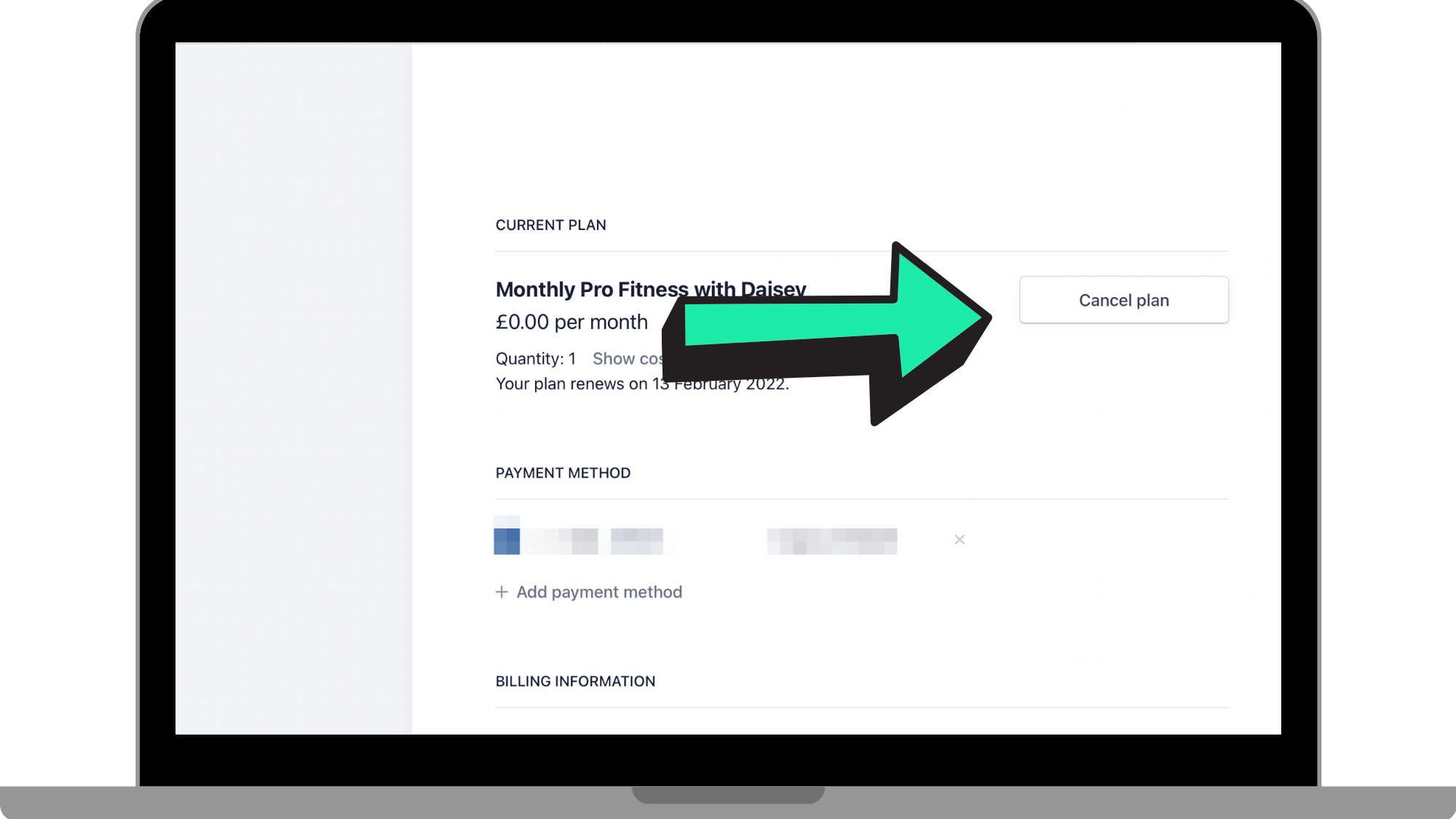
Step 4: Click 'Cancel Plan'
Next to your current plan, click 'Cancel Plan'.
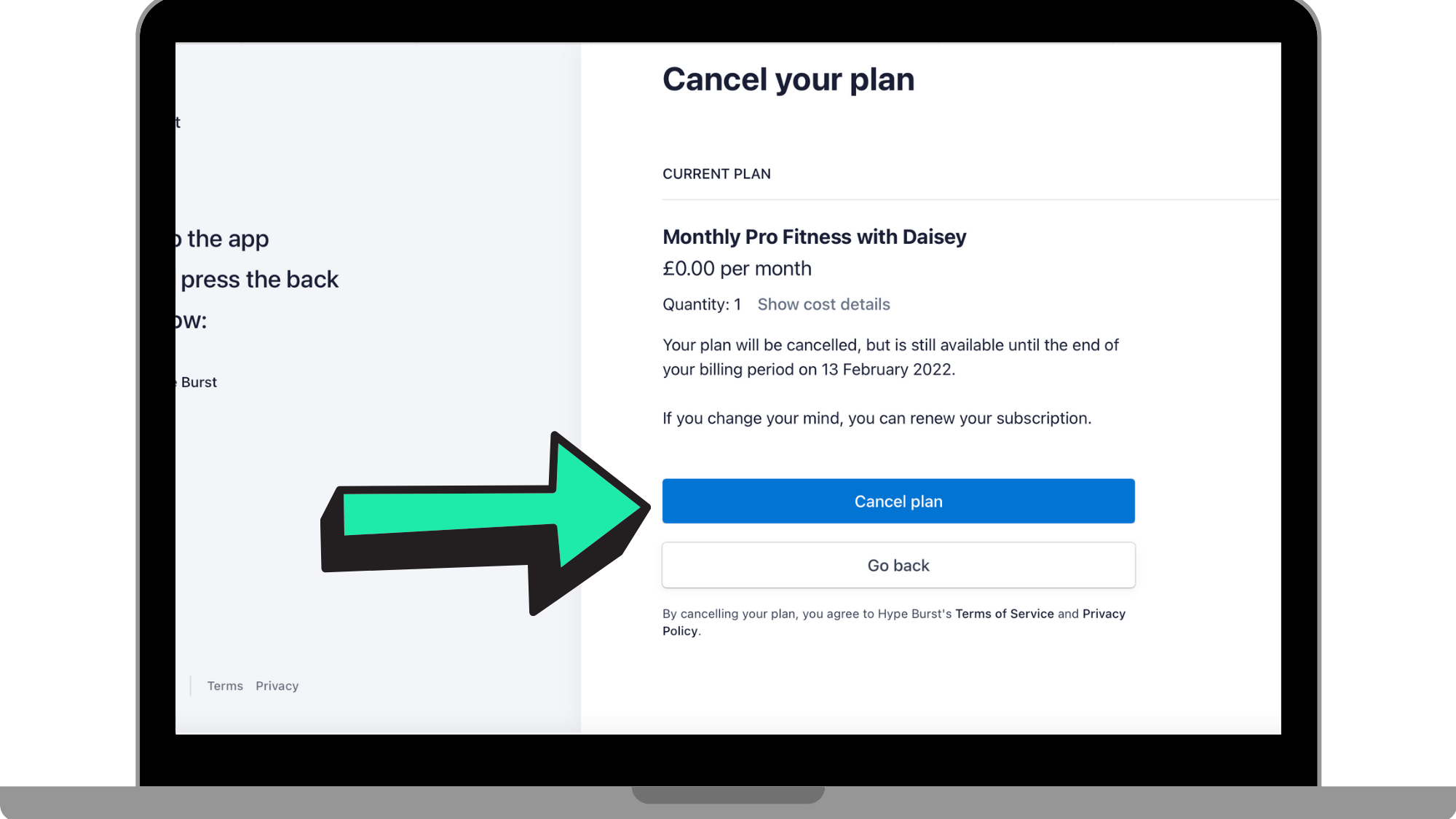
Step 5: Click 'Cancel Plan'
You will be led to a confirmation page to confirm your cancellation. To officially cancel your plan, click 'Cancel Plan'. Please note you are able to renew at any time, but your plan will be cancelled at the end of your billing period.
Need More Help?
To read more into the terms and conditions, please proceed to visit hype-burst.com/app-terms-of-use where you can read the terms and conditions in full.
Comments
0 comments
Please sign in to leave a comment.