
The On Demand section is an important part of your fitness app. Your users can select an On Demand video to watch regardless of what Plan they are currently in. On Demand videos are not Plans but they are longer videos that your users can follow along with. You can modify, update, and add new On Demand collections and videos at anytime and your app will be updated automatically. The Hype Burst Dashboard is designed to give you the maximum amount of customisation when creating an On Demand collection and video so the power is in your hands of what type of content you want to do!
For an overview to the On Demand section, read the guide here:
Creating an On Demand collection
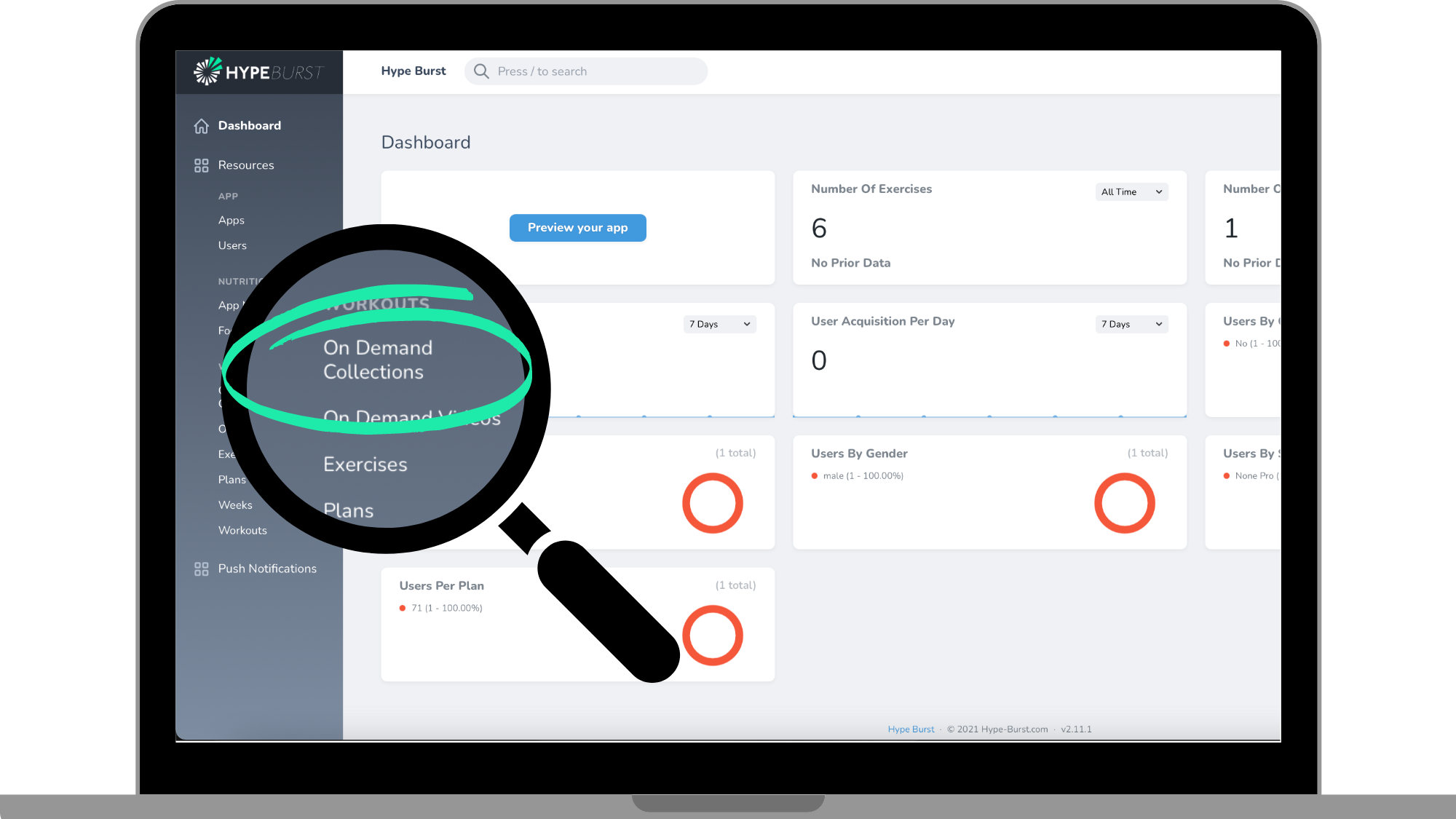
Step 1: Click the "On Demand Collections" section in the menu on the Dashboard
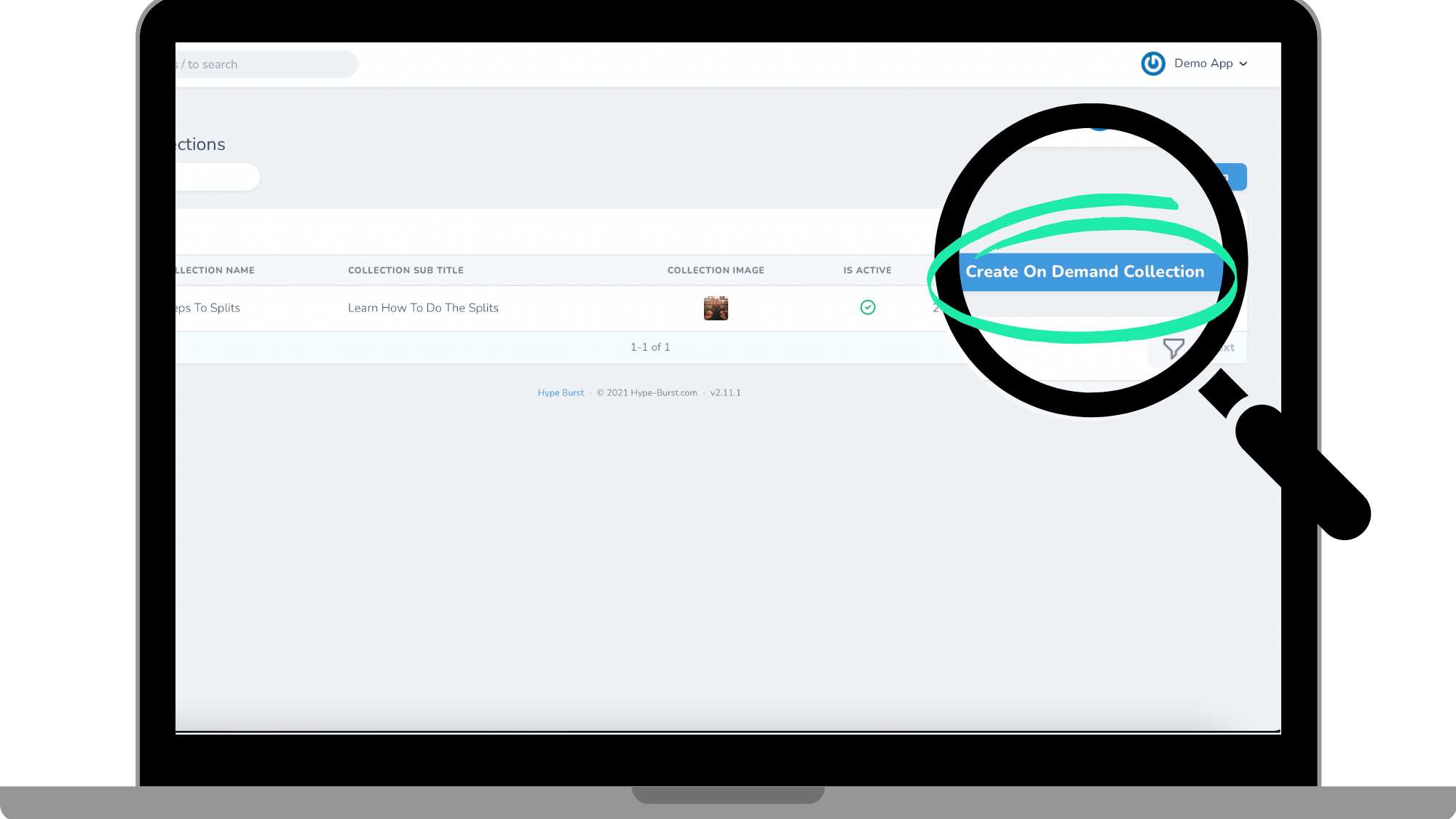
Step 2: Click the "Create On Demand collection" button in the right corner
Step 3: Enter On Demand collection information
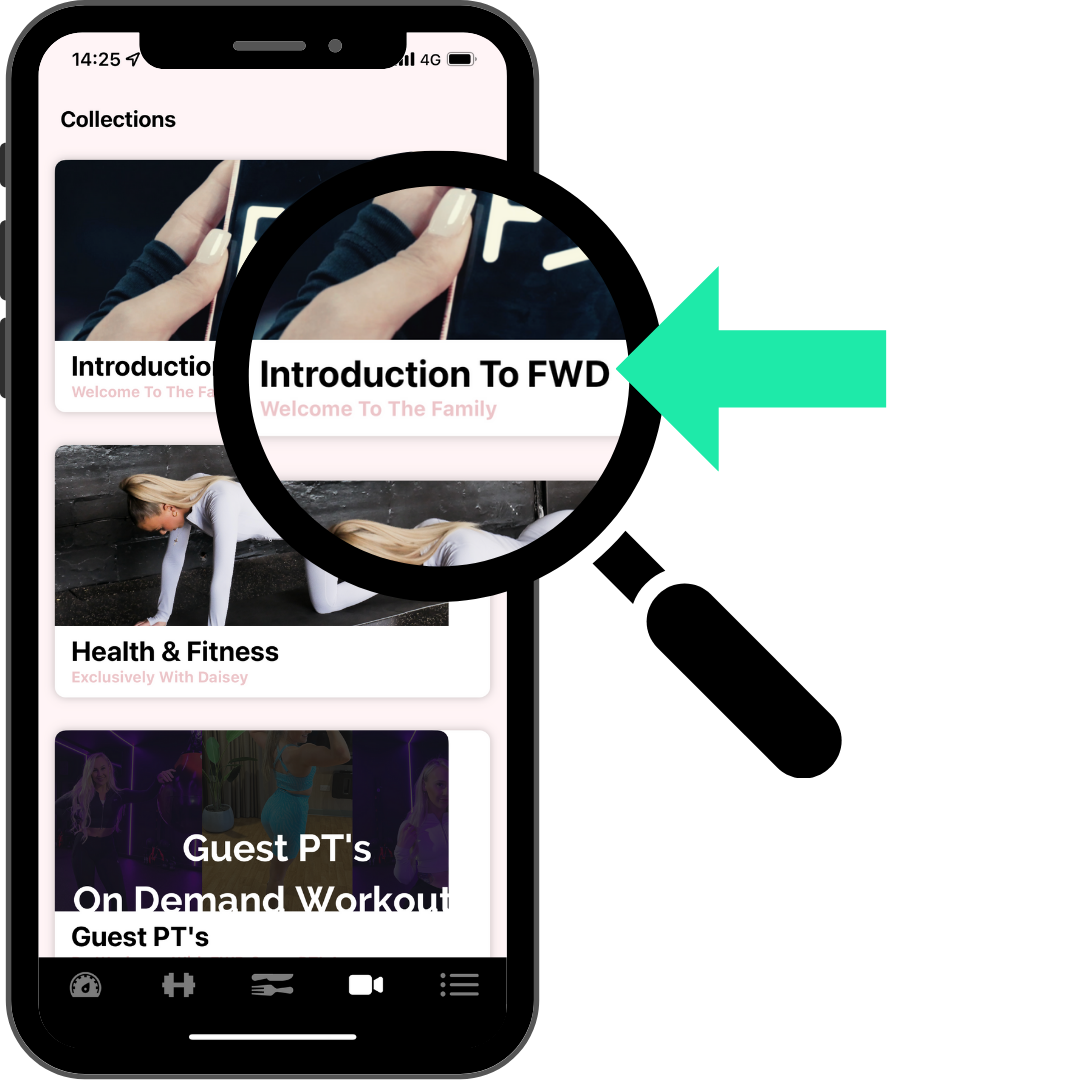
#1 - Enter Collection Name
Enter the name of your Collection here. This is how your Collection will be labelled in your app.
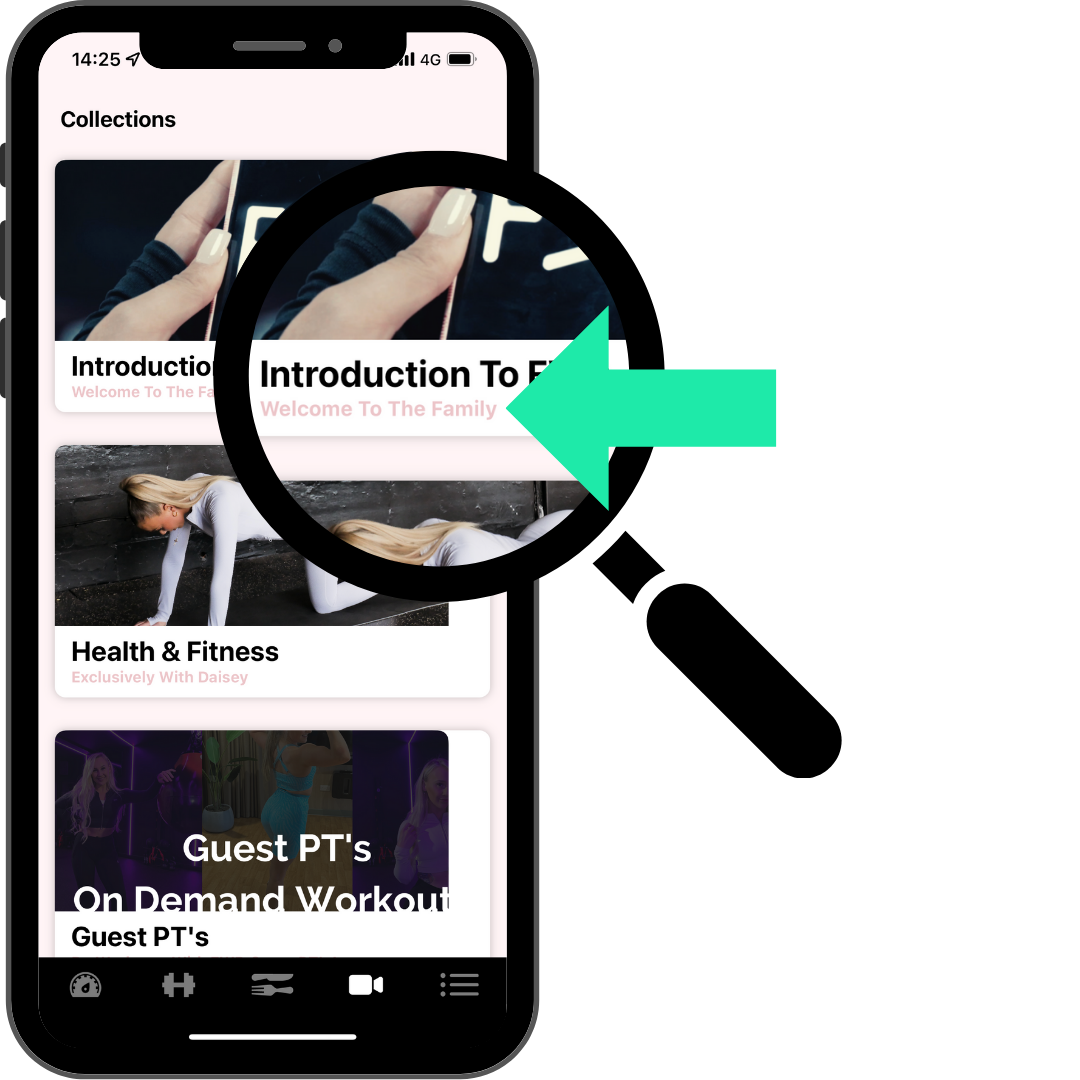
#2 - Enter Collection Sub Title
Your Collection subtitle will be shown under the Collection name in the On Demand section of the app. This is where you explain the Collection to make it clear for the app user.
#3 - Upload Collection image
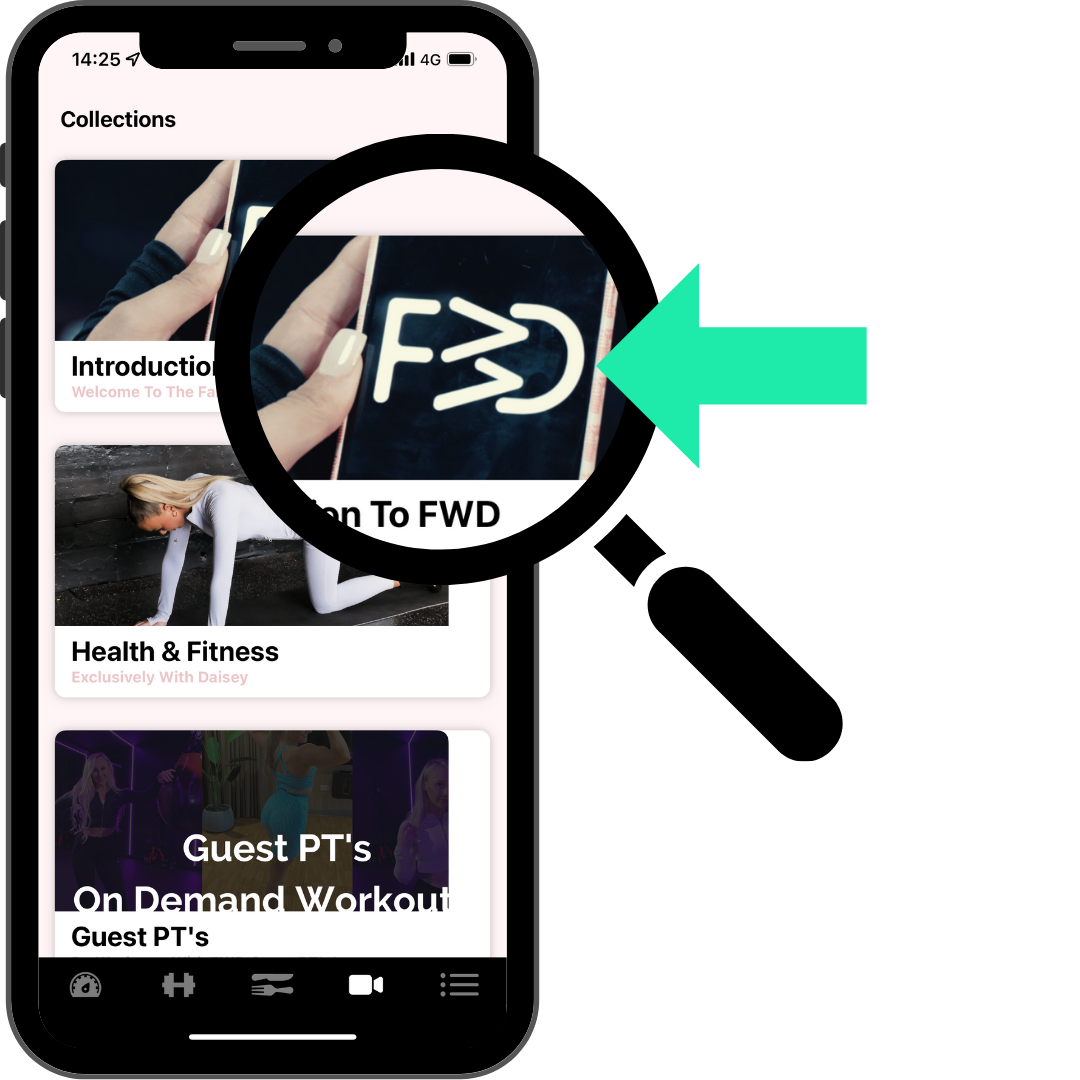
The Collection image is what the app user will see in the app as the Collection thumbnail. In-app graphics such as thumbnails will effect the overall design and user experience of your app so they should be high quality and professional. The best output is using the 16x9 ratio (landscape).
#4 - Choose to make Collection active or not
Check the "Is Active" box if you want the Collection to be published in your app in the On Demand section for everyone to see. Since this is a cloud-based software, it is updated instantly. So if you make this Collection active, it will be active in your app immediately.
NOTE: A Collection must be "active" to be able to view it in the App Previewer regardless of whether your app is published or not.
#5 - Choose Collection videos
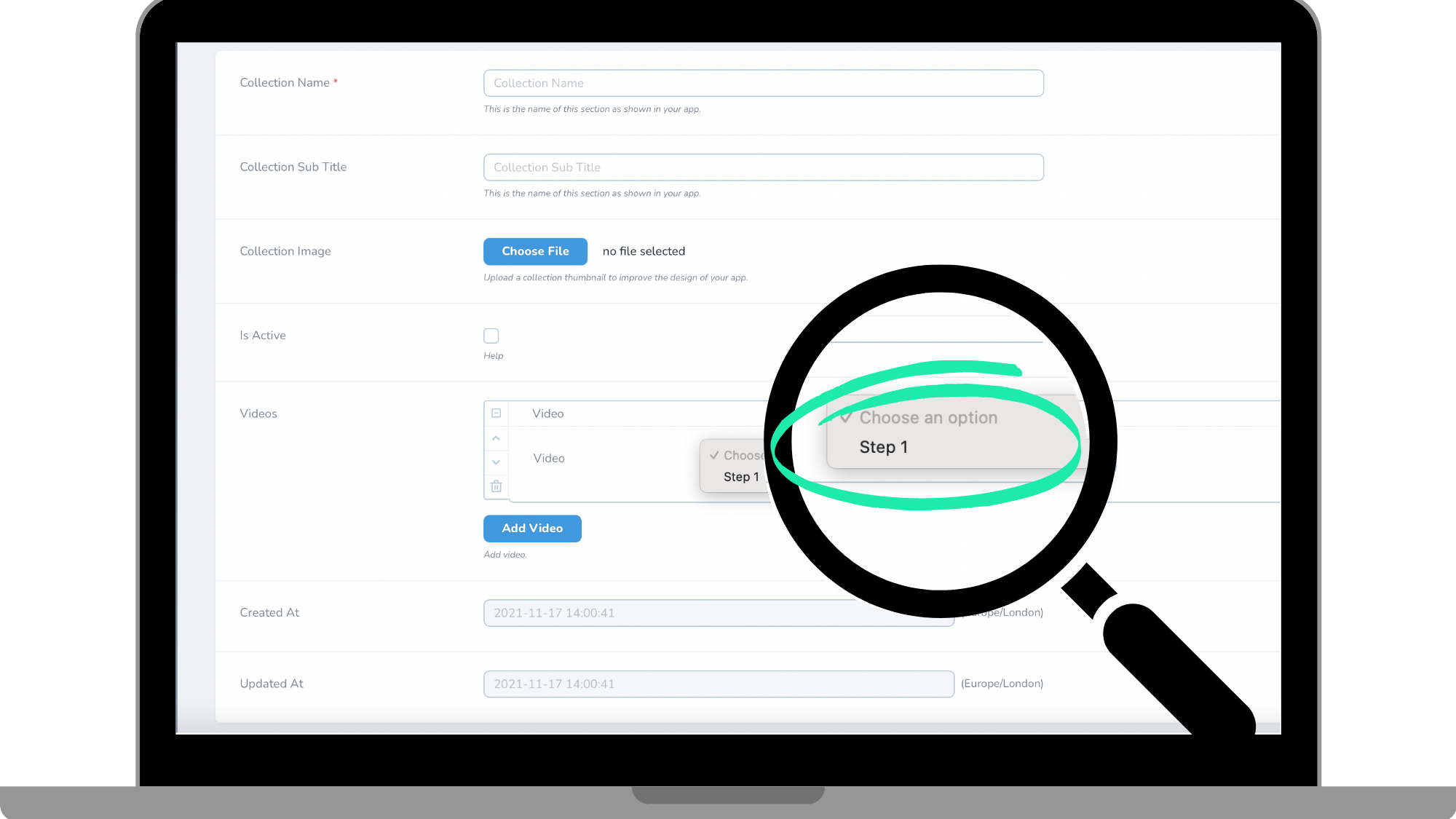
Select which videos you want to include in your Collection. You will have a drop down menu to choose from showing all videos you have uploaded. You are able to choose as many videos as you want from the videos you have available in your library.
Read the guide on adding On Demand videos here:
https://hypeburst.zendesk.com/hc/en-gb/articles/4411168967057-How-to-add-an-on-demand-video
Step 4: Click the "Create On Demand Collection button in the bottom right corner
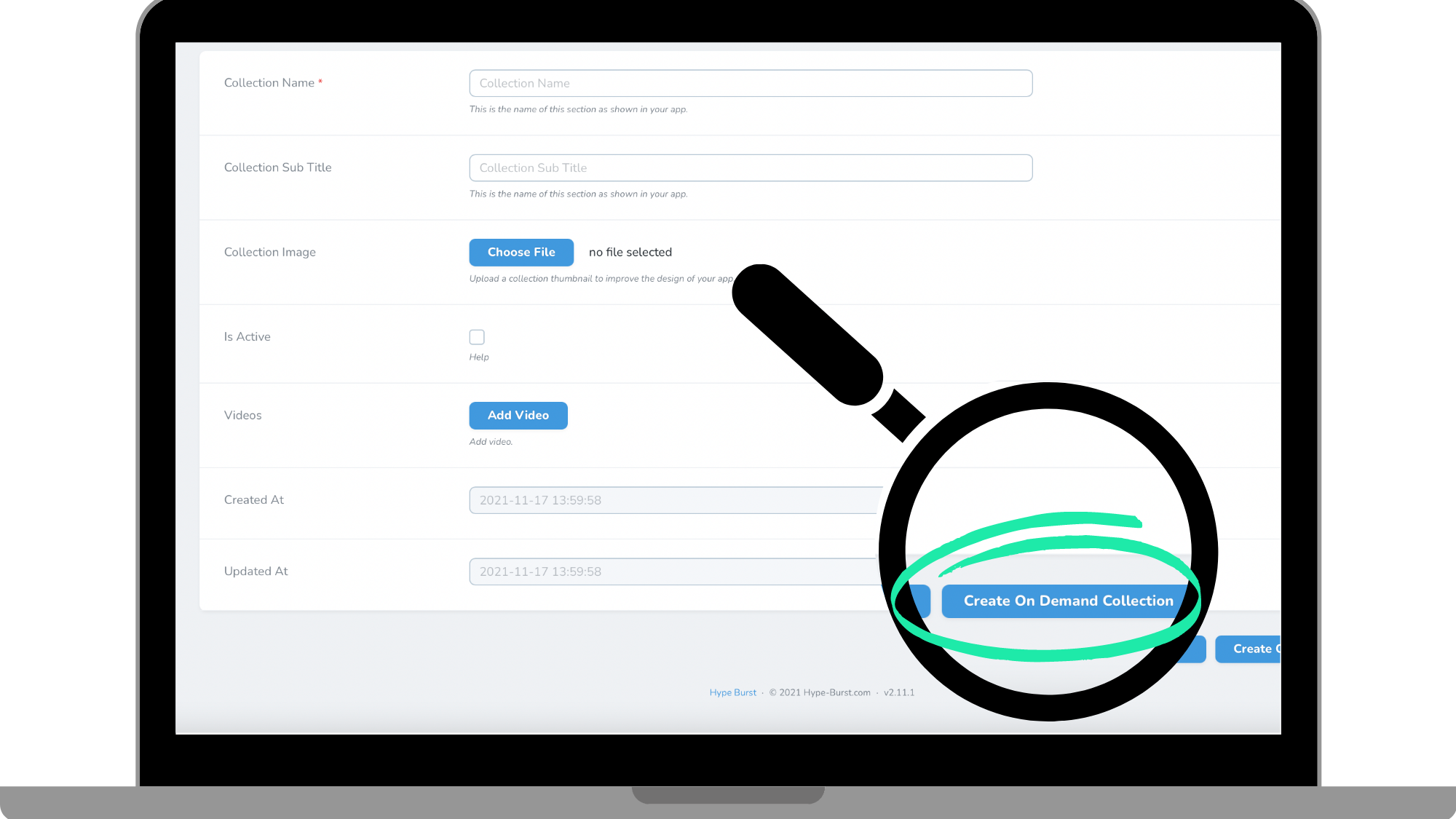
Once you have filled out all of the required fields in the previous step, you can save your Collection. Click the button 'Create On Demand Collection'. Remember you can always go back and edit the Collection at anytime.
How to get started?
Log into your dashboard at https://account.hype-burst.com/admin/login and go through the 4 simple steps to create an On Demand Collection.
Comments
0 comments
Please sign in to leave a comment.