
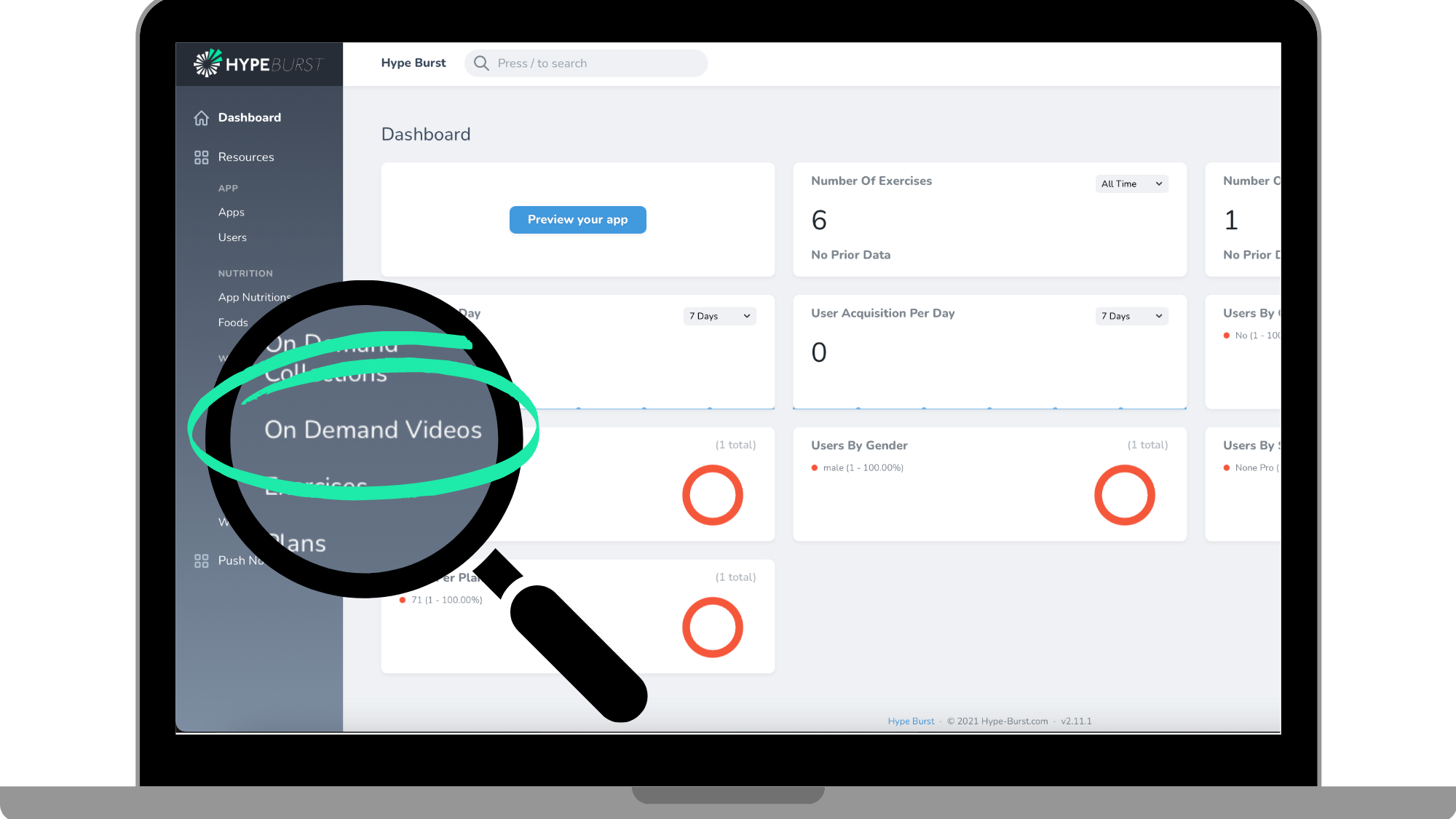
On Demand collections are made up of videos. Once you have created your collections, you can now add videos to these collections (sections). In the Dashboard, you will find this as 'On Demand Videos' in the left panel. You can upload any type of video. You are able to make them featured to be shown at the top of the On Demand section within the app.
Read the guide on adding On Demand Collections here:
https://hypeburst.zendesk.com/hc/en-gb/articles/4411161098641-How-to-add-an-on-demand-collection-
Creating an On Demand video
Step 1: Click the "On Demand Videos" section on the Dashboard
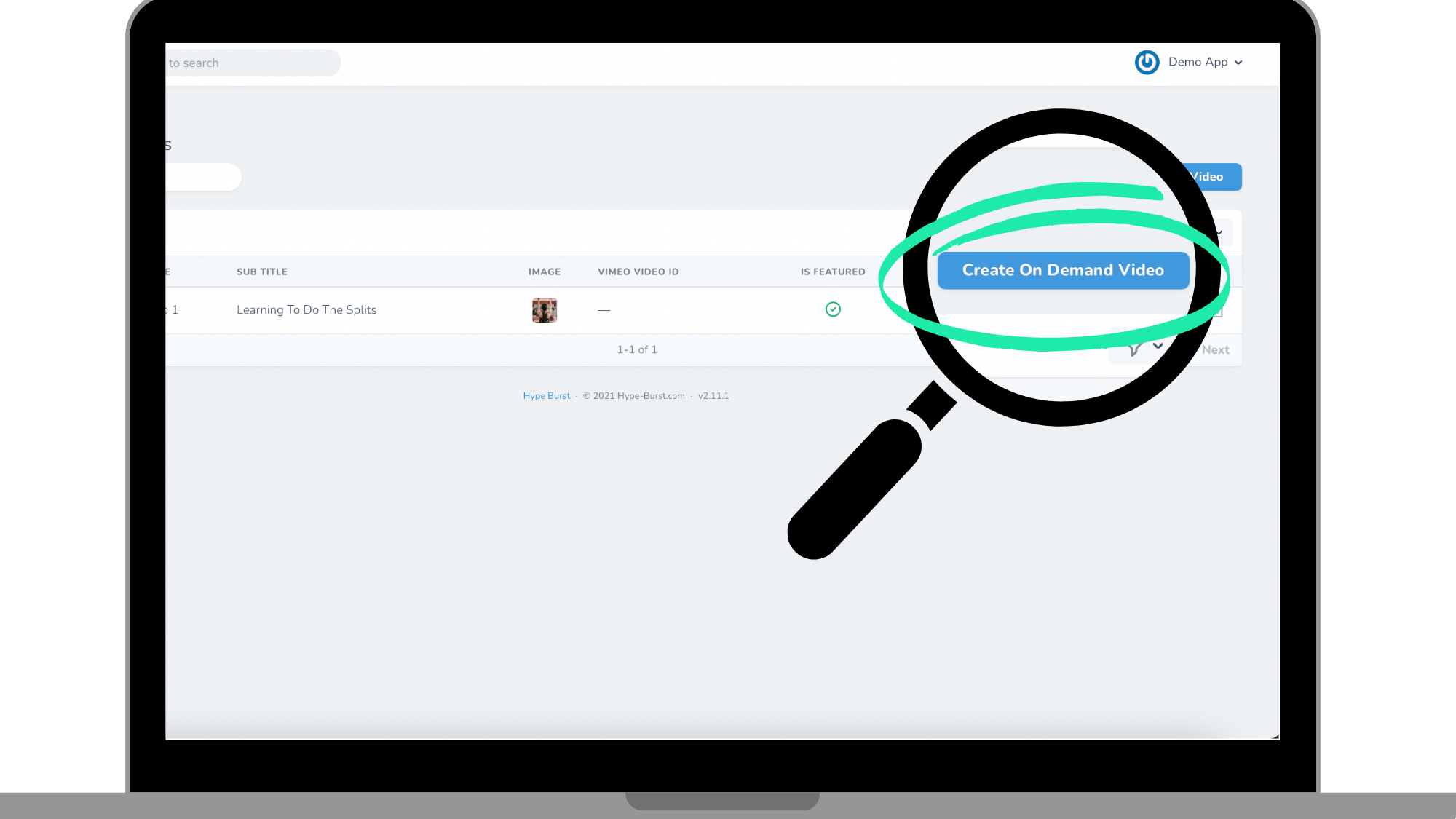
Step 2: Click the "Create On Demand Video" button in the right corner
Step 3: Enter Video Information
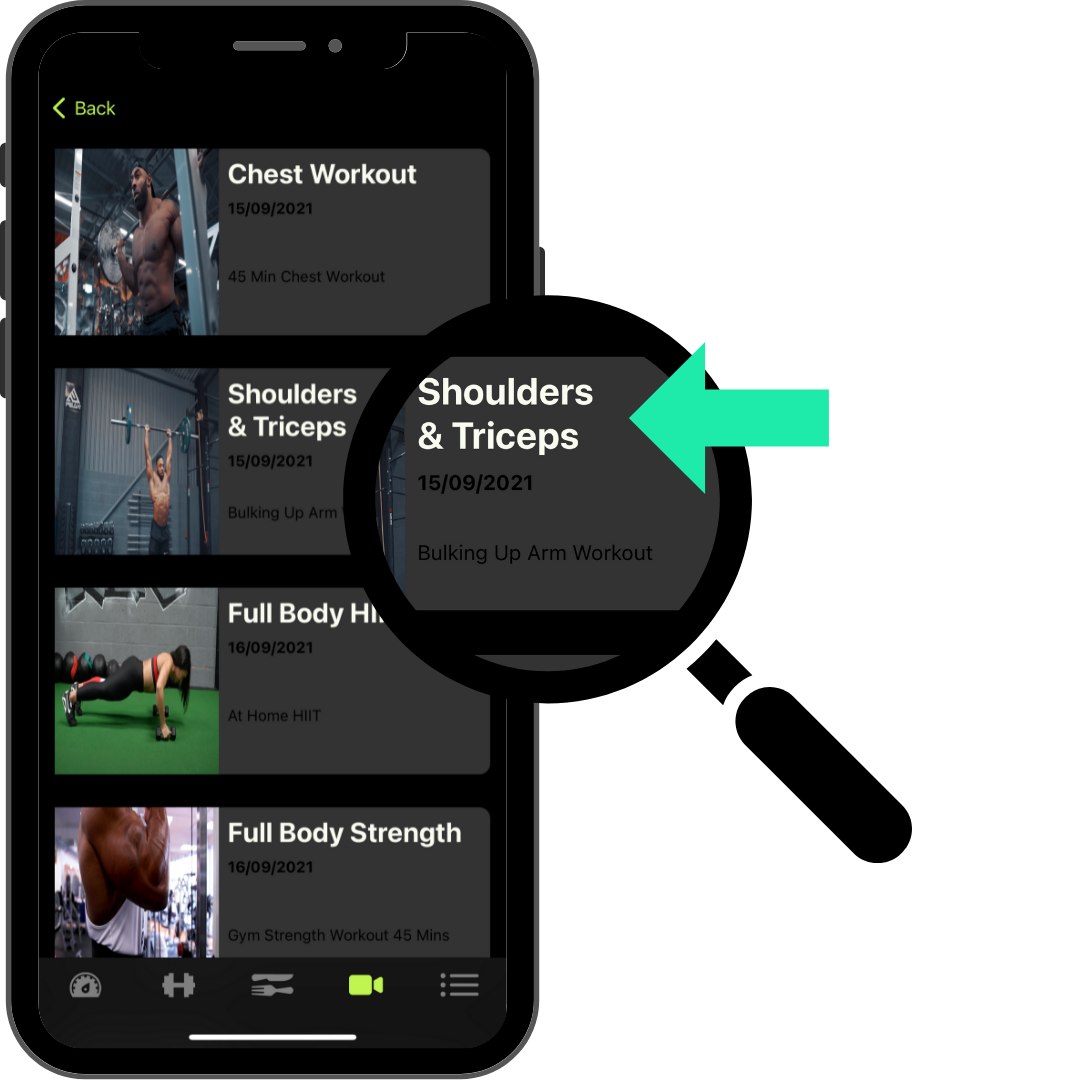
#1 - Enter Title
Enter the title of your video here. This is how your video will be labelled in your app in the On Demand collection.
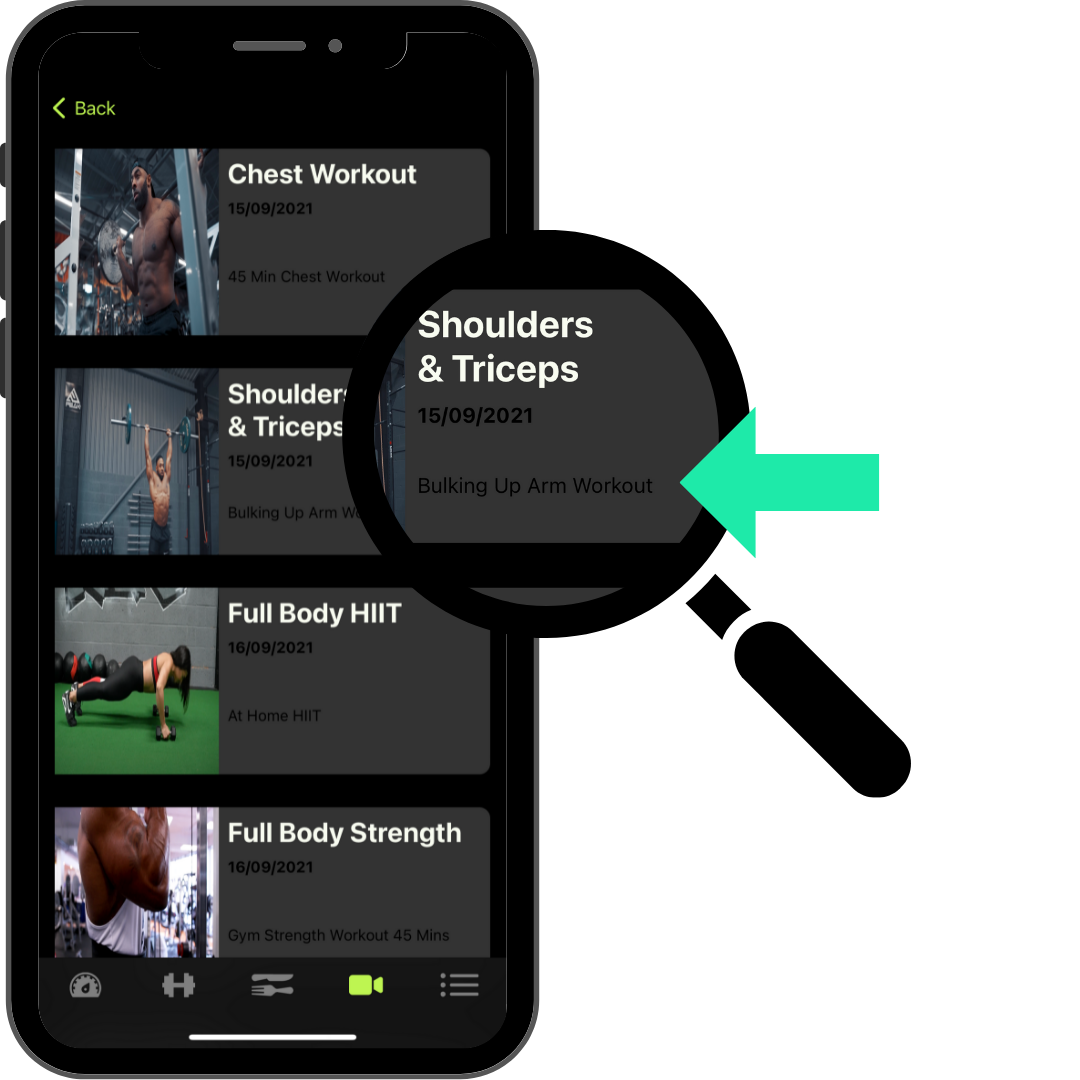
#2 - Enter Sub Title
Your video subtitle will be shown under the title name in the On Demand collection it is in. This is where you explain the video to make it clear for the app user.
#3 - Upload Video Image
The video image is what the app user will see in the app as the video thumbnail. To access the video in the next step, the user will click on the thumbnail. In-app graphics such as thumbnails will effect the overall design and user experience of your app so they should be high quality and professional. The best output is using the 16x9 ratio (landscape).
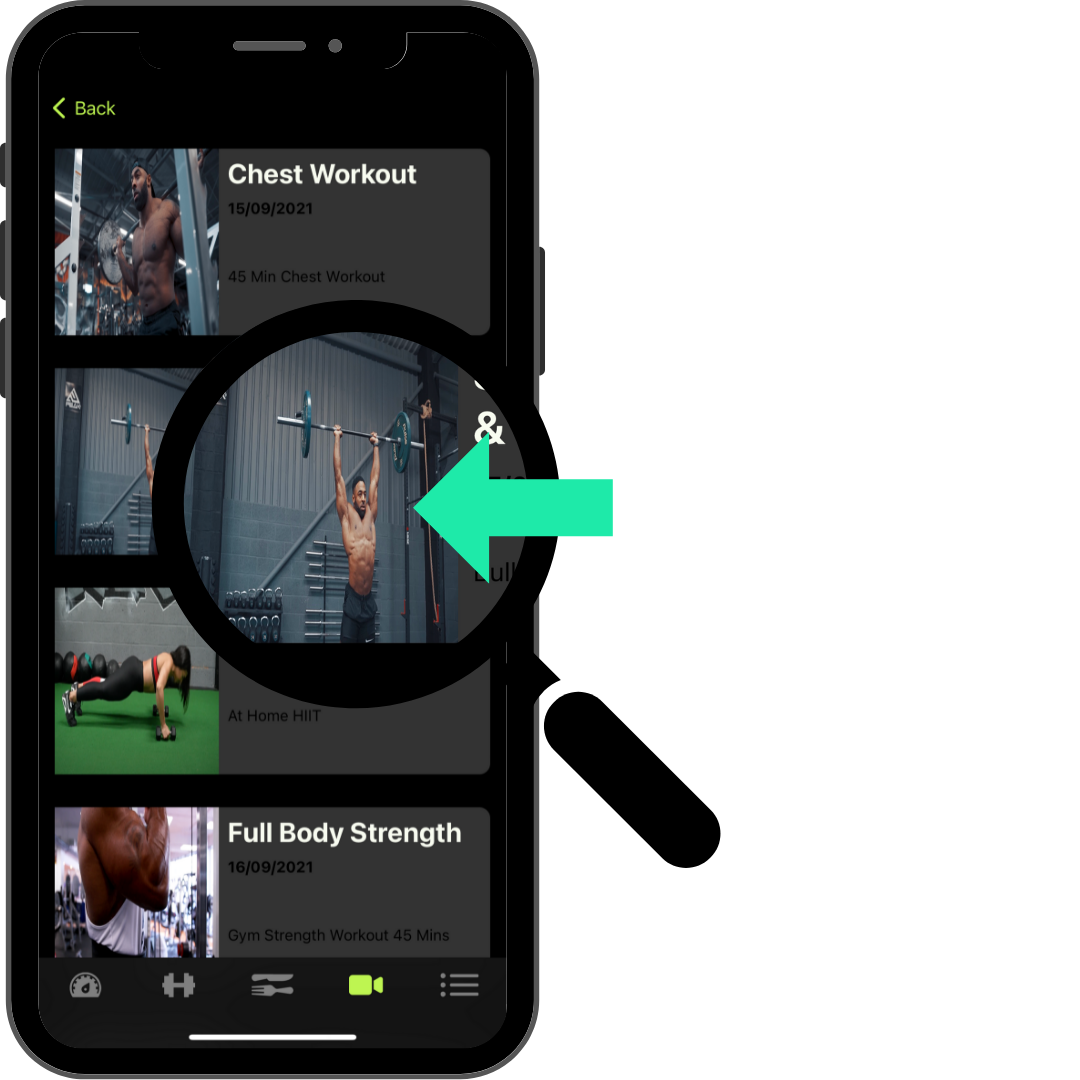
#4 - Upload Video
Upload the On Demand video you are doing. The user will be able to access it by pressing on the video image (which was done in the previous step). If you are uploading a video directly, the video must be in .mp4 format and we recommend 16x9 ratio (landscape).
Note: You do not have to upload a video directly, you can instead use Vimeo and add the Vimeo ID link in the Vimeo ID box. Click here to see more about uploading videos via Vimeo.
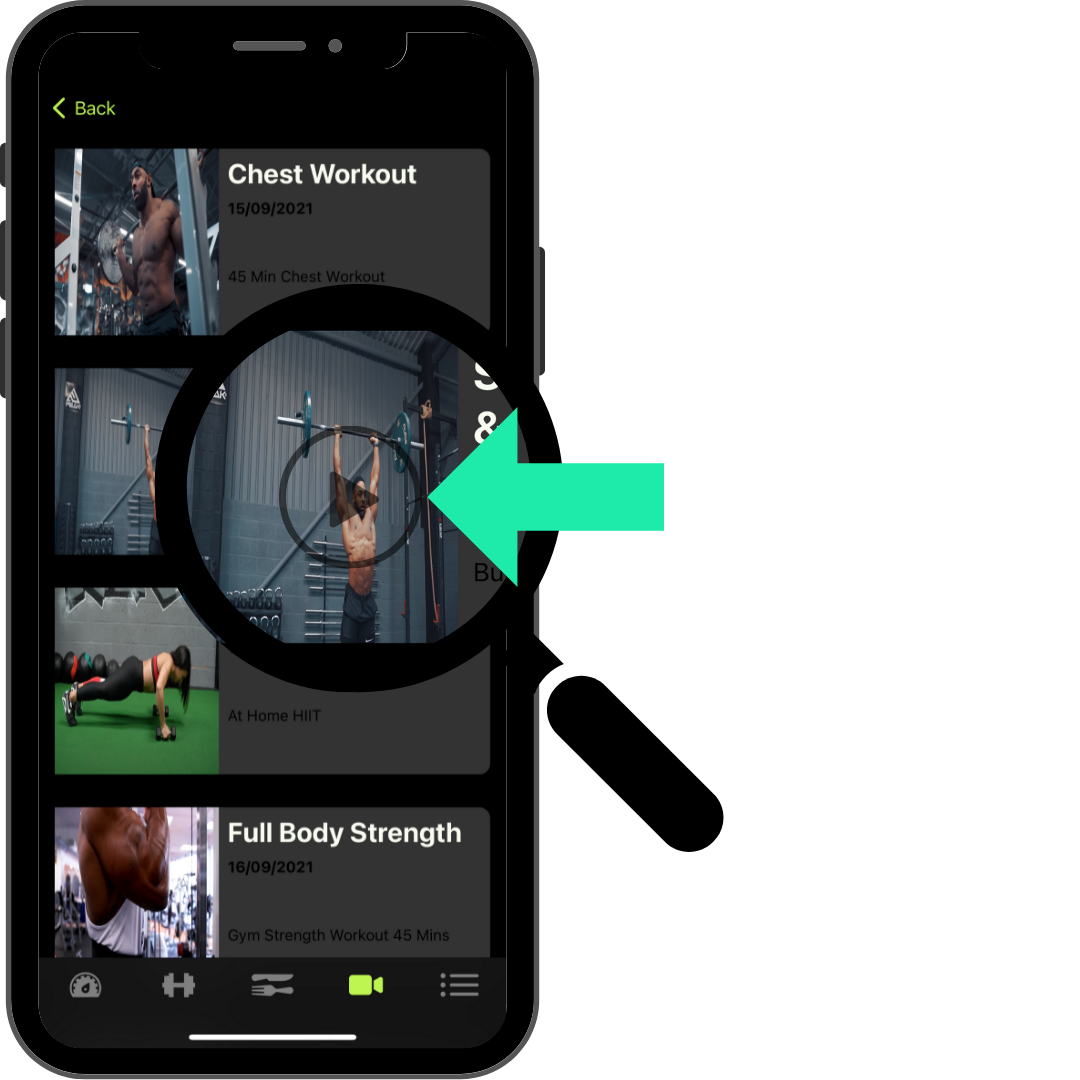
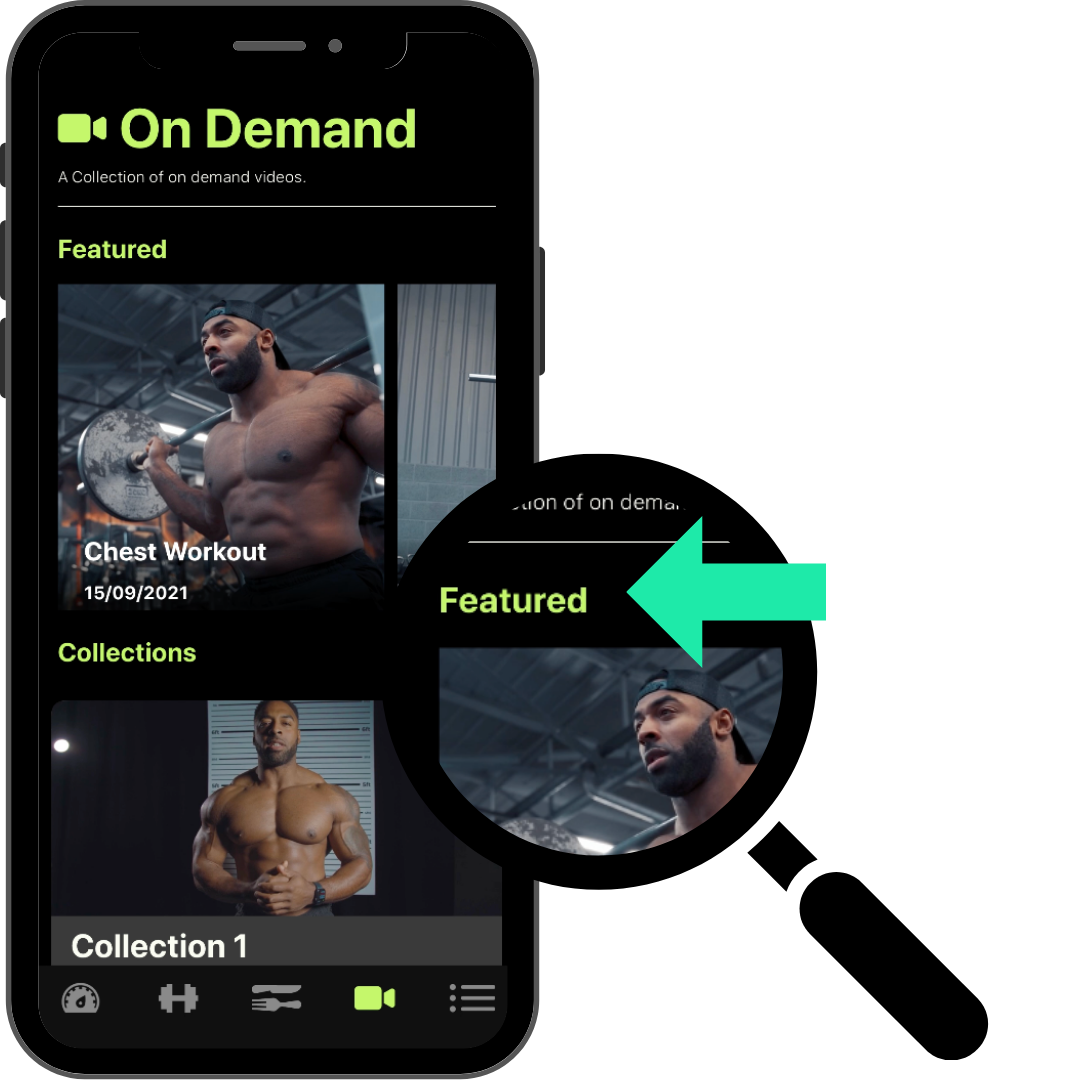
#5 - Make Video Featured (OPTIONAL)
This is an optional step. If you wish to make your video 'Featured' meaning that it will be shown in the On Demand section in the app above all the collections, you will click this button. It does not affect whether your video is active or not, it is just deciding if it is featured.
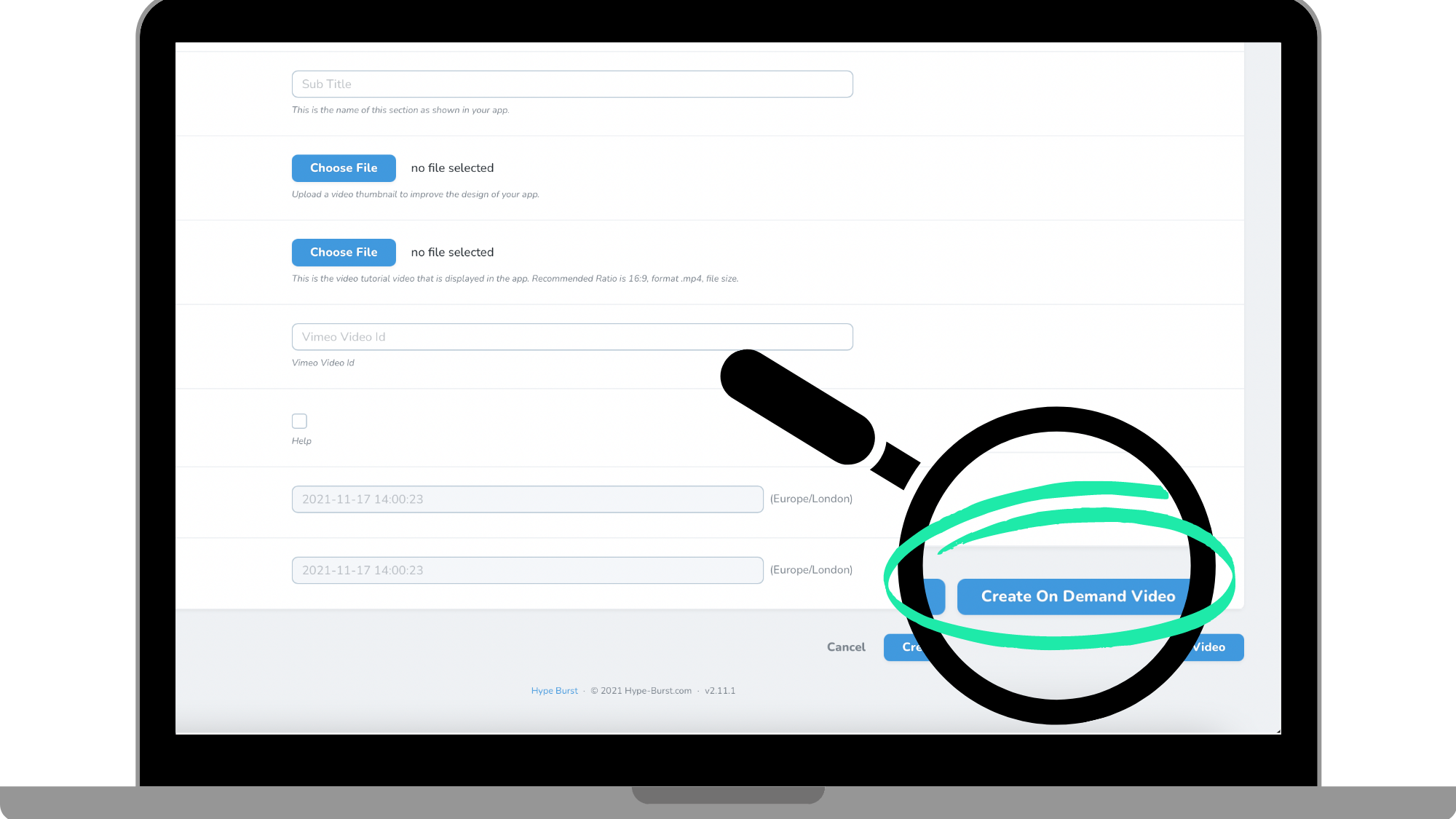
Step 4: Click the "Create On Demand Video" button in the bottom right corner
Once you have filled out all of the required fields in the previous step, you can save your video. Click the button 'Create On Demand Video'. Remember you can always go back and edit the video at anytime.
Step 5: Add your Videos to a Collection
Once you have created and uploaded your On Demand Video, you can now add it to a Collection.
To read the guide on how to add an On Demand video to a Collection, click here.
How to get started?
Log into your dashboard at https://account.hype-burst.com/admin/login to get started.
Comments
0 comments
Please sign in to leave a comment.