
Customers can subscribe to your app membership via your custom domain created by Hype Burst (appname.hype-burst.com) where they can choose a Monthly or a Yearly Subscription Plan and the payment gets processed through Stripe.
Before uploading your Hero Image, make sure you have first created a Stripe account and connected it to your Hype Burst account. If you haven't, read the guide on how to create your Stripe account here:
https://hypeburst.zendesk.com/hc/en-gb/articles/4415857788049-Create-Stripe-Account-
What is a Hero Image?
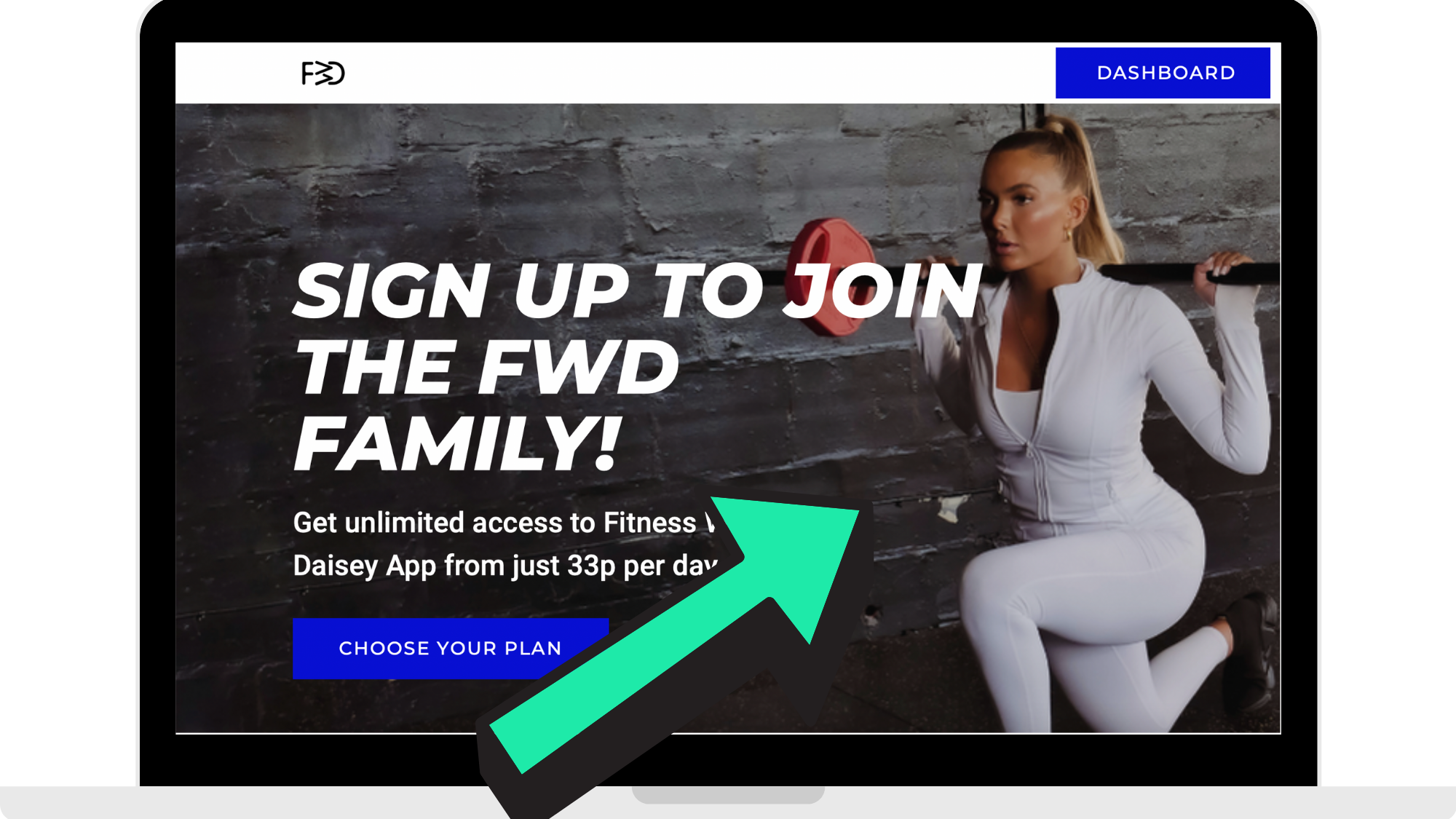
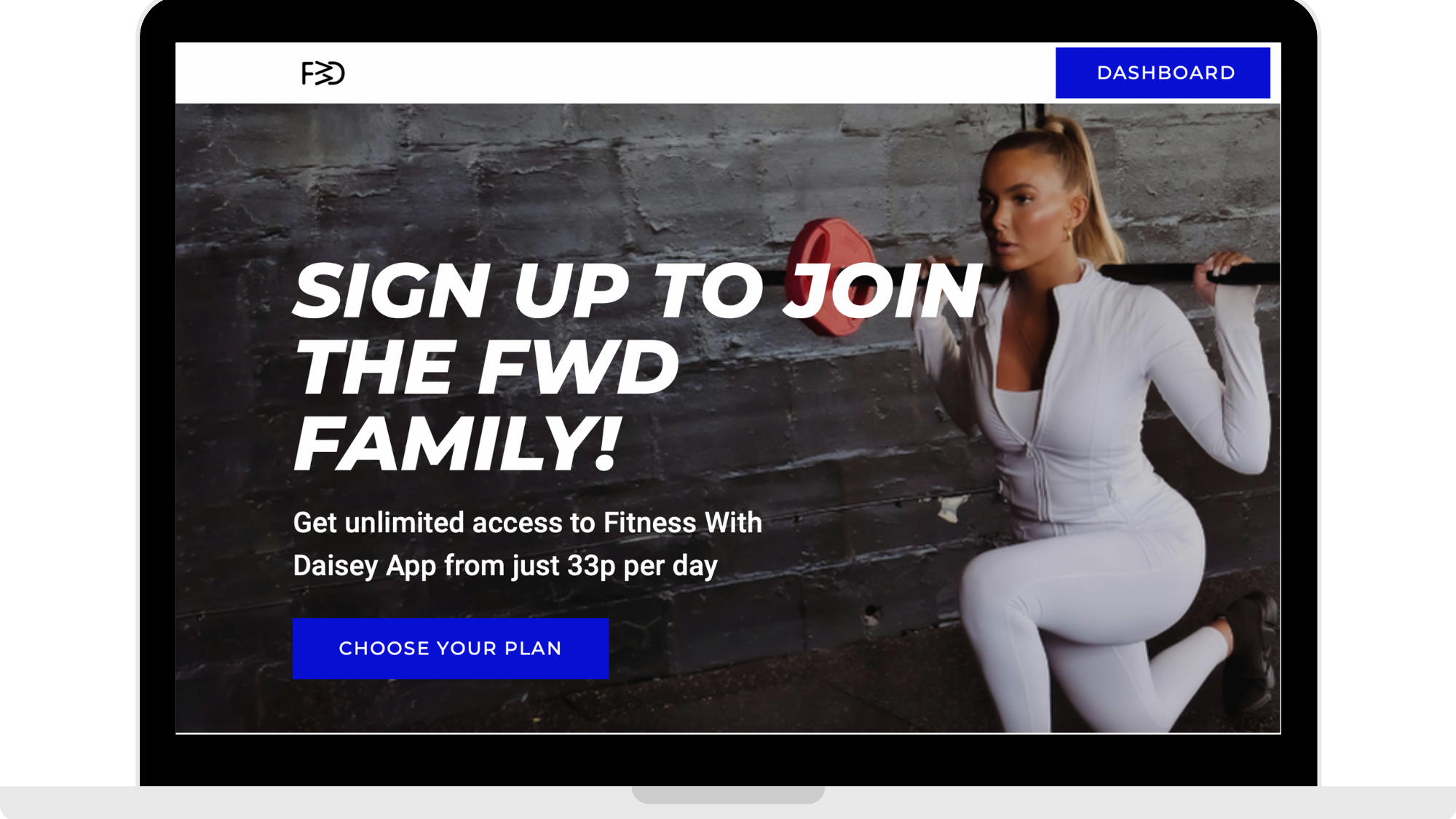
Your web Hero Image is what the user will see when clicking onto your custom domain. The image is viewed above the fold. In the reference picture below, you can see an example of a Web Subscription page created by Hype Burst. The arrow is pointing to the Web Hero Image. The Hero Image and Hero Feature Text are the first things users see.
To read the guide on Hero Feature Text, click here.
Uploading your Hero Image
Step 1: Head to Hype Burst
Head to https://account.hype-burst.com/admin/login and log into your Hype Burst Dashboard. 
Step 2: Click 'Apps'
In the panel on the left-hand side of your Dashboard, click on 'Apps' which is found under 'Resources'. 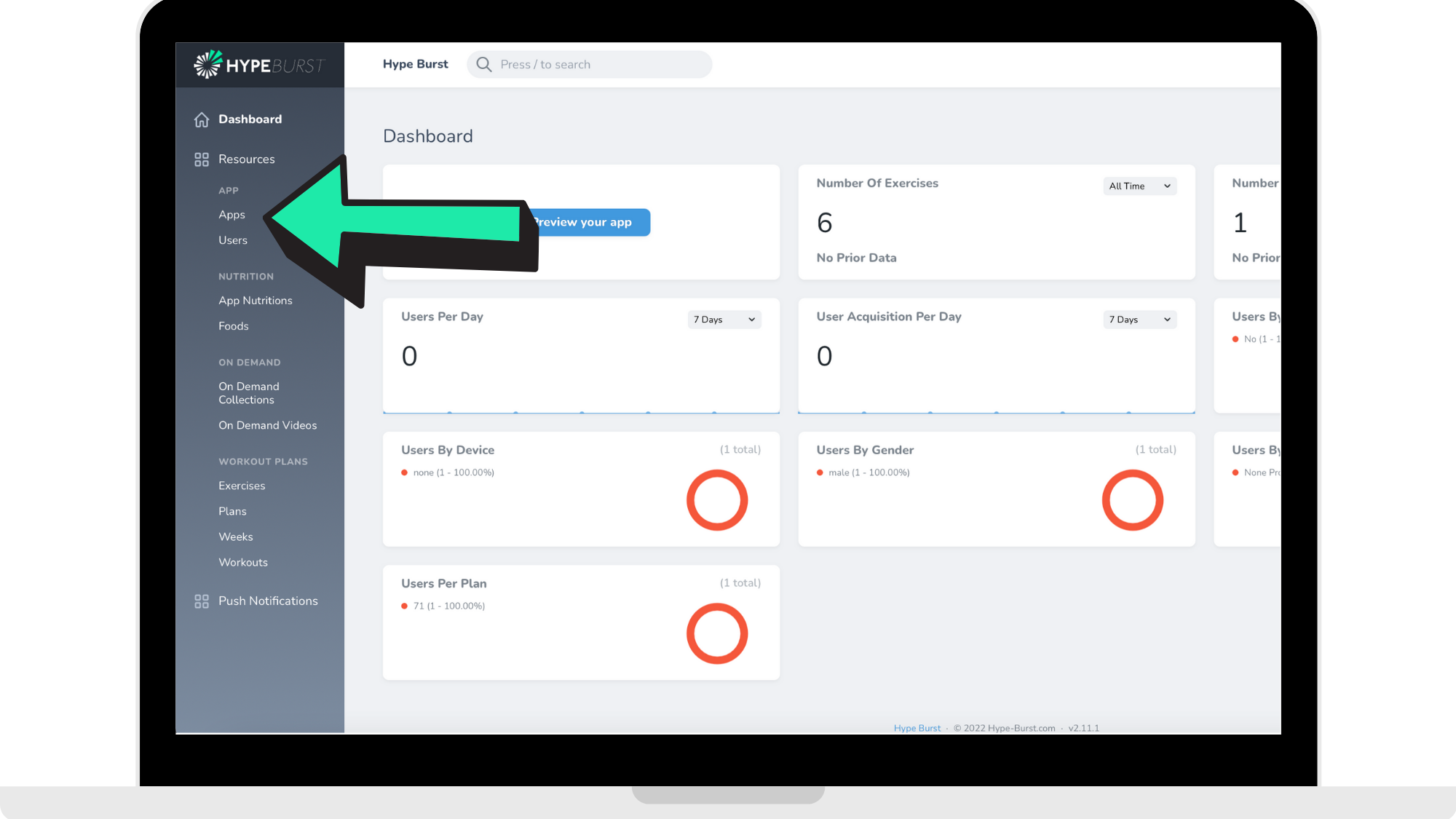
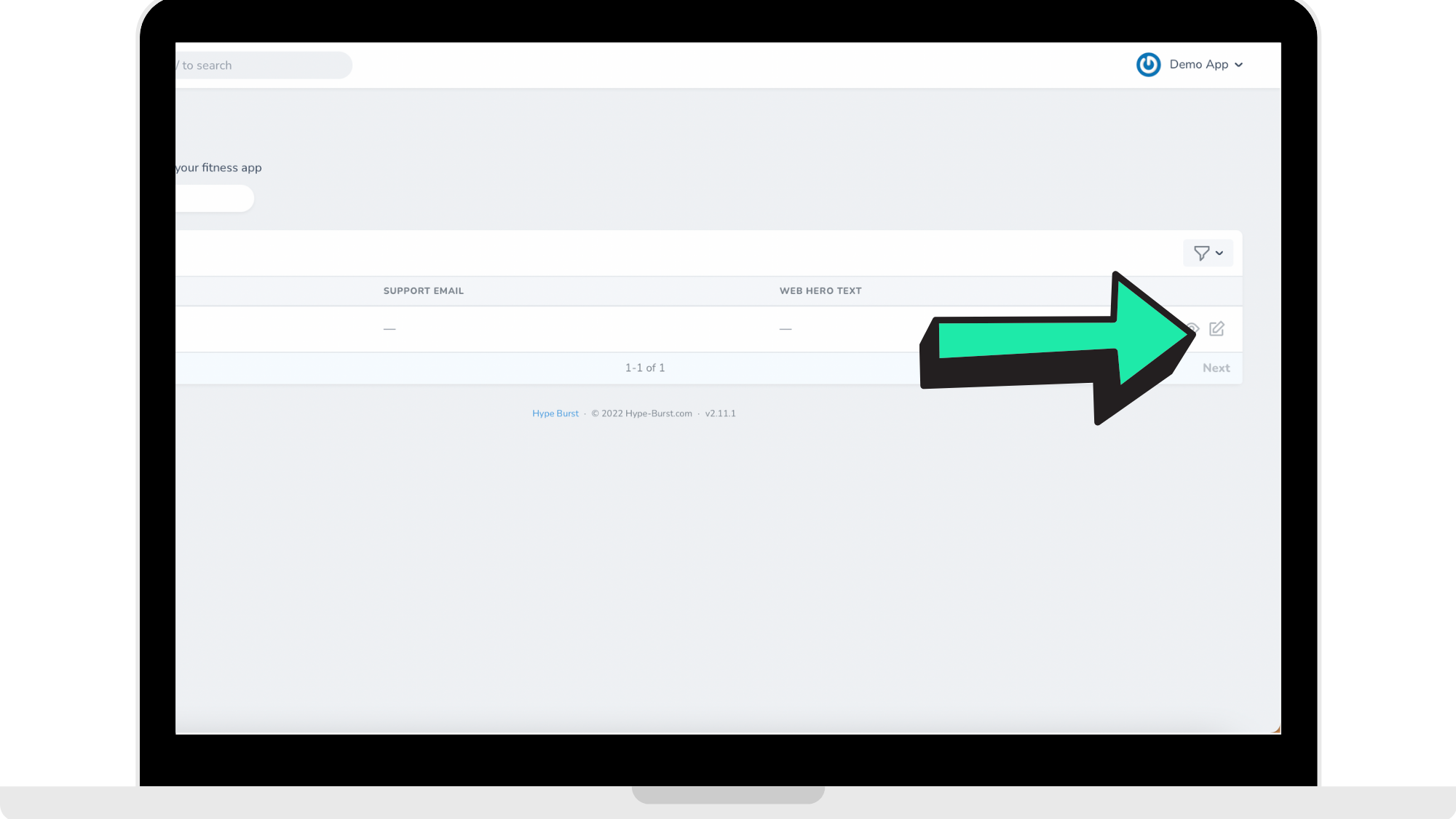
Step 3: Click on the 'Edit' icon
Next to your app, click on the 'Edit' icon.
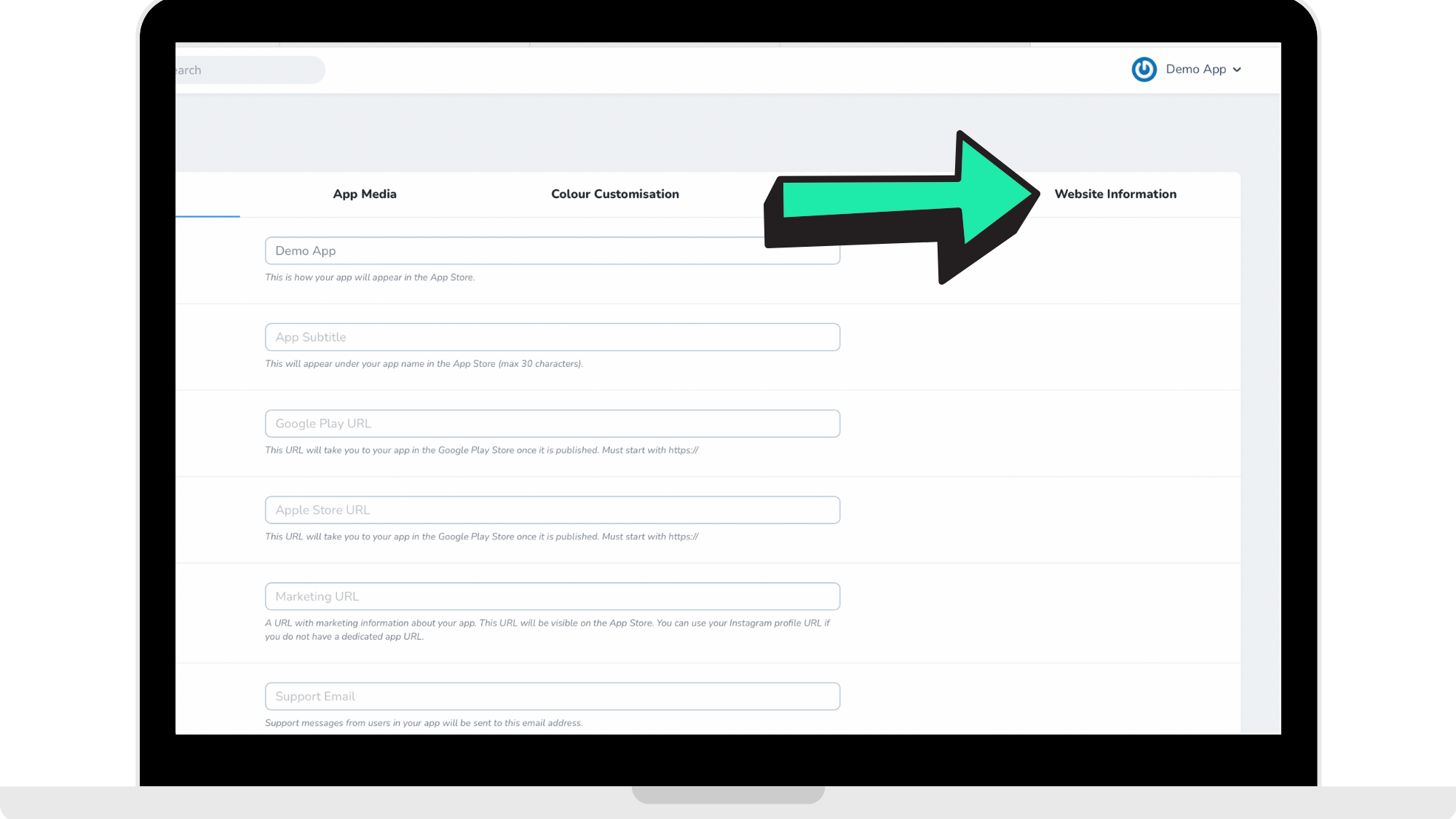
Step 4: Go to 'Website Information'
In the bar across the top, click 'Website Information' in the far right.
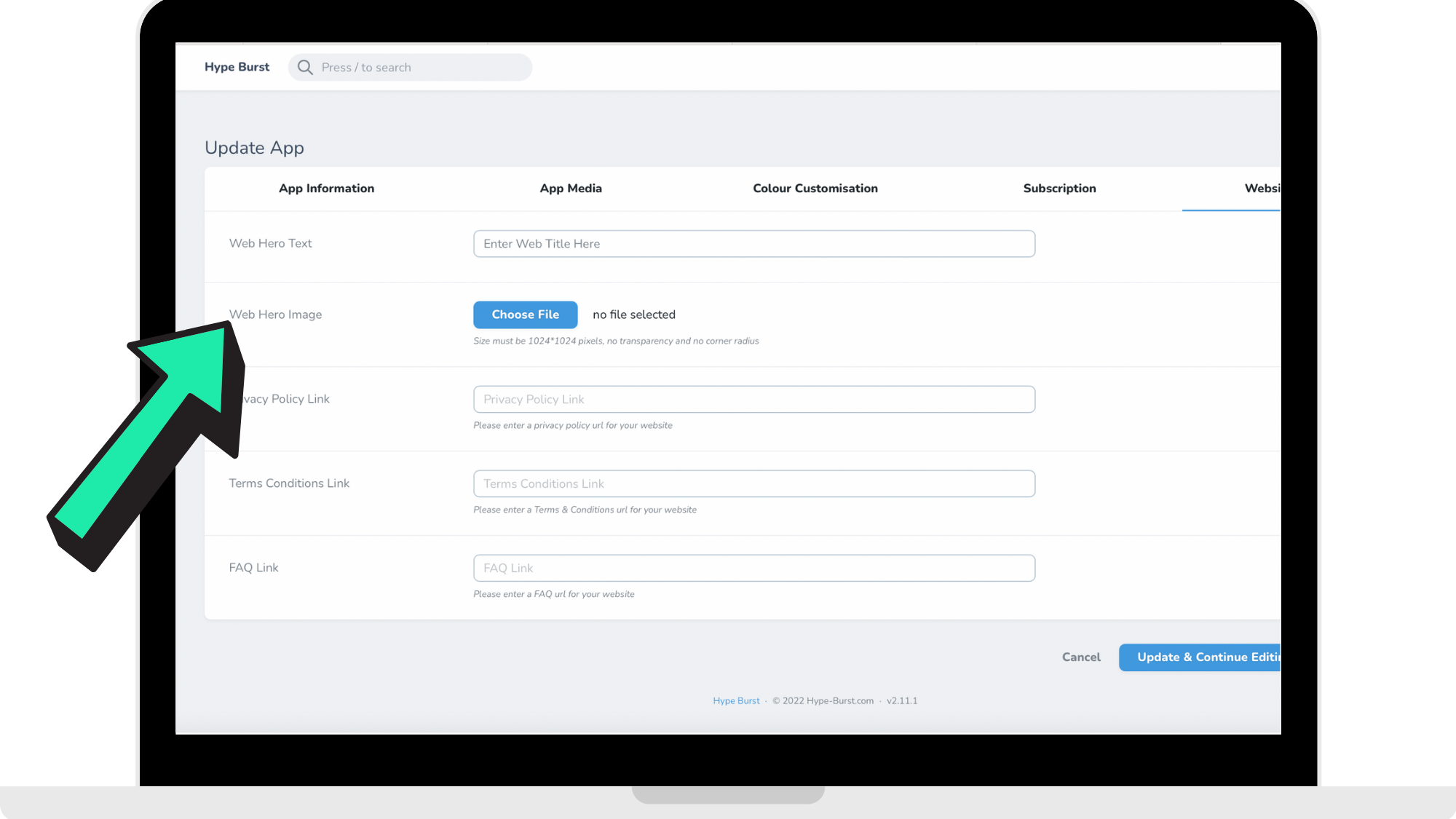
Step 5: Upload your 'Hero Image'
Upload your 'Web Hero Image' here by clicking 'Choose File'.
To read the Hype Burst blog on all the tips and tricks you need for a great Hero Image, click here: XYZ.
Step 6: Click 'Update App'
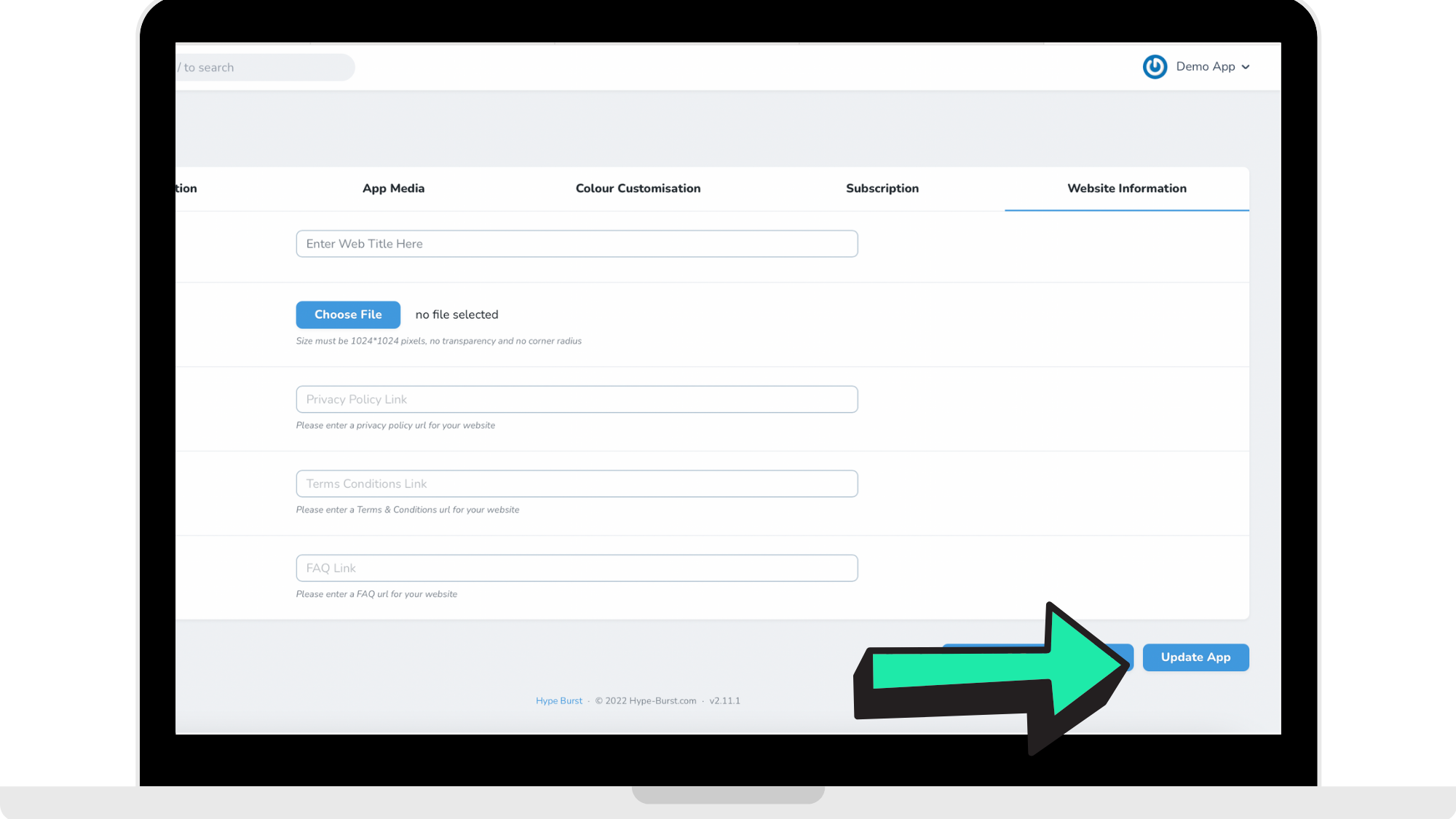
Once you have uploaded your Web Hero Image, to save it in your Dashboard, click 'Update App'. Please note that you can go back at any time to edit your image.
Once you have pressed 'Update App', you can visit your custom domain and see how the Hero Image you just uploaded looks on your page. With Hype Burst, you are able to go back at any time and edit the image used. When visiting your custom domain, the layout should look similar to the reference picture below, only with your Hero Image and Feature Text.
How to get started
Head to https://account.hype-burst.com/admin/login and log into your Hype Burst Dashboard.
Once you have finished uploading your Hero Image, you are ready to enter your Hero Text. Read the guide on entering your Web Hero Text here.
Comments
0 comments
Please sign in to leave a comment.