
Customers can subscribe to your app membership via your custom domain created by Hype Burst (appname.hype-burst.com) where they can choose a Monthly or a Yearly Subscription Plan and the payment gets processed through Stripe.
What are web subscriptions?
Web subscriptions give users the ability to subscribe via a custom domain created by Hype Burst for your fitness app. They can then log into the app with the subscription purchased through your web page as opposed to subscribing within the app.
When a user visits your website, they are able to view the main features your fitness app offers, the Workout Plans your app provides, and the Monthly and Yearly price. From there they can sign up, subscribe, and manage their account from their custom Dashboard. Once they sign up, they can download the app and log in as normal.
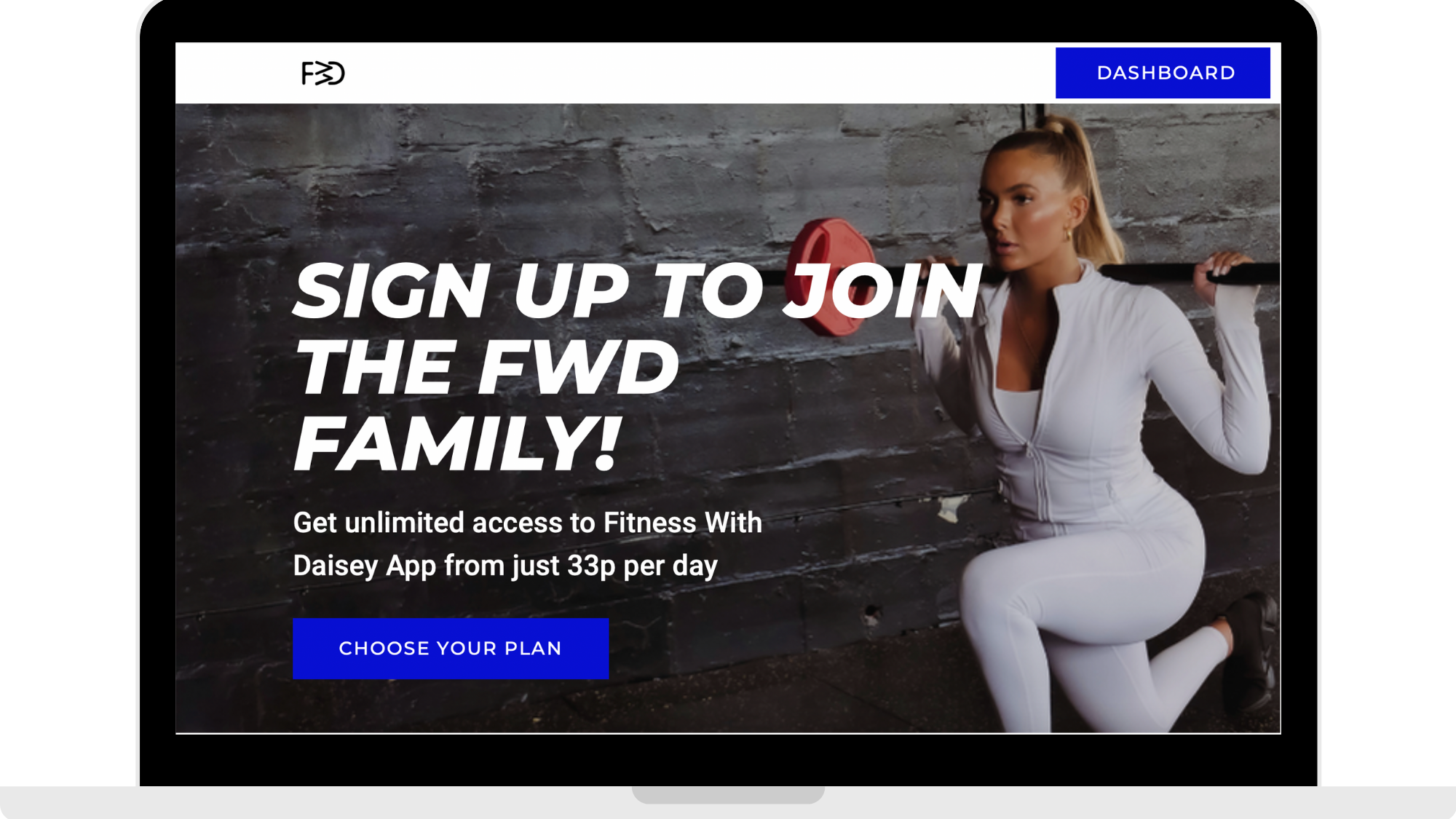
In the reference picture below you can see an example of a web subscription site made by Hype Burst for a fitness app. There are 2 main things that are seen above the fold: Web Hero Image and Web Hero Feature Text. For details on each, please refer to the following guides:
Why do we have web subscriptions?
Web subscriptions are a great way to save on Apple and Google fees. When users sign up to your fitness app through your website, they pay through Stripe, where the fee is significantly less than Apple and Google.
Apple and Google take 30% of your revenue in your first year, and then after that they take 15%. For more information on how Apple and Google fees work, click here.
How do web subscriptions work?
When you sign up with Hype Burst to create your own fitness app, we create you a custom sign up site. With this domain, a customer can use it to visit your site, sign up, and subscribe. Once they have purchased a Monthly or Yearly Plan through your website, they can log in and manage their subscription from their custom dashboard.
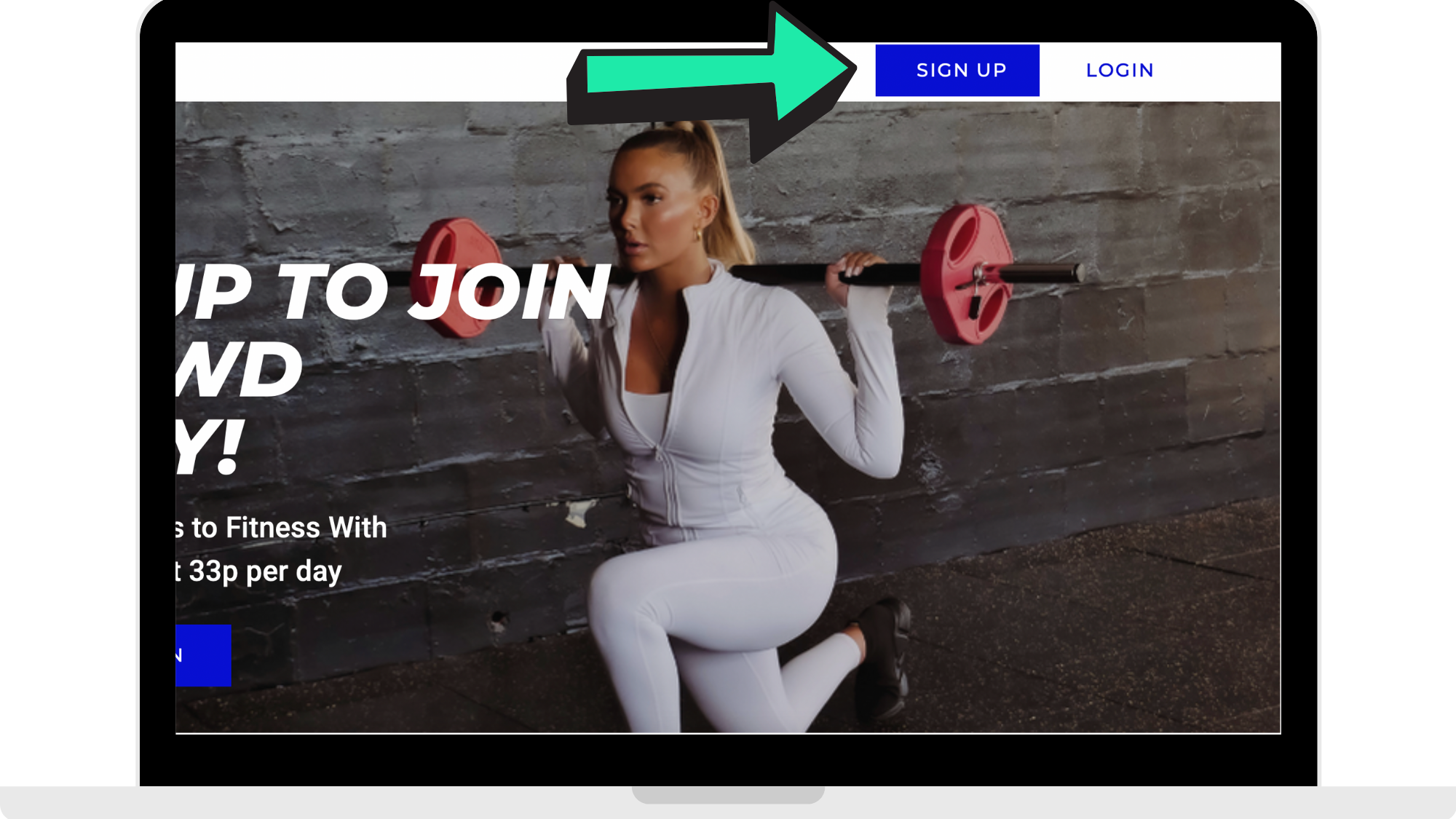
Step 1: Click 'Sign Up'
When you sign up with Hype Burst, customers can sign up with your custom domain created by Hype Burst (appname.hype-burst.com). When they land on the site, they press 'Sign Up'.
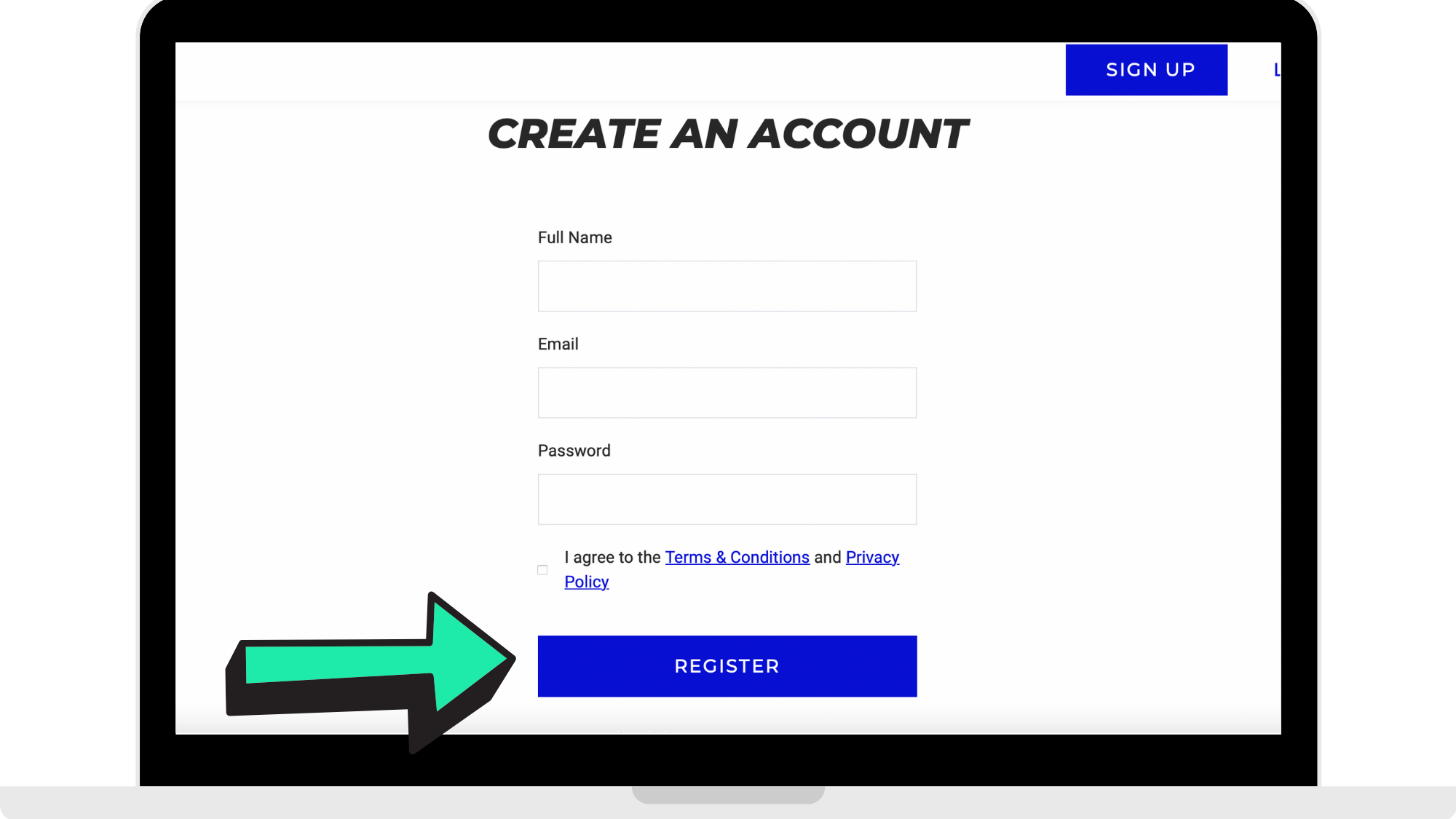
Step 2: Fill in details and press 'Register'
The customer will then fill in their details, agree to the Terms & Conditions and the Privacy Policy, and then press 'Register'.
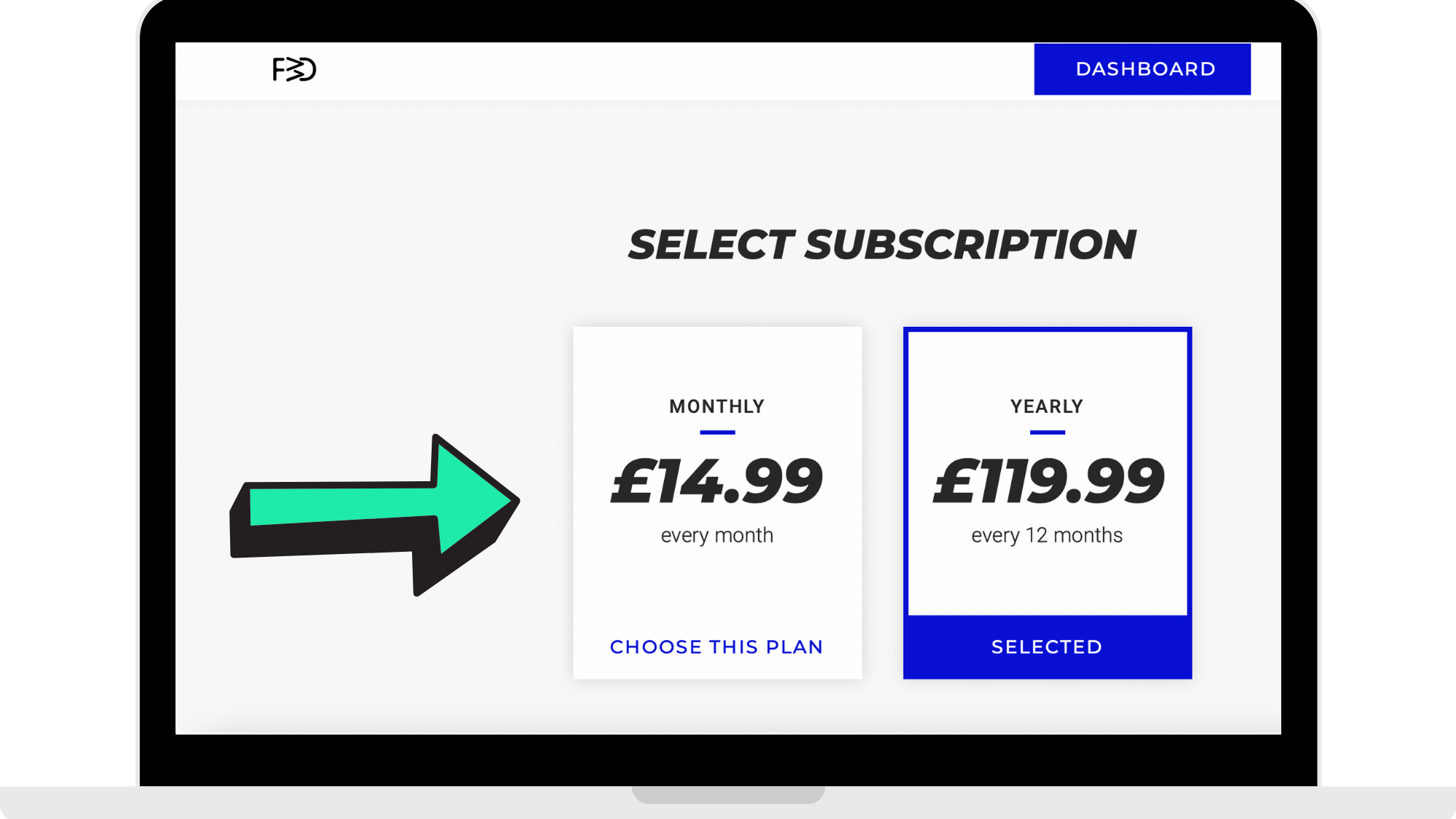
Step 3: Selecting a subscription
The customer can choose between a Monthly subscription or a Yearly subscription. The pricing depends on what you set when you set your subscription price.
To read about how to set your subscription price, please refer to the article on setting up your Stripe account here: https://hypeburst.zendesk.com/hc/en-gb/articles/4415857788049-Create-Stripe-Account-
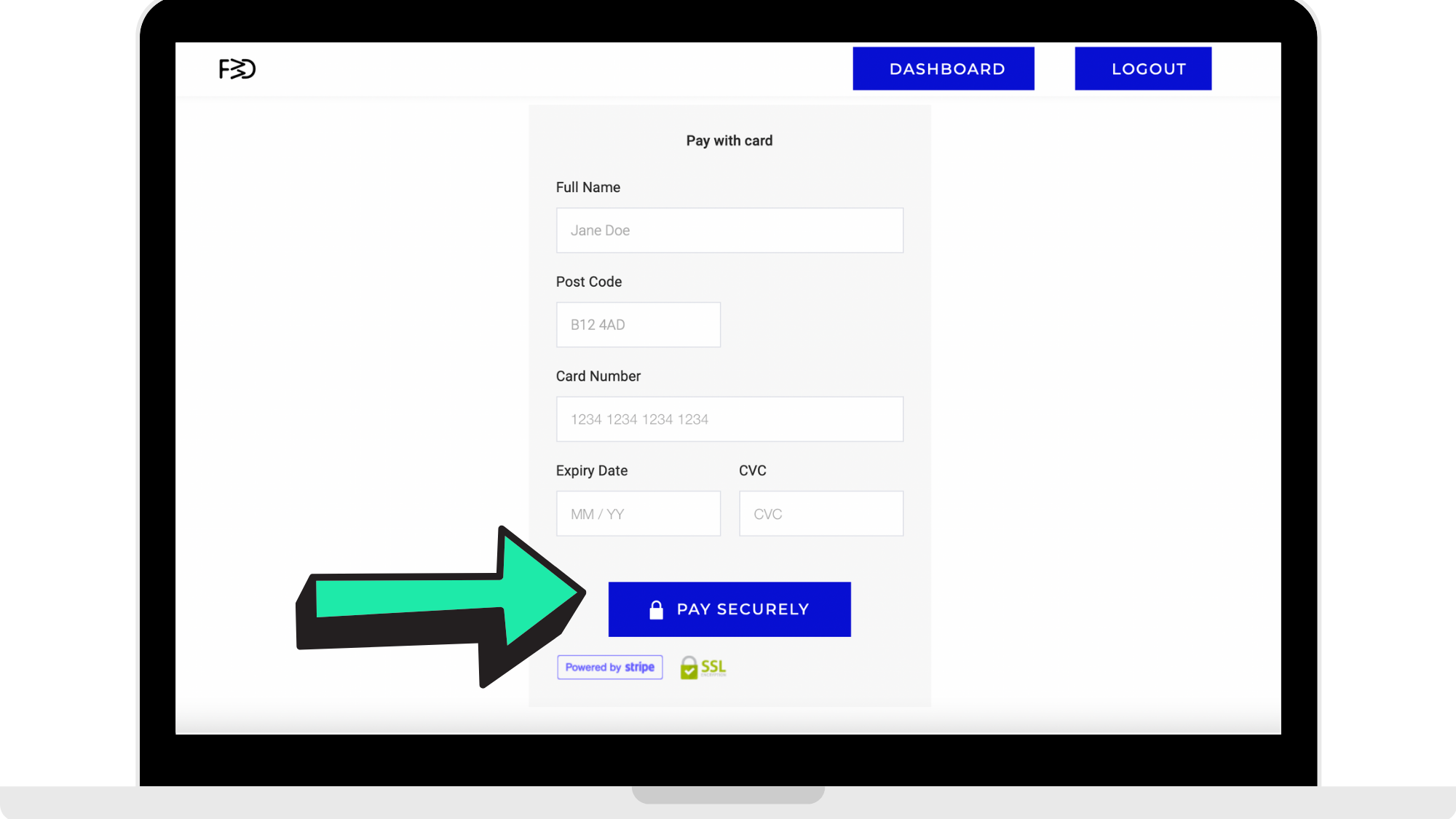
Step 4: Entering in payment details
Once they select a plan, they are brought to the payment page which is processed by Stripe. The customer will enter their details and then click 'Pay Securely'.
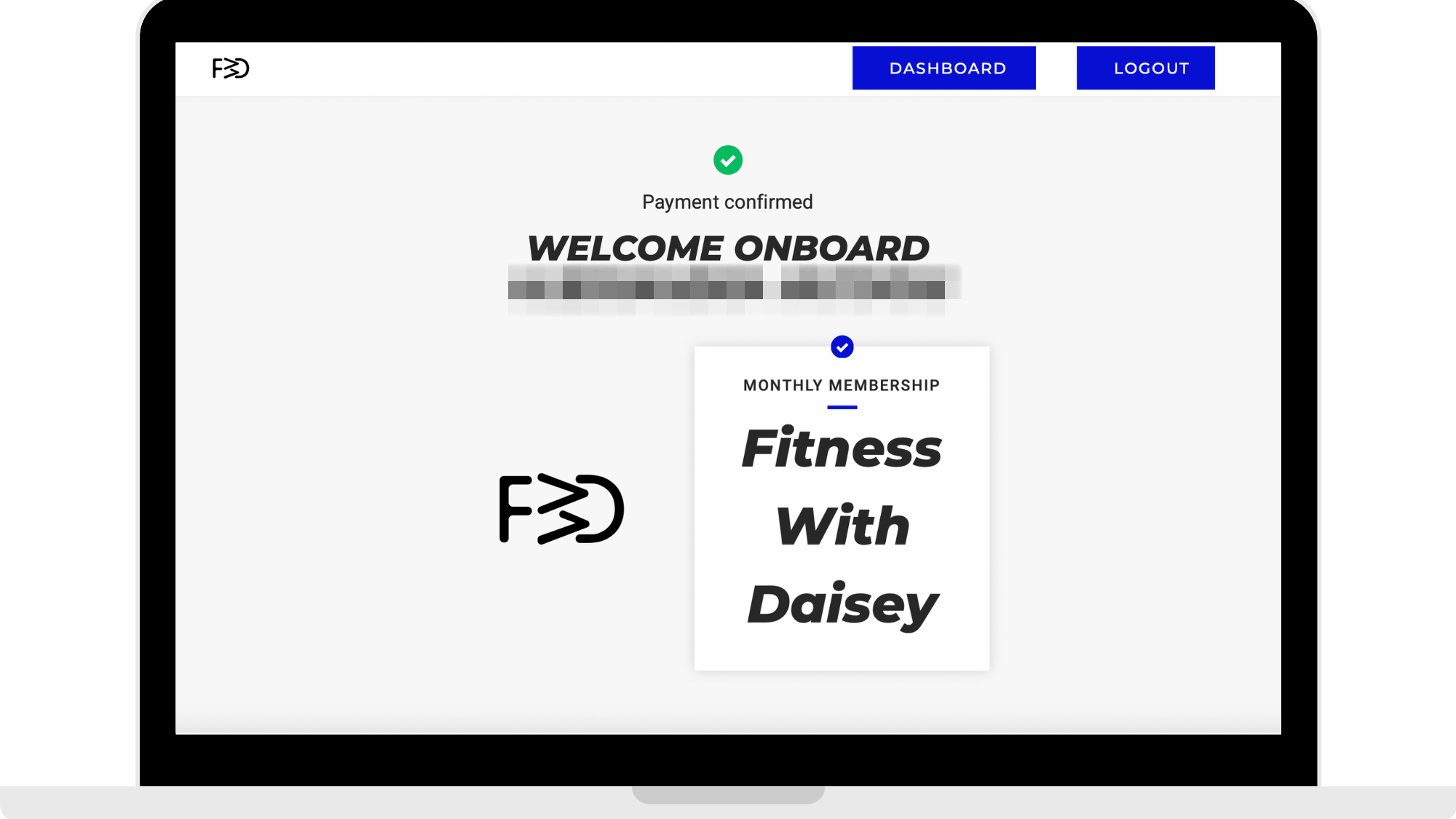
Step 5: Downloading the fitness app
After successfully paying for their subscription, the customer will get to a 'Welcome Onboard' landing page. They can then download your fitness app and log in as normal. They will not have to go through payment process again. When logging in via the app, the customer can choose which Workout Plan they wish to do and enter in their personal details and goals to create their customer account. This gives customers the Pocket Personal Trainer® experience with their own dashboard in the app to view key information and track their progress.
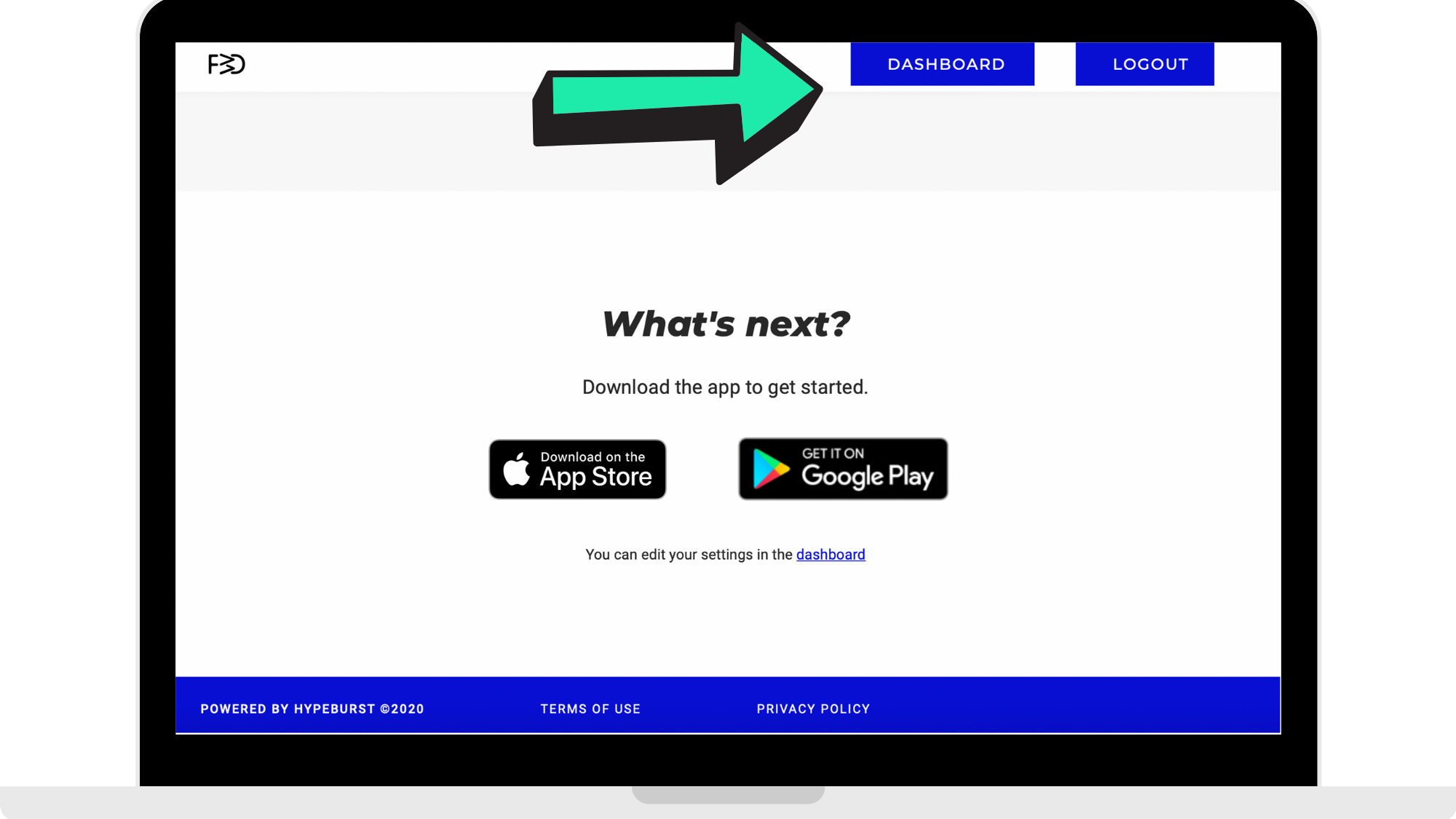
Step 6: Log in and view their Dashboard at any time
After downloading the app and personalising their account, they are able to log back in through the website and click 'Dashboard'.
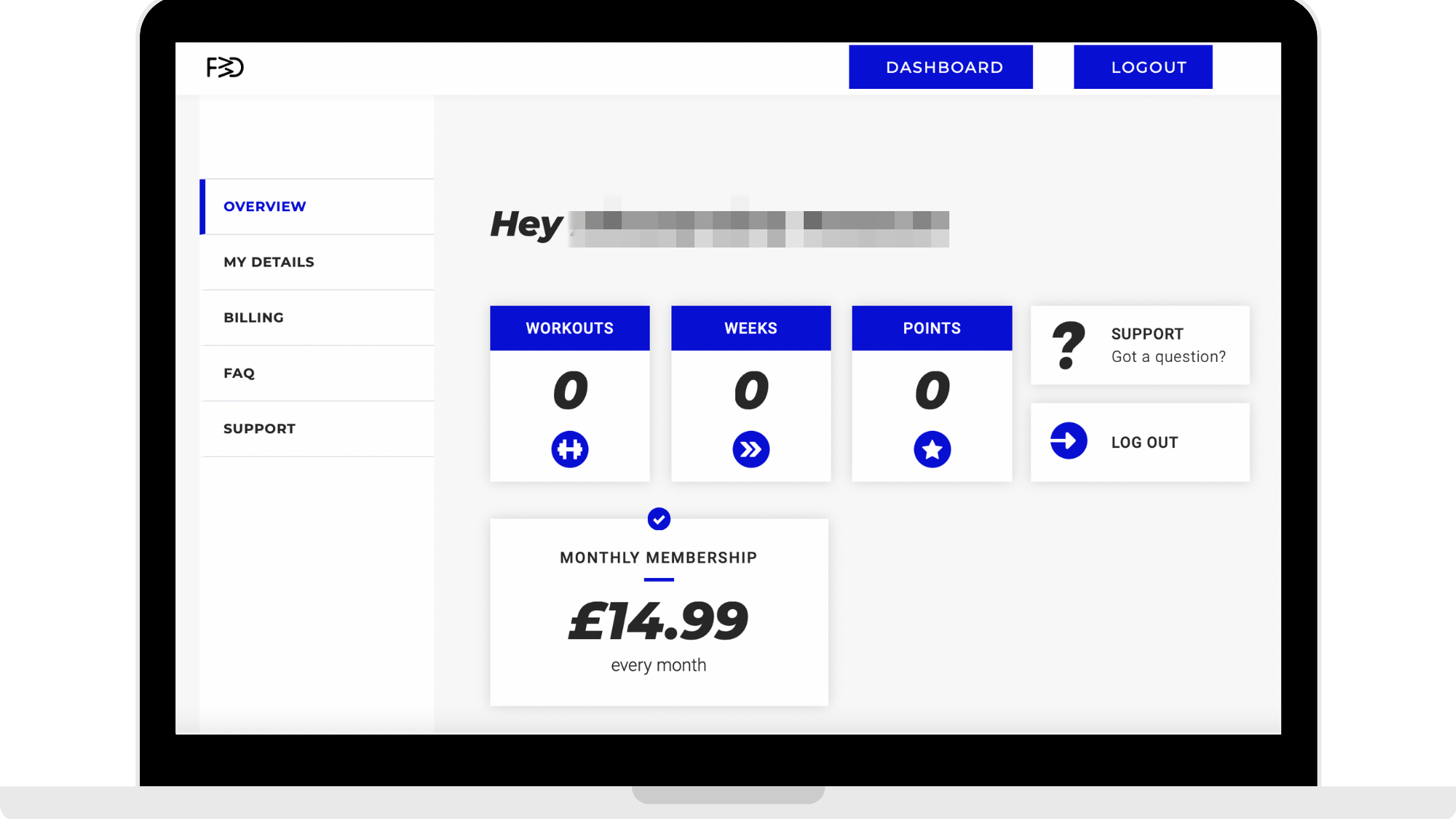
Once clicking 'Dashboard', they are able to view their their progress, details, subscription, and any other key information they need. Please note that this function is only available for people who sign up through the website.
How you receive the money
Web subscriptions are processed by Stripe. In order to get paid from web subscriptions, you need to create your Stripe account and connect it with your Hype Burst account. Once you have connected your account, you will get automatic payouts from Stripe for your fitness app.
To read the full support article on how to create and set up your Stripe account, click here:
https://hypeburst.zendesk.com/hc/en-gb/articles/4415857788049-Create-Stripe-Account-
Comments
0 comments
Please sign in to leave a comment.