
App Store screenshots are a great tool for marketing your app and helping potential customers understand more about it. You cannot publish your app without screenshots.
You can upload your screenshots directly to the Apple App Store and Google Play Store. You must follow the guidelines for each platform, otherwise your app may be rejected from publication.
Note: Hype Burst designers can create your screenshots for an additional fee. Please contact us with your requirements.
Adding App Screenshots to Apple
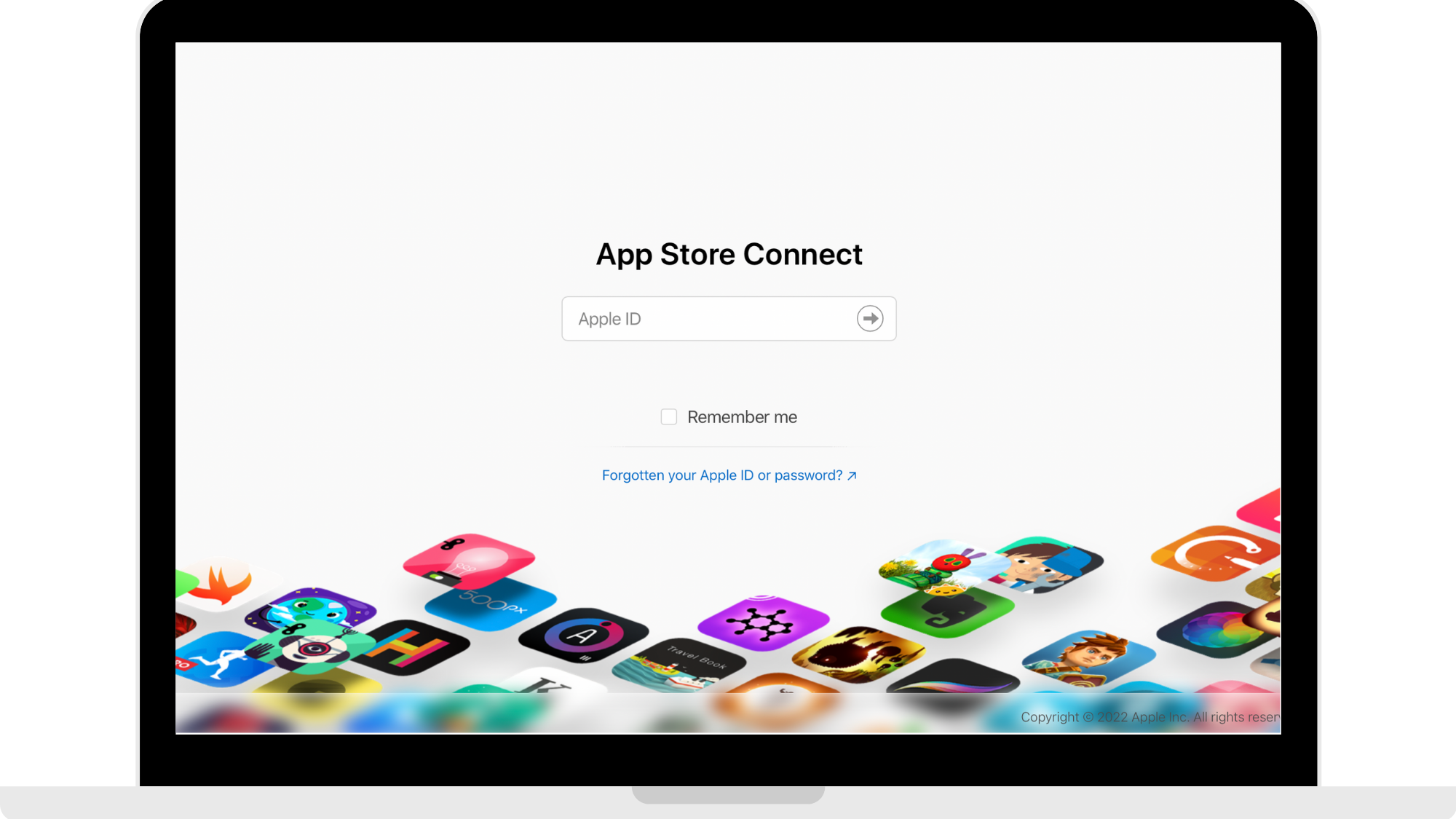
Step 1: Head to App Store Connect
Head to https://appstoreconnect.apple.com and log in using your Apple Developer account.
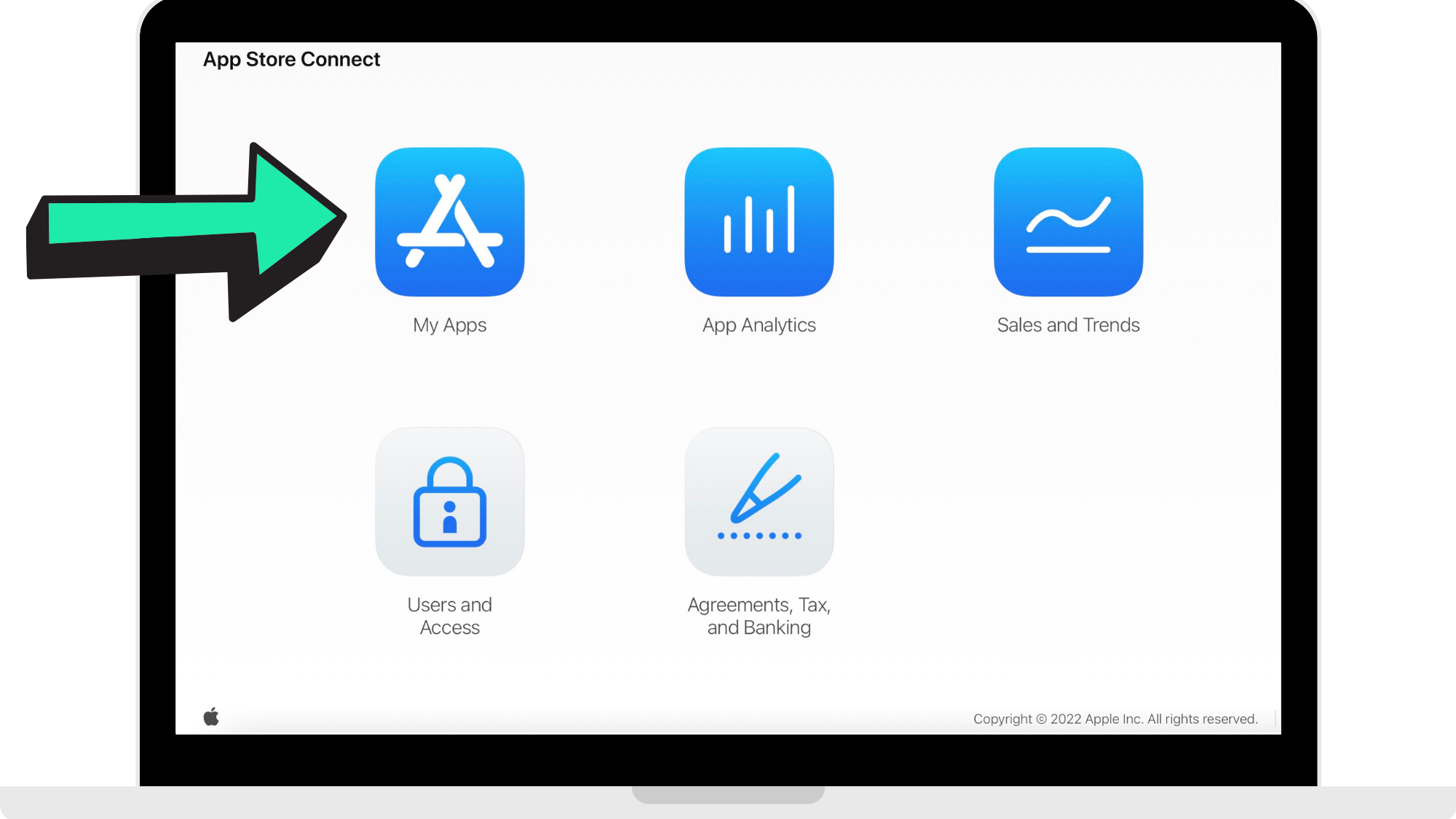
Step 2: Click 'My Apps'
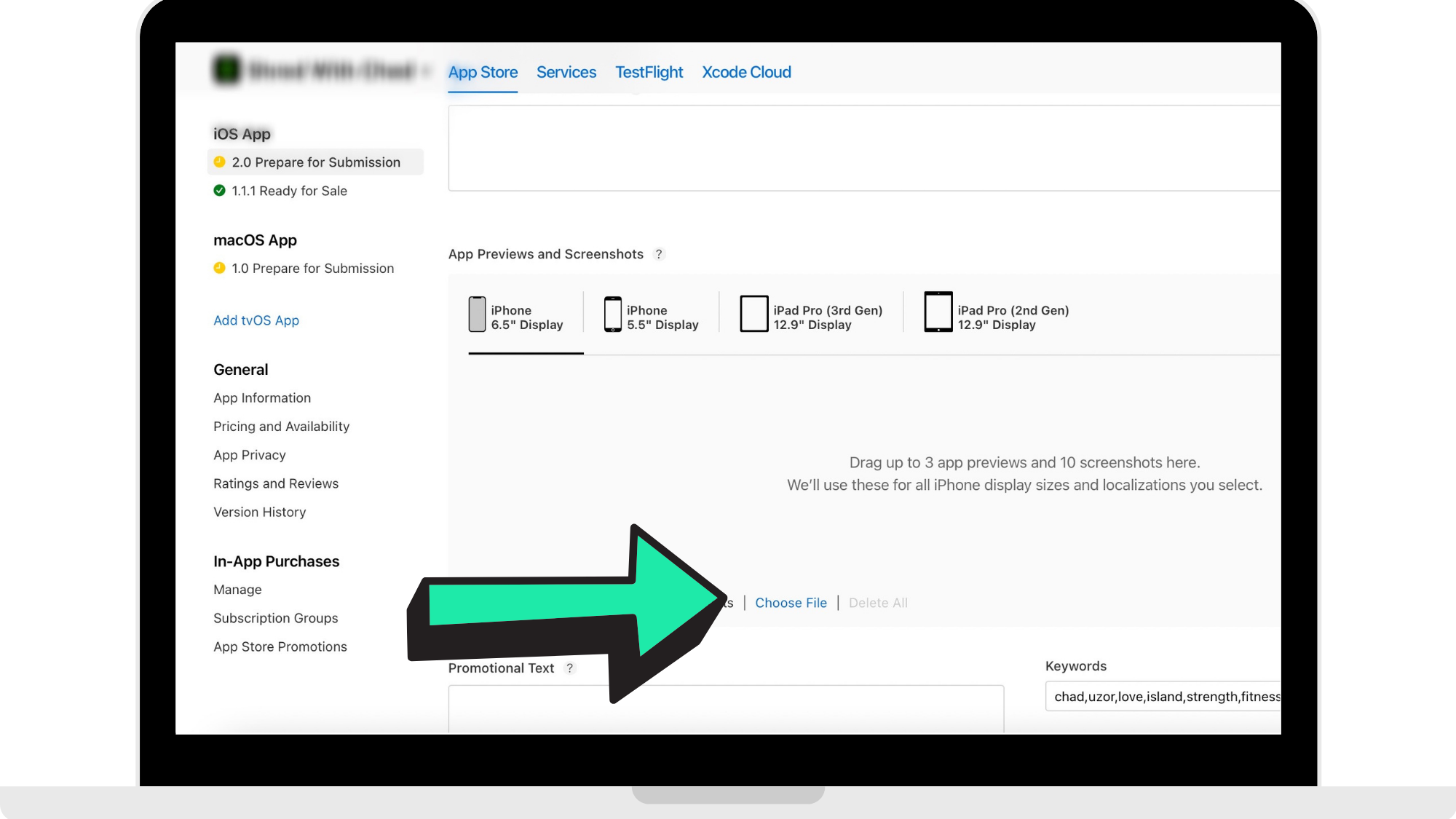
Step 3: Upload App screenshots
Design your Apple screenshots based on App Store Guidelines. Read the guidelines here:
https://help.apple.com/app-store-connect/#/devd274dd925
Once you have designed your screenshots based on App Store Guidelines, upload screenshots for 6.5inch and 5.5inch display sizes.
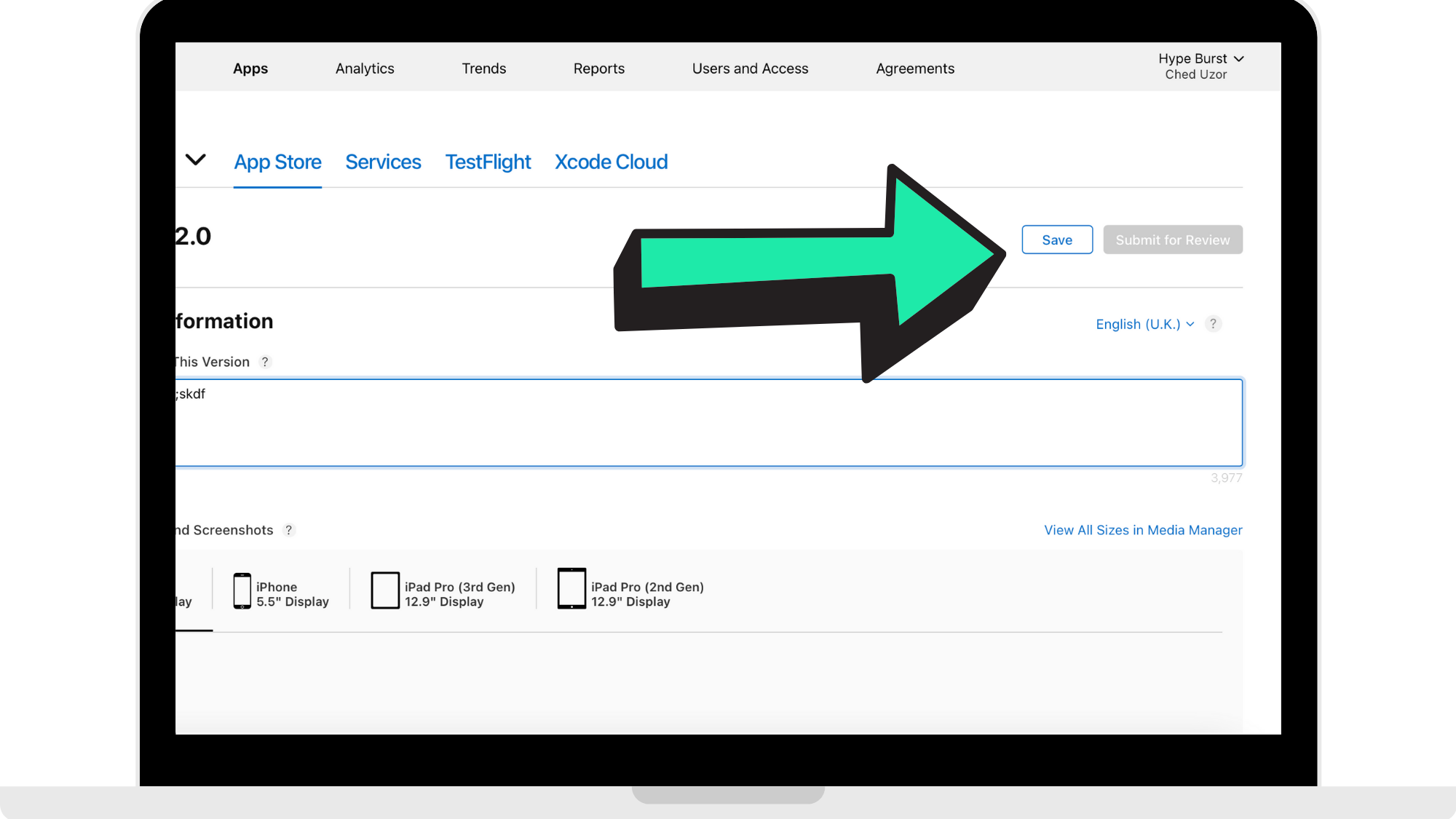
Step 4: Press 'Save'
Once you have uploaded your App Store Screenshots, press 'Save'.
Once you have uploaded your screenshots, you can enter in your App Description. Please read the guide on how to add in your App Description here: https://hypeburst.zendesk.com/hc/en-gb/articles/4416405444753-Adding-Your-App-Description-
Adding App Screenshots to Google Play
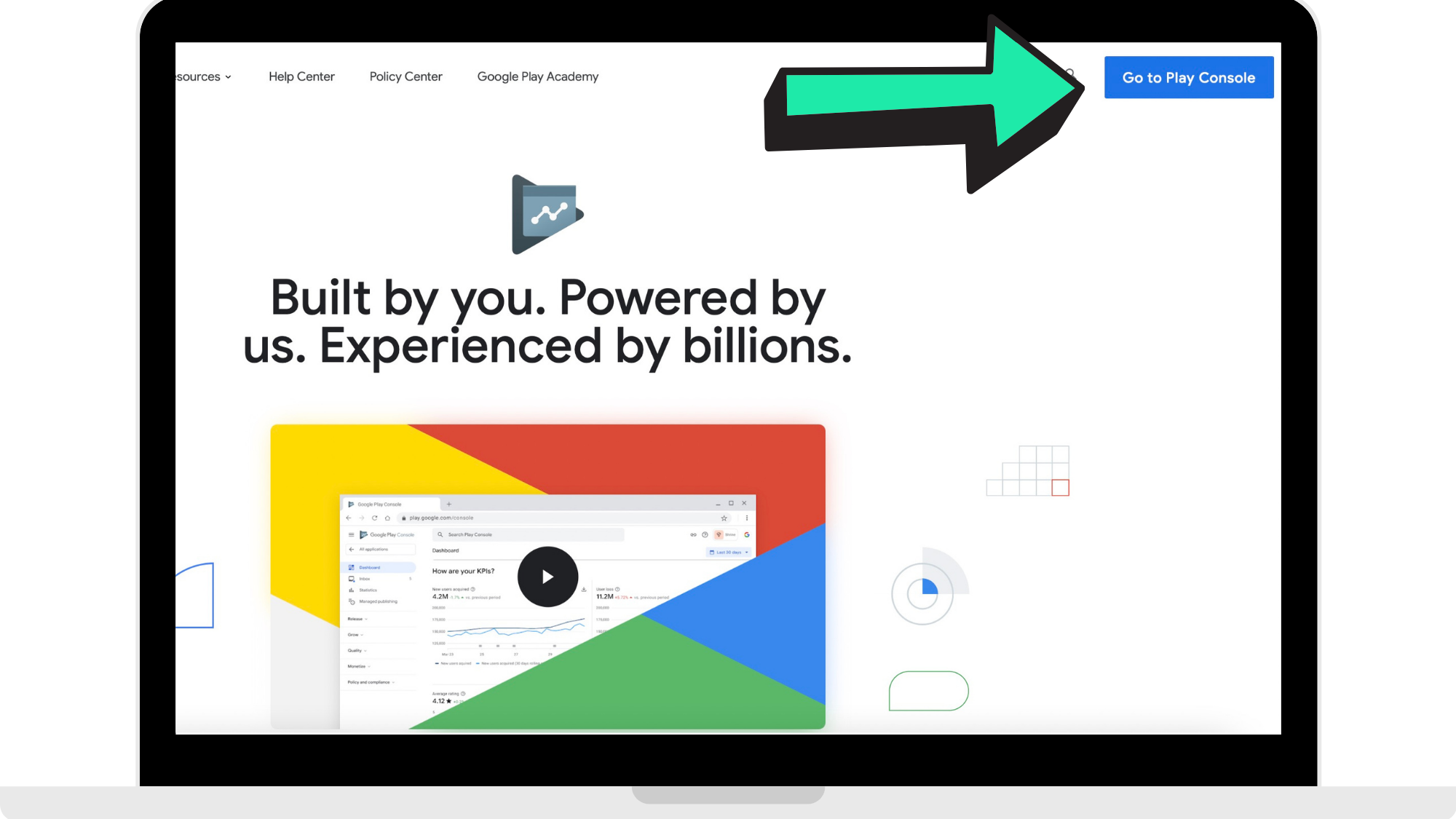
Step 1: Head to Google Play Console
Head to https://play.google.com/console/ to log into your Google Developer account.
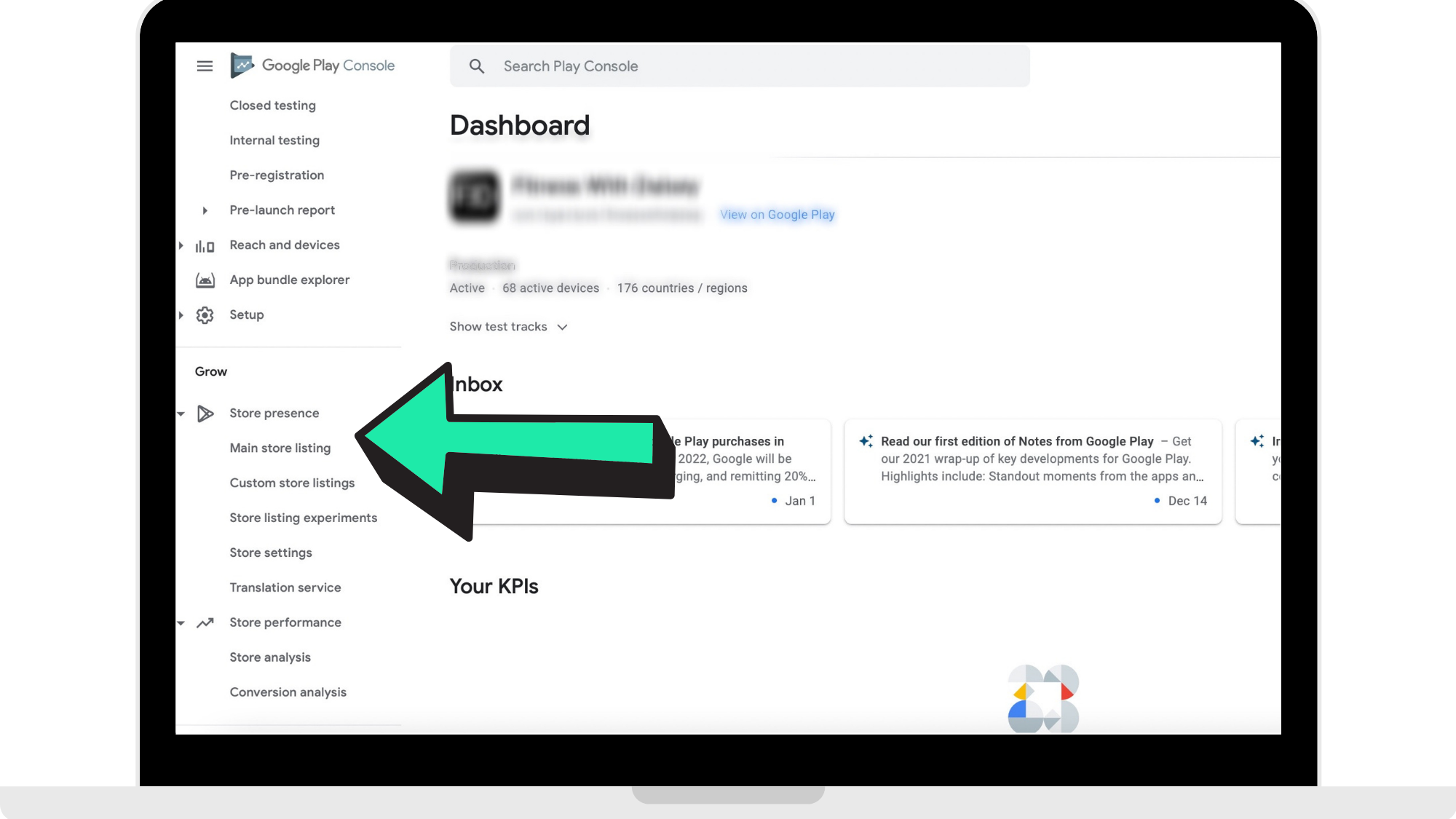
Step 2: Head to 'Main Store Listing'
From the menu on the left-hand side, click on 'Store Presence'. From the drop-down menu, click on 'Main Store Listing'.
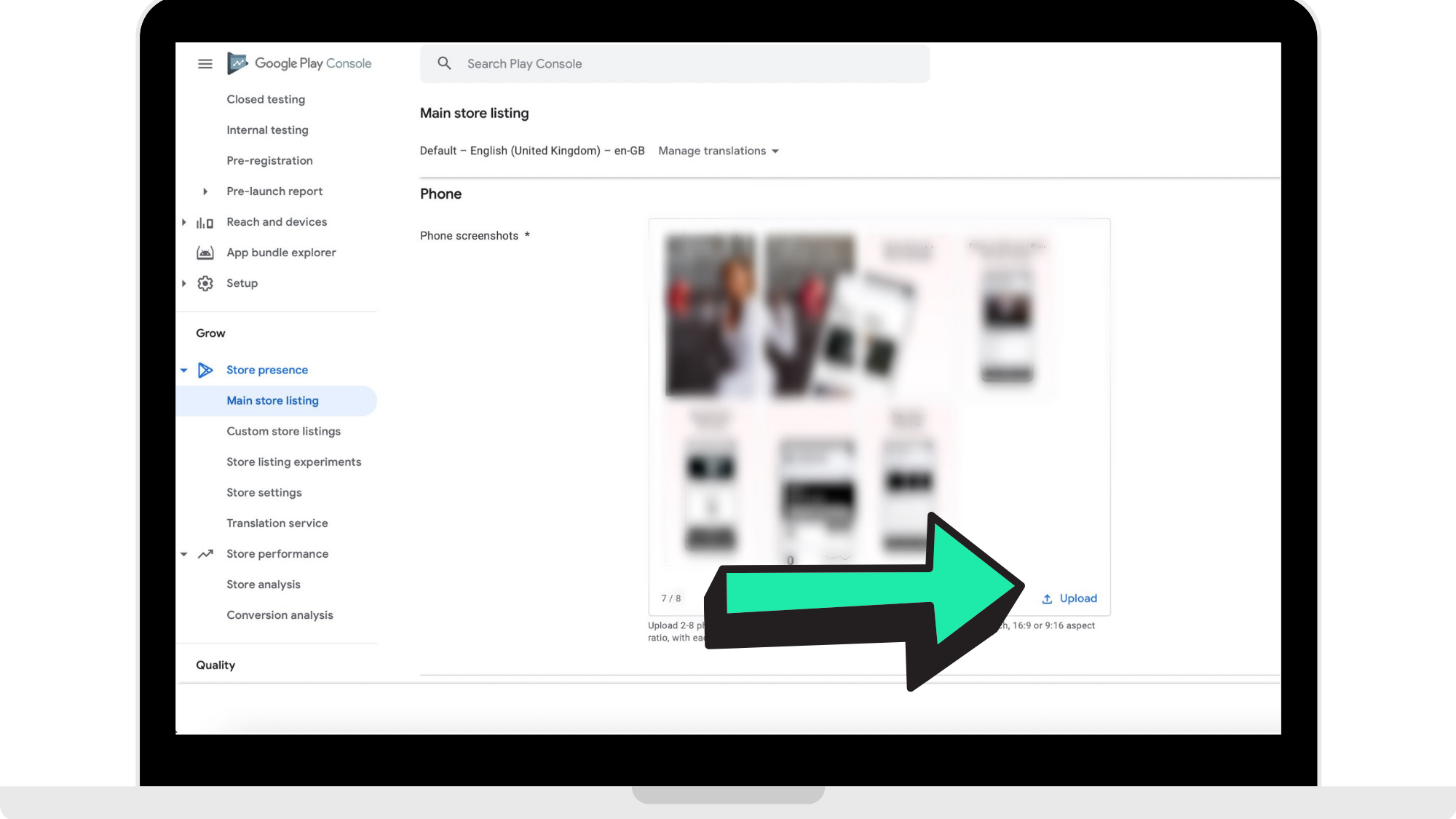
Step 3: Upload App screenshots
Design your Google screenshots based on Google Play Store Guidelines. Read the guidelines here:
https://support.google.com/googleplay/android-developer/answer/9866151?hl=en-GB#zippy=%2Cscreenshots
Once you have designed your Google Play Store screenshots, upload them to your account.
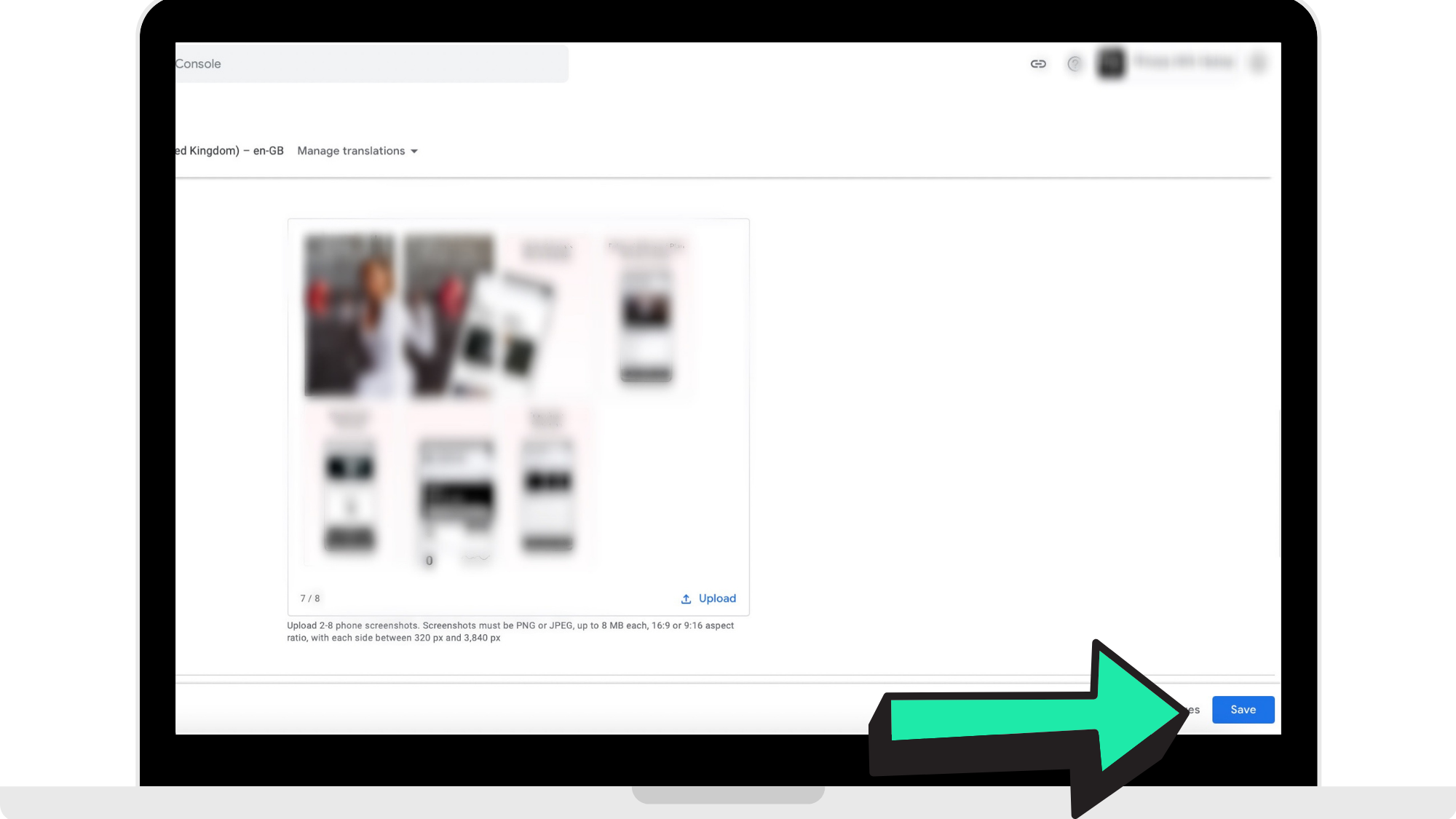
Step 4: Press 'Save'
Once you have uploaded your screenshots, press 'Save'.
Once you have uploaded your screenshots, you can enter in your App Description. Please read the guide on how to add in your App Description here: https://hypeburst.zendesk.com/hc/en-gb/articles/4416405444753-Adding-Your-App-Description-
How to get started
Head to https://appstoreconnect.apple.com and log in using your Apple Developer account to start uploading your Apple Store screenshots.
Once you have completed that, head to https://play.google.com/console/ to log into your Google Developer account to upload your Google Play screenshots.
App Store Guidelines: https://help.apple.com/app-store-connect/#/devd274dd925
Google Play Guidelines: https://support.google.com/googleplay/android-developer/answer/9866151?hl=en-GB#zippy=%2Cscreenshots
Comments
0 comments
Please sign in to leave a comment.