
Plans are made up of Weeks and Weeks are made up of Workouts. In the Hype Burst dashboard, you will find this as 'Workouts' on the left panel. You can create your Workouts however you like.
When you create a Workout you can add Exercises to it. Exercises can be added to the Workout as Straight Sets or as a Circuit. Within each Exercise you can assign a number of Reps & Rest Period for each Set of the Exercise.
Once you have created a Workout you are able to go back at anytime and make any edits you wish or even delete it altogether. Please note that once you have deleted a Workout, that action cannot be undone.
To read the full article on the overview of the Plans section, click here:
How To Edit A Workout
Step 1: Log into your Hype Burst Dashboard
Head to https://account.hype-burst.com/admin/login to log into your Hype Burst Dashboard.
Step 2: Click on 'Workouts'
Under 'Workout Plans' in the panel on the left-hand hand side, click on 'Workouts'.
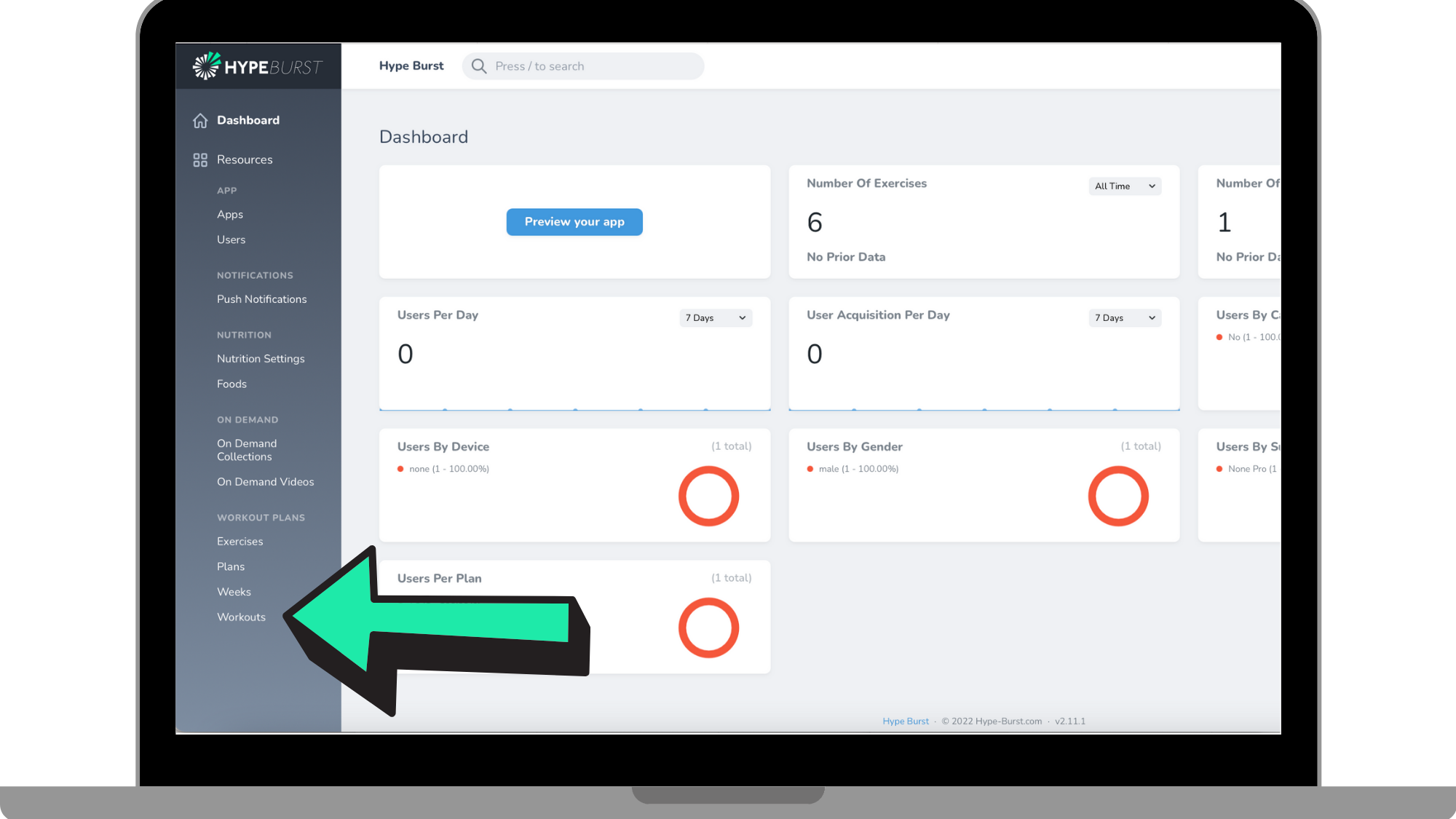
Step 3: Locate the Workout you wish to edit
You can search for the Workout in which you want to edit by the search bar at the top or by locating it within the list of Workouts you have created.
Step 4: Click the 'Edit' icon
Once you have located the Workout you wish to edit, click the 'Edit' icon next to the Workout.
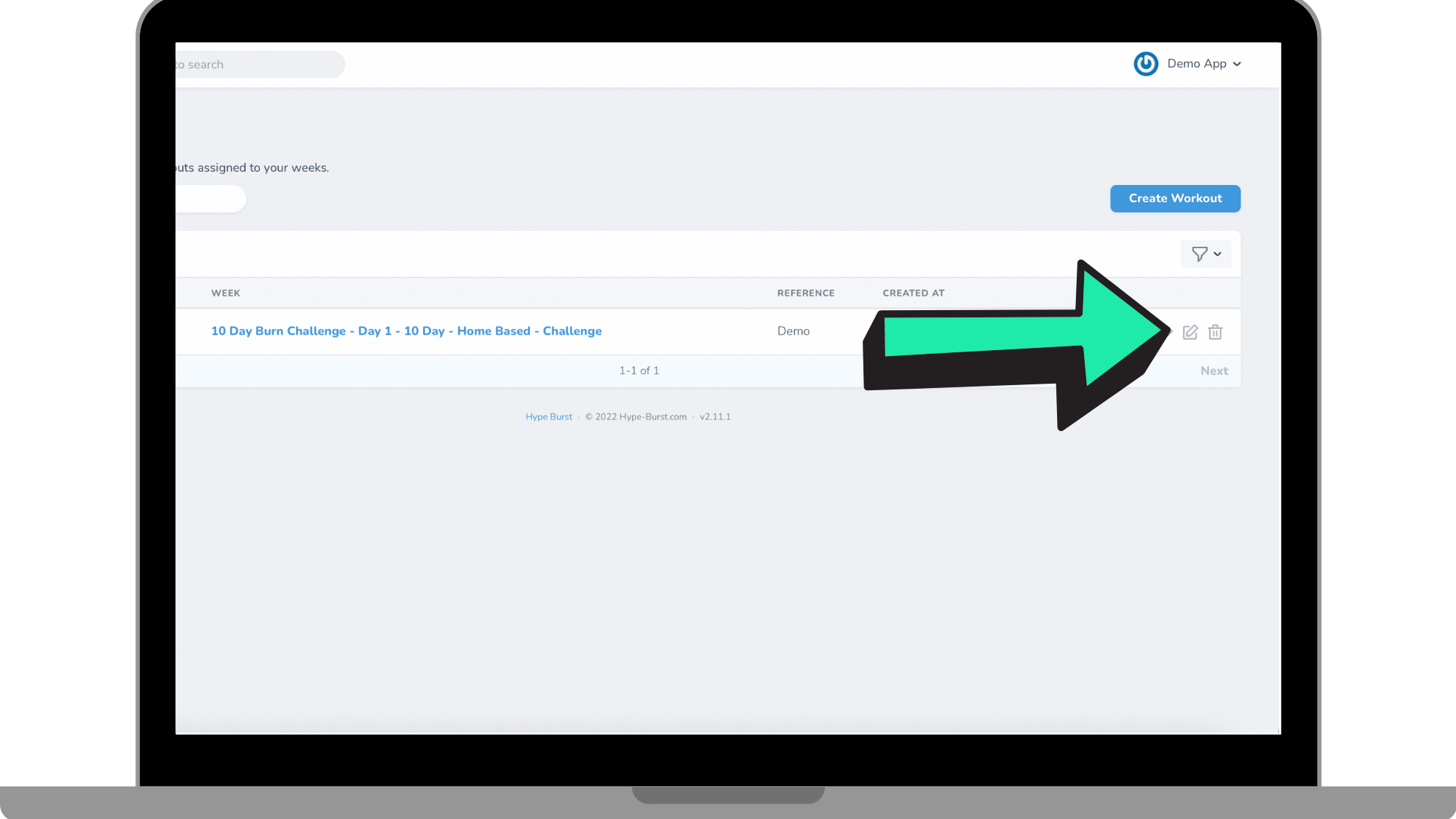
Step 5: Make any necessary edits to your Workout
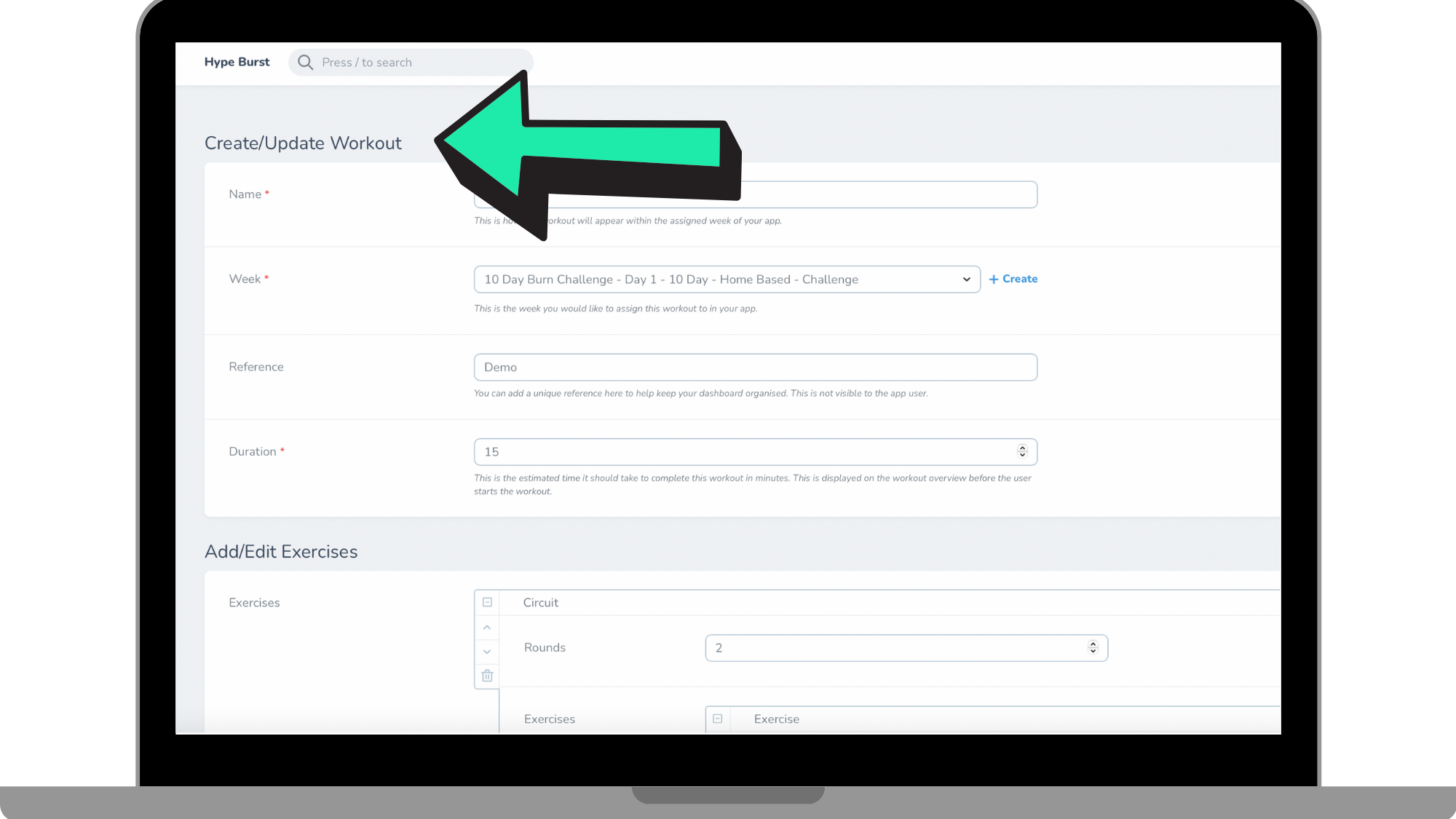
Under 'Create/Update Workout' you are able to change the following:
Name: This is the name of the Workout and how it will be labelled in the app.
Week: This is a drop-down menu and what Week your Workout will be assigned to.
Reference: This is for your eyes only. This is seen in the full list of Workouts.
Duration: This is how long the Workout is in minutes. Please note that this has to be a whole number.
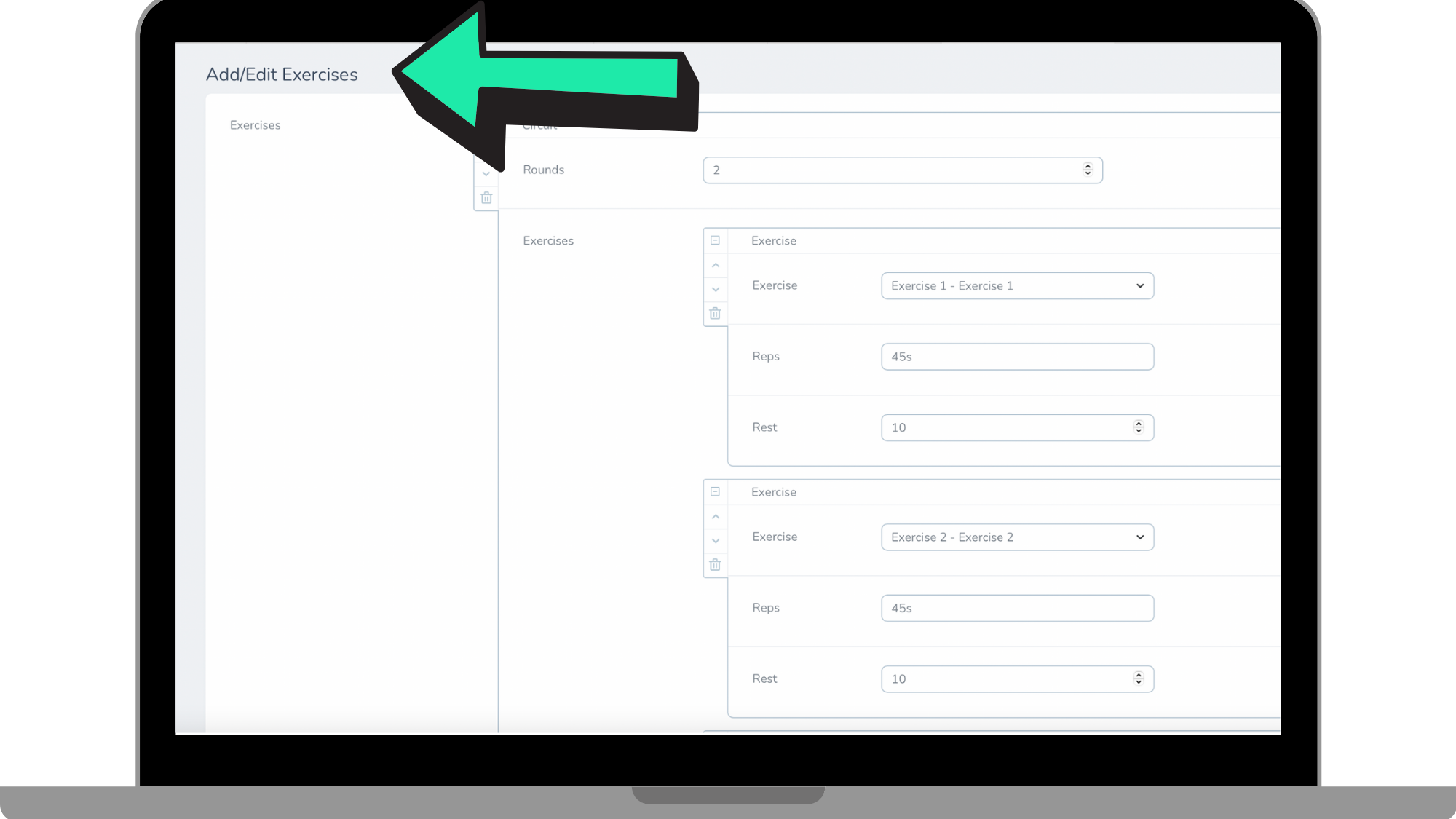
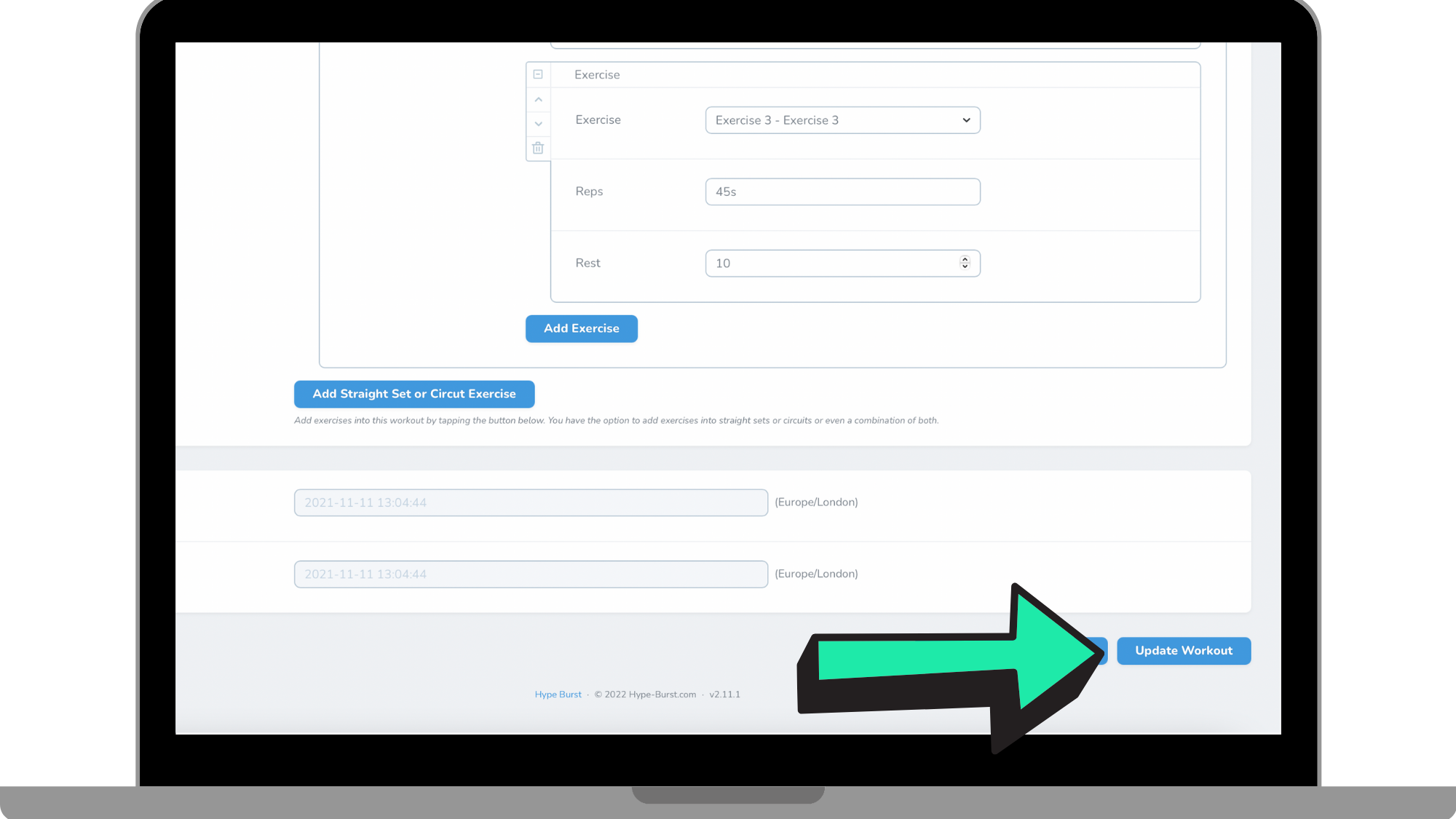
Underneath 'Add/Edit Exercises', you are able to change the specifics of the Workout. This includes adding a set or circuit, changing the Exercises in the workout, and changing the reps and rest periods. Make any changes to the specifics of the Workout here.
Step 6: Click 'Update Workout'
Once you have made all the changes you wanted to the Workout, click 'Update Workout' in the bottom right-hand corner of the page. Please note that you can continue to go back and make changes to the Workout and it will be instantly updated in the end-user's phone.
How To Delete A Workout
Step 1: Log into your Hype Burst Dashboard
Head to https://account.hype-burst.com/admin/login to log into your Hype Burst Dashboard.
Step 2: Click on 'Workouts'
Under 'Workout Plans' in the panel on the left-hand hand side, click on 'Workouts'.
Step 3: Locate the Workout you wish to delete
You can search for the Workout in which you want to delete by the search bar at the top or by locating it within the list of Workouts you have created.
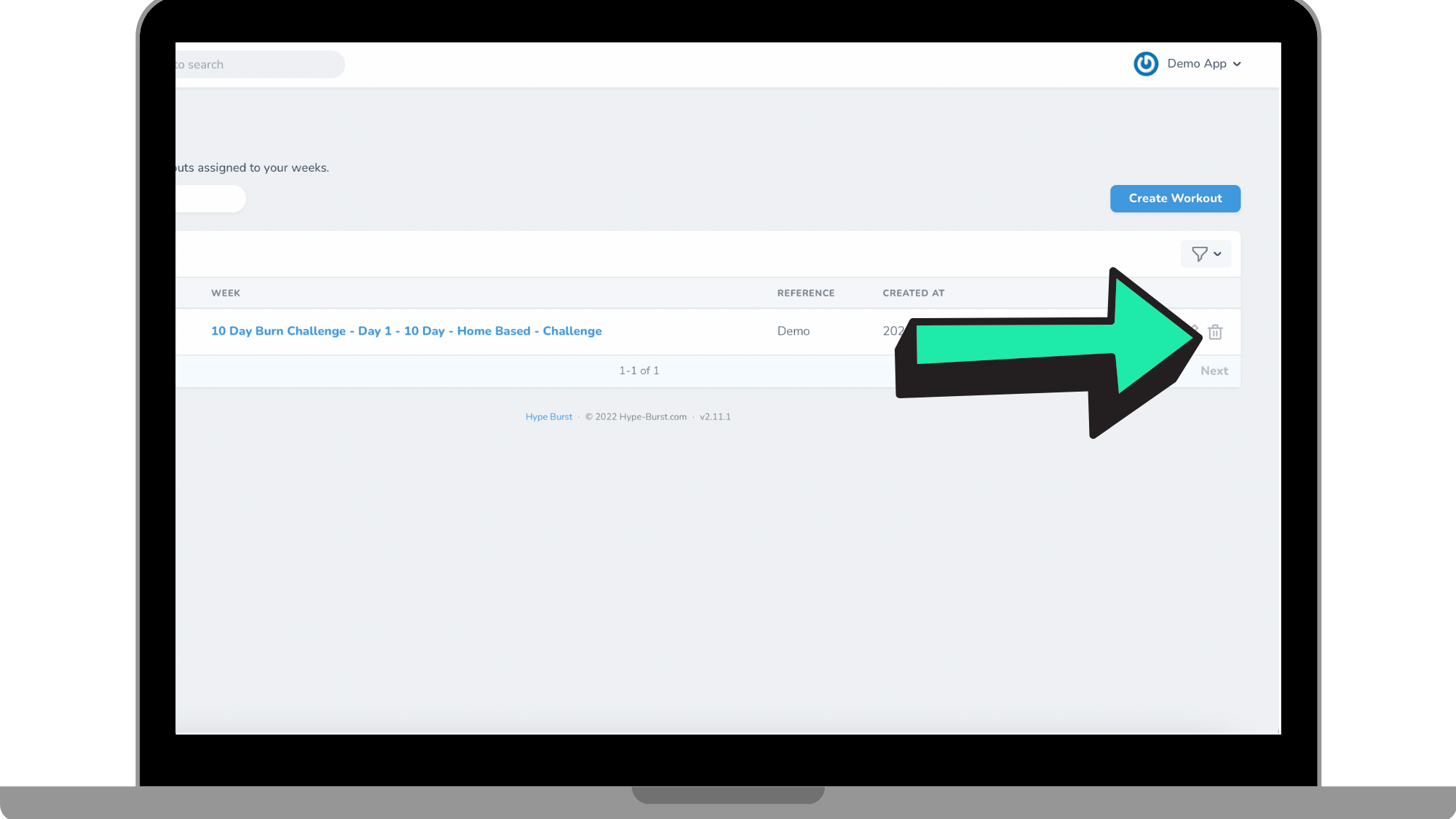
Step 4: Click the 'Delete' icon
Once you have located the Workout in which you wish to delete, click the 'Delete' icon next to the Workout name.
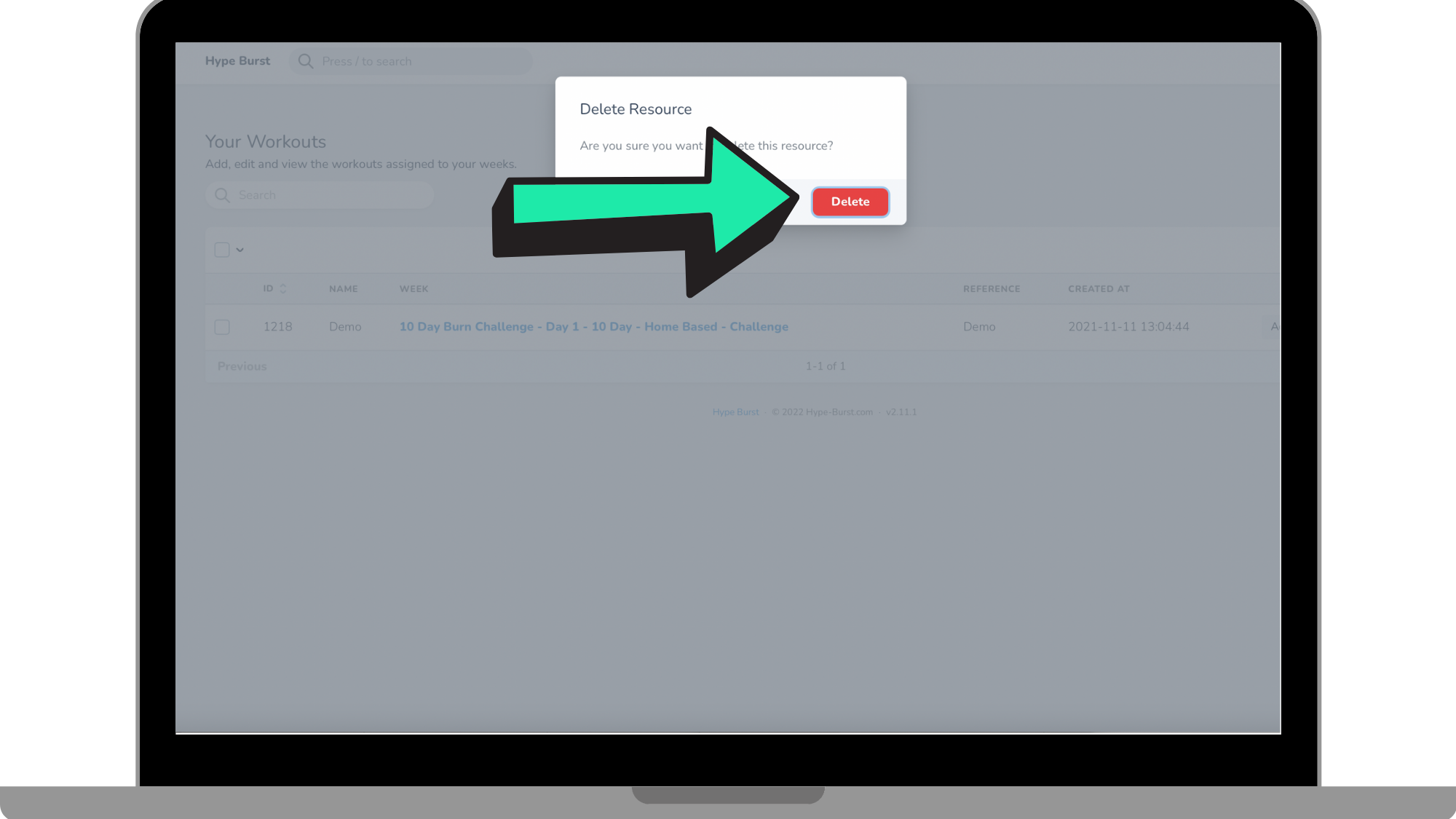
Step 5: Confirm to 'Delete' Workout
A mini page will pop up where you will click 'Delete' to confirm your decision to delete that Workout. If you want to go back, you can simply press 'Cancel'. Please note that once you have fully deleted a Workout, this action cannot be undone.
How To Get Started
Head to https://account.hype-burst.com/admin/login to log into your Hype Burst Dashboard to get started in editing and deleting your Workouts.
Comments
0 comments
Please sign in to leave a comment.