
Plans are made up of Weeks and Weeks are made up of Workouts. In the Hype Burst dashboard, you will find this as 'Workouts' on the left panel. You can create your Workouts however you like.
When you create a Workout you can add Exercises to it. Exercises can be added to the Workout as Straight Sets or as a Circuit. Within each Exercise you can assign a number of Reps & Rest Period for each Set of the Exercise.
Creating a Workout
Before creating a Workout, you should ensure that you have created the Week that you are assigning the Workout to as well as the Exercises. If you haven't, please refer to the following guides:
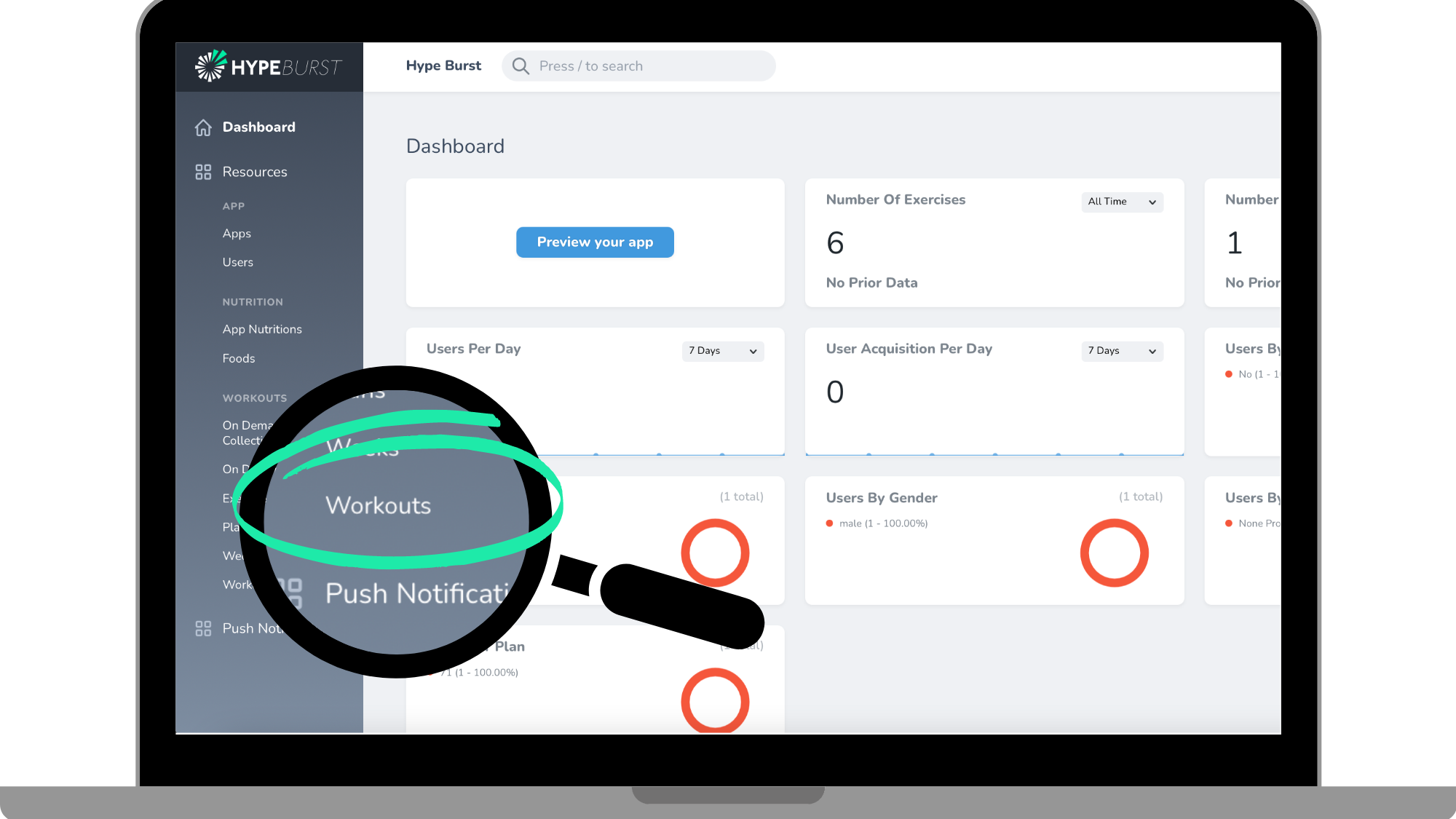
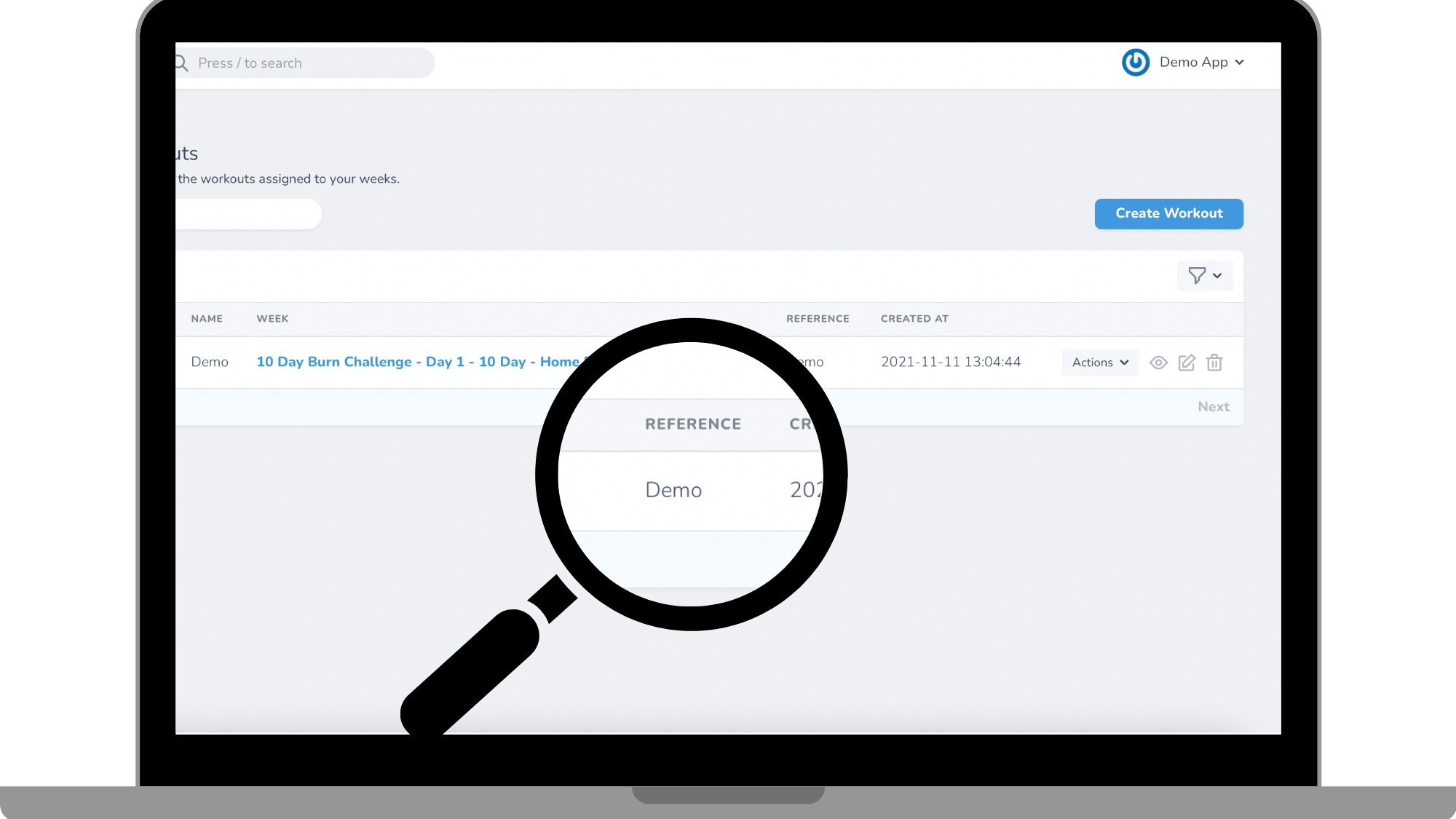
Step 1: Click the "Workouts" section in the Dashboard
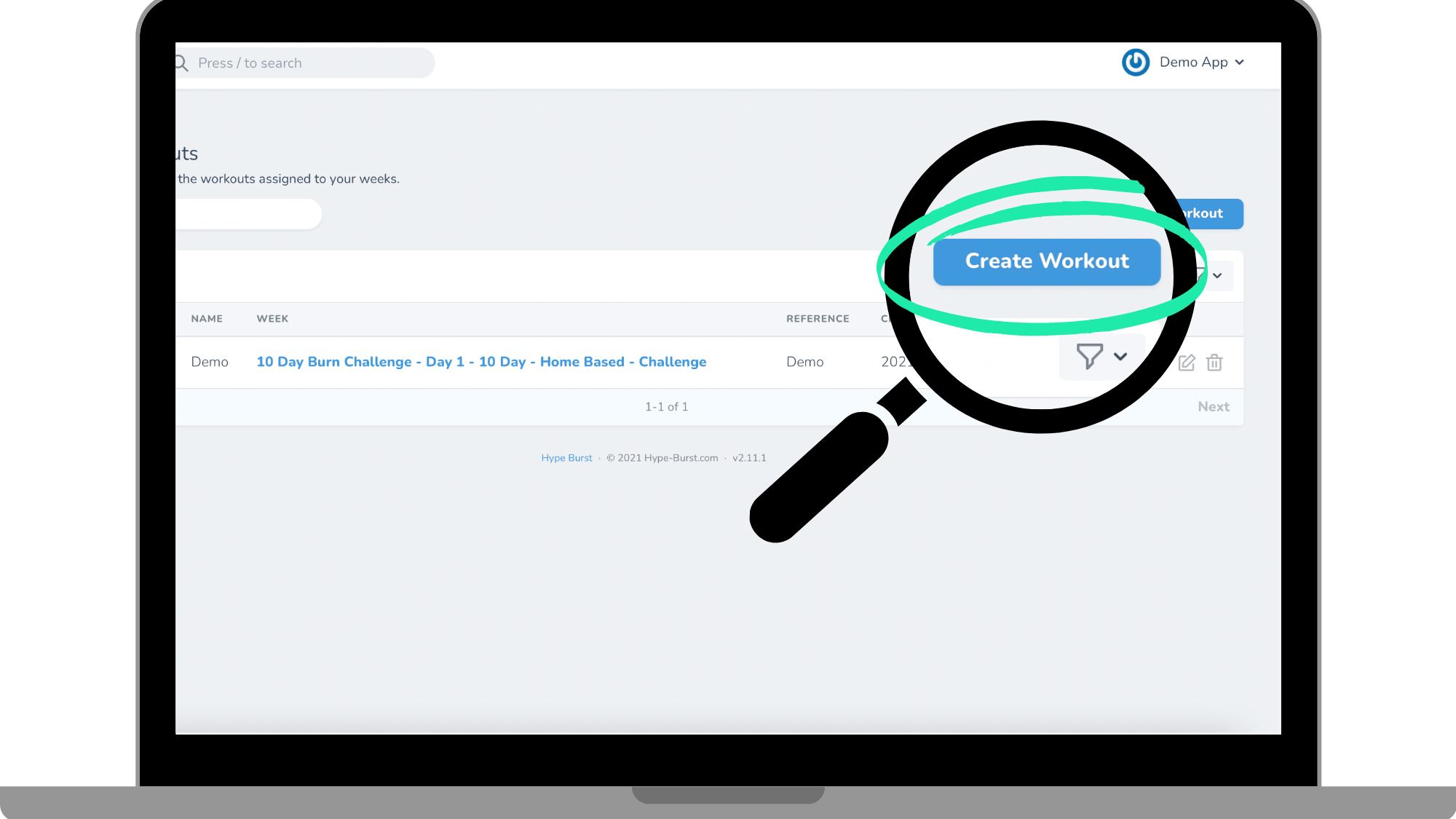
Step 2: Click the "Create Workout" button in the right corner
Step 3: Enter in Workout information
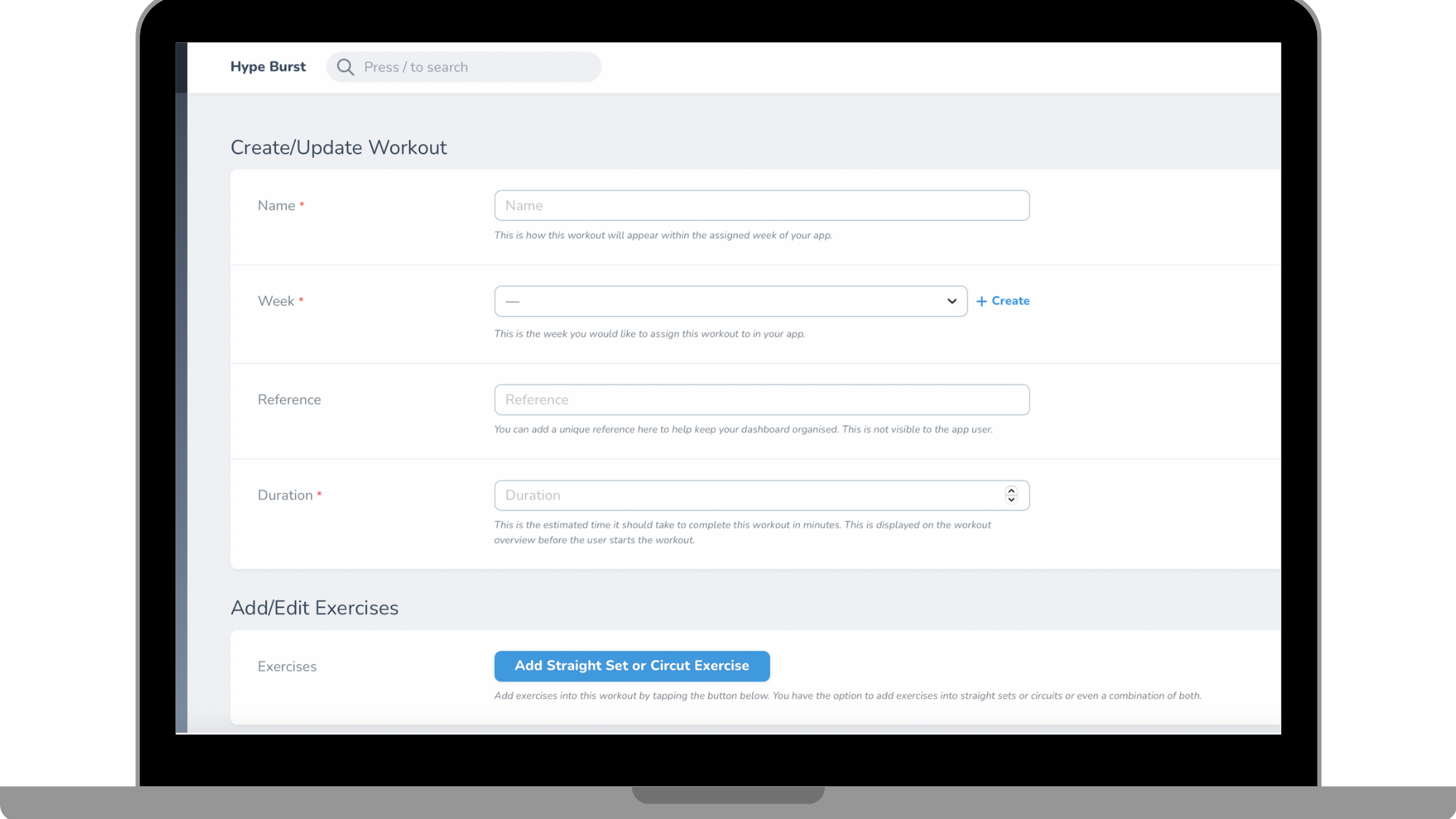
Step 1: Create Workout name
Enter the name of your Workout here. This is how your Workout will be labelled in your app.
Step 2: Assign your Workout to a Week
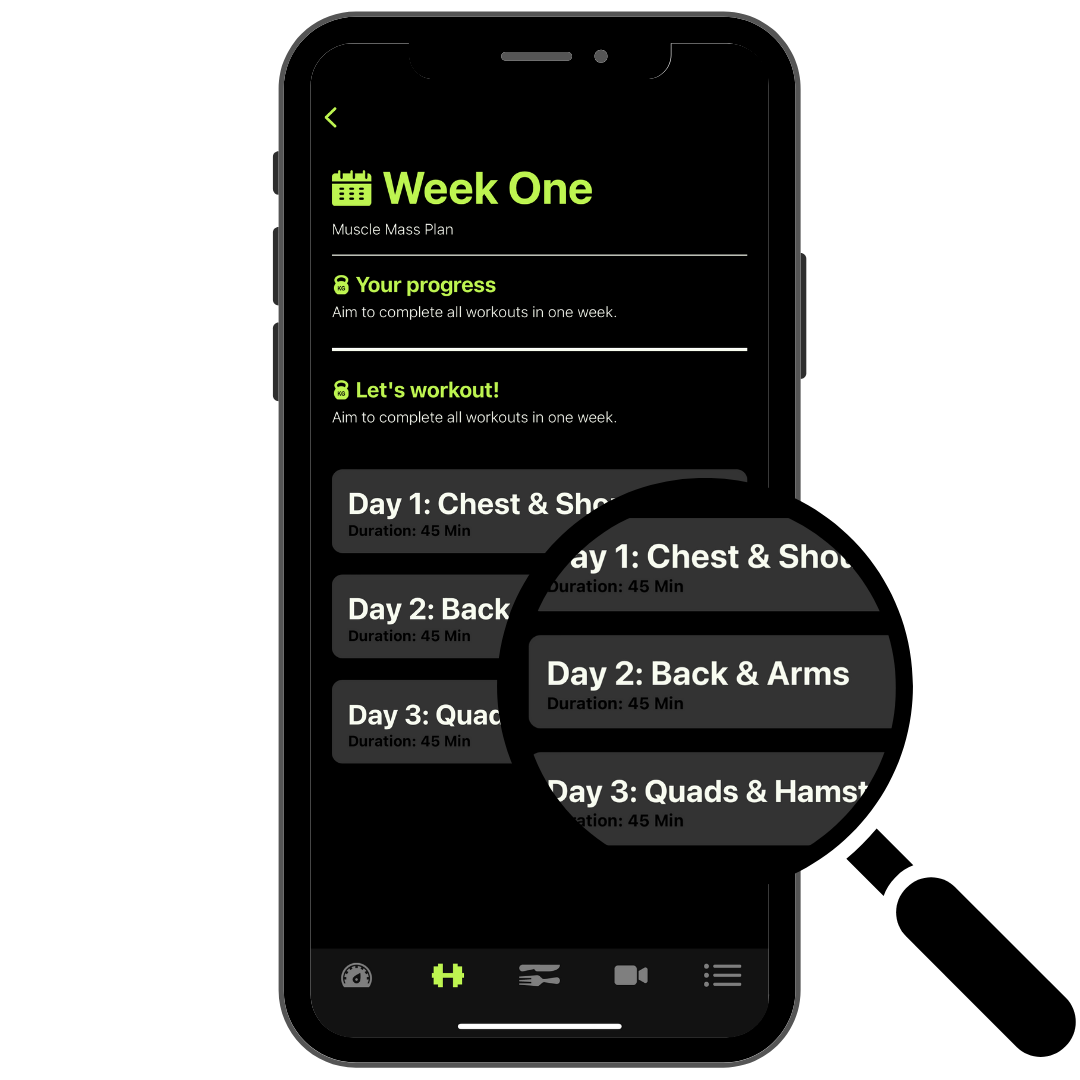
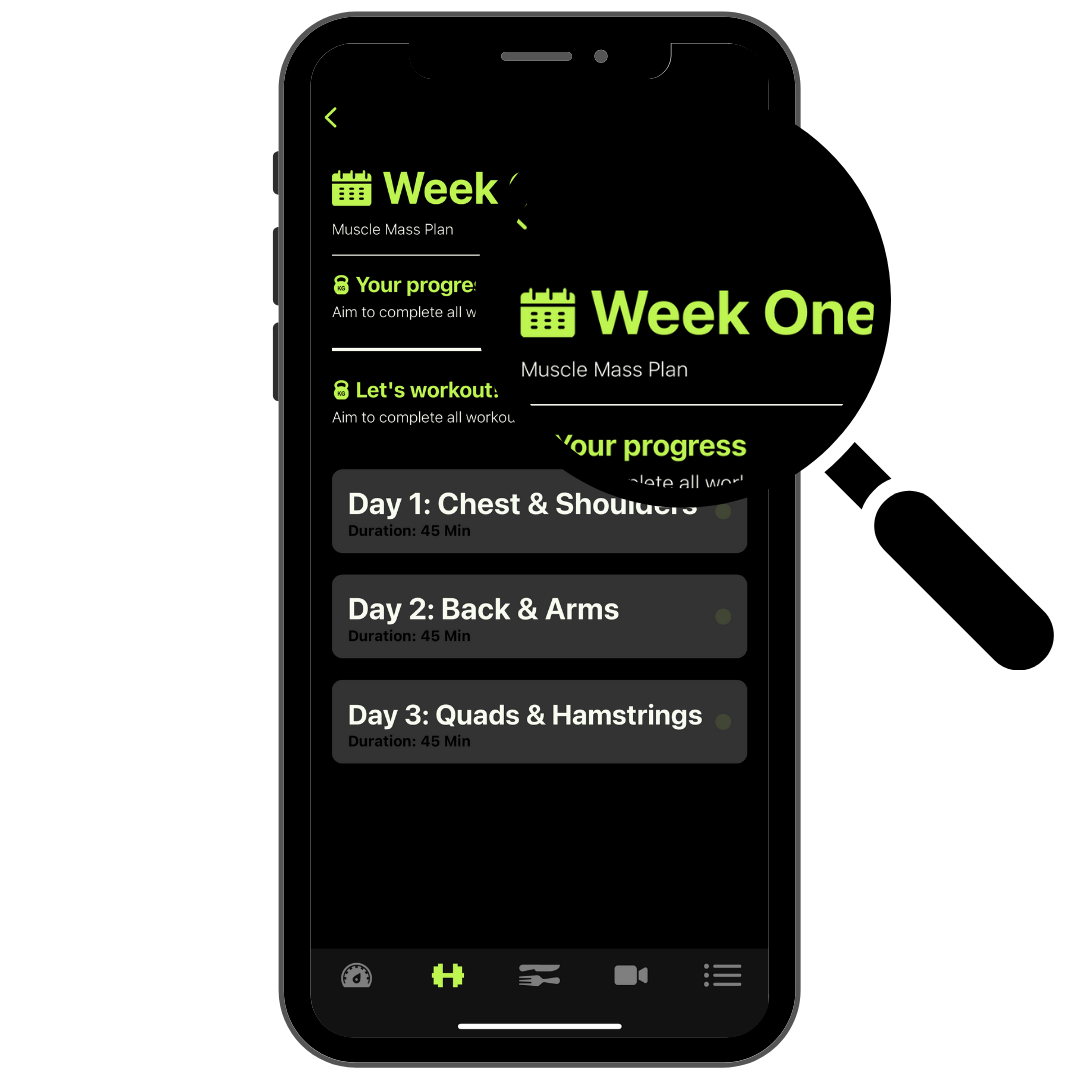
Use the dropdown menu to assign your Workout to a Week. e.g. This Workout belongs in Week One of the Muscle Mass Plan.
Read the guide on adding Weeks here: https://hypeburst.zendesk.com/hc/en-gb/articles/4410575531793-How-to-add-a-week-subcategory-
Step 3: Create a reference for your Workout (OPTIONAL)
This is optional but you can enter a reference for the Workout that you will be able to see in the Workout page. This is for your eyes only and can be a good way to make notes or add a private tag to the workout.
Step 4: Enter duration of Workout
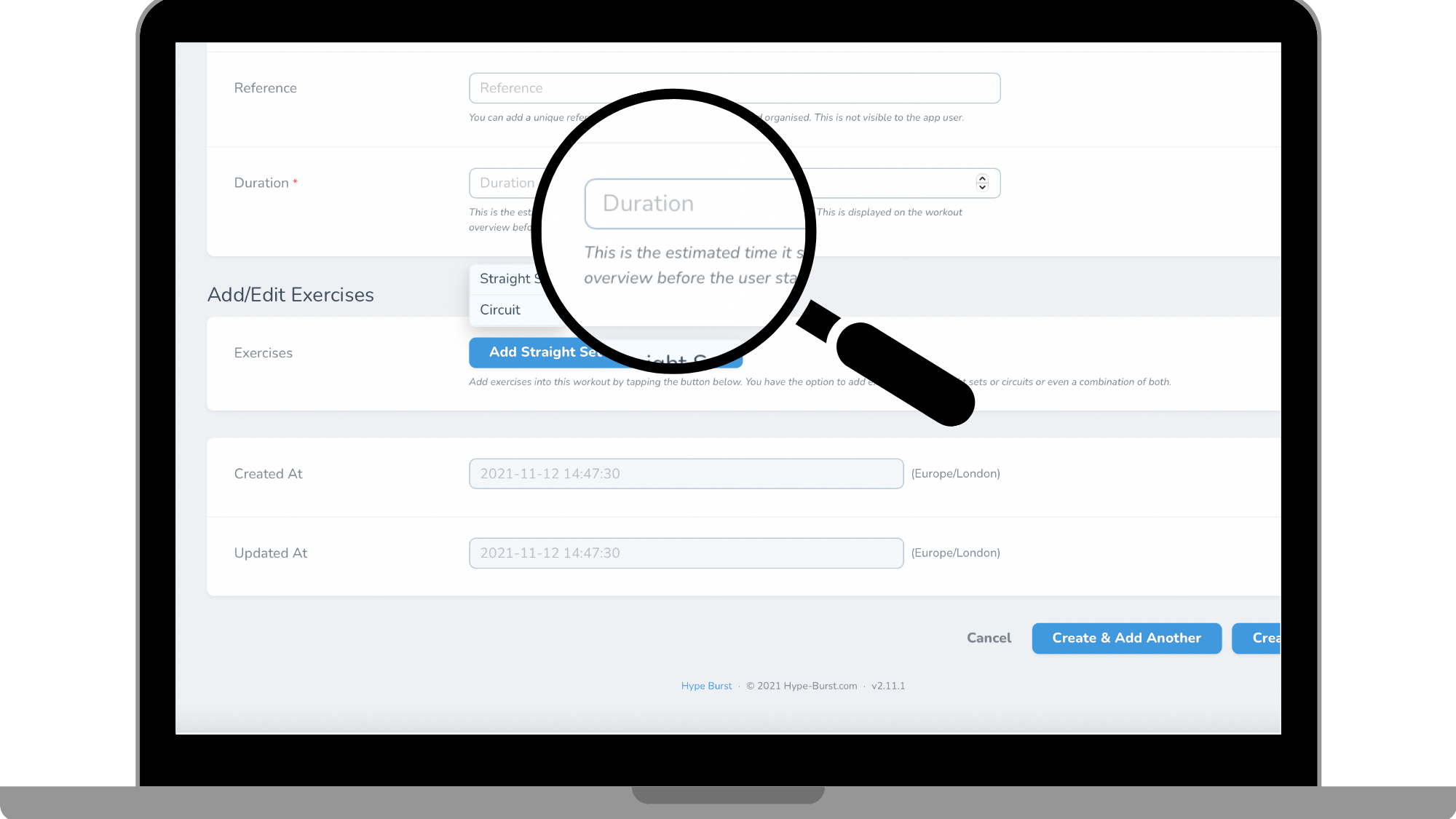
Enter how long the Workout will be. All that is needed to be entered is a whole number e.g. 45. Ranges are not permitted such as "30-45". The duration of the Workout will be shown in minutes in the app.
Step 5: Add an Exercise as a "Straight Set" or "Circuit", or both to Workout
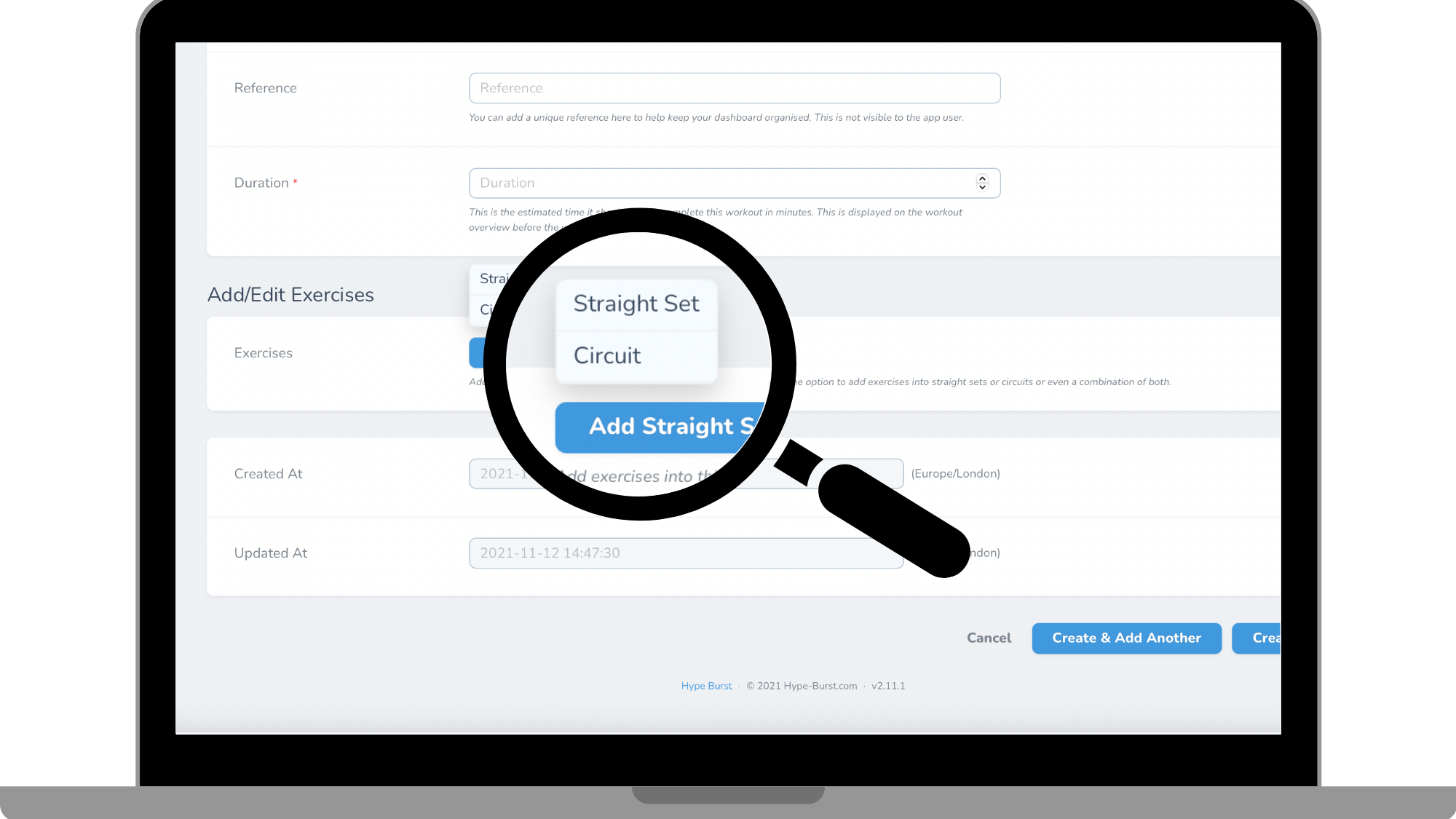
Choose between 'Straight Set' and 'Circuit' in the drop-down menu. Straight Set is a single exercise where you can add multiple sets. Circuit's are a collection of exercises for a set number of rounds which you would decide.
You are able to add both into your Workout.
Step 6: Add in Exercises
Click on the drop-down menu next to Exercise and choose an Exercise from your 'Exercise Library'. You are able to add as many Exercises to your Workout that you want, and reuse these Exercises in any Workout. When you are choosing your Exercises, you will see the name of the Exercise and the reference that you put for that Exercise.
Read the guide on adding Exercises here: https://hypeburst.zendesk.com/hc/en-gb/articles/4411132244369-How-to-add-an-exercise
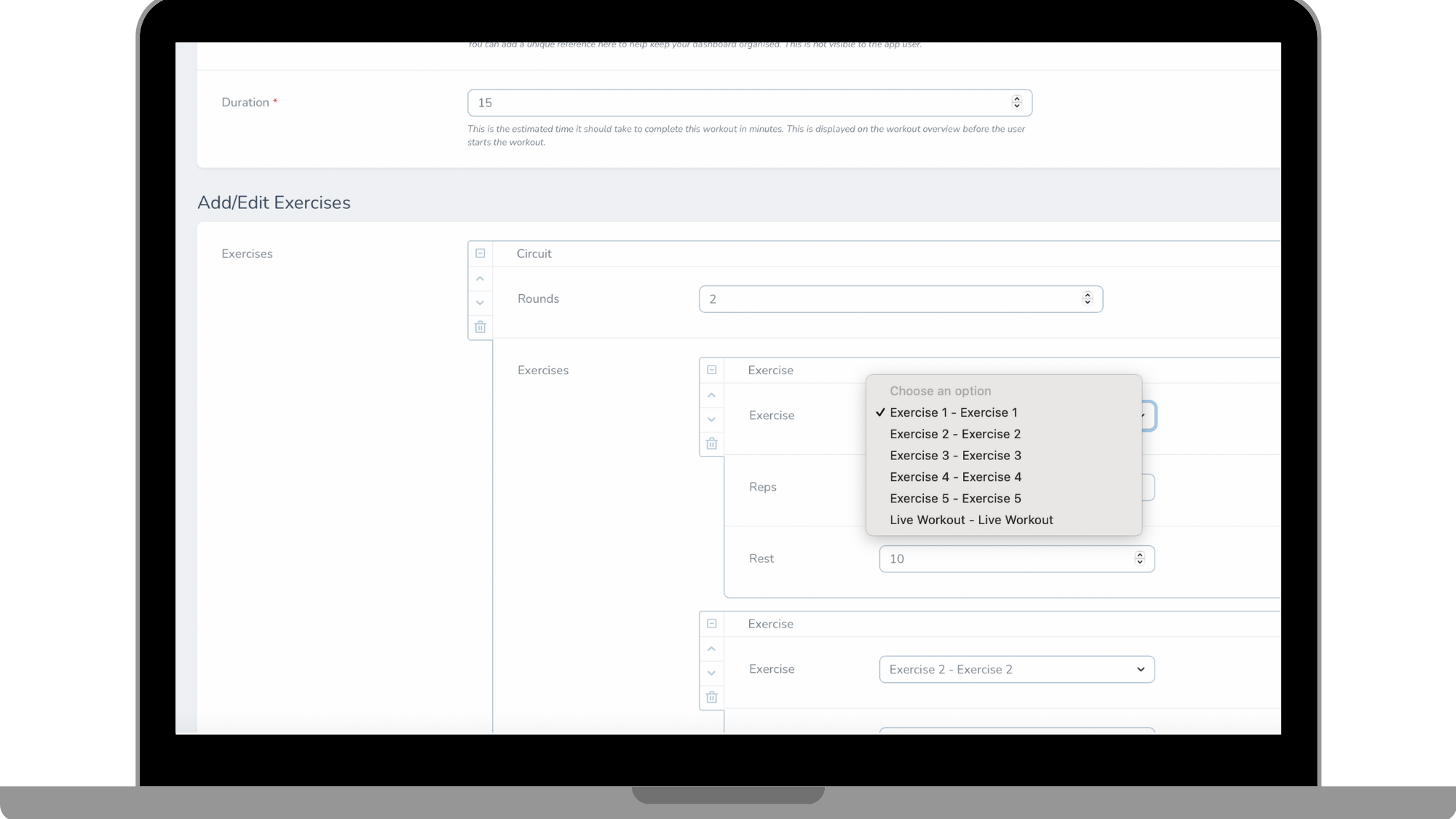
Step 7: Set reps to the Exercises
Enter the reps for the assigned Exercise. You can enter in a set amount or a timed amount.
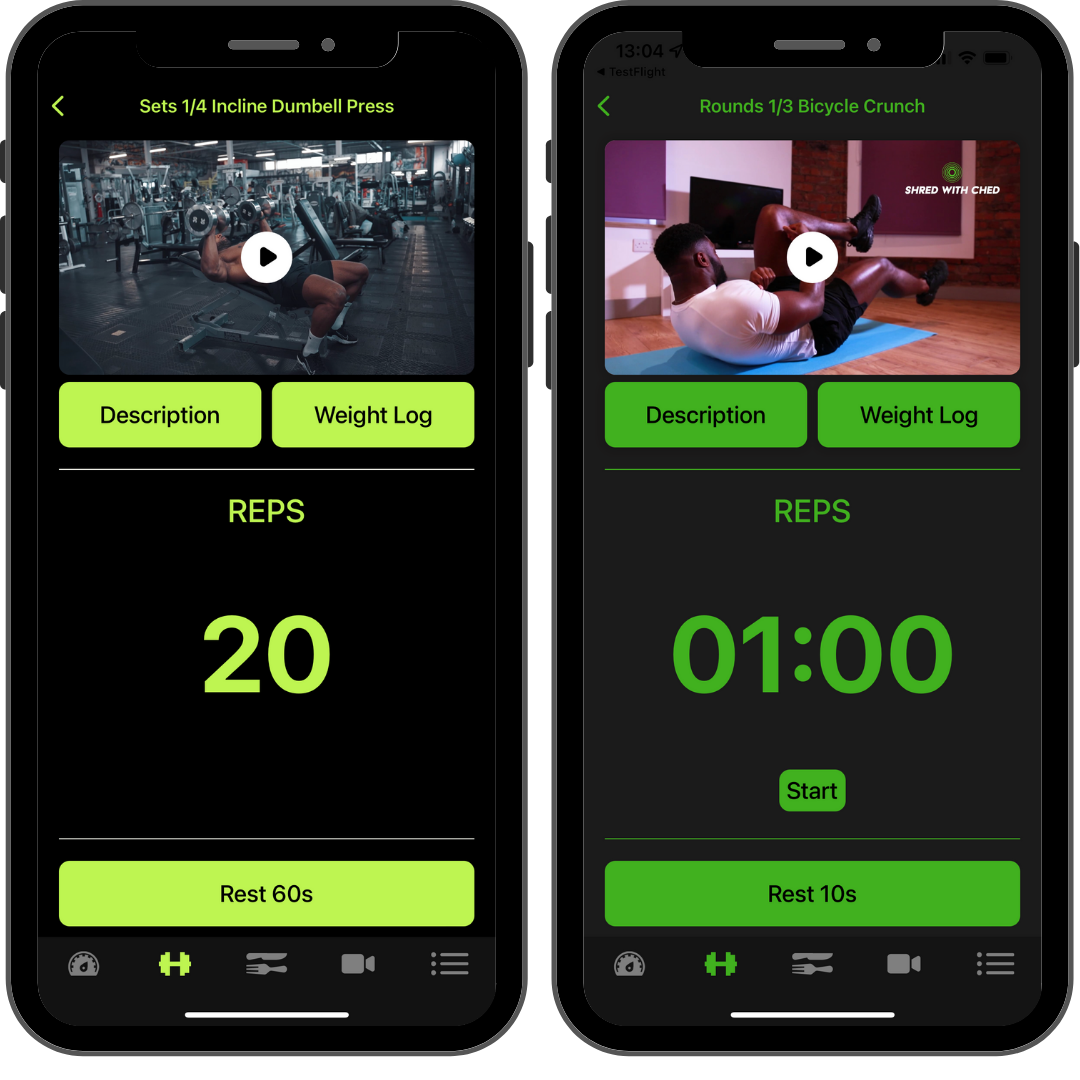
In the example above, you can see an example of both a timed amount and also a set amount.
To add a fixed number of Reps like the example on the left, simply enter the number in the Reps field e.g. 20. If you are entering a timed amount, add in a lowercase 's' after the number in seconds to make it show up as a countdown timer in the app e.g. 60s. The number entered must be in seconds, so for example, if you want a 01:30 countdown timer, you should enter 90s in the Reps field.
Step 8: Set rest to the Exercises
Enter in the time you wish to have for the rest time for each set of an Exercise. All you need to enter is a number, e.g. 60, as it automatically will be a countdown timer in the app. The number entered must be in seconds, so for example, if you want a 2 minute countdown timer, you should enter 120 in the Reps field.
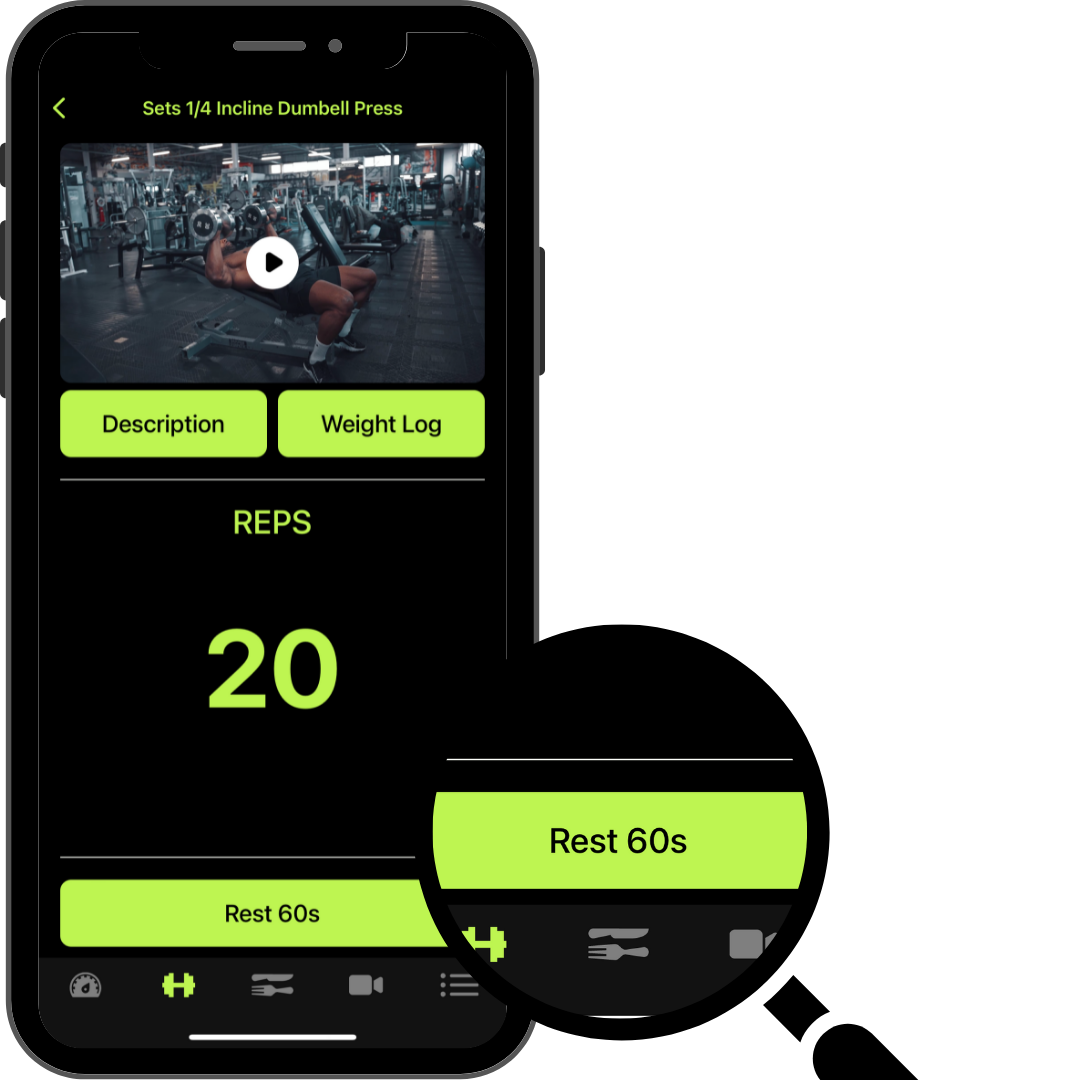
Step 4: Click "Create Workout" at the bottom of the screen
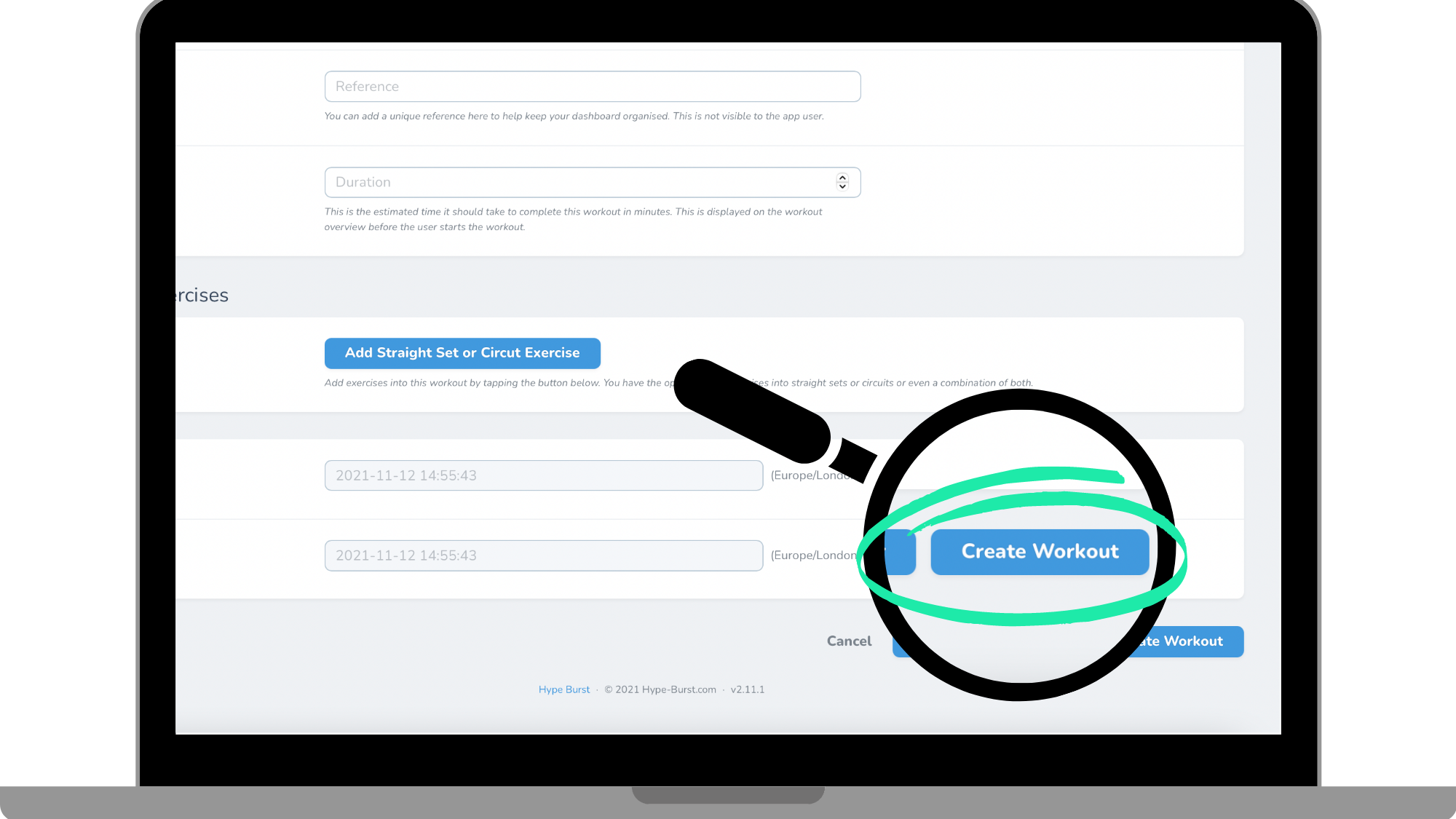
Once you have filled out all of the required fields in the previous step, you can save your Workout. Click the button 'Create Workout'. Remember you can always go back and edit the Workout at anytime. You are able to see all of your Workouts if you are in the Workout page.
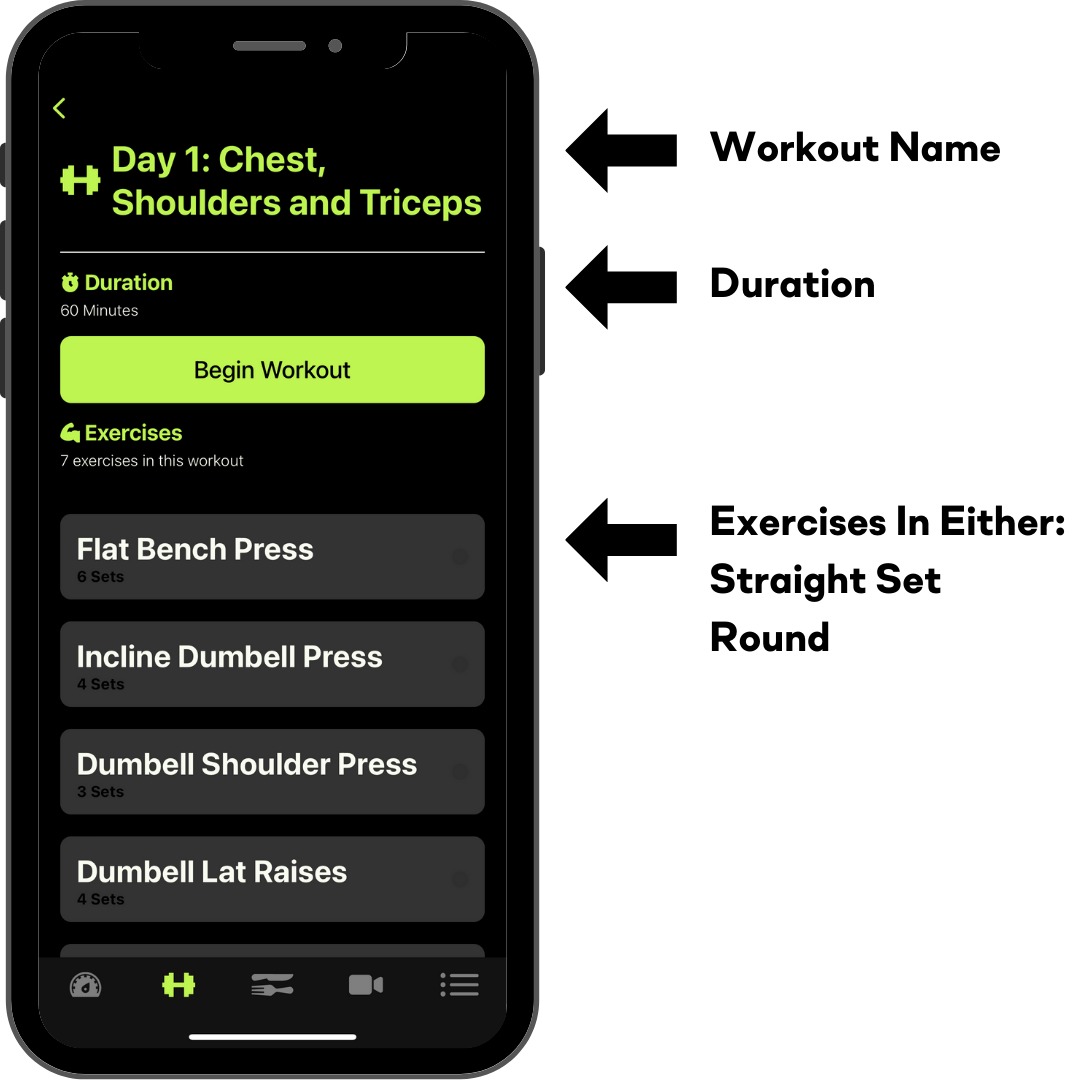
In the above example, you are able to see how a completed Workout will look in the app.
How to get started?
Log into your dashboard at https://account.hype-burst.com/admin/login to get started.
Comments
0 comments
Please sign in to leave a comment.