
To publish an app on the Google Play Store, you must create a Google Developer account. Membership to the developer program is $25/year and we recommend setting this to auto-renew.
Follow the steps below to get started:
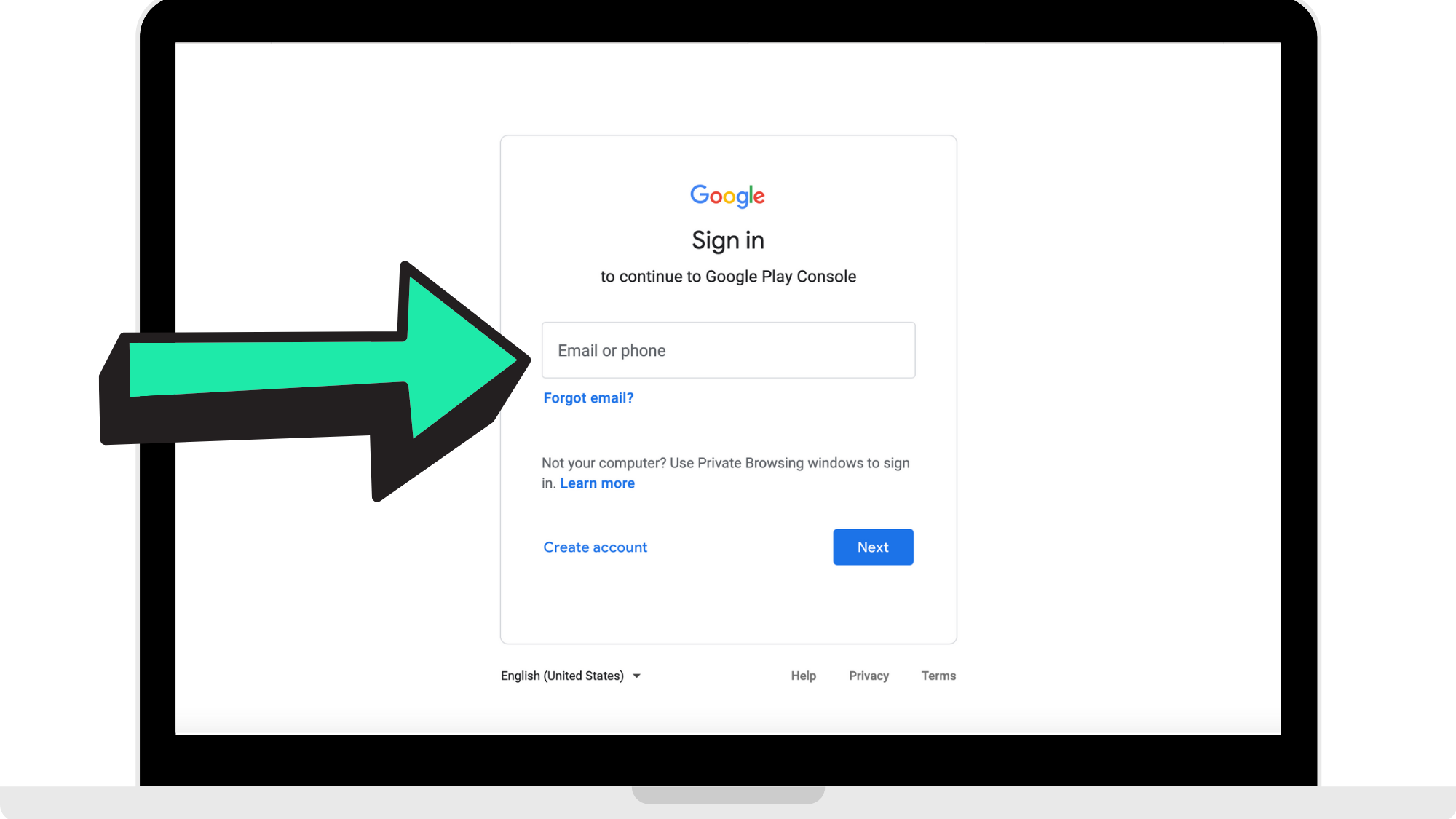
Step 1: Head to Google Console signup
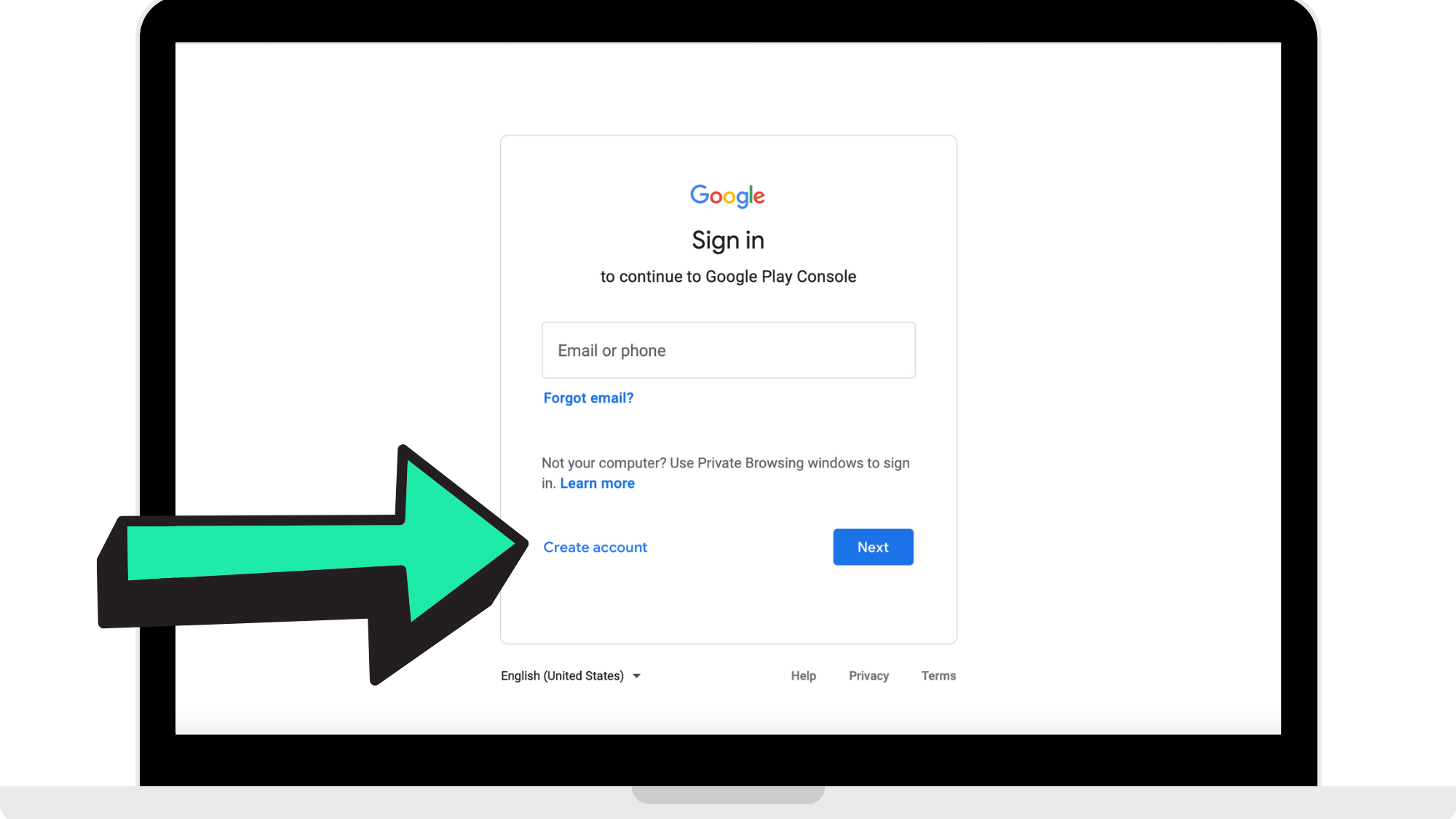
Head to https://play.google.com/console/signup/ and log in to your Google account. If you don't already have one, you can create one for free by tapping "create account".
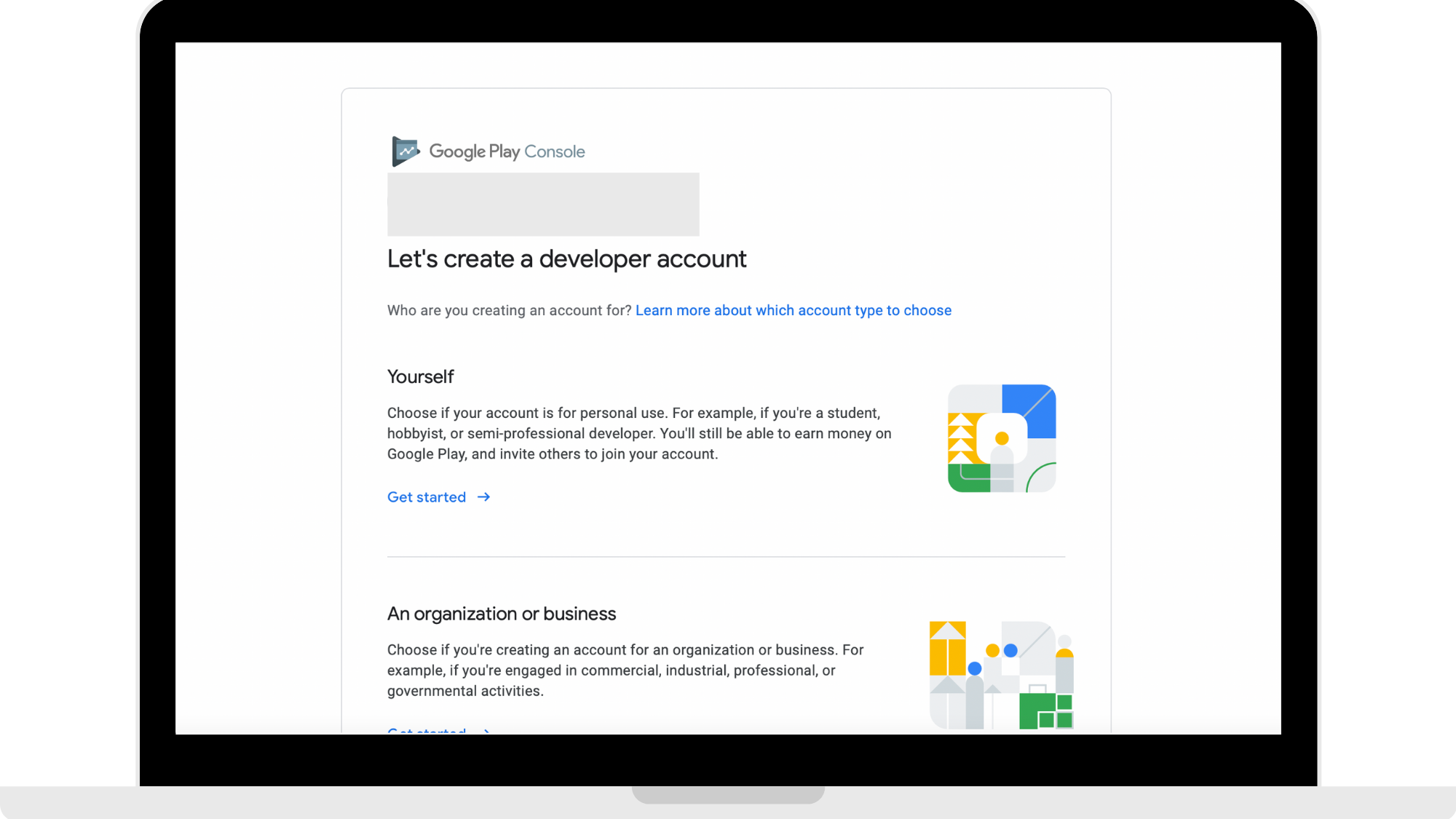
Step 2: Click 'Create A New Developer Account'
Choose if you are making a Developer account for yourself or for a company and then scroll down and click 'Create A New Developer Account'.
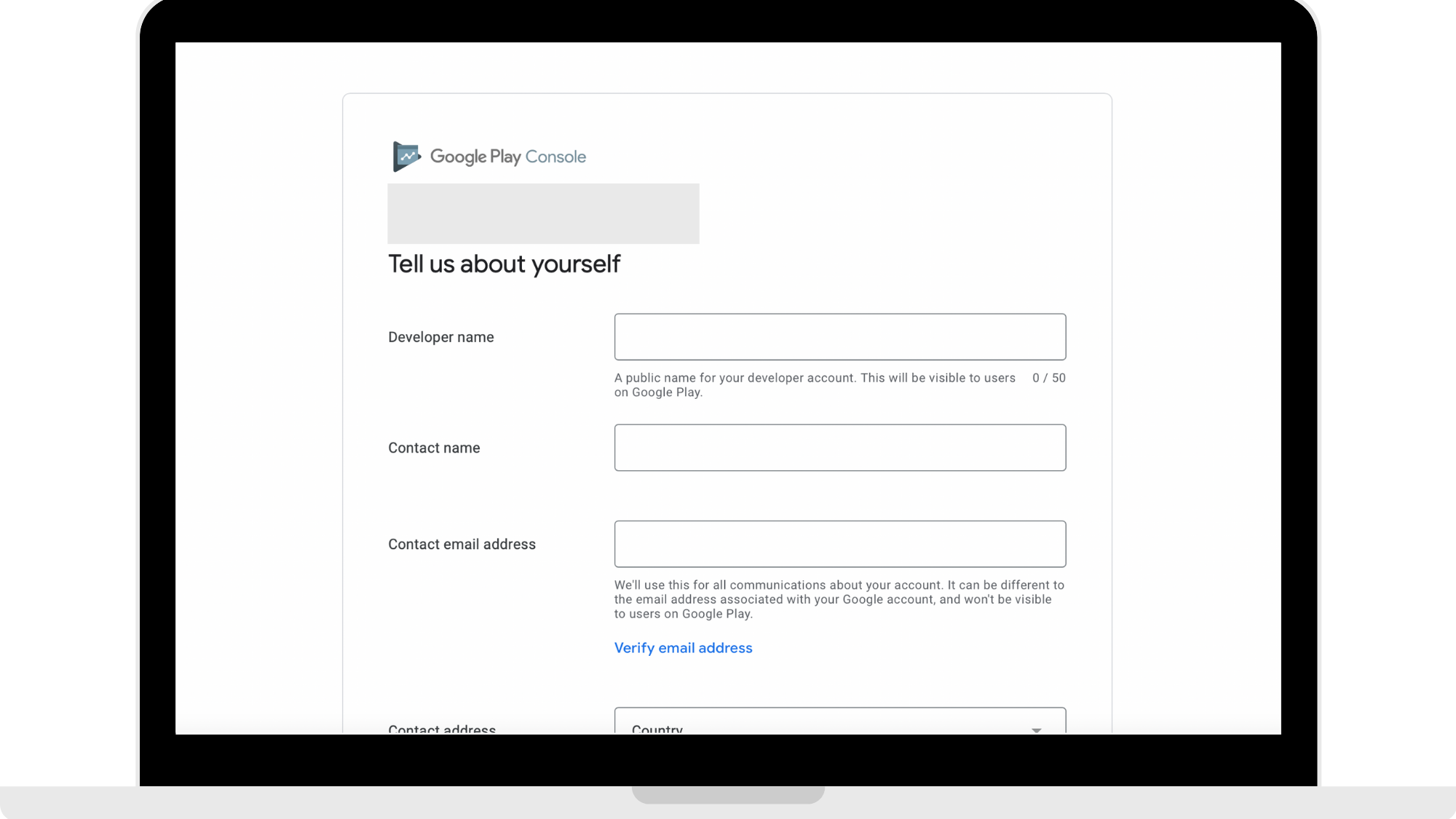
Step 3: Complete all the required fields
Fill out all the required fields for yourself or your company and then press 'Continue'.
Step 4: Accept the Developer Agreement and Terms of Service
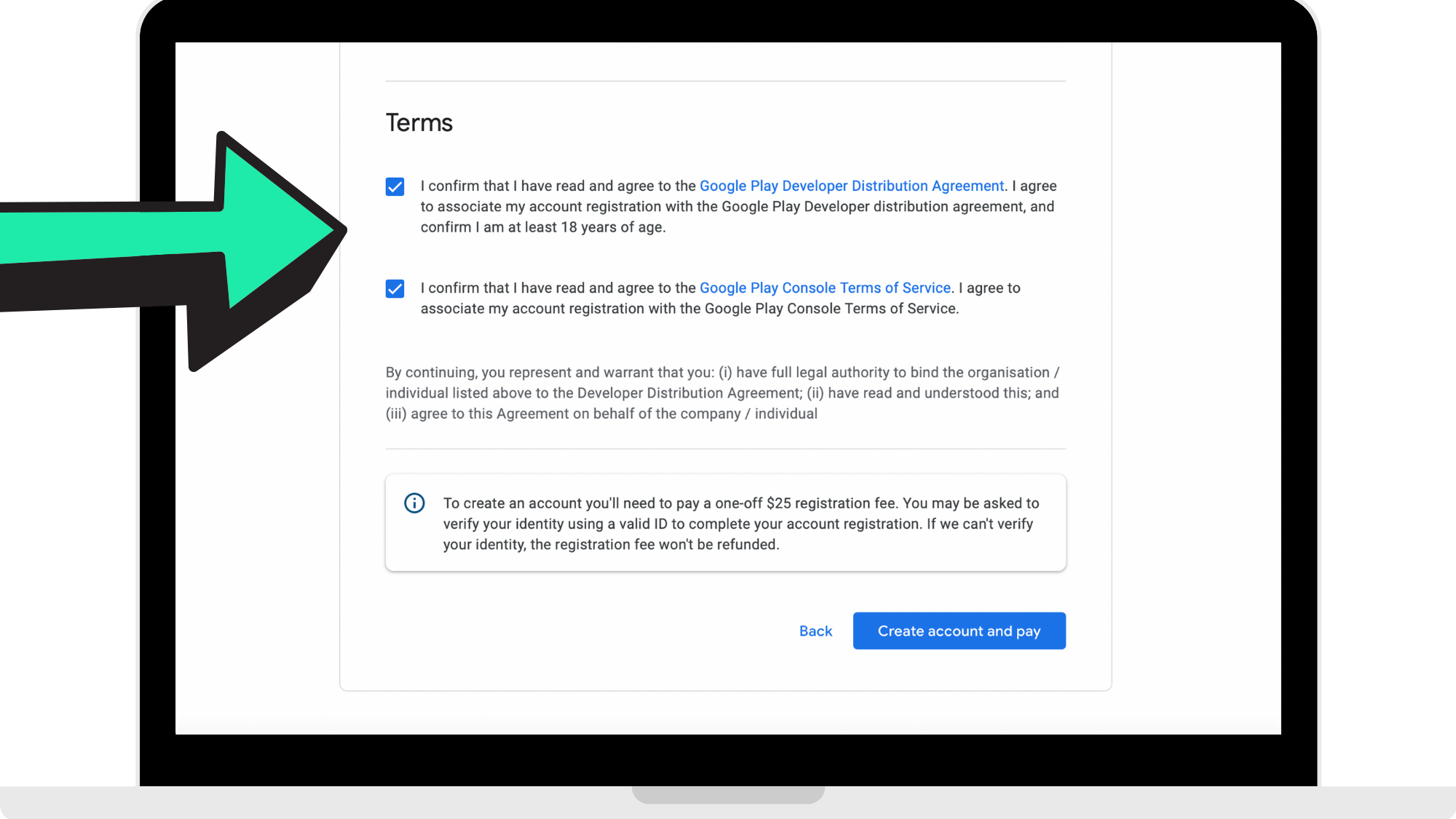
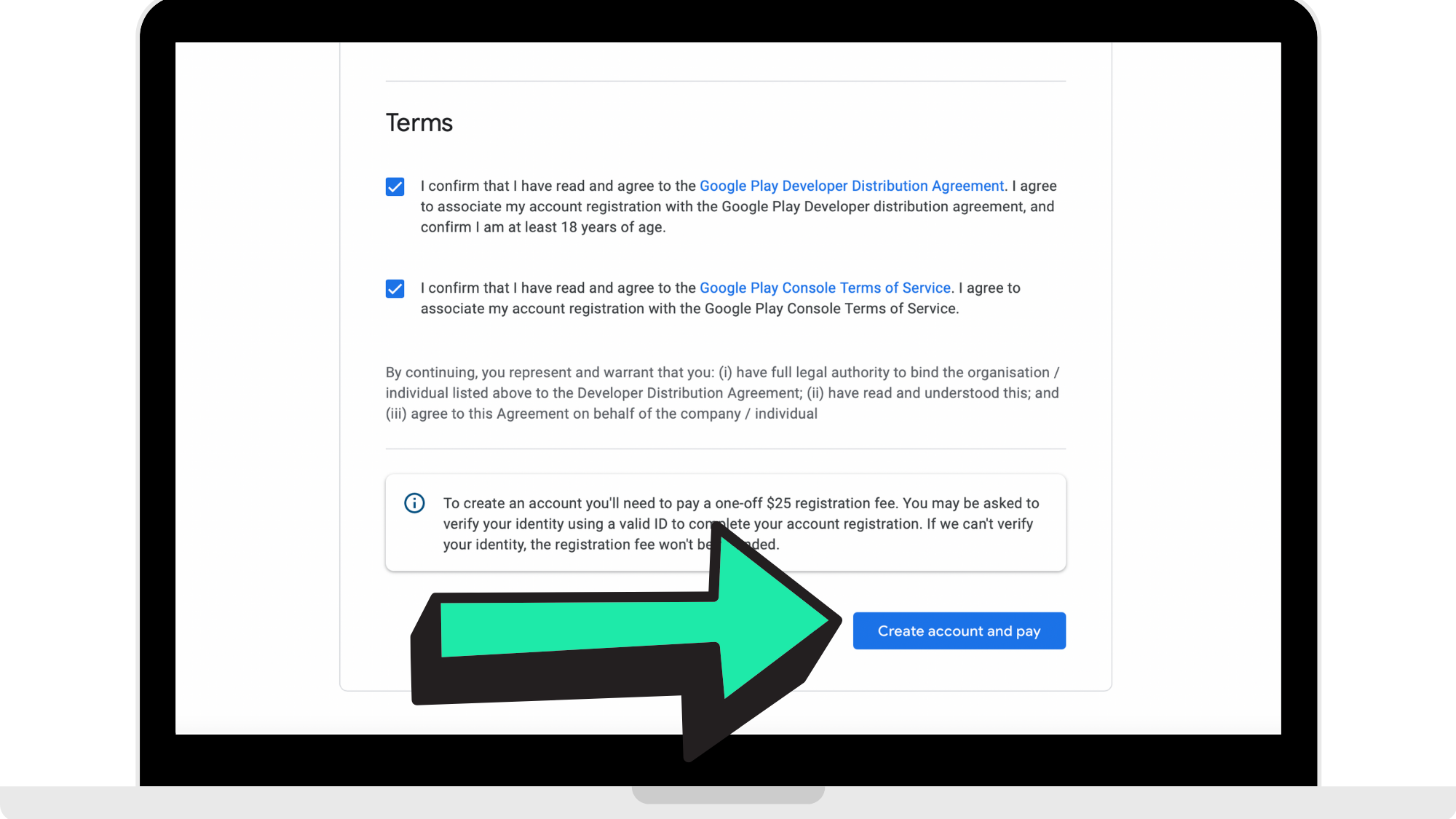
Step 5: Click 'Create Account And Pay'
Step 6: Fill in your billing details
Fill out your billing details or your business' billing details. Once you have filled these fields out, continue to pay. 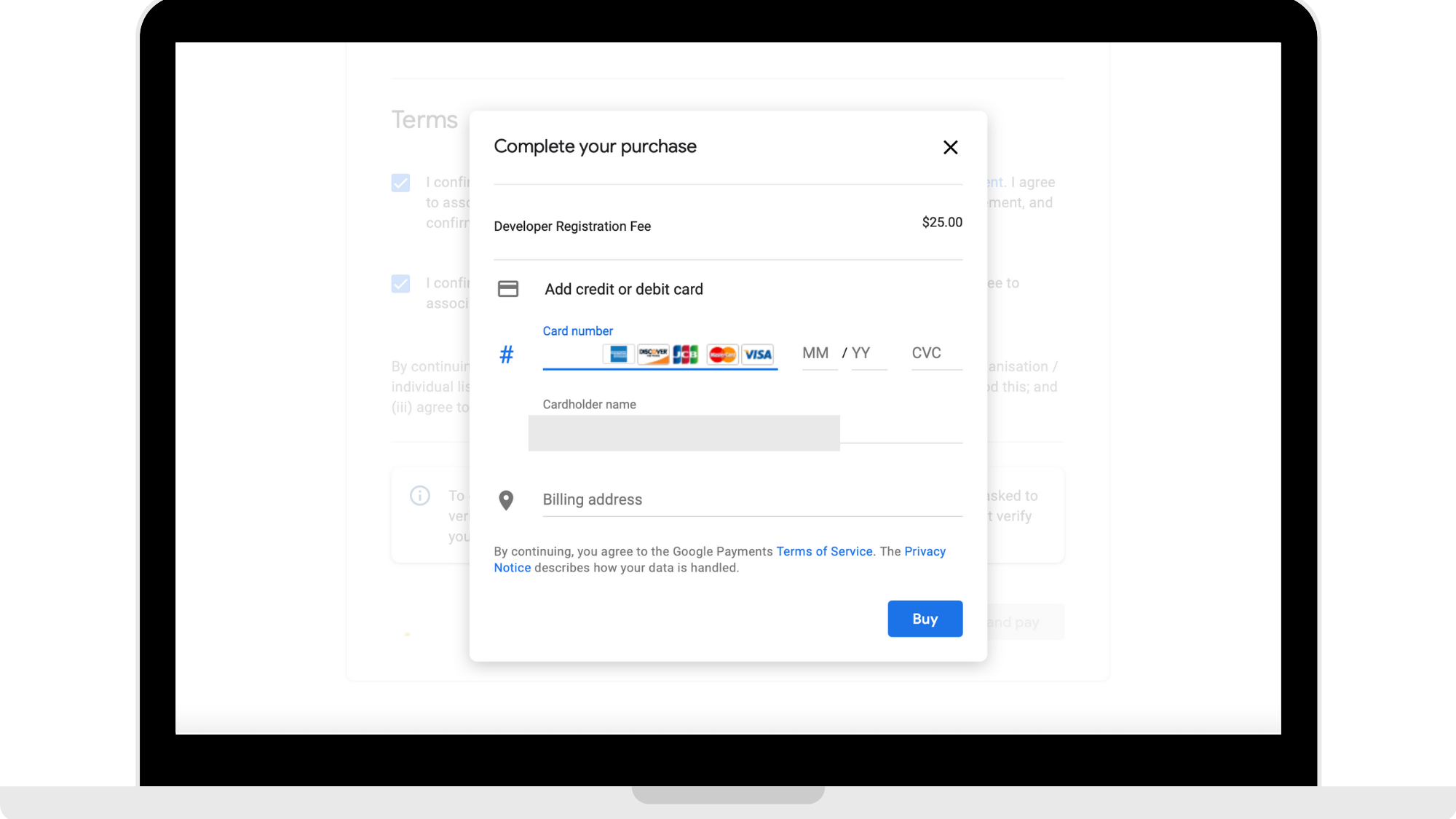
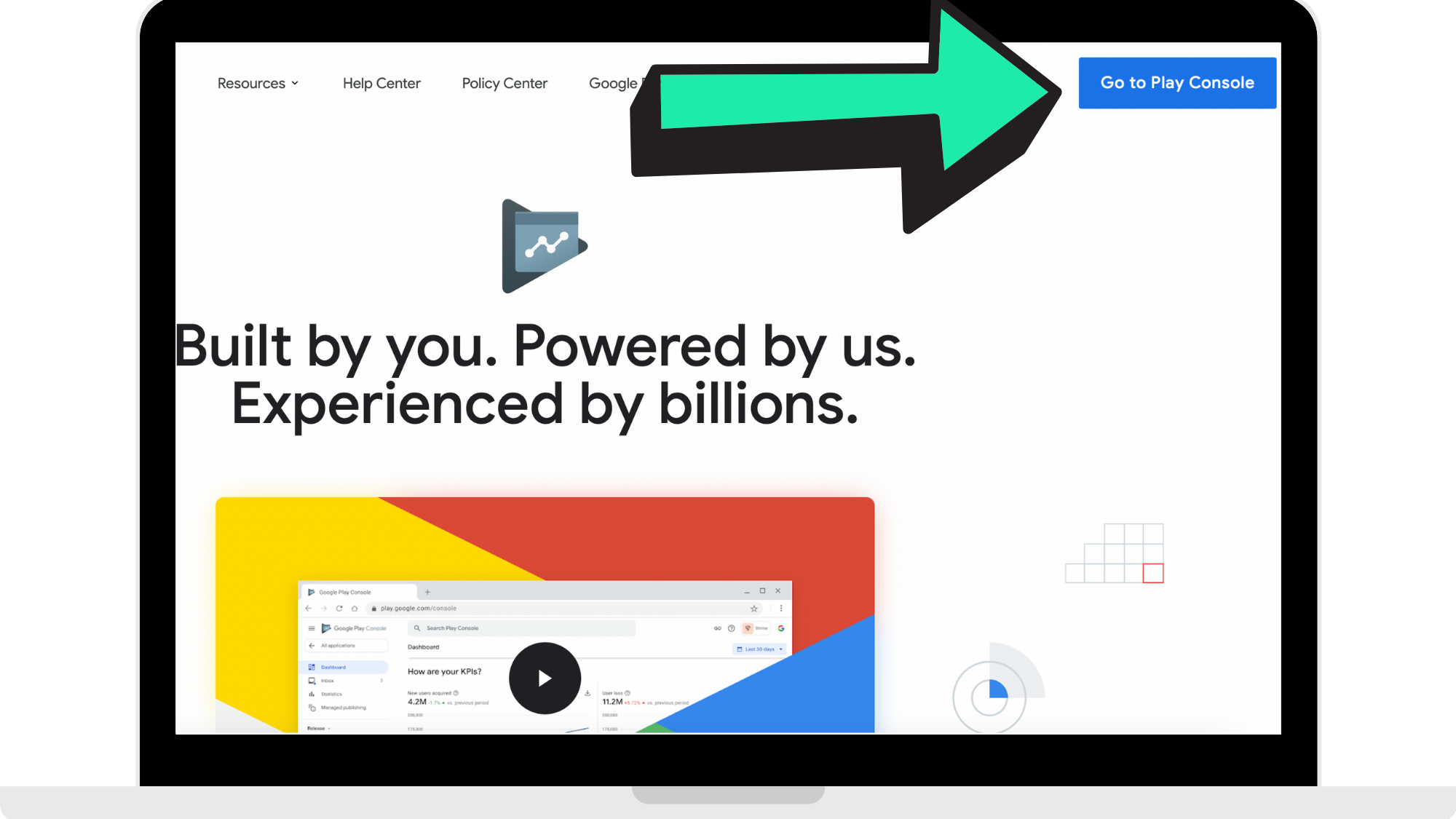
Step 7: Click 'Play Console' in upper right hand corner
Once your payment is successful, you will see 'Developer Account Created'. At this point, click 'Play Console' in the upper right corner of your screen to head to your dashboard.
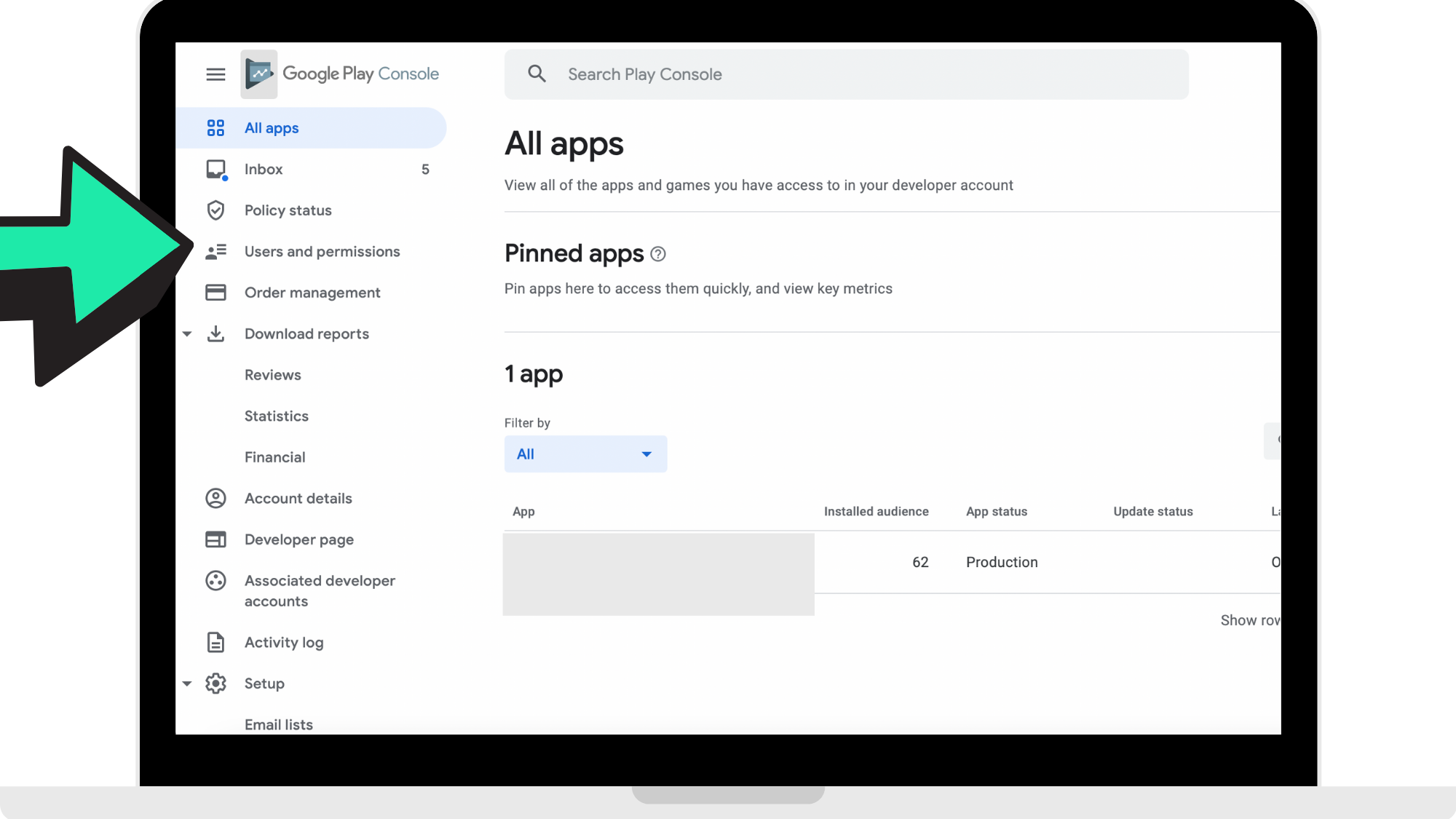
Step 8: Click 'Users And Permissions' in side bar
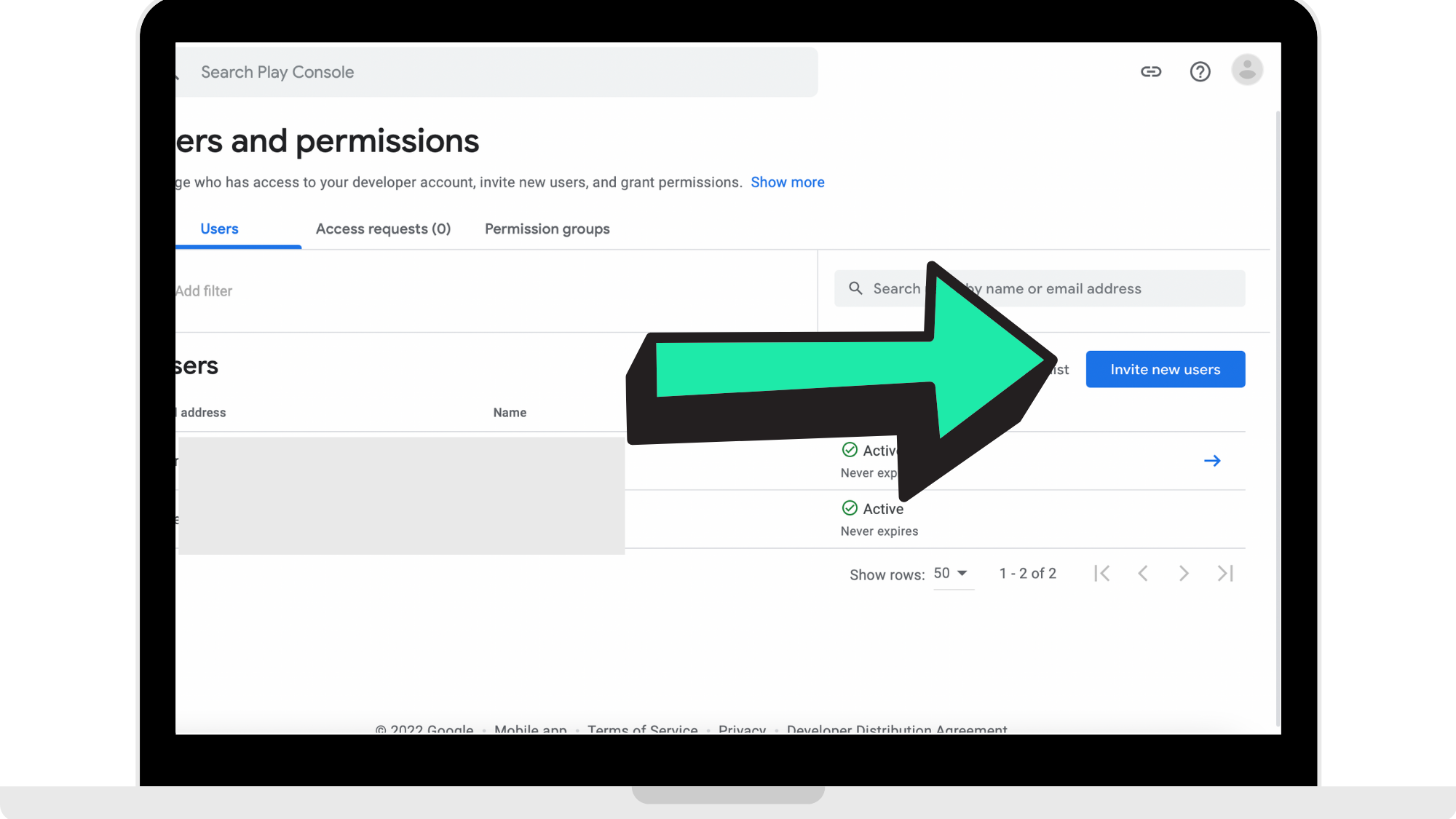
Step 9: Click 'Invite New Users'
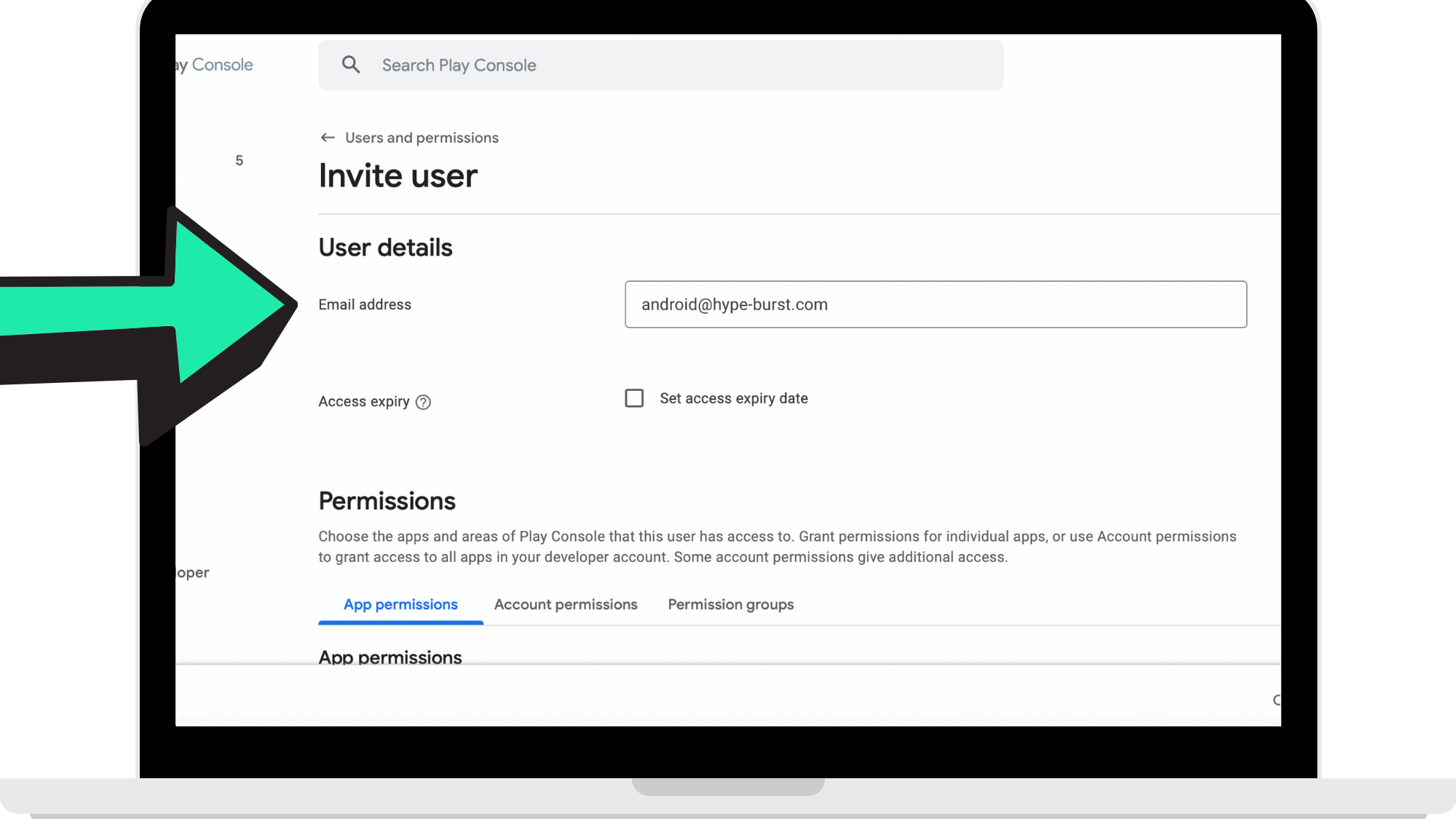
Step 10: Fill out user details
Under 'User Details' enter 'android@hype-burst.com' in the email field.
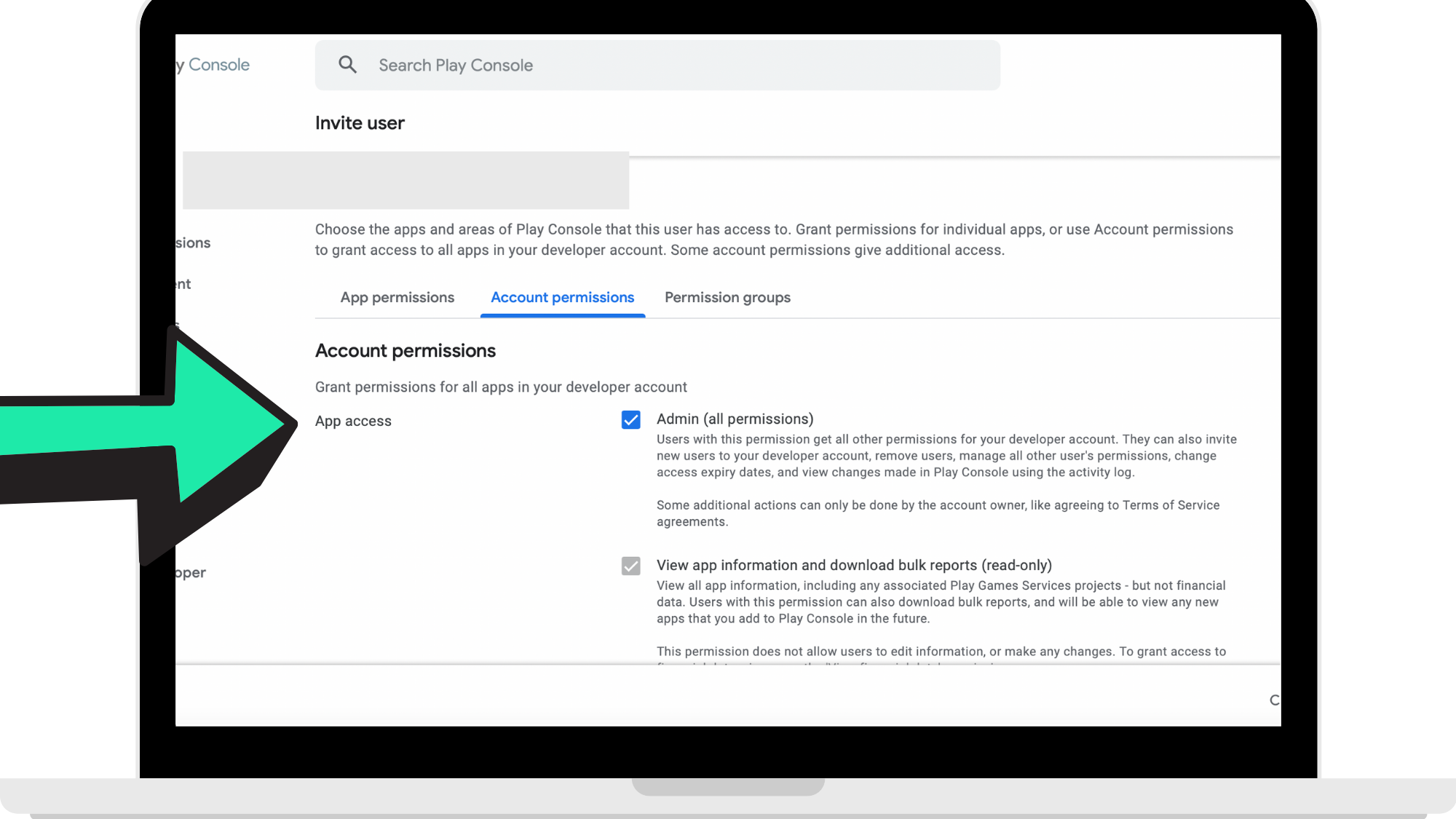
Step 11: Add permissions
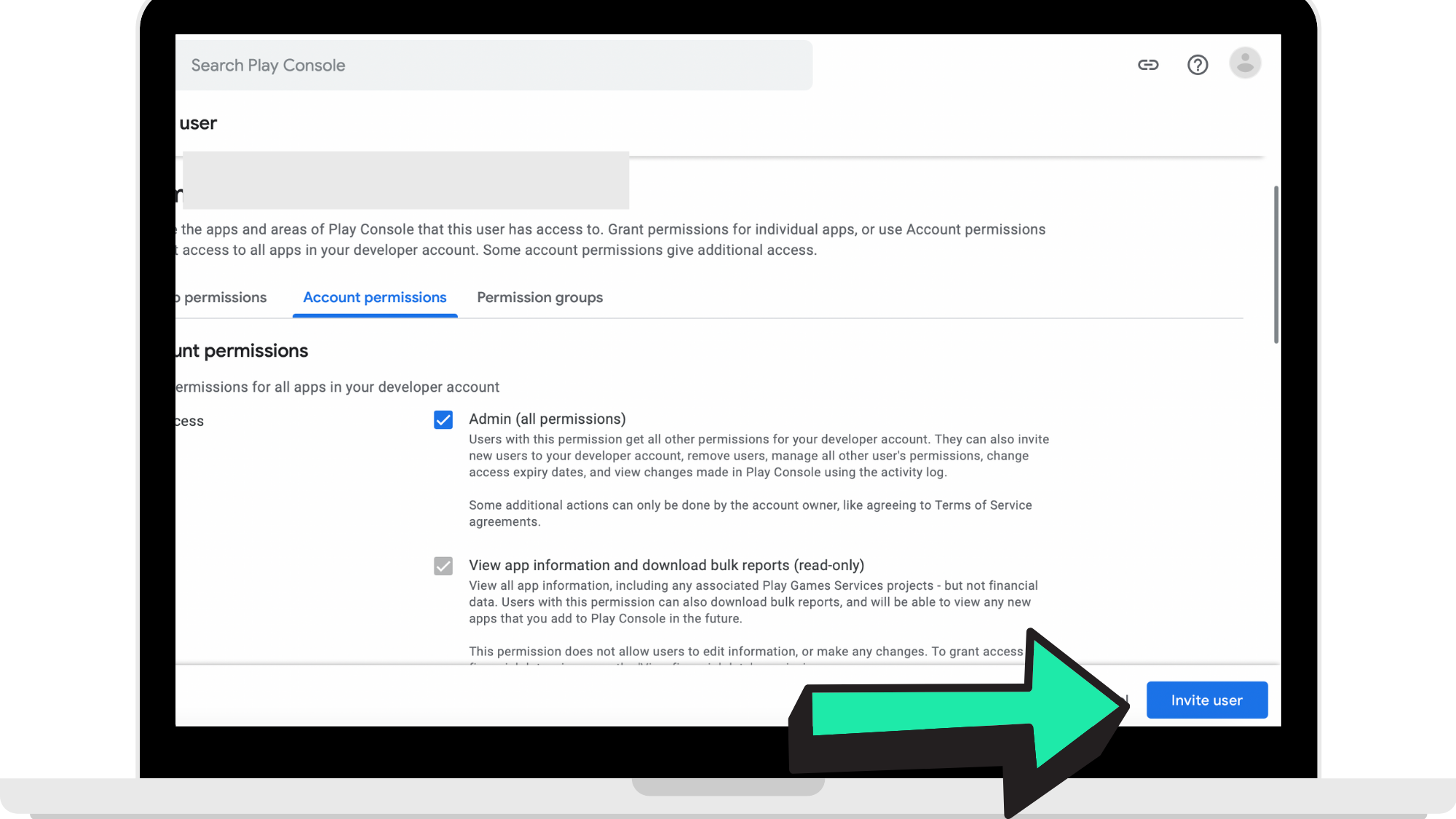
Under 'Account Permissions' click 'Account Permissions' and then select 'Admin (all permissions)' under app access.
Step 12: Invite user
Once you have filled out the user details and granted permission to be an admin, click the button 'Invite User'.
The development team will then begin creating your app and submit a test version for your internal team to test. To do this you must have submitted the relevant information on the Hype Burst dashboard and notified the development team.
How to get started
Head to https://play.google.com/console/signup/ and log in to your Google account to get started in creating your Google Play Developer account.
Comments
0 comments
Please sign in to leave a comment.