
Apple Developer Account log-in requires 2-factor authentication each time you log in. This means that each time you log in, you will have to enter a code that is sent to the mobile number registered with the account.
This can be a problem when Hype Burst are trying to access your account. To resolve the issue, you can add the dedicated Hype Burst mobile number to the Apple ID. This way, anytime a member of the Hype Burst team needs to access the account, the 2 factor code will come directly to the Hype Burst mobile number.
Adding the Hype Burst mobile number to your Apple ID
Step 1: Head to Apple
Head to https://appleid.apple.com.
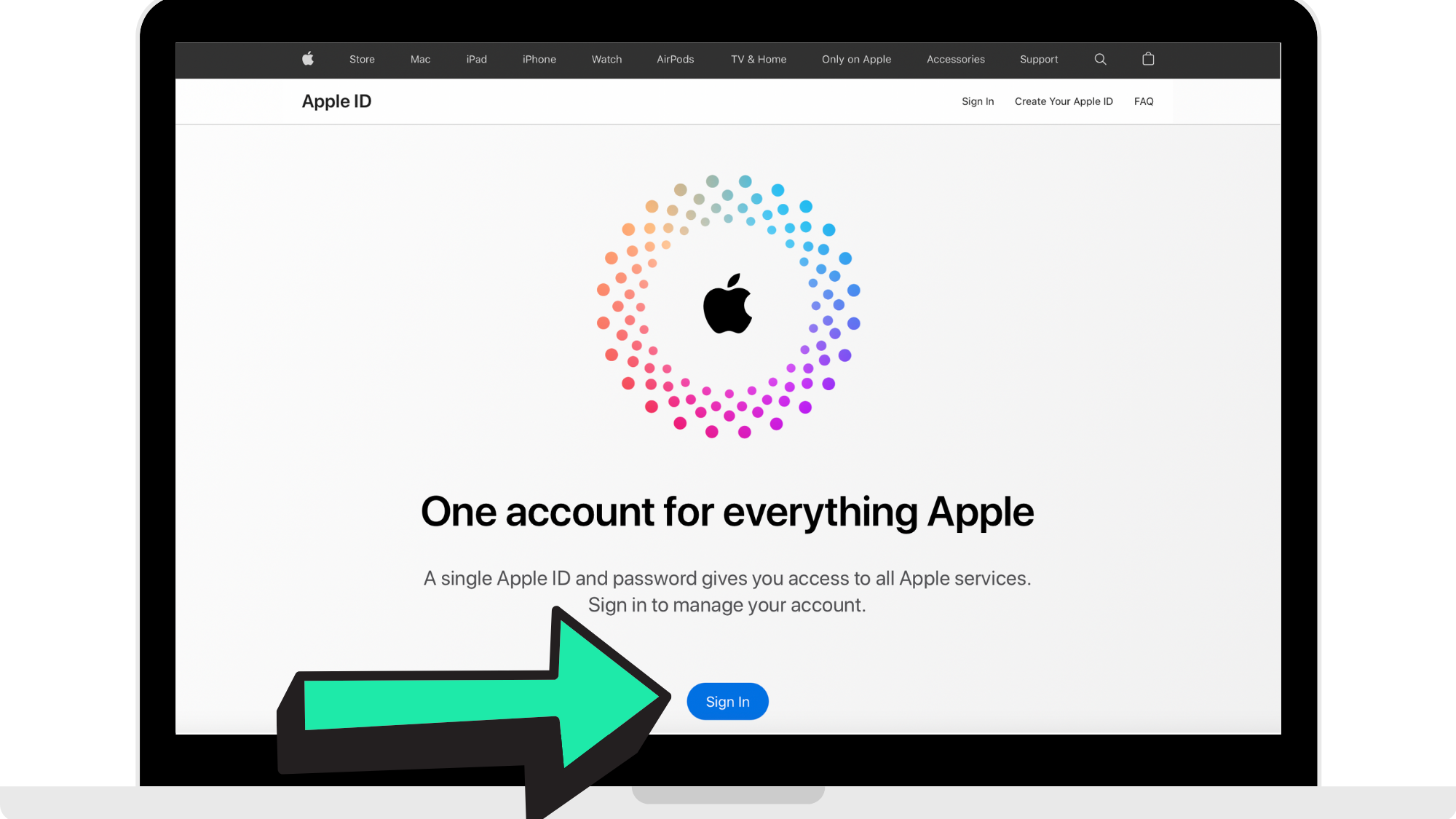
Step 2: Log into your Apple ID account
Log in using the Apple ID you created for your Apple Developer account.
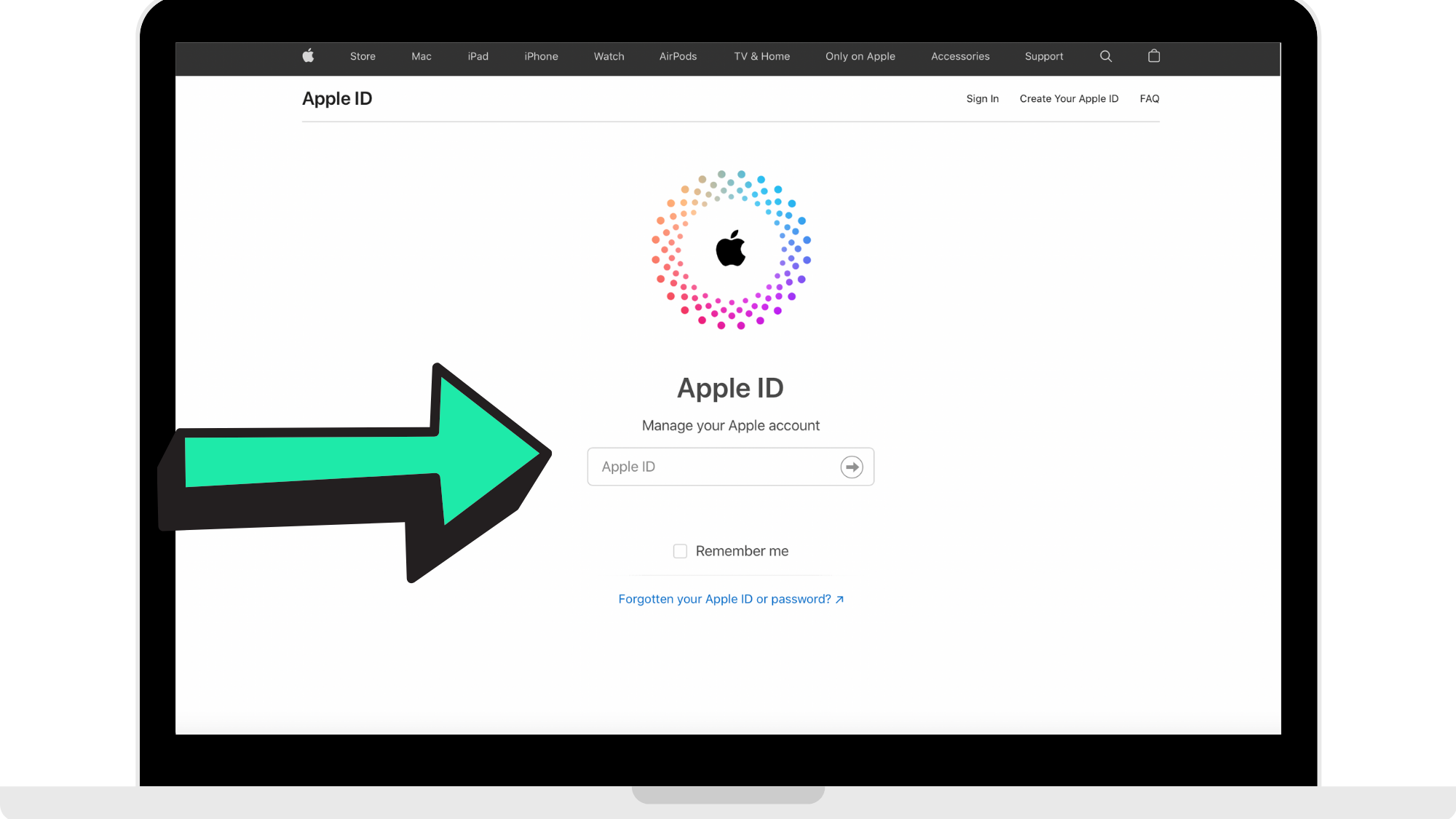
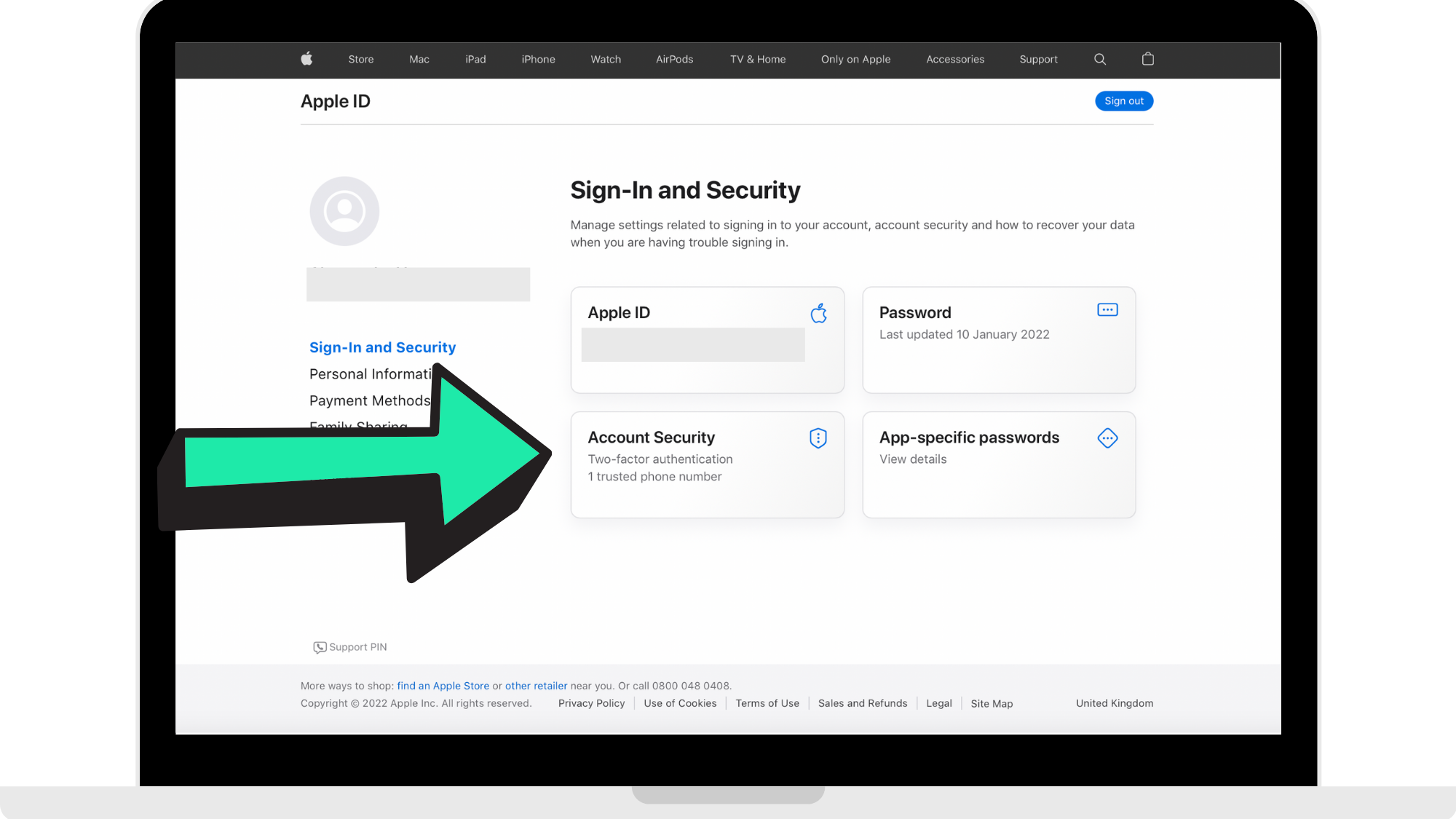
Step 3: Click on 'Account Security'
After logging in your page should look like the reference picture below. Click on 'Account Security'.
Step 4: Click the 'ADD' button to add a new trusted number
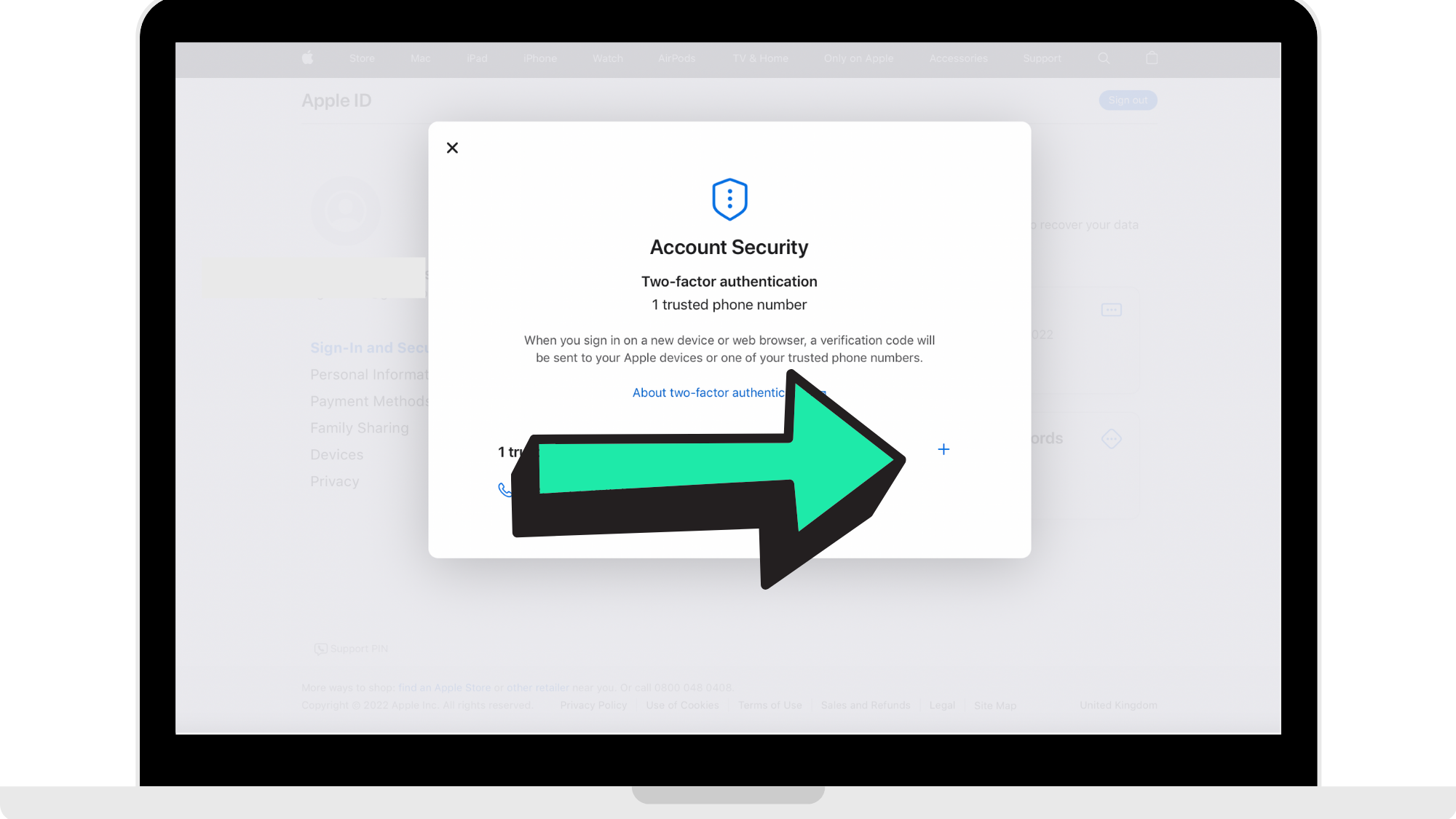
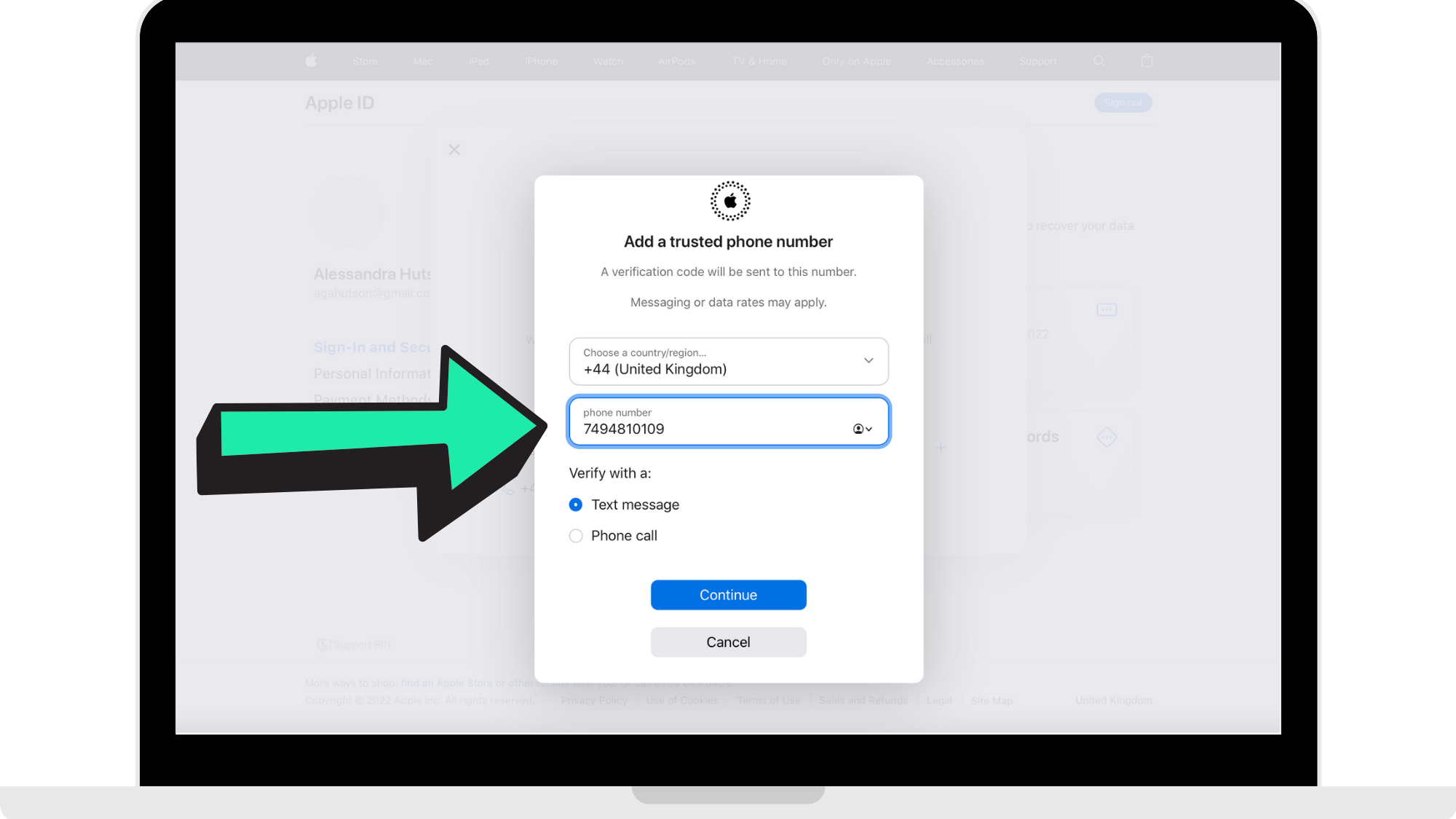
Step 5: Enter in Hype Burst's mobile number
Enter +44 7494810109 where the arrow is pointing in the reference image below.
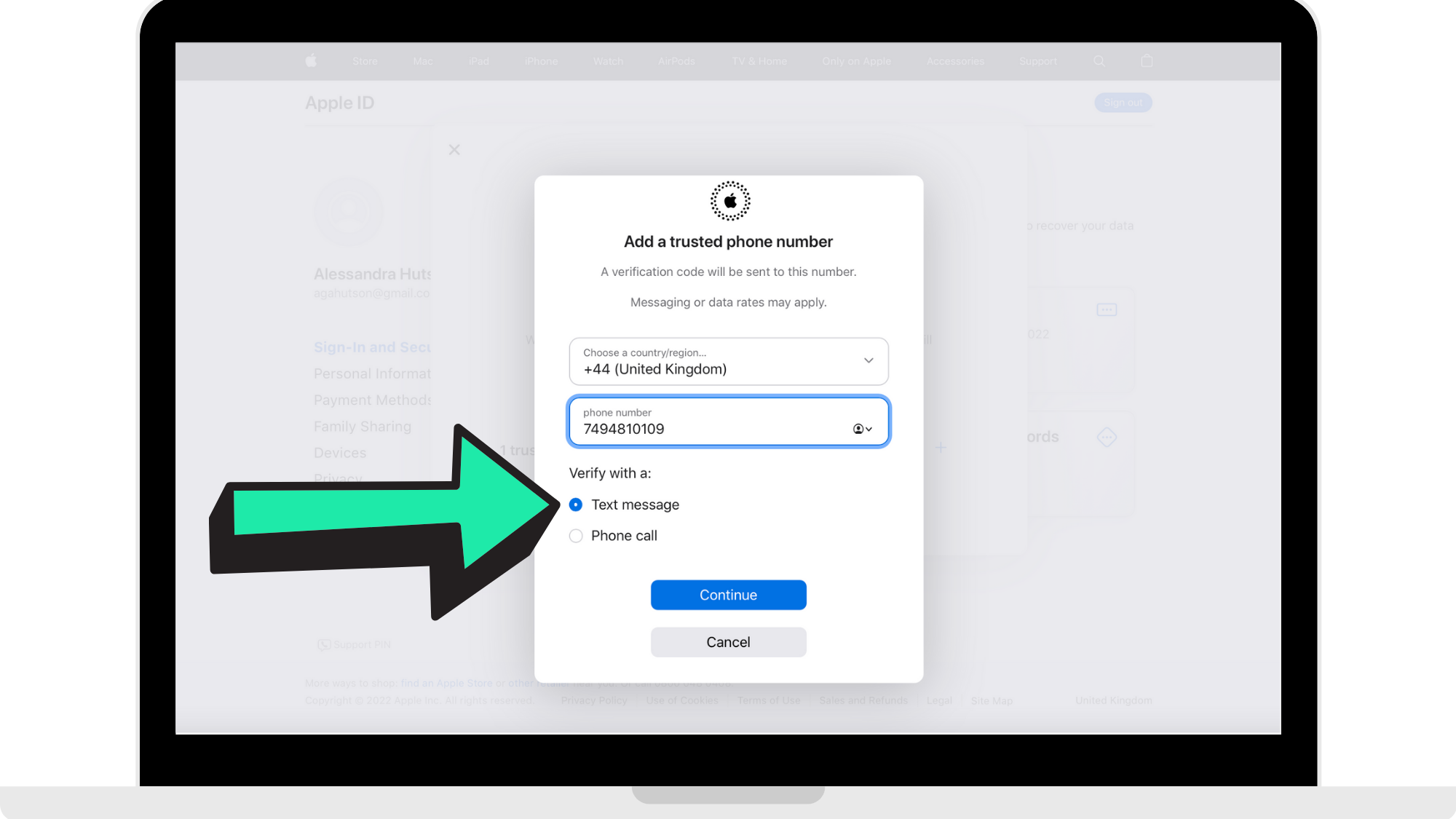
Step 6: Click 'Verify With Text Message'
Once you have entered in Hype Burst's mobile number, click the option to verify with a text message. Then press 'Continue'.
Step 7: Request the confirmation code from Hype Burst
Once you have pressed 'Continue', you are required to enter in the verification code that was sent to Hype Burst's mobile number. To get the verification code:
1. Head to Asana at https://app.asana.com.
2. Go to the project labeled 'Setting Up Hype Burst'.
3. Go to the task named 'Add Hype Burst Mobile Number To Your Apple ID' which can be found under the section 'Create Third Party Accounts'.
4. Go to the comment section and comment: 'PLEASE SEND CONFIRMATION CODE'.
A member of our team will reply ASAP with the code. If we do not reply in time, we can complete code verification on the next onboarding call.
How to get started
Head to https://appleid.apple.com to log in and complete the steps in adding Hype Burst's mobile number to your Apple ID account you created when setting up your Apple Development account.
Comments
0 comments
Please sign in to leave a comment.