
Apple handles all in-app purchases made in an app on an Apple device. Apple does not allow developers to use any other third party payment processing services for purchases made inside the app.
Apple bills the customer to their iTunes account and then passes on the revenue to your designated bank account minus their fees and applicable tax.
To accept in-app subscription payments on iOS, you must complete the Agreements, Tax and Banking forms.
Please see Apple Support Document for the most up to date guidance: https://help.apple.com/app-store-connect/#/devb6df5ee51
Steps in setting up Apple Agreements, Tax, and Banking
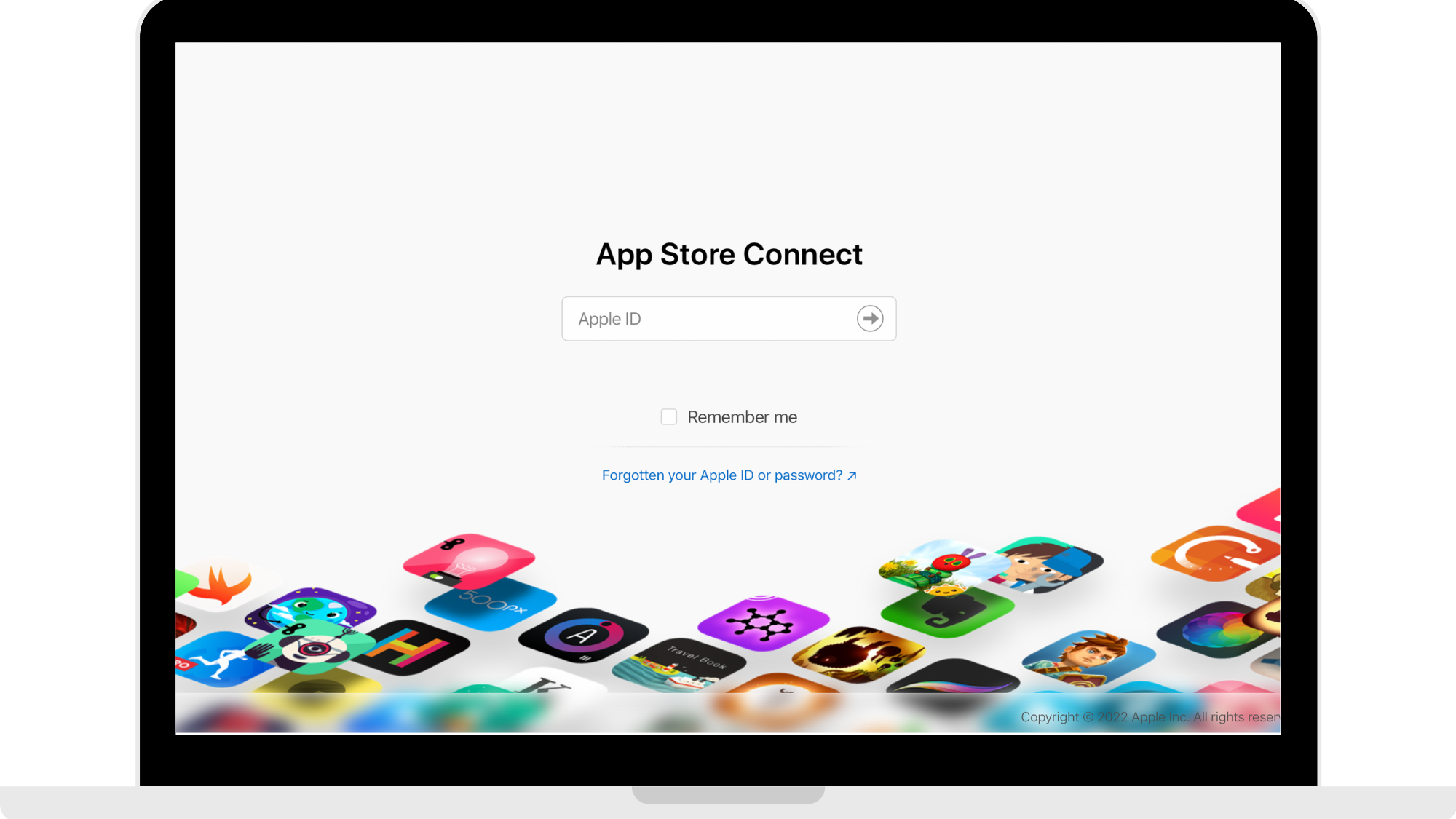
Step 1: Log into App Store Connect
Head to https://appstoreconnect.apple.com/login to log into your App Store Connect account. Use the Apple ID log in that you created when creating your Developer account.
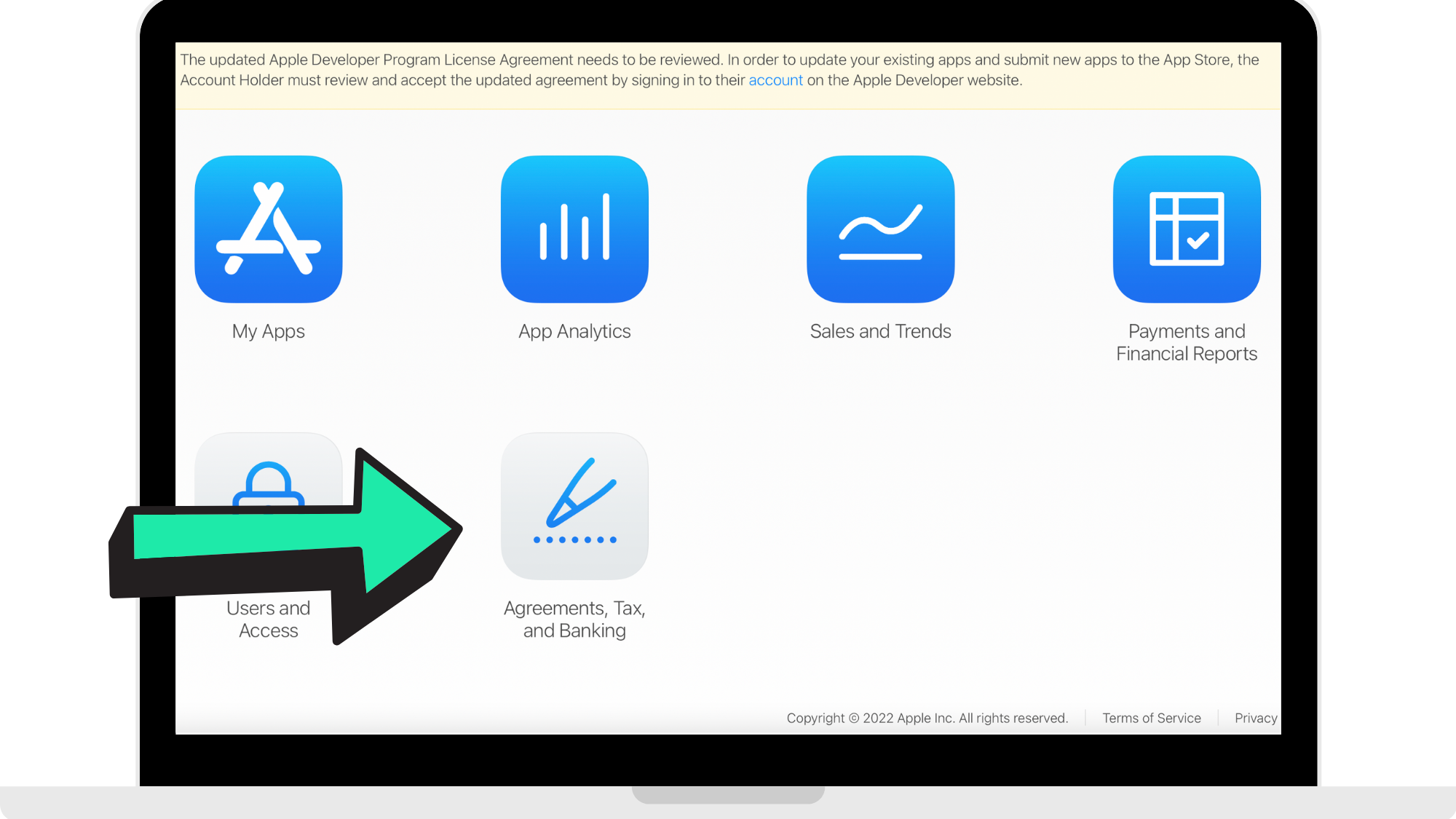
Step 2: Click 'Agreements, Tax, and Banking'
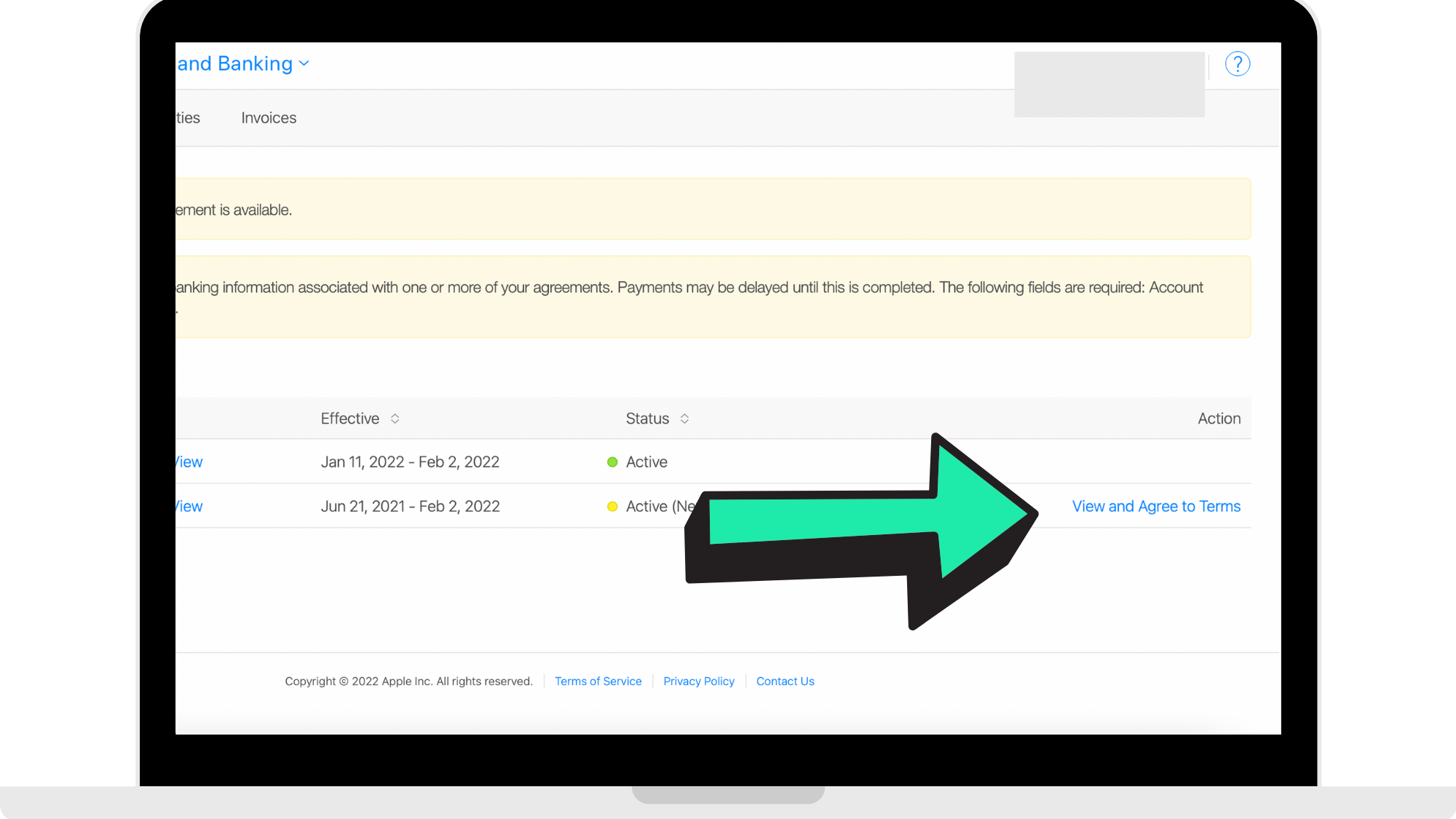
Step 3: Click 'View and Agree to Terms'
Click 'View and Agree to Terms' which can be found in the 'Paid Apps' column where the arrow is pointing to in the reference picture below. Read through them and press accept.
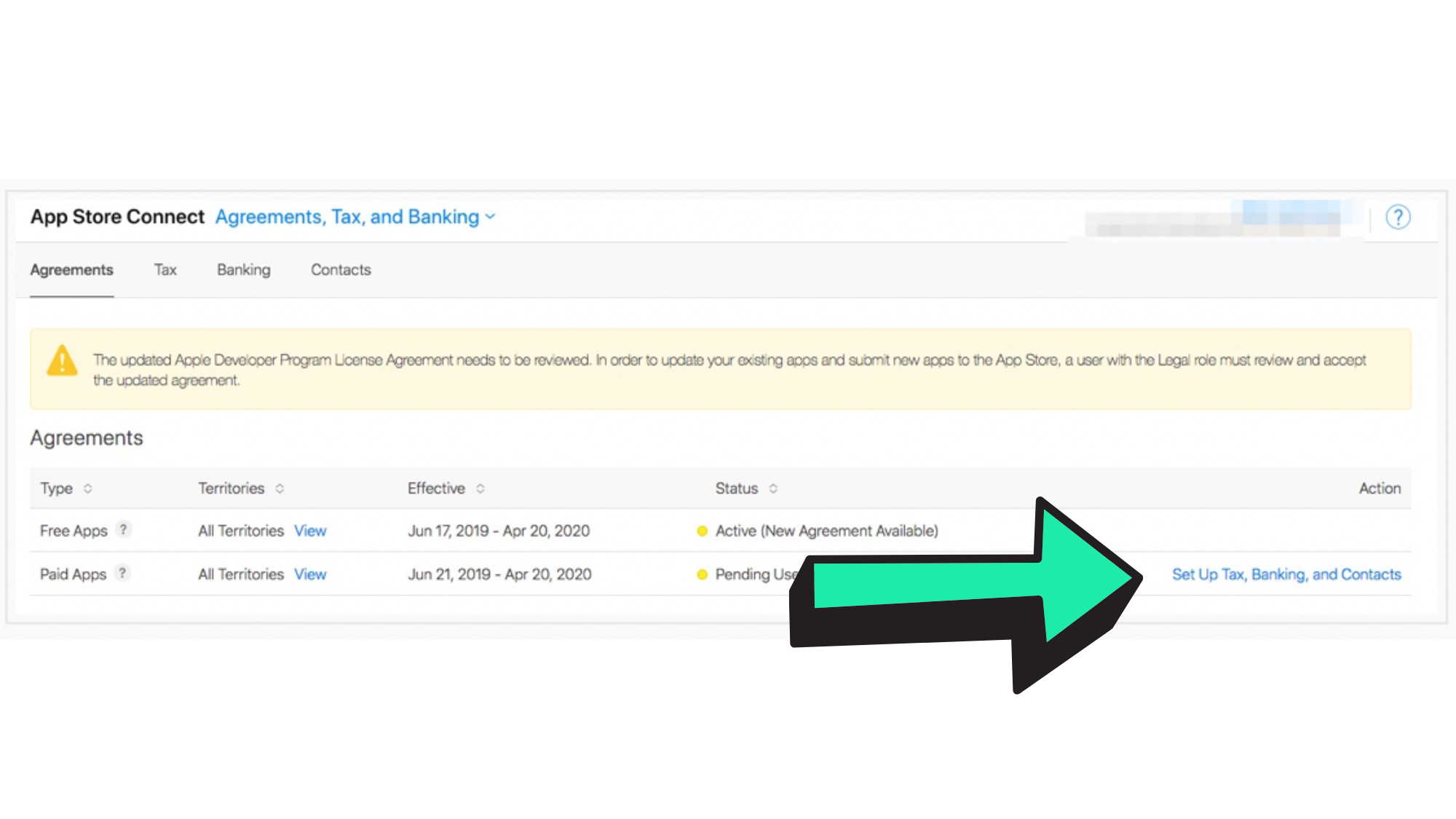
Step 4: Click 'Set Up Tax, Banking, and Contacts'
Step 5: Click 'Add Bank Account'
Click 'Add Bank Account' and then proceed to enter your bank details. This is the account where you will receive Apple app revenue.
Fill in the required fields. Make sure to enter the name exactly as it appears on your bank account or your payment can be rejected. Once you are done entering your banking information, click 'Save'. Once this step is complete, it appears under the 'Banking' tab.
Please note that depending on where your bank is located, there may be additional required fields.
Step 6: Click 'Select Tax Forms'
Once you are done entering your bank account, click 'Select Tax Forms'. Under 'Tax Forms', select the countries applicable to you. Please note that the United States Tax Form must be completed as default.
Step 7: Complete the Tax Forms
Once you are done making your selections of the countries, you will complete the Tax Forms. Submit them once you are done.
For an overview of Tax Form information, click here for more support: https://help.apple.com/app-store-connect/#/dev4f9d83420.
Step 8: Click back to 'Agreements'
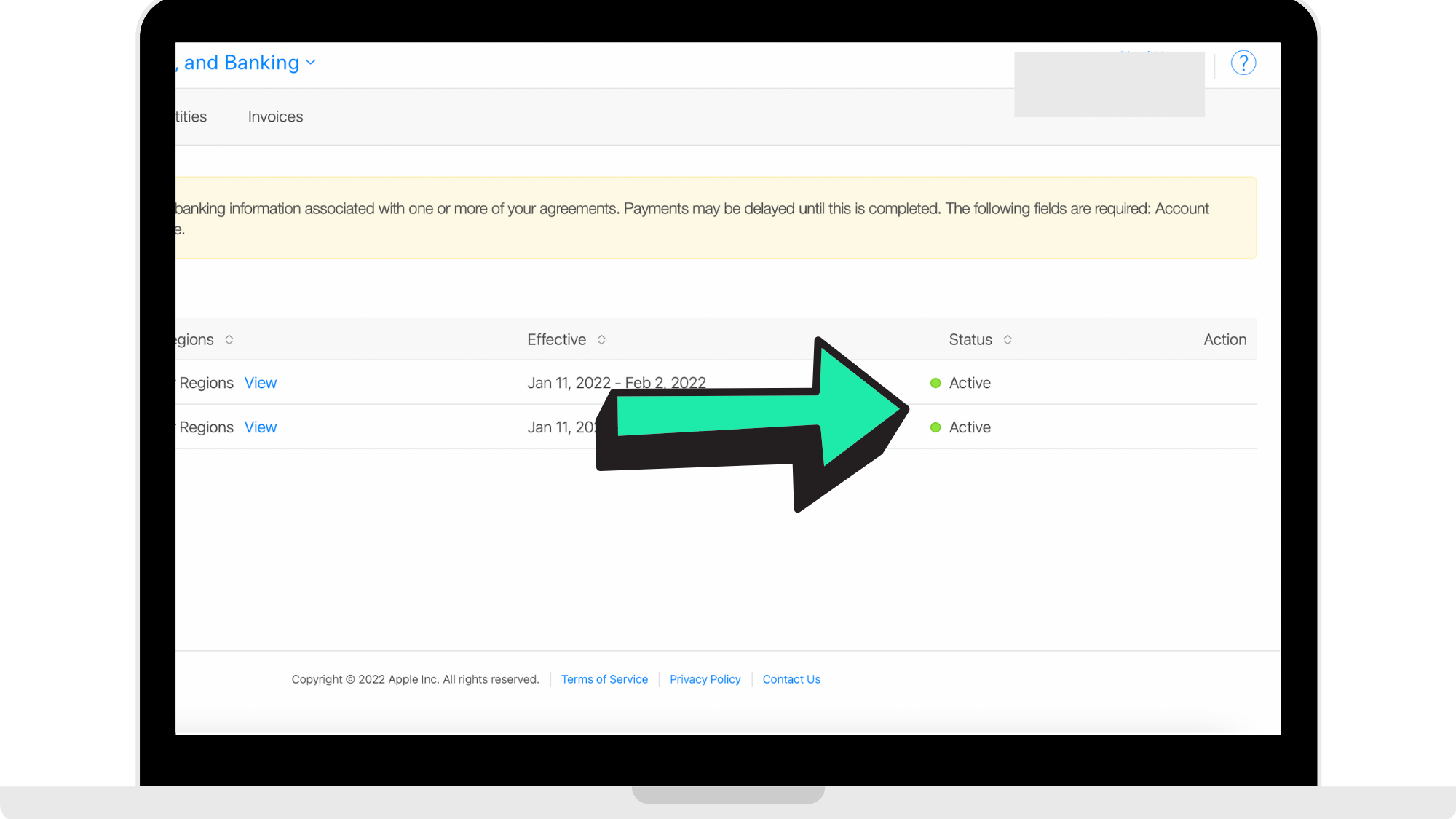
Click the 'Agreements' tab. In the 'Free Apps' and 'Paid Apps' column the status should show as 'Active'. You are able to see what this will look like and where you can find this in the reference picture below.
Recommended: Enrol in the App Store Small Business Program to take advantage of reduced App Store commission fees. The link can be found here: https://developer.apple.com/app-store/small-business-program/enroll/.
How to get started
Head to https://appstoreconnect.apple.com/login to log into your App Store Connect account to get started with setting up your Apple Agreements, Tax, and Banking. Use the Apple ID log in that you created when creating your Developer account.
Comments
0 comments
Please sign in to leave a comment.