
In order to get paid through web subscriptions, you need to have a Stripe account. This will allow you to automatically get paid every time someone purchases a monthly or yearly subscription through your Hype Burst fitness account.
With Stripe, you are able to manually cancel a user's subscription to your fitness app. This is only available to those who signed up through your website signup page.
To read more about how Web Subscriptions work, click here.
Steps in cancelling a user's subscription
You should make sure you have your Stripe account set up. If you haven't done this step, please read the full support article here: https://hypeburst.zendesk.com/hc/en-gb/articles/4415857788049-Create-Stripe-Account-.
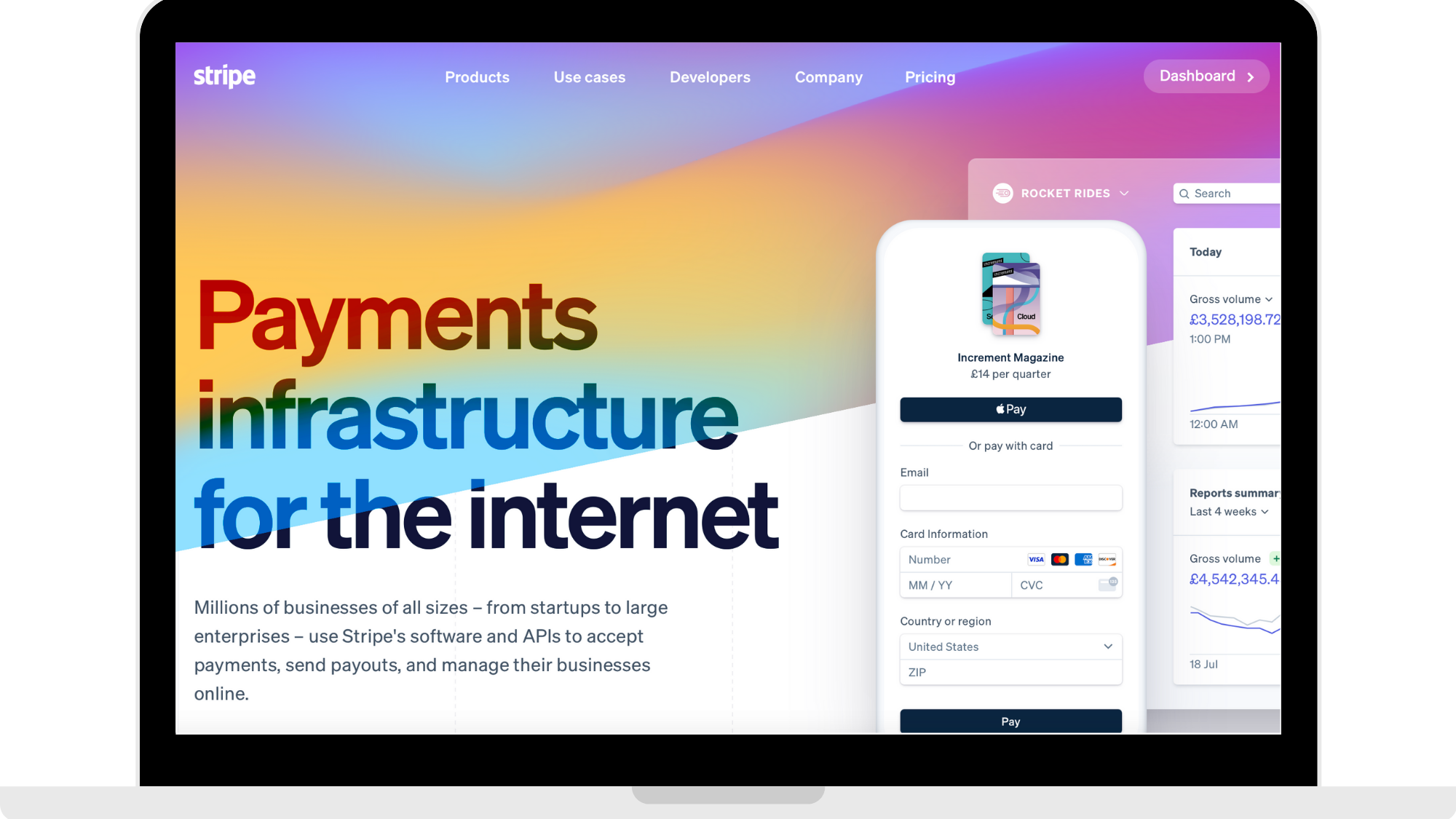
Step 1: Log into your Stripe account
Head to https://dashboard.stripe.com to log into your Stripe account.
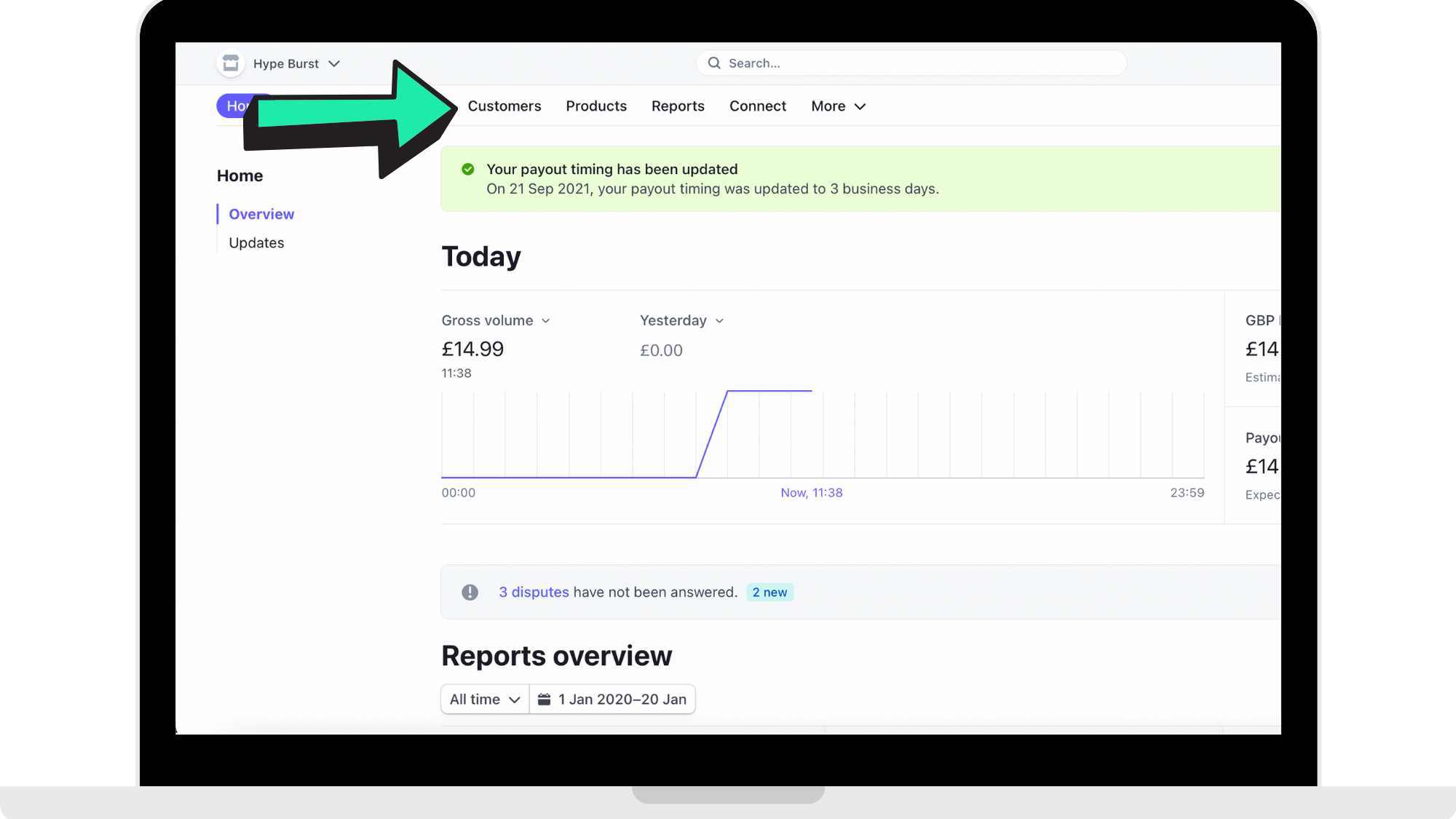
Step 2: Click 'Customers'
In the panel along the top of your Dashboard that you land on when logging in, click 'Customers'.
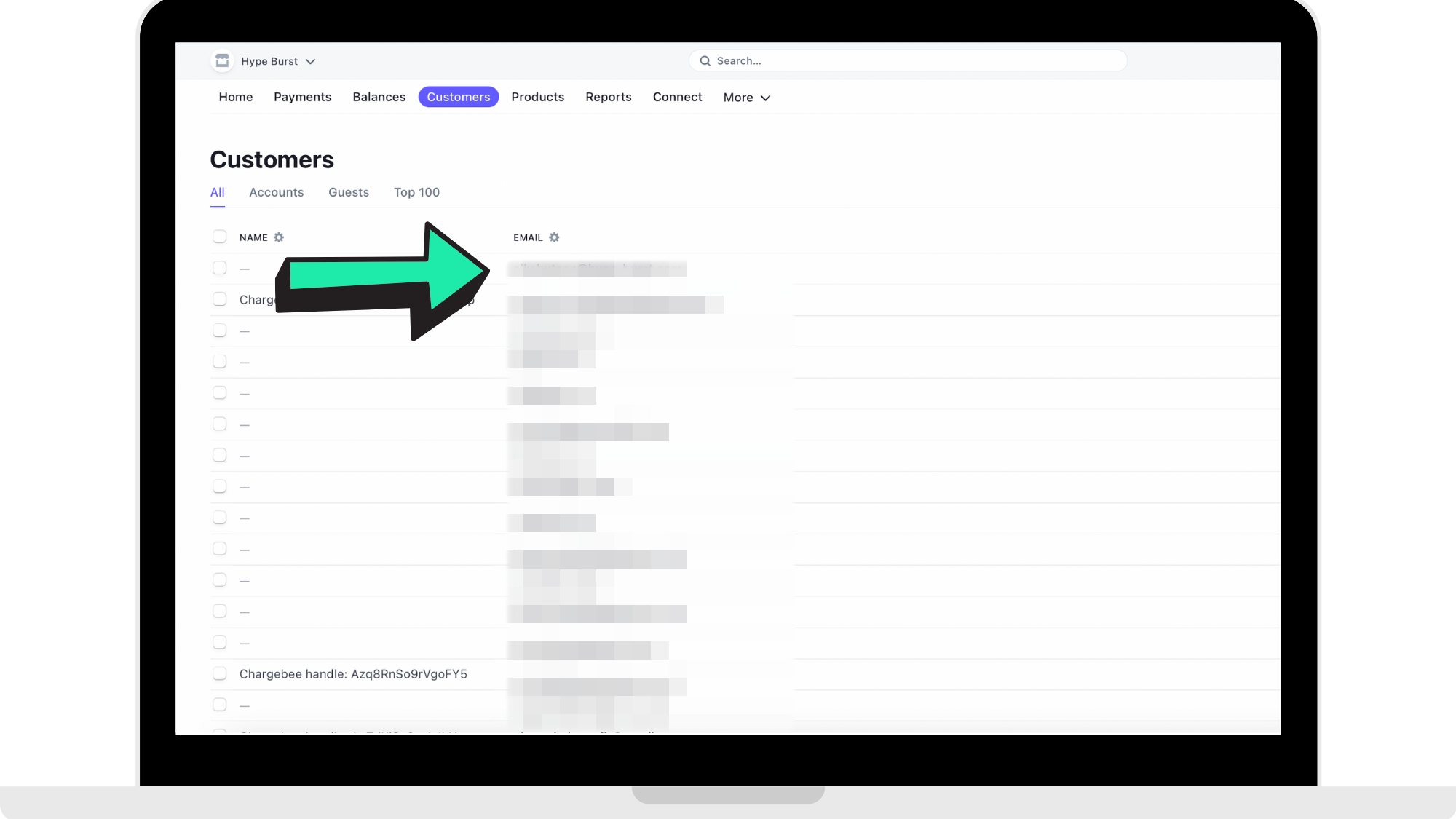
Step 3: Click on the customer whose subscription you are cancelling
Find the email or name of the customer whose subscription you are cancelling and click on their name.
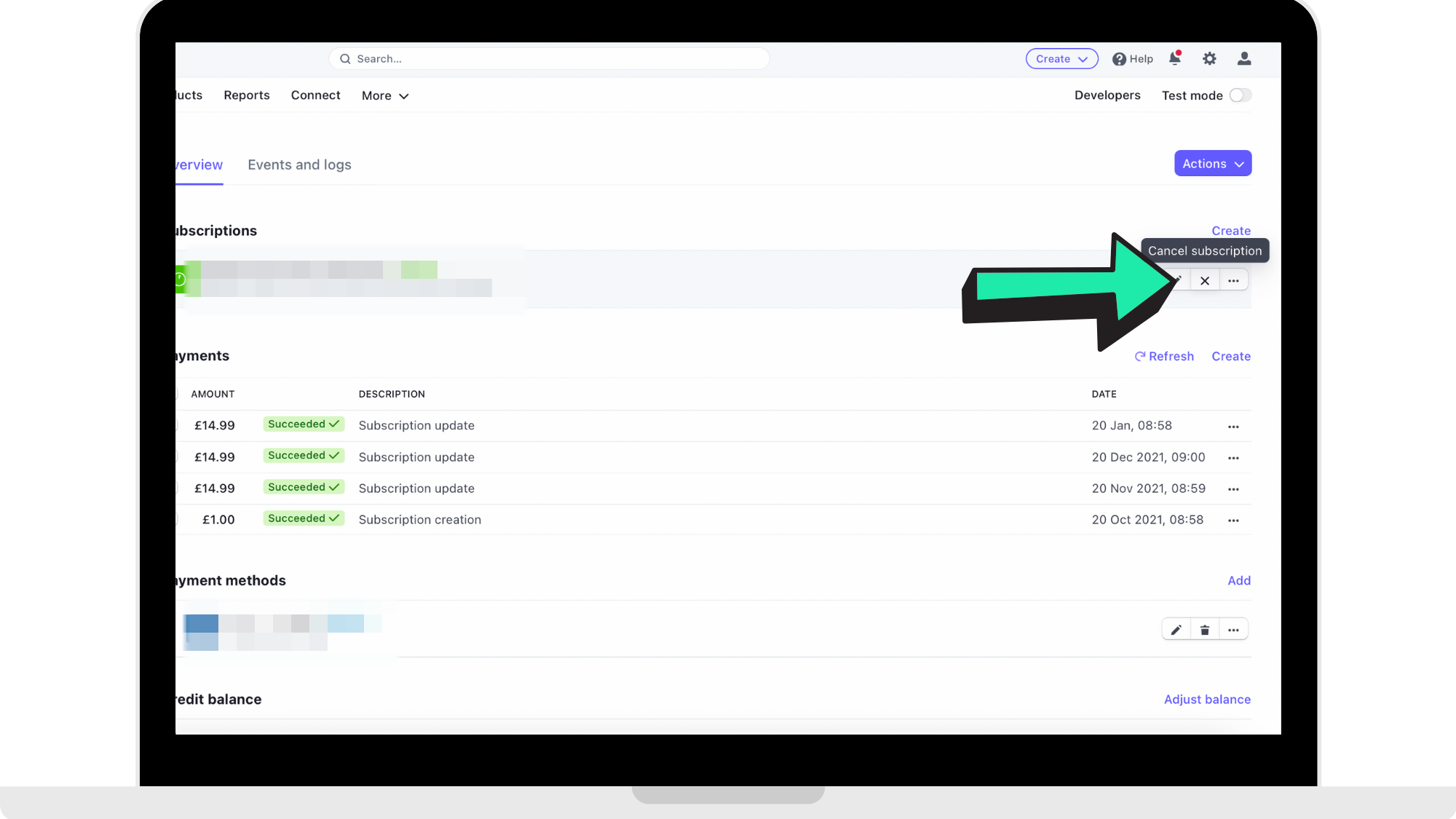
Step 4: Click 'Cancel Subscription'
Where it says 'Subscriptions' go to the subscription that they are on and go to the 'X' where you will click to cancel their subscription.
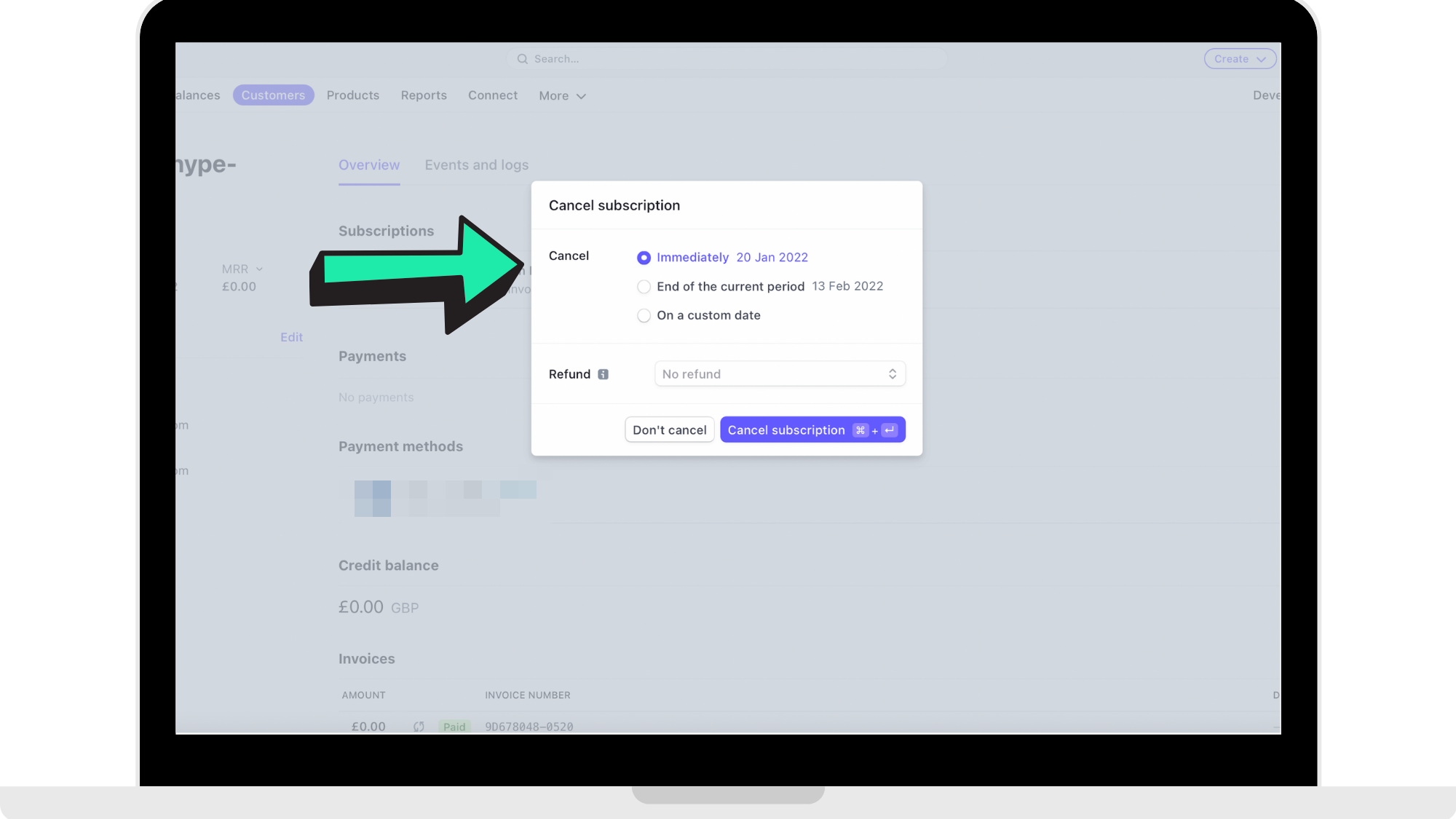
Step 5: Choose when their subscription will end
You have 3 options when cancelling their subscription which you can see in the reference image below. Choose one of the options of when their subscription will be cancelled.
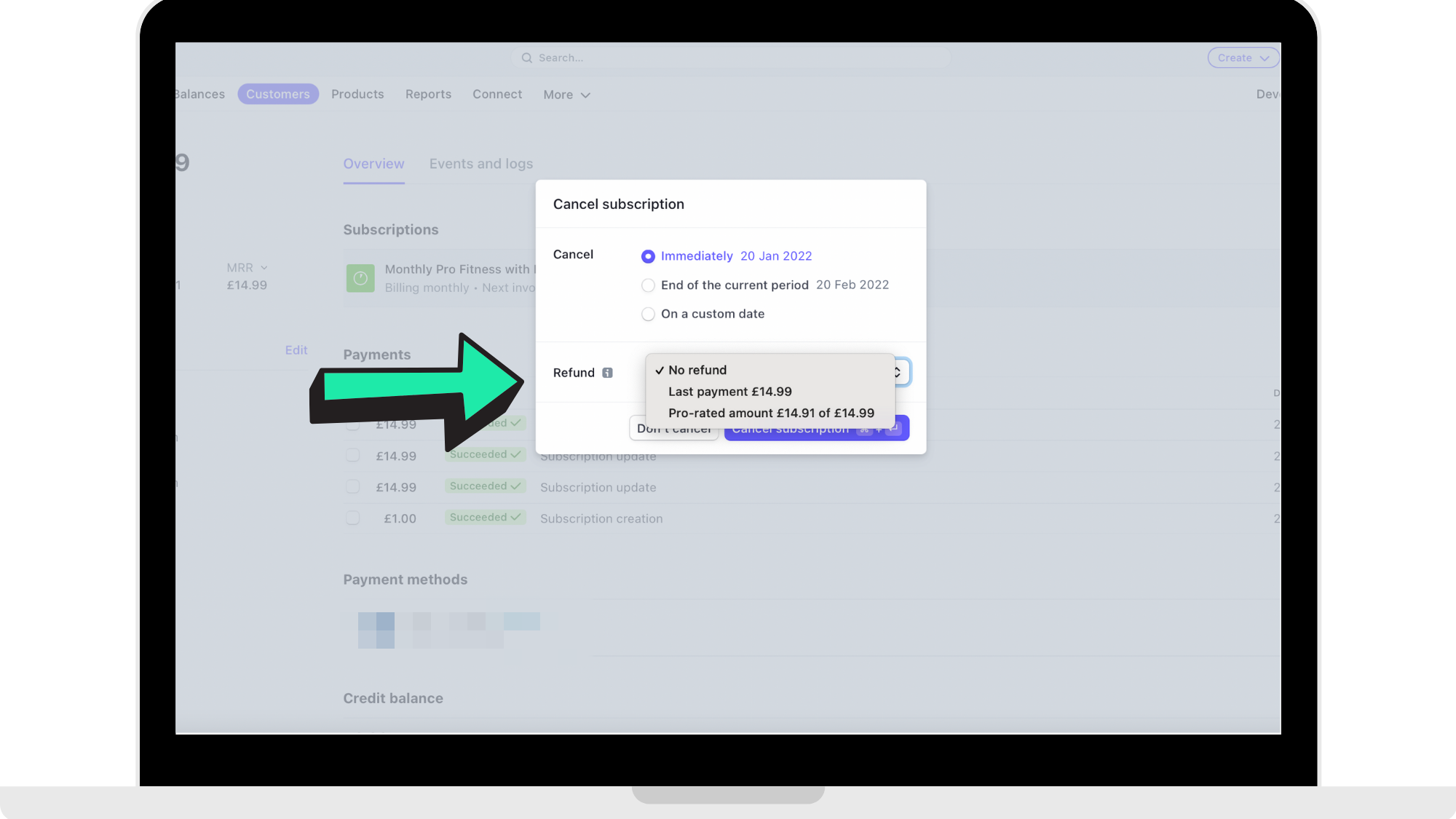
You are also able to offer a refund when cancelling. If you wish to refund them, click next to where it says 'Refund' and choose an option from the drop down menu.
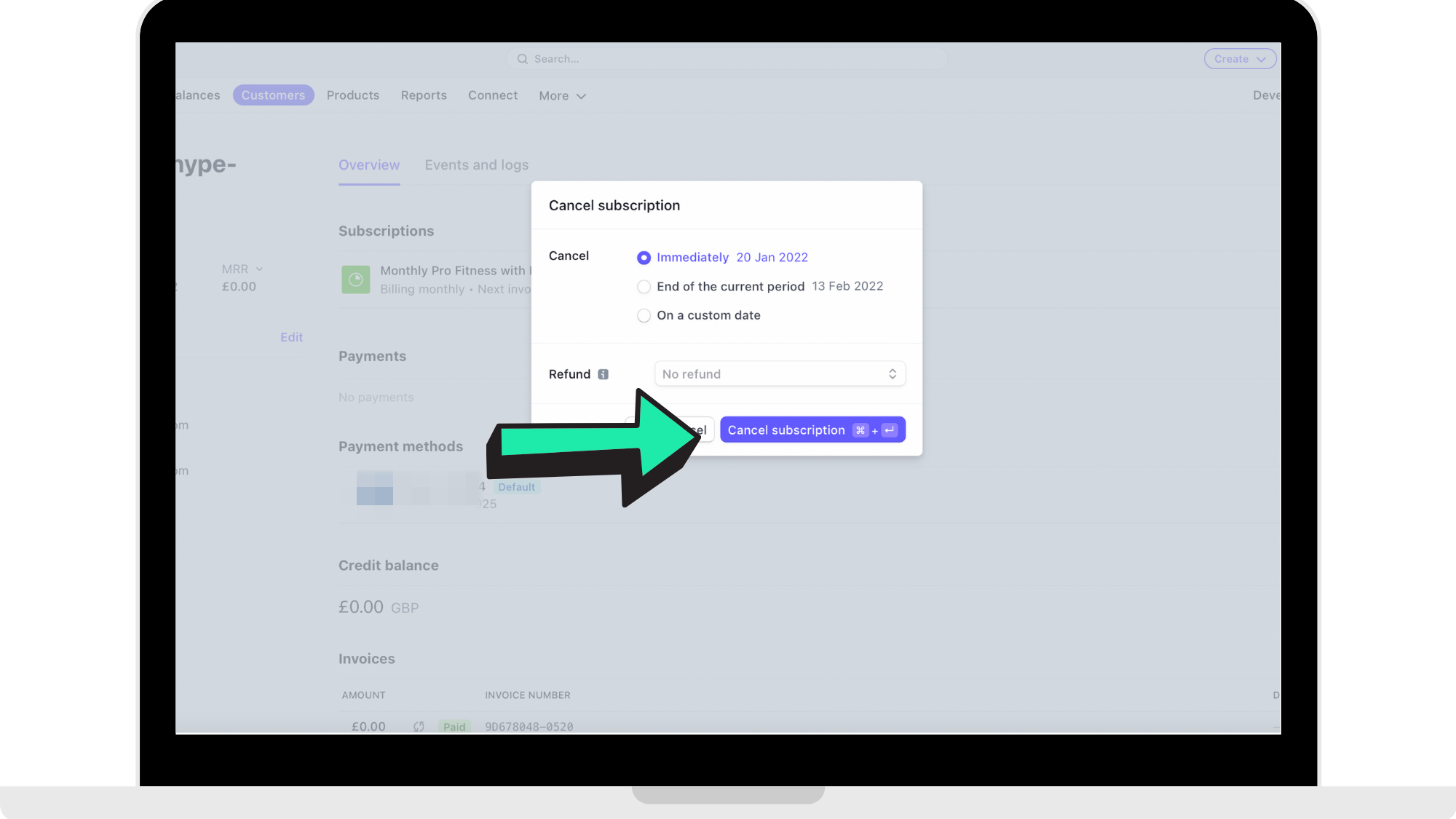
Step 6: Click 'Cancel Subscription'
Once you have chosen when their subscription will end and if you are offering a refund, click 'Cancel Subscription'. After this, their subscription will officially be cancelled at the time you entered in the previous step.
How to get started
Head to https://dashboard.stripe.com to log into your Stripe account. Once you are logged in, head to your 'Customers' page to manually cancel a customer's subscription.
Comments
0 comments
Please sign in to leave a comment.