
To publish an app on the Apple App Store, you must create an Apple Developer account. Membership to the Developer Program is £79 or $99/year and we recommend setting this to auto-renew.
You have the option to enrol to the Developer Program as an Individual or Company. Hype Burst are able to support both Developer account types, but the process for setting up is different. You can switch from an Individual to Organisation Developer account at any time.
For the guide on how to set up your Apple Developer account as an Organisation, click here: https://hypeburst.zendesk.com/hc/en-gb/articles/4416122123409.
If you are still stuck, read the guide on the difference between an Individual Developer Account and an Organisation Developer account here: https://hypeburst.zendesk.com/hc/en-gb/articles/4416133086353.
Creating your Apple Developer account as an individual
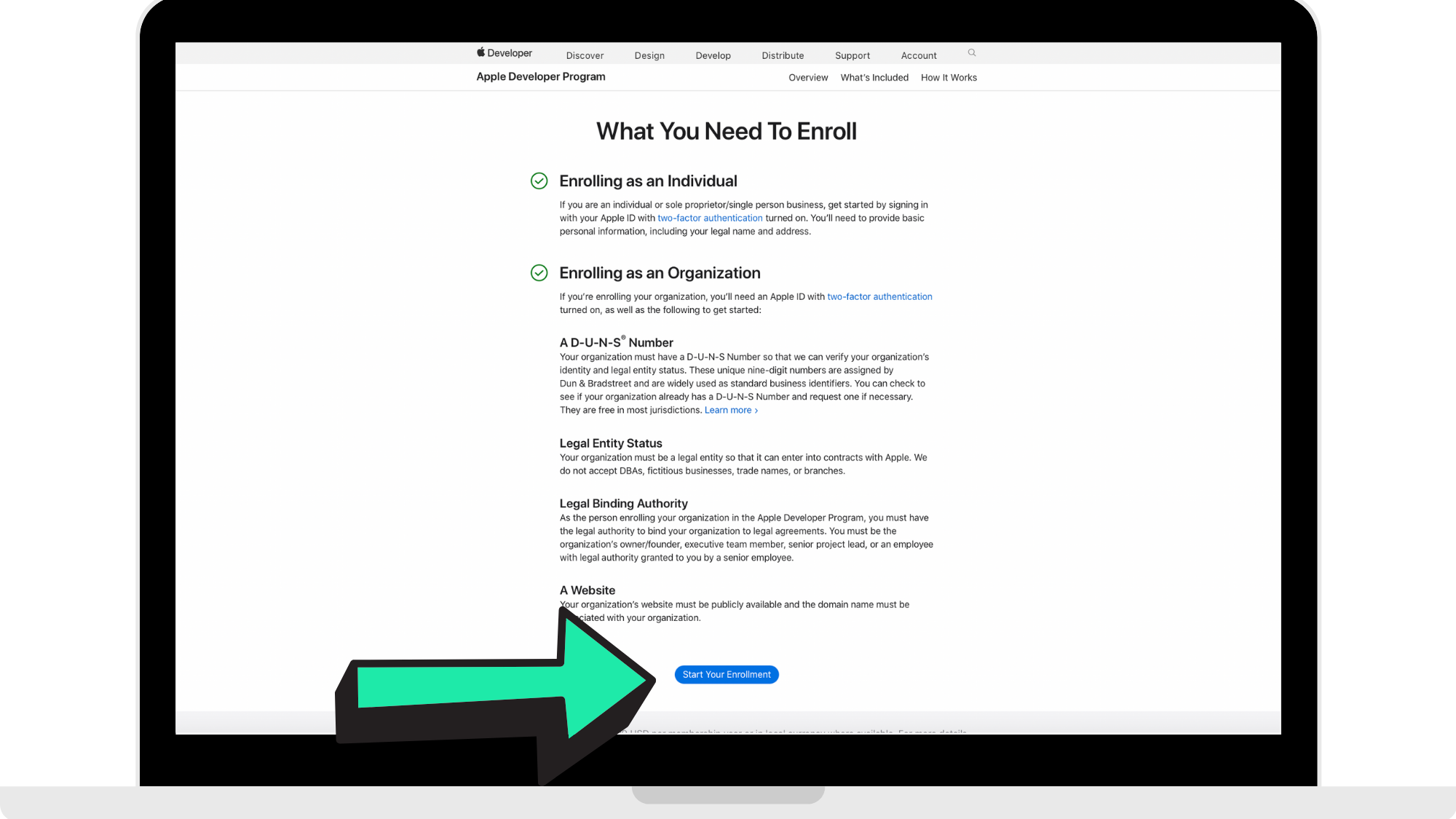
Step 1: Head to Apple Developer website
Head to https://developer.apple.com/programs/enroll/ and click 'Start Your Enrollment'.
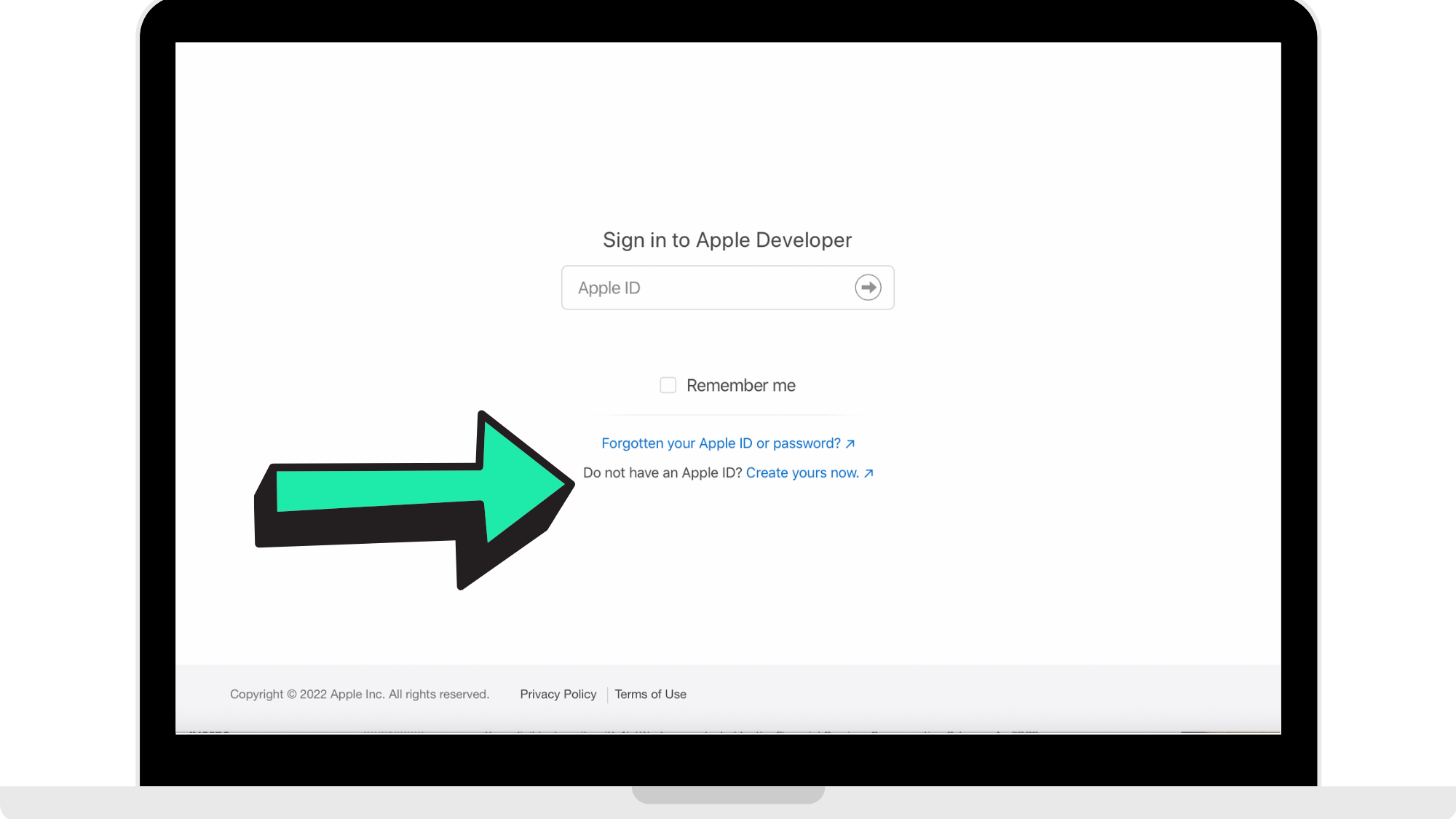
Step 2: Sign in using existing Apple ID or create a new Apple ID
You can either sign in using your existing ID but we recommend creating a new Apple ID with a new email used specifically for your fitness app, since you will be sharing your log in information with Hype Burst as an Individual Apple Developer account so we can upload your app.
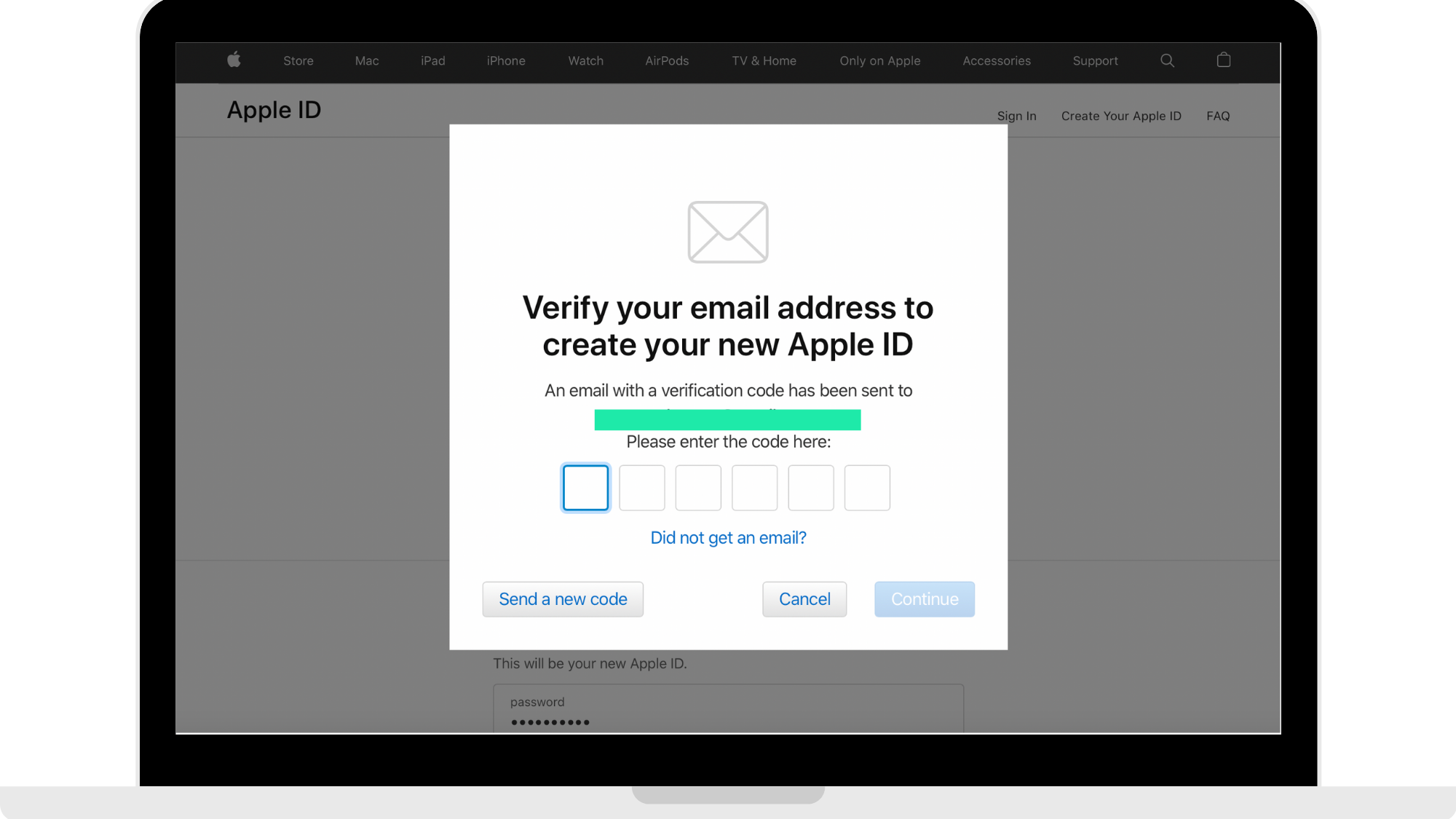
Step 3: Enter verification codes
Once you have created your new Apple ID or signed in, enter the verification codes sent to your email address and phone number.
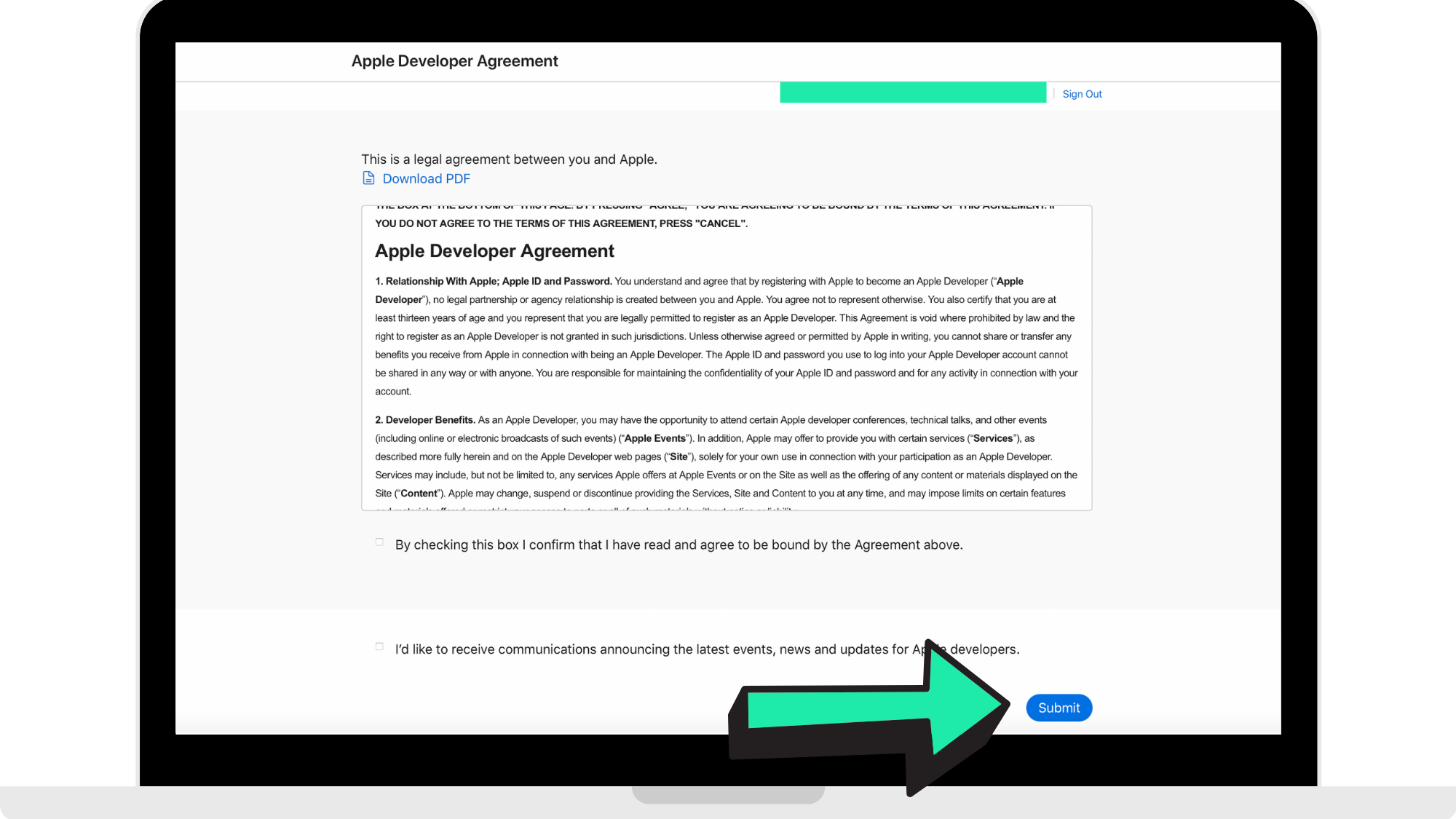
Step 4: Read and accept T&C's
Read through and accept the Terms & Conditions and press 'Submit' once done to get to the next page.
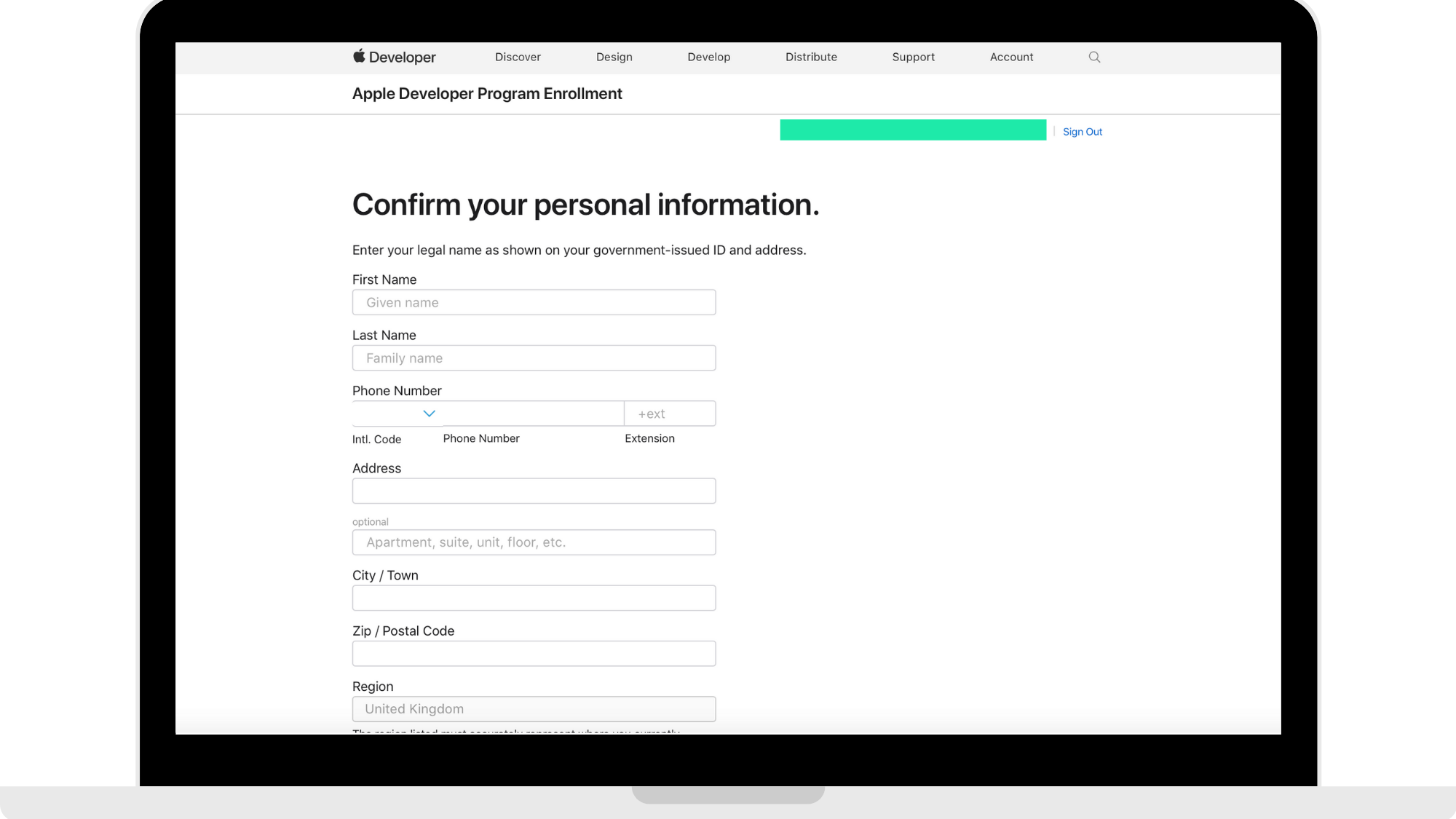
Step 5: Enter personal information
Enter your personal information exactly as it appears on your government-issued ID. Once you have completed, click 'Continue' in the bottom right hand corner of the page.
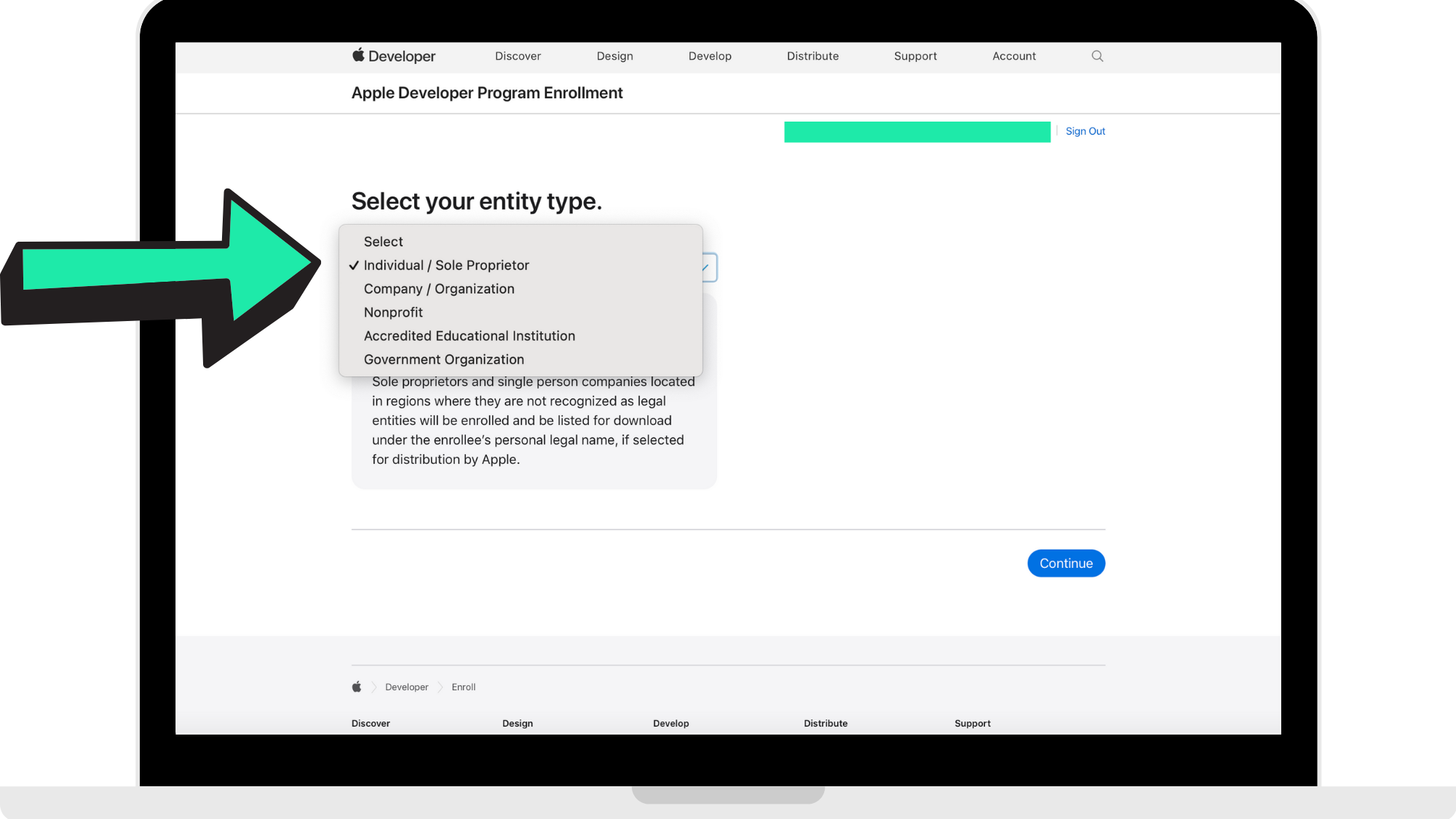
Step 6: Select your entity type
Select 'Individual/Sole Proprietor' and then click 'Continue'.
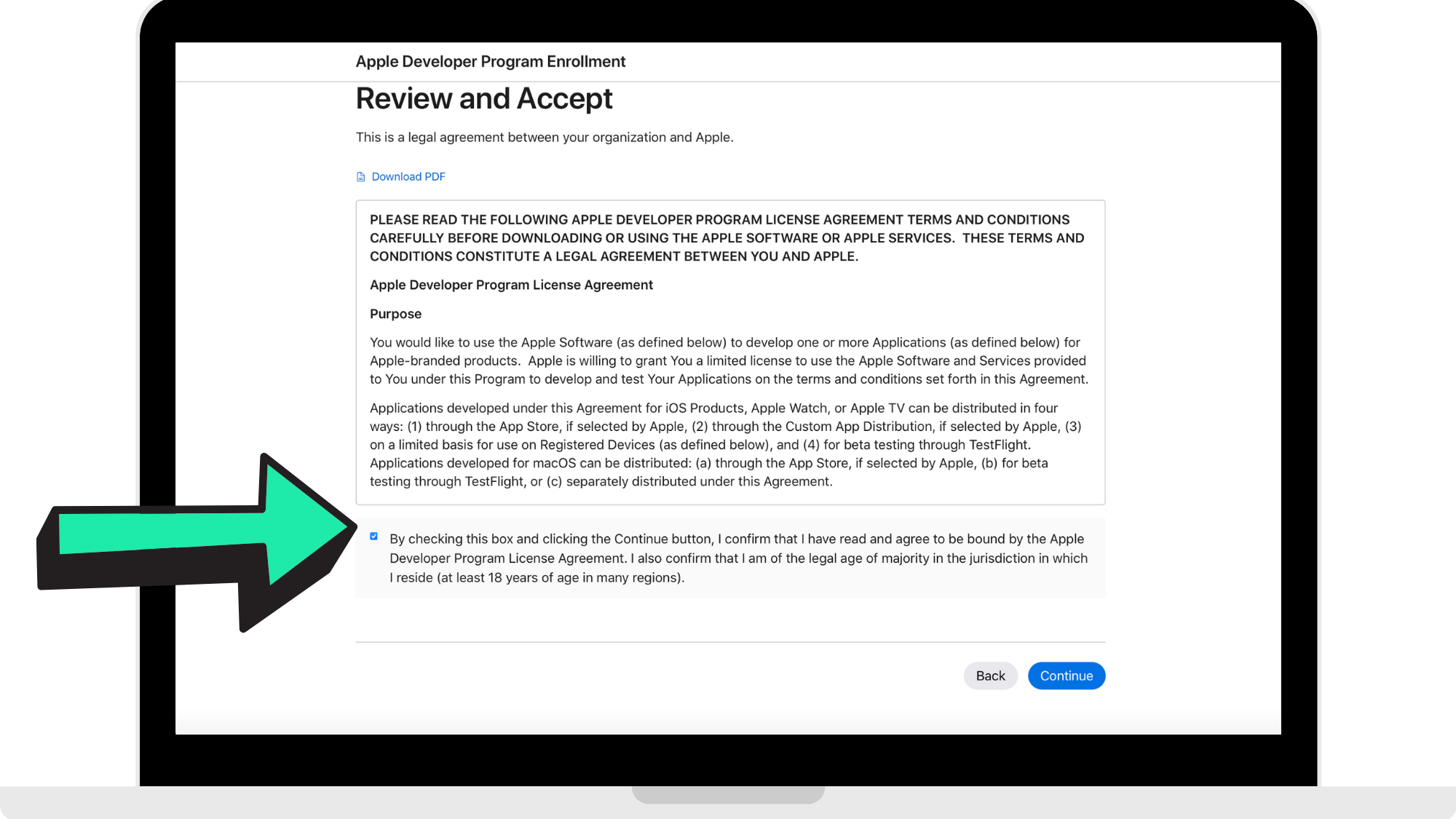
Step 7: Review and accept
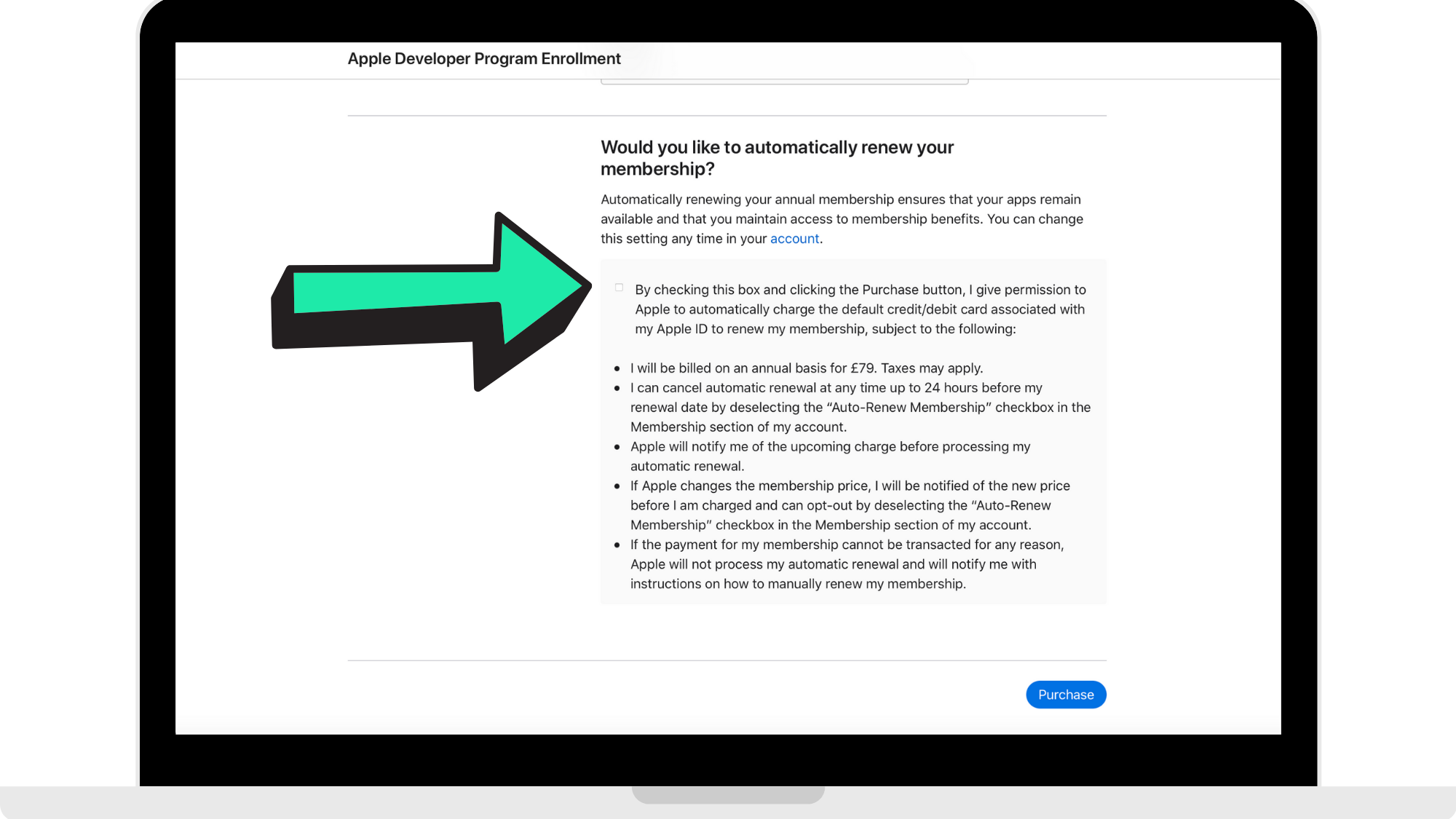
Step 8: Completing your purchase
We recommend to click where the arrow is pointing in the reference picture below to automatically renew your membership. This means that your app will remain available and you will be billed on an annual basis. You can go back and change this at any time.
Step 9: Sign back in and pay
You will be required to sign back into your Apple Developer account before completing your purchase. Once signed back in, your page should look like the reference picture below, and you can complete your purchase.
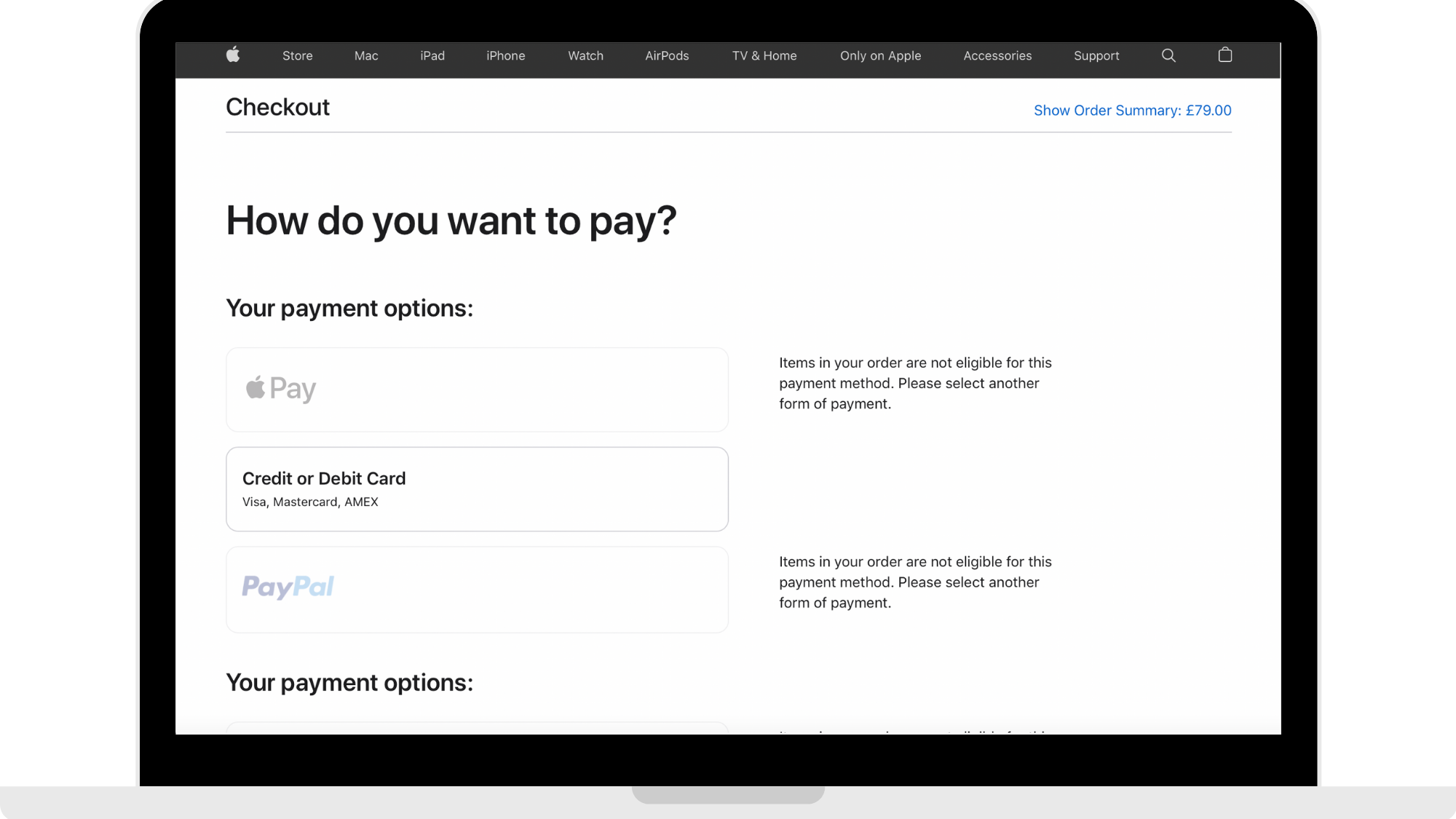
Now that you have completed the set up and payed, you are done! You may receive an email from Apple requesting you to upload your government ID.
You will receive a receipt from Apple from your Developer membership and then a separate confirmation email within 24-48 hours with confirmation of your Developer account. Please note that all emails from Apple will come to the Apple ID email address used to create the developer account.
Step 10: Invite Hype Burst to your Developer account
1. Start by logging in to your developer account at https://appstoreconnect.apple.com/login
2. Click on Users & Access
3. Click the (+) symbol
4. Invite hello@hype-burst.com as an "Admin" and please ensure the box under Developer Resources is ticked (Access to Certificates, Identifiers & Profiles).
Step 11: Enter Apple Developer log in information into Asana
1. Head to Asana at https://app.asana.com.
2. Click on project 'Setting Up Hype Burst'
3. Head to the task named 'Create Apple Developer Account' which can be found under section 'Create Third Party Accounts'.
4. Go to the comments section and enter the Apple ID and Password that is assigned to your Apple Developer account and press 'Comment' when done.
Step 12: Add Hype Burst mobile number to your Apple ID
Once you have created your Apple Developer account, add the Hype Burst mobile number to your Apple ID.
To read the guide on how to add the Hype Burst mobile number to your Apple ID, click here: https://hypeburst.zendesk.com/hc/en-gb/articles/4416132074641-Add-Hype-Burst-Mobile-Number-To-Your-Apple-ID.
How to get started
Head to https://developer.apple.com/programs/enroll/ and click 'Start Your Enrollment' to get started in creating your Apple Developer account.
Comments
0 comments
Please sign in to leave a comment.